You know what’s the most annoying thing about modern smartphones? It’s not battery life, not the camera, not even the price. It’s when a phone that was blasting at full volume just yesterday suddenly starts whispering. You turn the volume up to maximum, but you can still barely hear the person on the other end. Or your alarm turns from a reliable way to wake up into a risk of being late for work. Almost everyone has faced this problem sooner or later, and there are far more causes than you might think at first glance. There can be settings issues, dirt in the speaker, and even the latest system update to blame. Let’s go through it step by step — why this happens and what you can do about it.
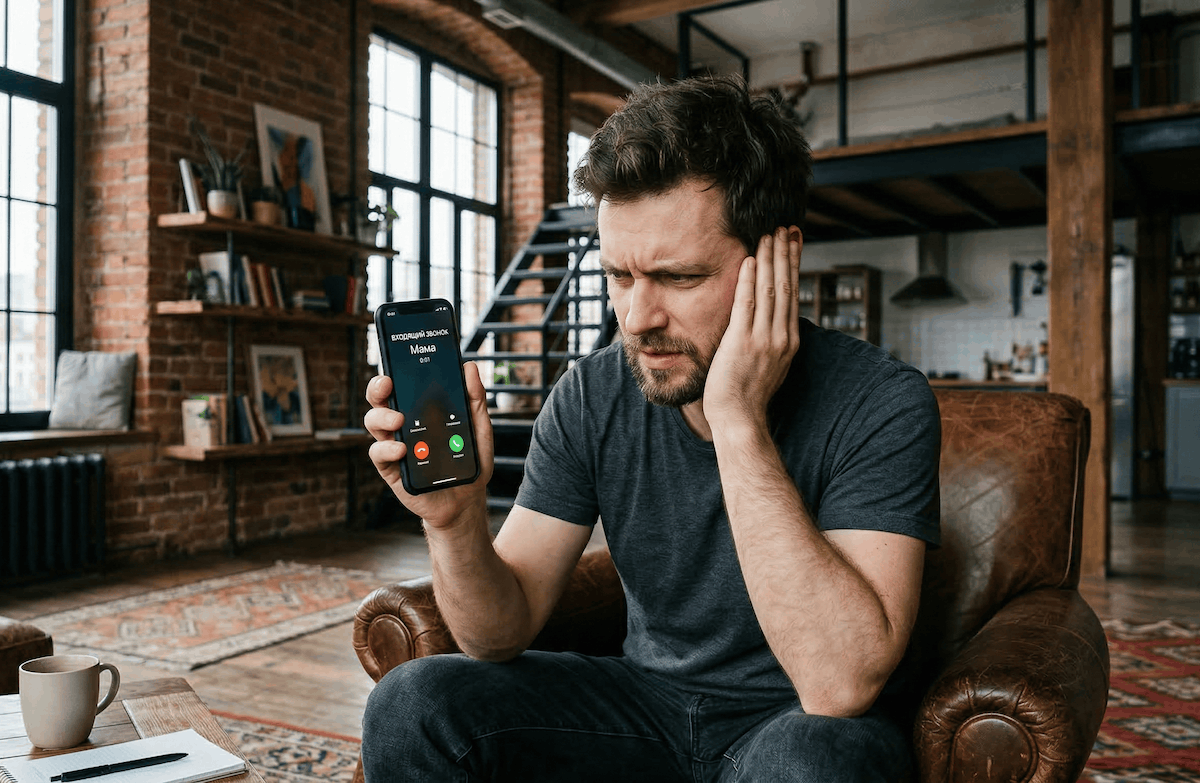
Sometimes your phone’s sound gets quieter, but not everyone knows why.
Quiet Phone Sound: The Most Common Causes
If the sound didn’t drop suddenly but rather gradually, the first thing to check is the most basic stuff. The first and most obvious — check if “Do Not Disturb” mode is turned on. It sounds trivial, but it’s worth checking. On Android, it can activate on a schedule, and you might not even know that you set it up yourself at some point. In this mode, the system mutes notifications, calls, and media, and it does so selectively. Sometimes sound seems to be there, but noticeably quieter than usual. Go to sound settings and make sure the mode is turned off.
Second — look at the volume sliders. There are several of them in Android, and this is a separate pain point. There’s media volume, ringtone volume, notification volume, and alarm volume. When you press the volume button on the side, only one of them changes by default. Press the volume button, then tap the three dots or arrow next to the slider, and all four will appear. Make sure each one is set to the level you need. I’ve personally been in situations multiple times where media was at maximum, but the ringtone was set to minimum.
Phone Speaker Clogged with Dirt: How to Clean It Properly
Now this is a cause many people forget about. The earpiece speaker at the top of the smartphone is a tiny slit that over months of use gets clogged with dust, lint from pockets, skin oils, and basically everything imaginable. The main speaker on the bottom edge isn’t immune either, especially if you often carry your phone in your pocket.
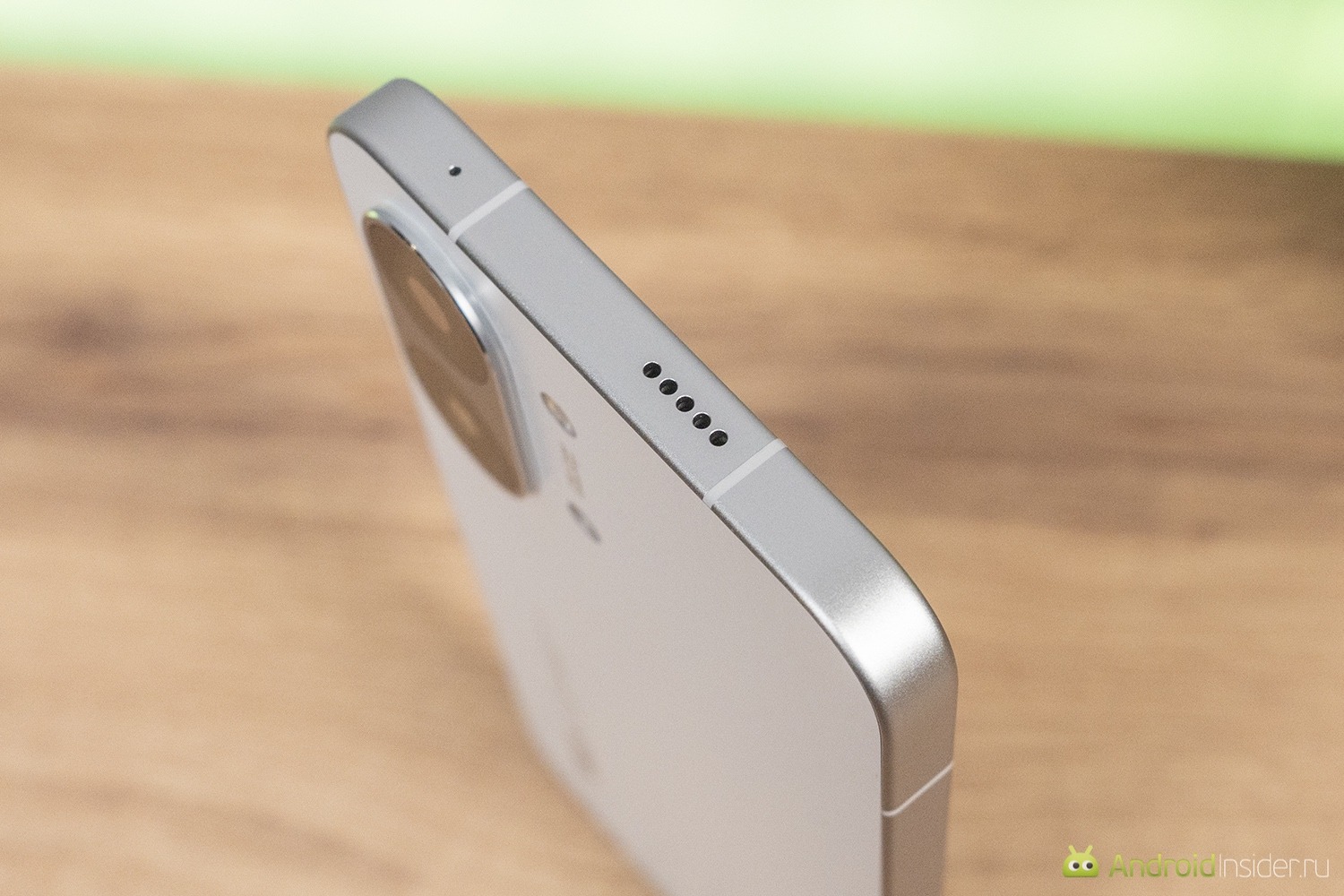
Only a new speaker is perfectly clean. Put it in your pocket a couple of times and the situation can change drastically.
You can clean it, but carefully. Take a dry toothbrush with soft bristles and gently brush over the speaker grille without pressing hard. You can use painter’s tape, pressing the sticky side against the opening. Some suggest blowing it with compressed air, but I’d be careful here because too strong a stream can push the dirt even deeper. Cotton swabs also work, but make sure cotton fibers don’t get stuck in the slit. In practice, after this simple procedure, the sound often returns to normal levels. If not, any service center can help you.
Sound Got Quieter After an Android Update: Why and What to Do
This is a separate category of problems that raises the most questions. You updated your system, and the phone started sounding different — quieter, more muffled, or just somehow off. And no, you’re not imagining it.
The thing is that manufacturers often change audio processing algorithms with updates. Sometimes this is related to power consumption optimization, sometimes to new audio drivers, and sometimes it’s simply a firmware bug. Samsung, Xiaomi, realme — nobody is immune to this. If the problem appeared right after an update, first restart your phone. It sounds primitive, but after an update, system services don’t always restart correctly, and a reboot really helps.
If that didn’t help, go to sound settings and look for options like “Sound quality and effects”, “Dolby Atmos,” or “Adaptive sound.” After an update, these settings may reset or, conversely, activate. For example, on Samsung, the “Adaptive sound” feature adjusts volume based on ambient noise, and in a quiet room, it may intentionally lower the speaker output. Try turning off all sound enhancements and compare the results. Honestly, in most cases, the sound is cleaner and louder without these “enhancers.”
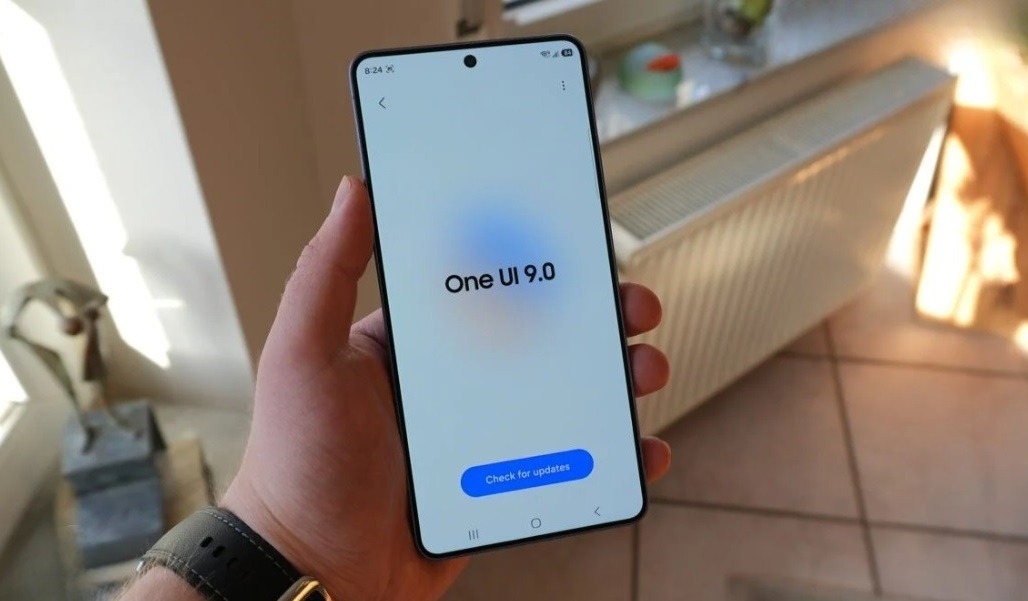
Sometimes a simple update can significantly reduce your smartphone’s volume. Image: sammobile
Phone Rings Quietly: Which Settings to Check
If the problem is specifically with calls rather than music or video, then the list of suspects narrows down. Besides the obvious ringtone volume slider, there are several settings that can affect how loudly your phone rings.
Many Android smartphones have a gradual ringtone volume increase feature. It’s enabled by default and works like this: for the first few seconds of an incoming call, the phone rings quietly and then gradually increases in volume. The idea is good — so as not to startle you with a sudden loud sound. But if you’re used to grabbing the phone immediately, you might not wait for full volume, while easily missing a call when the phone is in your bag. Look for this setting in the “Sounds and vibration” section or in the Phone app settings.
Another thing — Bluetooth. If your phone was previously connected to wireless earbuds or a speaker, it may try to send audio to that device even if it’s turned off. As a result, you either hear nothing from the phone’s speaker or the sound is noticeably quieter. Check the list of connected Bluetooth devices and disconnect the ones you’re not currently using. I’ve personally caught this situation several times with earbuds lying outside their case, where they would normally auto-disconnect.
Quiet Sound in Headphones on Your Phone: What’s the Cause
If the problem appears specifically in headphones while the speaker plays fine, the causes are different. And it all depends on whether you have wired or wireless headphones.
With wired ones, it’s relatively simple. Check the jack — if you’re using a USB-C to 3.5mm adapter, it might be low-quality or damaged. Cheap adapters without a built-in DAC produce noticeably quieter sound, and there’s nothing you can do about it. Also check the phone’s port itself — dust and lint accumulate there too, making the connection worse.
With wireless headphones, it’s more interesting. First, Android has a separate volume slider for Bluetooth, and it might not be at maximum. Second, in developer settings, you can choose an audio codec. If SBC is selected instead of aptX or LDAC, the quality and volume may differ.
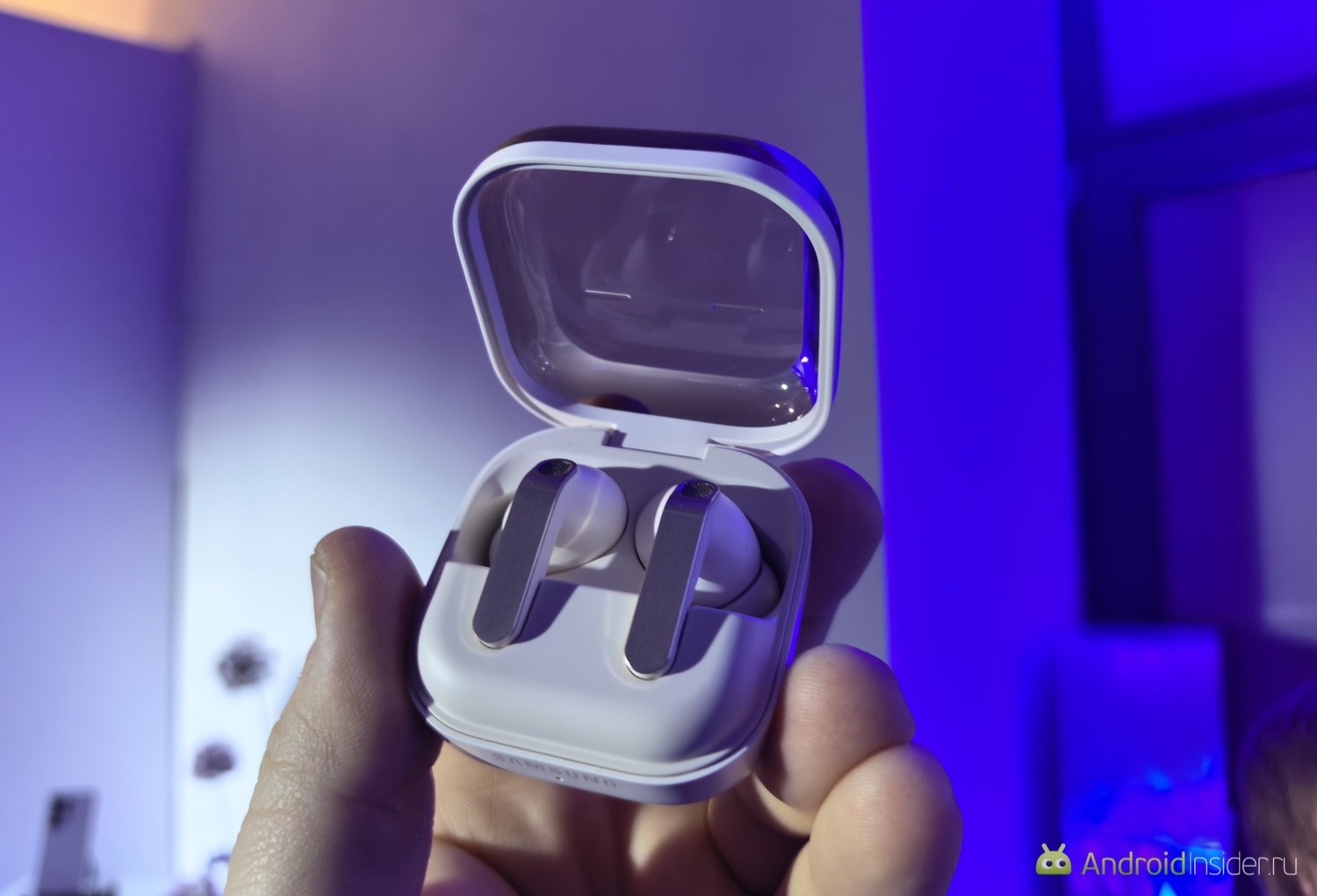
Headphone sound can get quieter not only because of the headphones themselves but also because of the phone.
Third, the headphones themselves may have their own volume control through a proprietary app, and it might be set too low. Honestly, figuring out Bluetooth audio on Android can be tricky because there are too many variables. But if you go through all these points, you can usually find a solution to the problem.
An App Is Muting Your Phone’s Sound: How to Fix It
Not the most obvious cause, but a very real one. Some apps can take over audio control and change the system volume without your knowledge. Most often, this is done by messengers, call recording apps, and various system “optimizers.”
For example, Telegram has its own notification and call volume settings that are independent of system settings. If the volume in the messenger settings is at minimum, you’ll barely hear incoming messages even if the system slider is at maximum. Check the sound settings inside each app where you’ve noticed the problem. In practice, this helps more often than you’d think.
A separate story — apps you installed to improve sound. Various equalizers, bass boosters, and “200% volume” tools. They can conflict with each other and with the system’s audio processing, resulting in quieter or distorted sound instead of improvement. If you have any such apps installed, try disabling or uninstalling them and check if the situation improves.