Every time the phone slows down a bit or the battery starts draining faster than usual, the first thing many people do is open the task list and swipe everything away: removed the extras — the phone breathes again. But Android is designed differently, and this habit can actually work against you. While some people manually clear memory every half hour, others have already figured out the right settings — and their phones run faster without unnecessary effort. Let’s figure out whether you need to close apps on Android.
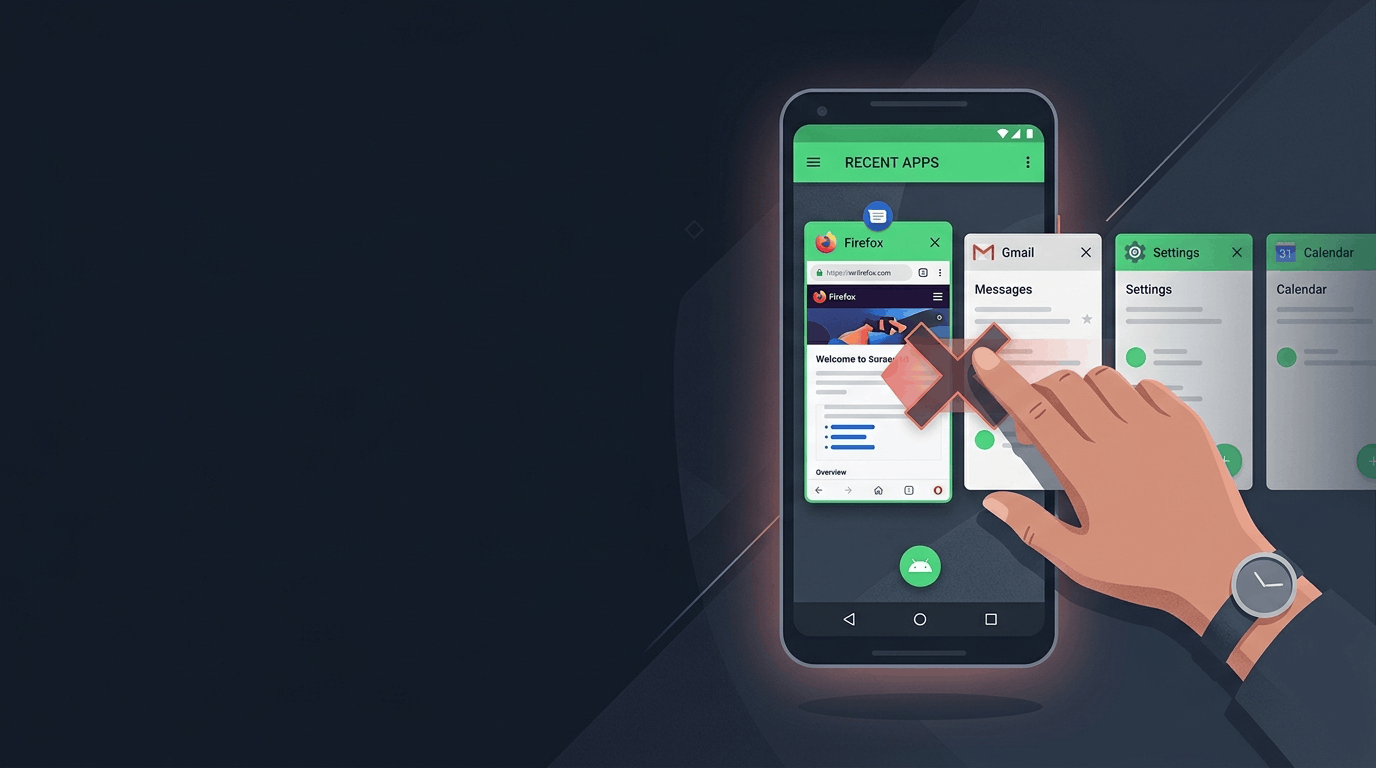
The habit of swiping away all apps seems useful — but it actually works against you
This habit didn’t appear out of nowhere. Early smartphones had 256 MB of RAM — and that was considered normal. A running app would literally “eat up” all available space, the device would start lagging and overheating. Closing the extras genuinely sped things up. But now phones have 8, 12, or even 16 GB of RAM. Everything has changed, but the reflex remains.
How Android Manages Memory
When you minimize an app, it doesn’t continue running — it transitions into a cached background process. The system freezes it: it uses neither battery nor processor power. The app simply sits in RAM, ready for a quick relaunch.
If memory runs low, Android itself unloads the least needed and rarely used apps — without your involvement. That’s exactly why the system has a built-in manager that constantly prioritizes processes. RAM management on Android happens automatically, and there’s no need to interfere with this process.
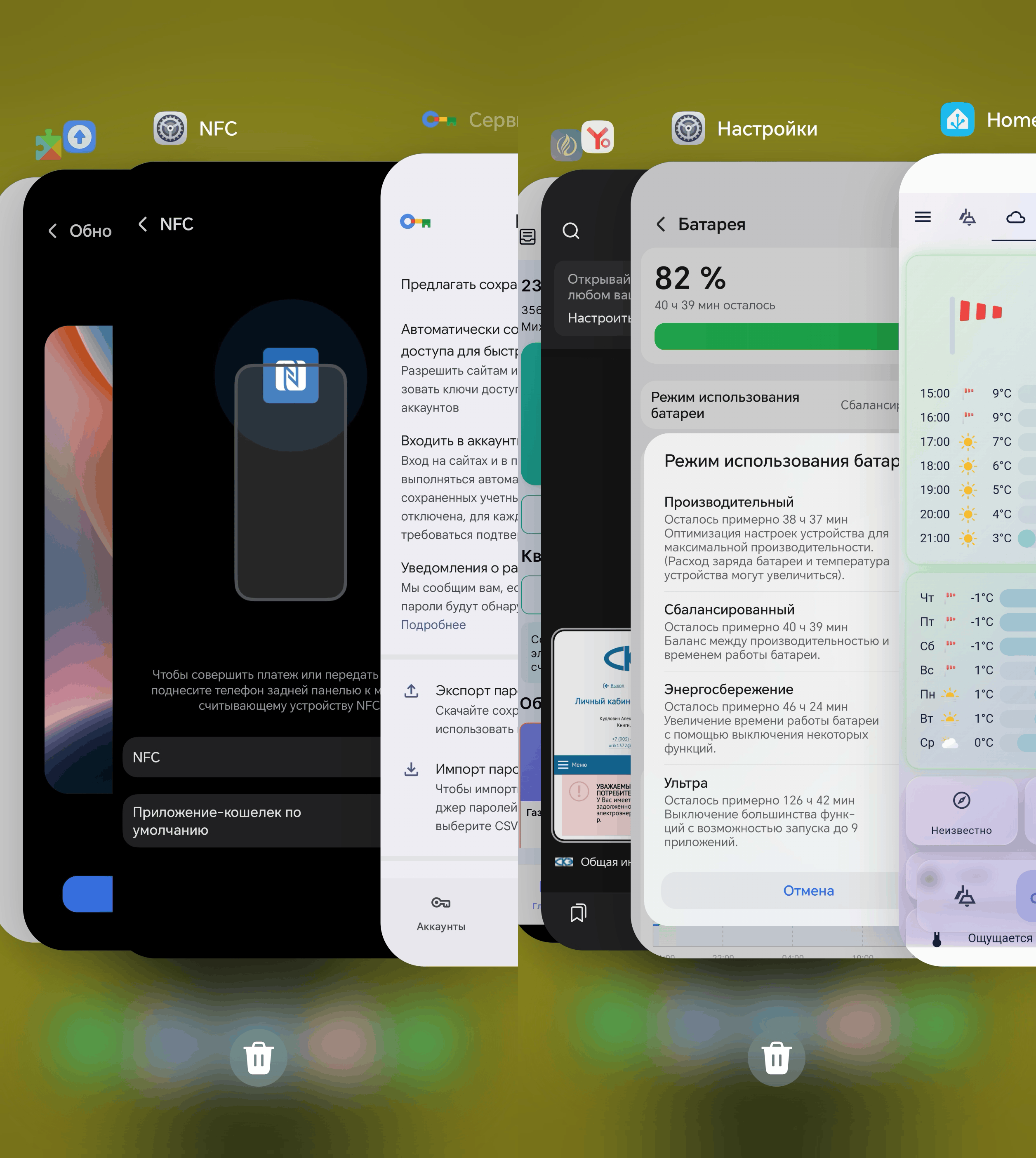
Android decides on its own what to keep in memory and what to unload — and it does this better than a human
Even Google directly states in its official documentation: if you don’t close unused apps, your smartphone won’t run out of memory, and the battery won’t drain faster. The system handles it on its own.
Why Closing Apps Drains Battery
Here’s the most interesting part. Android’s developer documentation describes three types of app launches:
- Cold start — the app opens from scratch, all components are loaded. This uses the maximum amount of resources and battery.
- Warm start — restoration from a minimized state. Some data is already in memory, so the launch is faster.
- Hot start — the app is fully in memory, opens instantly, with almost no CPU resource usage.
In other words, every time you manually swipe an app from the task list, you forcibly put it into cold start mode. This means the next time you open it, your smartphone will spend more energy than if the app had simply remained frozen in memory. It’s like turning off your car engine every 100 meters and starting it again — you use more fuel.
Manually closing background apps doesn't save battery — it drains it. On the next launch, the system will reload everything from scratch, and that requires more resources than simply "unfreezing" the cache.
Which Apps Can You Close on Android
Force-stopping apps on Android sometimes makes sense, but only in a few situations.
The app is frozen or behaving strangely. If an app isn’t responding, is lagging, or showing errors — close it and restart. This is useful and works.
The app is clearly draining the battery. Go to “Settings” — “Battery” — “Battery usage” and see what’s at the top. If an app is consuming a disproportionate amount of power even though you haven’t been using it — it’s worth investigating. And it’s better not to just close it, but to restrict its background activity in the settings.
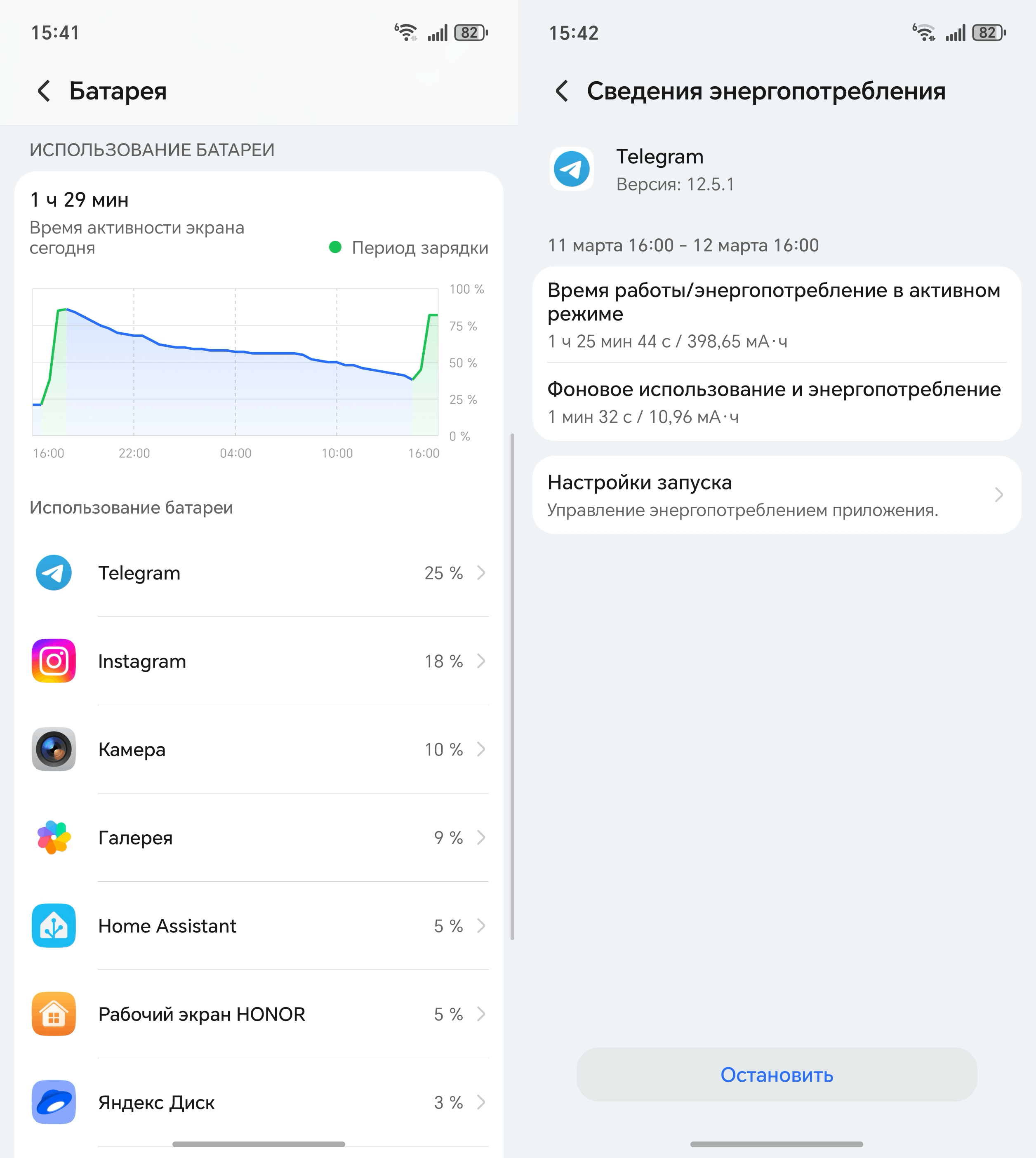
The “Battery” section in settings will show who’s really to blame for fast draining
But with messengers, banking apps, and navigation apps, the situation is different: they intentionally run in the background so you receive notifications and don’t have to wait for loading. Close them — and you’ll miss a message or lose your track in the navigator. The same goes for music playback apps.
Should You Clear RAM on Android
No. Clearing RAM on Android is exactly what the system does without you. When memory starts running low, Android automatically unloads the least used apps. Occupied RAM isn’t a problem — it’s normal. Free RAM, on the contrary, is in a sense “sitting idle” for nothing.
You should only worry if your smartphone has very little memory — 3–4 GB. In that case, the system more aggressively unloads apps, and when you return to the browser, tabs reload. This isn’t a virus or a malfunction — the device simply can’t handle it. And, by the way, along with a small amount of RAM usually comes equally little storage. So if you want to figure out where your space is going, it’s worth looking into how to increase storage on Android using simple methods. That will be no less useful than trying to save RAM.
Should You Use Memory Cleaning Apps
Third-party memory cleaning apps for Android — “boosters,” “optimizers,” and “cleaners” — do exactly what we’ve already discussed: they forcibly unload apps from memory. After that, the phone shows a pretty number like “freed 1.2 GB,” and then when opening any app, it spends extra energy on a restart.
Worse still: some of these “optimizers” constantly run in the background themselves. So you’re fighting background apps with another background app. Google knows this and has been blocking such programs in the Play Store or limiting their capabilities in newer versions of Android for several years now. Android optimization without third-party tools works better today than with them.
How to Save Battery on Android
Instead of closing everything — go to battery settings and restrict the background activity of specific “power-hungry” apps. Or turn on power saving mode: it will limit unnecessary processes on its own without touching notifications from important apps.
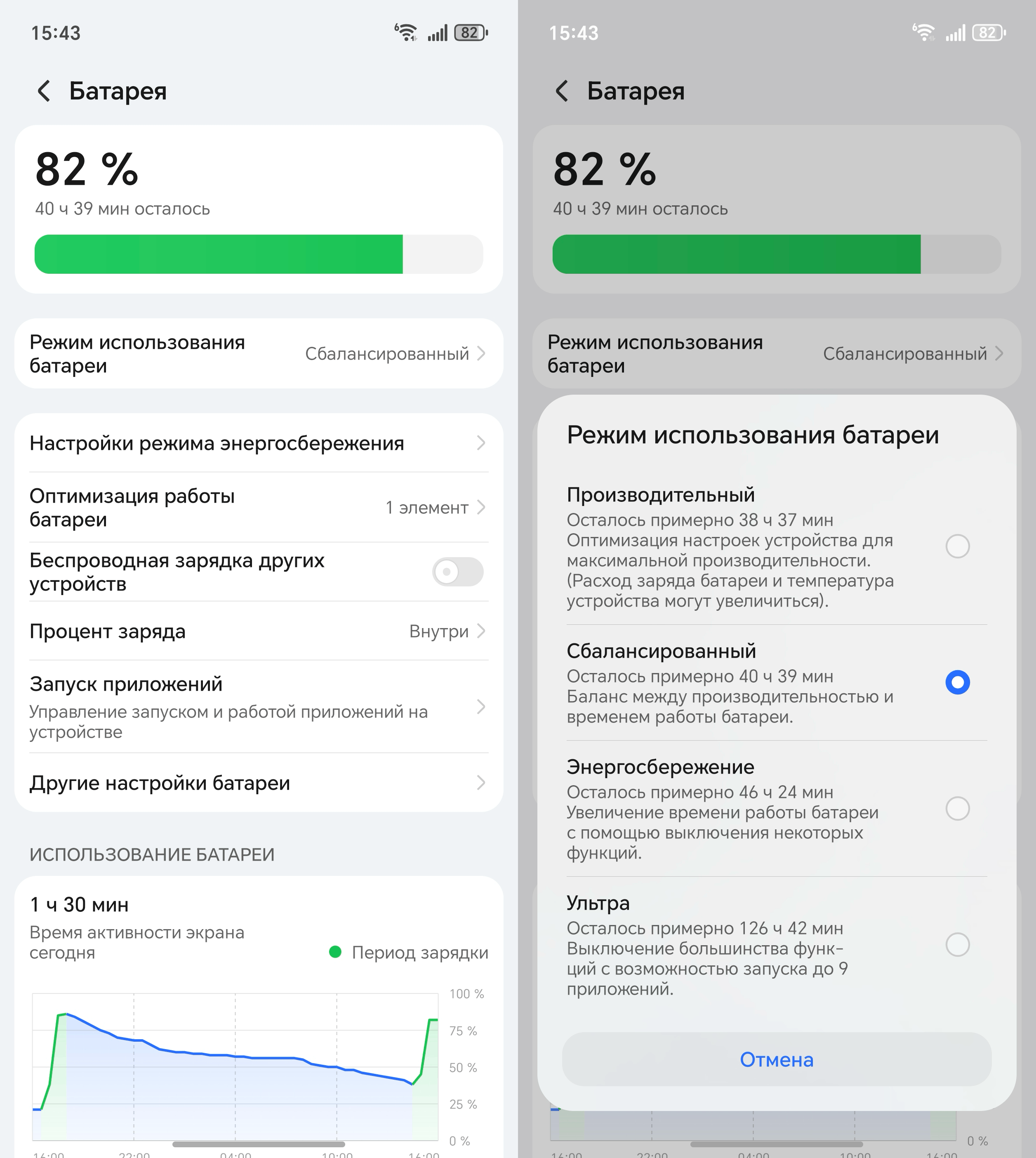
The standard power saving mode is more effective than any “cleaner” — it knows exactly what needs to be restricted