TV sound out of sync? 5 settings that will instantly fix audio delay
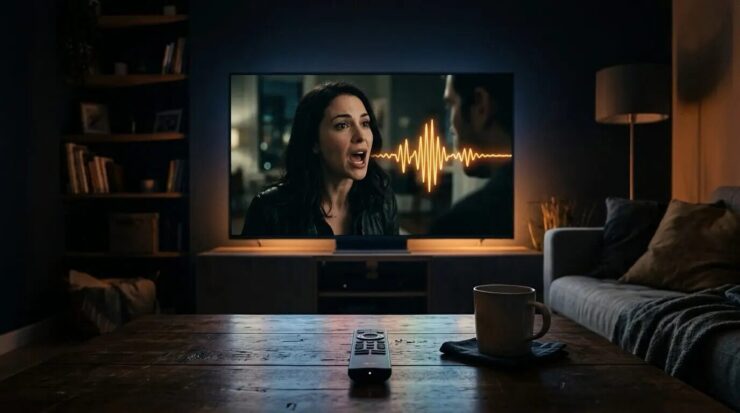
You turn on your favorite movie, get comfortable, and then you notice: the actor’s lips are already moving, but the voice comes with a noticeable delay. Or the opposite — the line sounds before the character opens their mouth. A minor thing? Not really. Audio and video desynchronization can ruin the experience of any content, whether it’s a movie, a TV series, or an online game. The good news is that in most cases, the problem can be solved with a couple of changes in your TV settings.
Why TV Sound Lags Behind the Picture or Gets Ahead of It
The reason for desync is almost always the same: video and audio are processed at different speeds. The TV receives both streams simultaneously, but decoding and outputting them takes different amounts of time. Sometimes the audio processor handles it faster — then the sound arrives before the picture. Sometimes it’s the other way around: the video processor delivers the image first, and the sound lags behind.
In practice, there are several causes: a connected soundbar that adds its own delay, an enabled game mode, complex sound profiles, or simply conflicting settings that have accumulated over months of use. Simply put, the more “smart” processing is enabled, the higher the chance that desync will appear somewhere.
Most synchronization problems can be solved right in the TV menu — without buying new equipment. Below are five specific scenarios and settings that will help bring sound and picture back into harmony.
What to Do If Sound Arrives Before Video
If you hear a line before the actor opens their mouth, it means audio is being processed faster than the picture. This is the most common scenario, and it has the most straightforward solution.
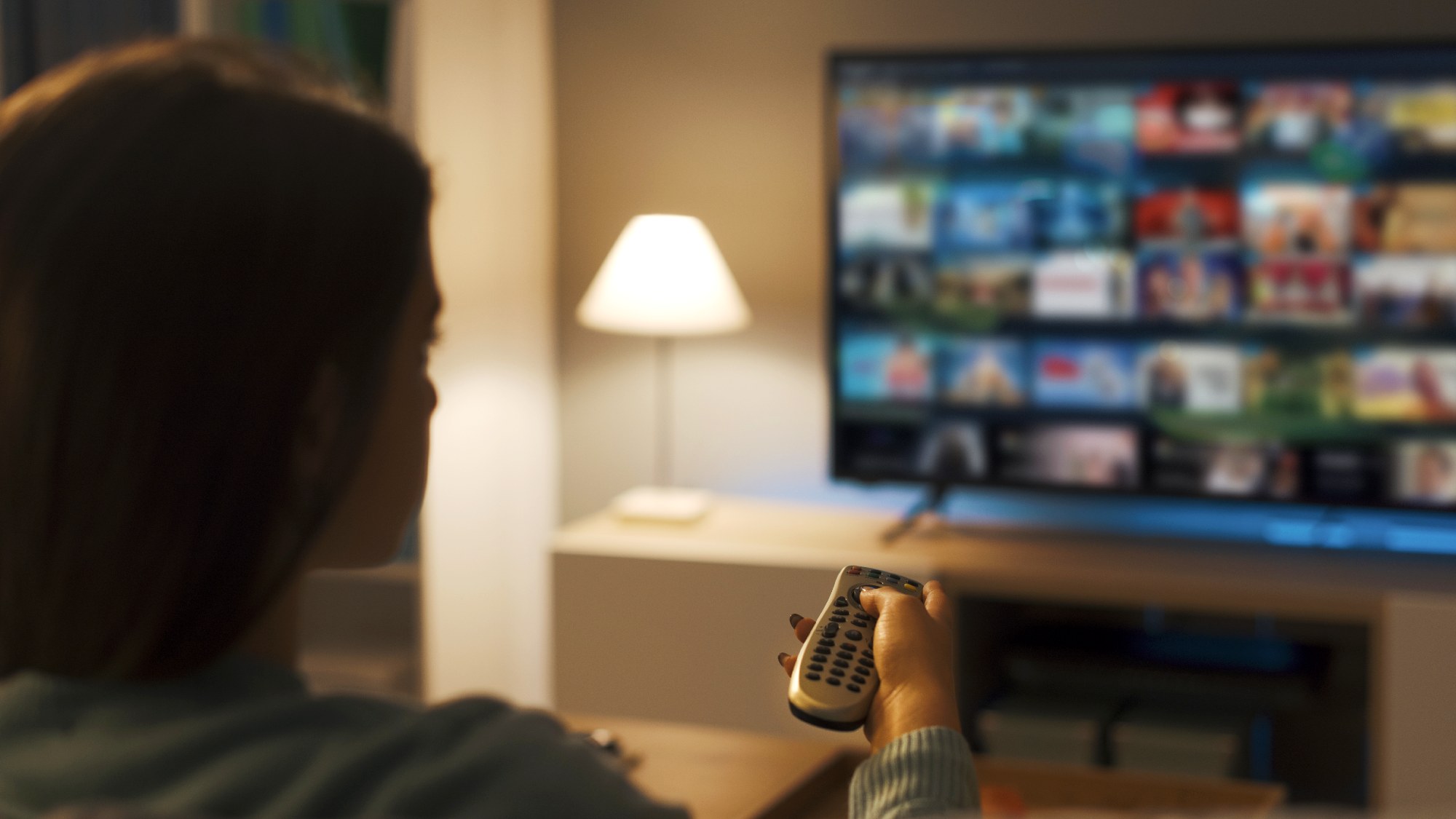
When sound gets ahead of the picture, it creates a strange “reverse dubbing” effect — and it’s much more annoying than you’d think
Open your sound settings and find the Audio Delay option (it may also be called AV Sync). This function artificially delays the audio stream so it matches the video. Start with a small value — say, 20-30 milliseconds — and gradually increase it until the lips and sound match. This approach doesn’t affect sound quality and doesn’t touch other parameters, so it’s the best first step.
The thing is, this parameter was created specifically for situations like this. It works as a “handbrake” for audio — it simply slows down the sound by exactly as much as needed.
What to Do If Sound Lags Behind Video
The opposite situation — lips are moving, but the voice comes with a noticeable delay. Here the audio processor is working slower than the video processor.
First, check whether a positive value is already set in the audio delay setting. Open the sound settings, find Audio Delay or AV Sync, and if there’s a positive number there, reset it to zero.
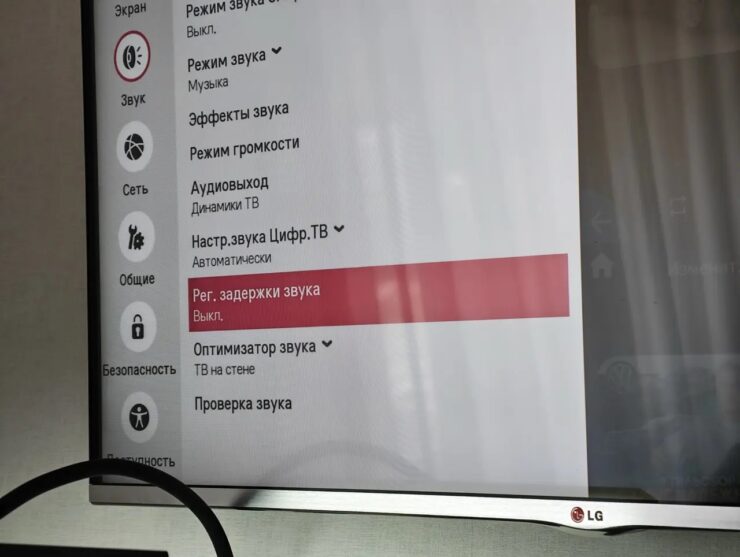
Here’s the very setting that will fix the desync problem
If the delay persists at zero, the problem is most likely in the sound mode:
- Go to sound settings
- Find the Sound Mode option
- If you have one of the preset profiles selected — Cinema, Sports, or Music — switch to Standard
These profiles add additional processing that can create delay.
If the standard profile didn’t help, try other modes one by one. As a last resort, check your TV’s manual — it usually has synchronization recommendations for your specific model.
How to Fix Audio Delay After Connecting a Soundbar
A classic scenario: you connected a soundbar, and the sound went off. If the desync appeared right after adding an external audio system, the cause is almost certainly the digital audio output format.
By default, many TVs send sound to the soundbar in Auto or Bitstream format. In this case, the soundbar handles decoding the signal, and this takes additional time. The solution is to shift decoding to the TV:
- Open the sound settings
- Find the Digital Audio Output option (also called Digital Sound Out or HDMI Audio Format)
- Switch it from Auto or Bitstream to PCM (Pulse Code Modulation)
After that, check whether the delay has disappeared.
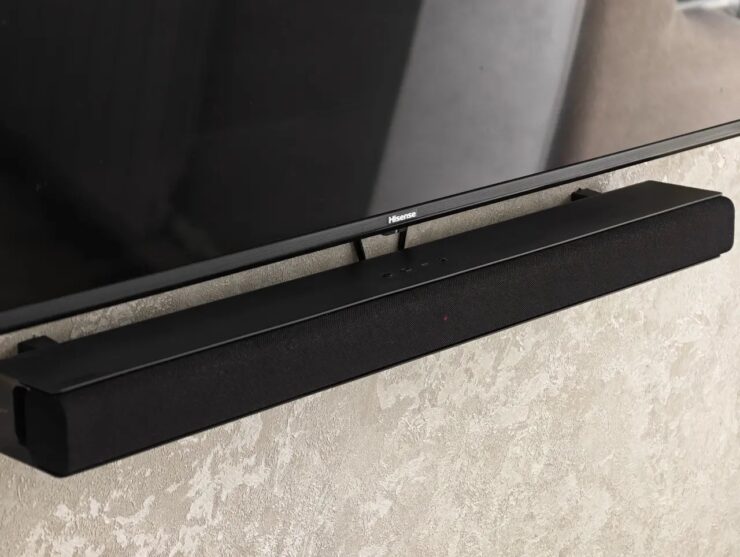
A soundbar can improve sound dramatically, but sometimes adds a few dozen milliseconds of delay — and suddenly dialogues look like bad dubbing
But there’s a caveat. PCM limits sound to two-channel stereo, meaning you’ll lose surround sound and effects like Dolby Atmos if your soundbar supports them. For dialogue-heavy movies, improved synchronization is usually worth this sacrifice. For large-scale action films where surround sound matters, perhaps not.
By the way, if the soundbar itself has audio delay settings, try adjusting those first — before changing the audio output format on the TV.
Why Sound Gets Desynchronized in Games
If audio delay only occurs during games, the culprit is almost certainly Game Mode — a special picture mode that reduces input lag (the delay between pressing a button and the action on screen).
How does it work? It disables complex video processing, so the picture appears on screen faster. But the audio processor continues working at its normal pace. As a result, video “runs ahead” while sound stays behind.
Open picture settings and find Game Mode. If it's enabled, try turning it off and checking synchronization. If it's off — turn it on and test.
For gamers, this mode should ideally be enabled to minimize input lag. However, if it creates sound synchronization issues that are more annoying than input delay, you’ll have to choose the lesser of two evils. For watching movies and TV series, it’s better to turn Game Mode off — enable it only for gaming sessions.
What to Do If Audio Delay Won’t Go Away
The most frustrating scenario: desync occurs randomly, in different apps, on different channels and inputs. Today everything is fine, tomorrow the sound is off again. This is a sure sign that settings are conflicting with each other.
Over months and years of using the TV, we change sound modes, tweak delays, experiment with picture settings. Each change is harmless on its own, but in combination they create an unpredictable cocktail.
The solution is radical but effective: reset sound settings to factory defaults. Open the sound settings, then go to the advanced settings section. Find the option Reset, Sound Reset, or Restore Factory Settings. Confirm the reset.
Important note: before resetting, make sure to note down your current settings in case you want to reference them later.