You open MAX, type a message, hit send — and nothing happens. The message hangs with a single checkmark or shows an error outright. It’s doubly frustrating because right now it was important. And the checkmarks in MAX when sending messages are a clear indicator that something went wrong. But why does this even happen in the most heavily advertised messenger? Let’s break down the five most common reasons why MAX doesn’t send messages and what to do about each one.
This problem occurs quite often in MAX
Does MAX Work Without Internet
It sounds obvious, but the internet is to blame in most cases when messages don’t send in MAX. More precisely — its absence. The messenger only works with an active network connection. Without internet, it can’t do anything. And the problem isn’t always obvious: the connection may be formally active but so weak that packets simply don’t reach the server.
Check your connection: open a browser and load any page. If it loads slowly or doesn’t load at all — the problem is right here. Switch between Wi-Fi and mobile data — this often helps in a second. If you have a weak Wi-Fi signal at home, try moving closer to the router or temporarily switching to 4G.
MAX App Crash on Android
If the internet is fine but messages don’t send in the MAX app, it has most likely frozen or accumulated corrupted cache. This is not uncommon after system updates or updates to the messenger itself.
The first step — force close MAX and open it again. If that doesn’t help, clear the cache:
- Go to your smartphone’s “Settings.”
- Navigate to “Apps” and find MAX in the list.
- Tap “Storage,” then tap “Clear cache.”
- Go back to MAX and try sending a message again.
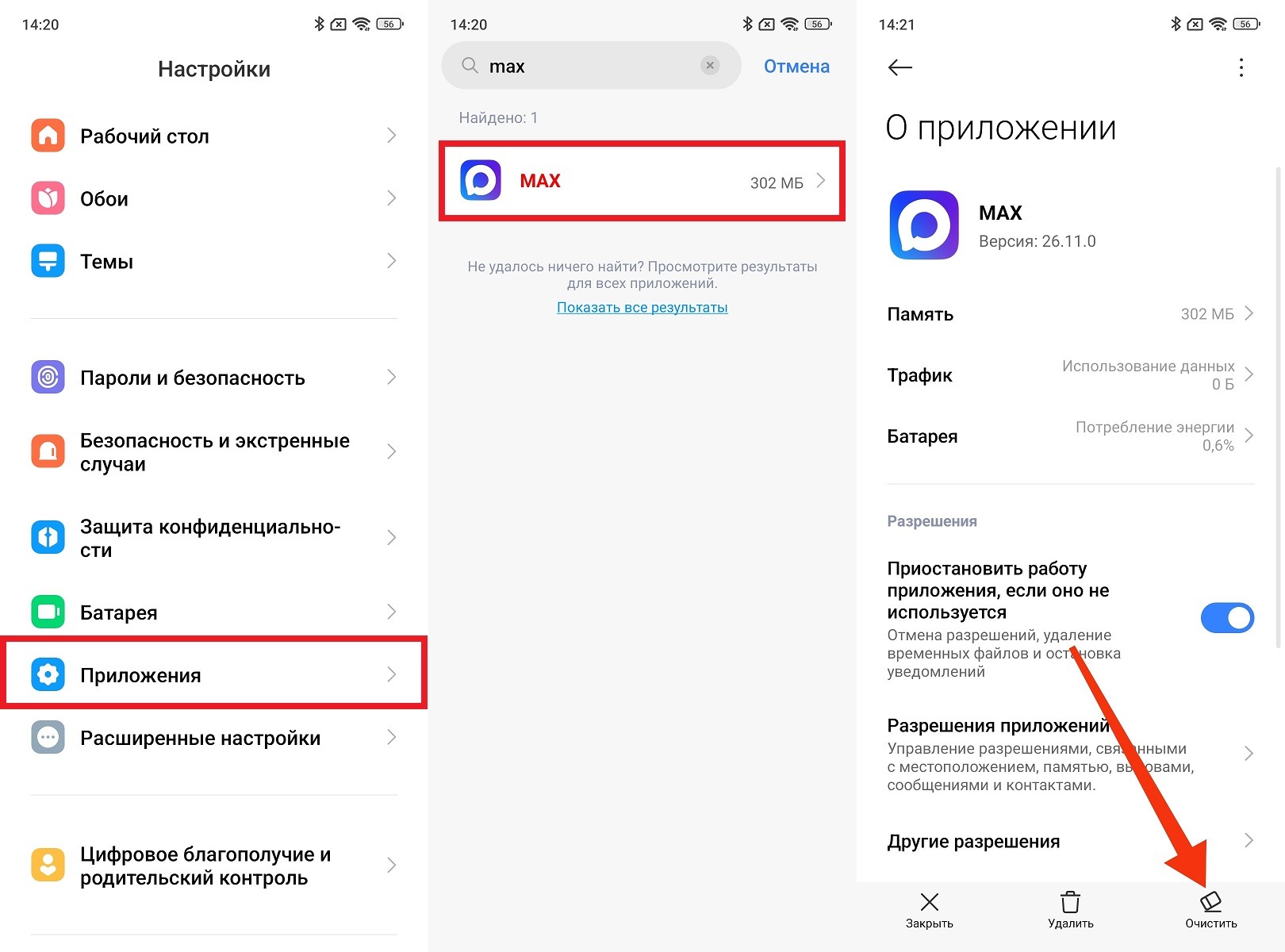
You can’t go without clearing the cache
Clearing the cache doesn’t delete your conversations and doesn’t log you out of your account (data is stored on servers). After this step, messages in MAX start going through normally in most cases.
MAX App Version on Your Phone
The MAX messenger doesn’t send messages — this can happen after a major update that you haven’t installed yet. Developers periodically change data transfer protocols, and the old app version simply stops working correctly with them.
Go to Google Play or RuStore, find MAX, and check if there’s an available update. If there is — install it without delay. You’ll thank yourself later.
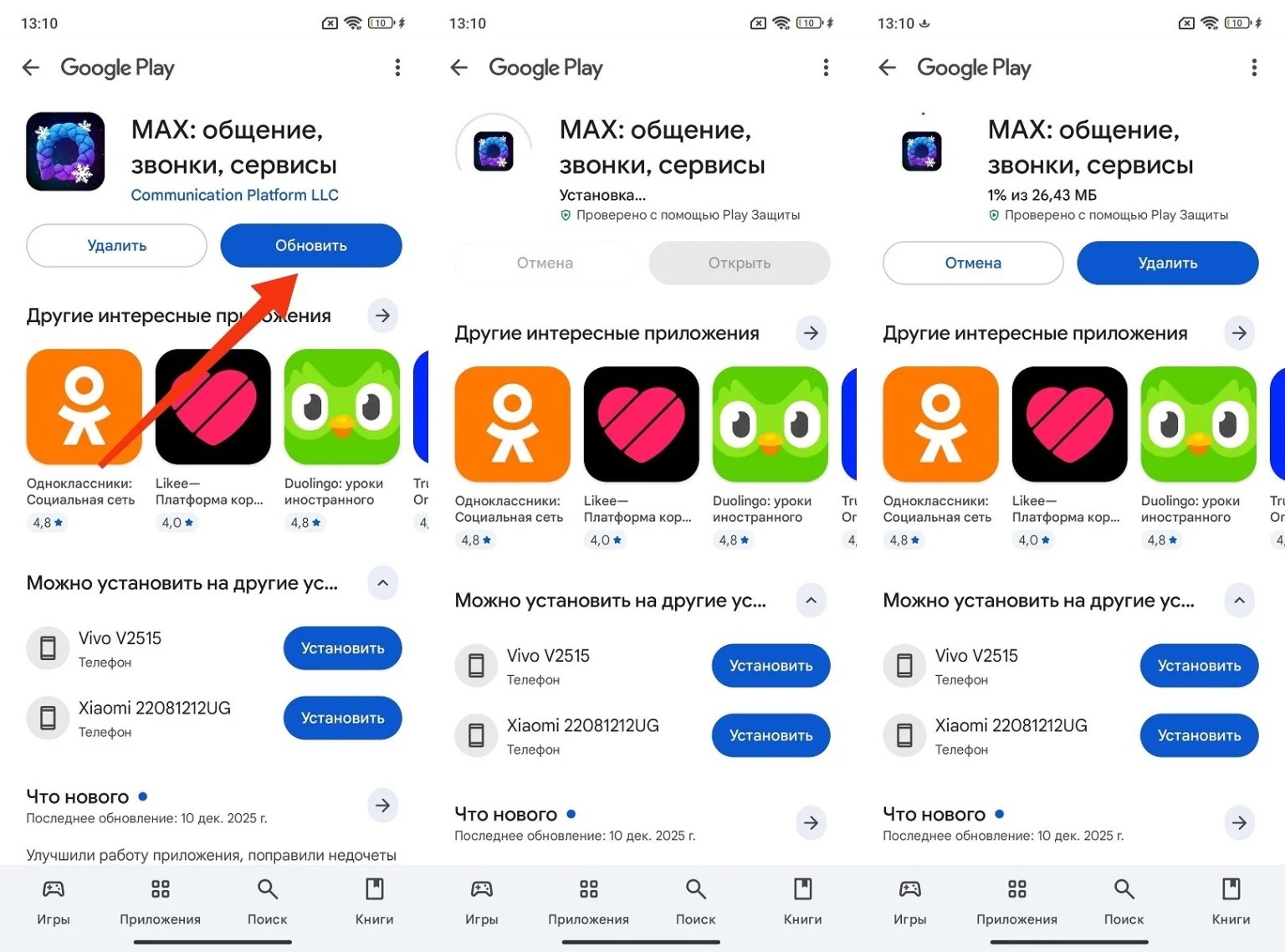
Never ignore MAX updates on Android
The key thing to remember is that the app needs to be kept up to date. This also applies to those who installed MAX via APK: in that case, updates need to be tracked and downloaded manually.
Voice Messages and Photos Not Sending in MAX
A separate situation is when text goes through fine, but voice messages don’t send in MAX, or photos don’t either. This is almost always a permissions issue: the app doesn’t have access to the microphone, camera, or storage.
For voice messages, microphone access is needed; for photos and files — storage access. Check permissions like this:
- Go to “Settings” — “Apps” — MAX.
- Open the “Permissions” section.
- Make sure permissions for microphone, camera, and files are set to “Allow.”
- Go back to MAX and try sending a voice message or photo again.
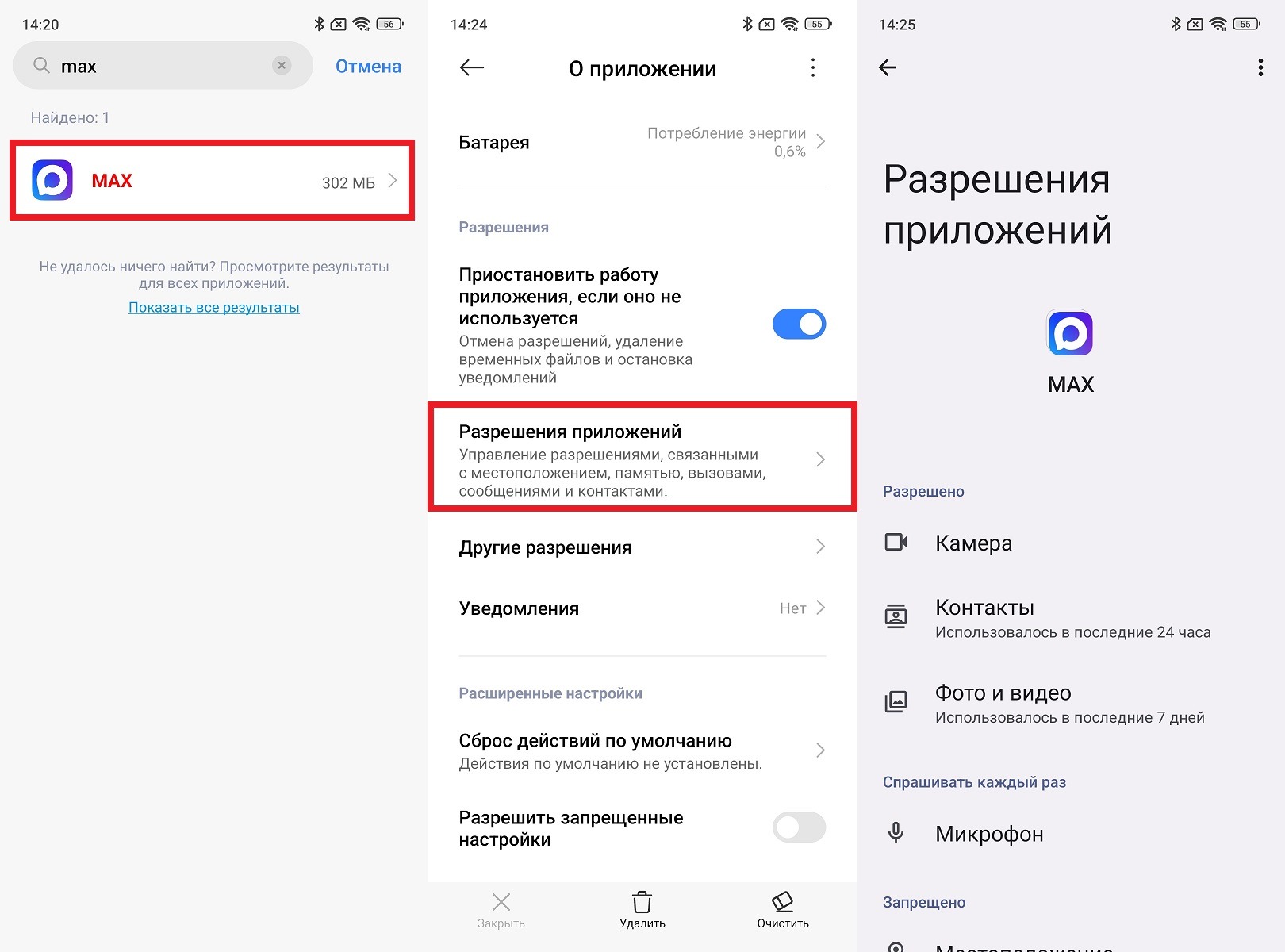
Be sure to check MAX permissions on your phone
If voice messages still don’t send in the MAX app even after granting permissions — try recording a voice message in another app. If the microphone doesn’t work there either, the problem is with the device itself, not MAX. Also, don’t rule out internet connectivity issues.
Major Outage in MAX
If all the previous causes have been ruled out and messages and photos don’t send in MAX only in one specific chat, the issue may be with that chat’s settings or with a server-side problem. It’s possible that the other person has blocked you, deleted their account, or the chat was deleted at the group level.
Check this: try writing to someone else. If messages go through fine in other chats, then the problem is with that specific conversation. Perhaps that person is no longer available on MAX. If messages don’t send in the MAX app anywhere at all — check the MAX server status in the messenger’s official channels: sometimes there are technical issues on the platform side, and all you can do is wait.


