One of the most common complaints after installing the national messenger: MAX doesn’t see contacts from the phone book, even though people are definitely there. You open the corresponding tab and it’s empty or nearly empty. The situation is familiar and unpleasant, especially when you’ve already transferred work chats or agreed with family members to switch to the new messenger. How to add a contact to MAX messenger manually is a separate topic, but first let’s figure out why even saved numbers aren’t being pulled in and what to do about it. Spoiler: in most cases, the problem is solved in a minute, and no complicated steps are required.

Analyzing the contact display problem in MAX
Why MAX Doesn’t See Contacts
The main reason why the MAX app doesn’t see contacts is one: the messenger doesn’t have permission to access the phone book. Without it, the app physically cannot read the list of numbers on the device. This is a standard Android restriction that protects user data from software that hasn’t received explicit consent. The permission may not have been granted for several reasons:
- First: when MAX was first launched, a request for contact access appeared, and the user tapped “Deny” (accidentally or intentionally).
- Second: the smartphone has strict privacy settings that block new apps’ access to contacts by default.
- Third: after an app update, the permission was reset (this also happens).
In any of these cases, the solution is the same: grant the permission manually.
Why Not All Contacts Appear in MAX
This is a different situation. MAX doesn’t show all contacts not because there’s no access, but because some people from the phone book simply aren’t registered in the messenger. The messenger only shows those who have already created an account — meaning they installed the app and completed registration with their phone number.
If a person is in the phone book but their contact isn’t visible in MAX, it means they either haven’t installed the app or registered under a different number that you don’t have saved. This isn’t a bug or glitch: this is how the messenger’s logic works. The solution in this case is one: invite the person to MAX, which we’ll cover in the last section.
Another important point: not all contacts in MAX may be displayed if another user has privacy settings that restrict search by phone number. In this case, the person is in the state messenger, but finding them through the general list won’t work: they need to message you first or share a link to their profile.
How to Sync Contacts in MAX
There are two ways to grant the app access to contacts: directly through MAX or through the smartphone settings. Both options lead to the same result but work slightly differently.
Method 1. Through the MAX app itself:
- Open MAX and go to the “Contacts” tab in the bottom menu.
- If access hasn’t been granted, the app will offer to request it: a screen with an “Allow access” button or similar will appear.
- Tap the button. The system will show the standard Android dialog with a permission request.
- Select “Allow.”
- Return to the “Contacts” tab: the list will update automatically.
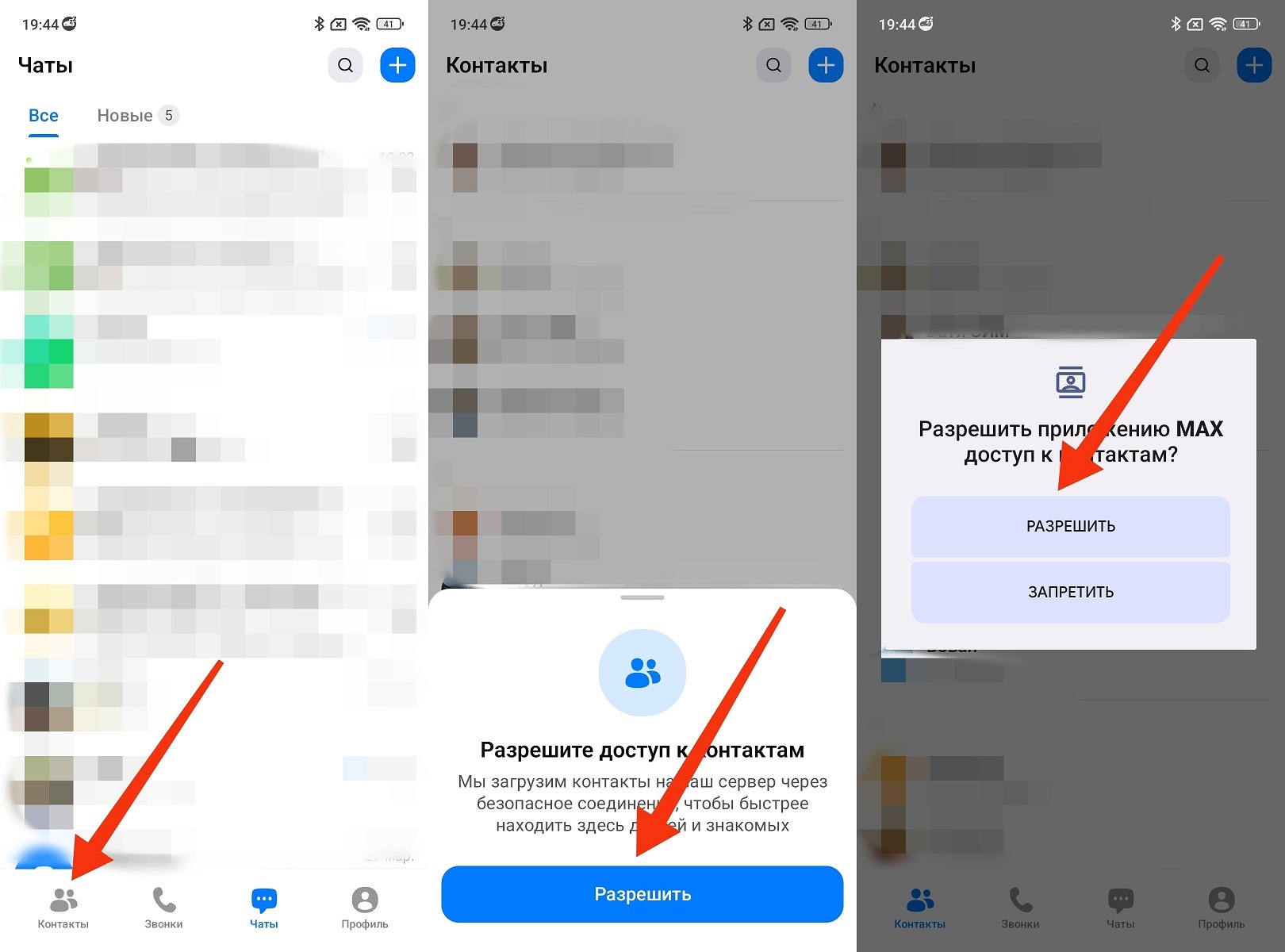
Permission can be granted at any time
This method is the quickest if the app itself offers to grant permission. If the request screen doesn’t appear, use the second method.
Method 2. Through smartphone settings:
- Open “Settings” on your smartphone.
- Go to the “Apps” section.
- Find MAX in the list and tap on it.
- Select “Permissions.”
- Find the “Contacts” section and switch it to “Allow.”
- Return to the messenger and open the “Contacts” tab — contact synchronization in MAX will start automatically.
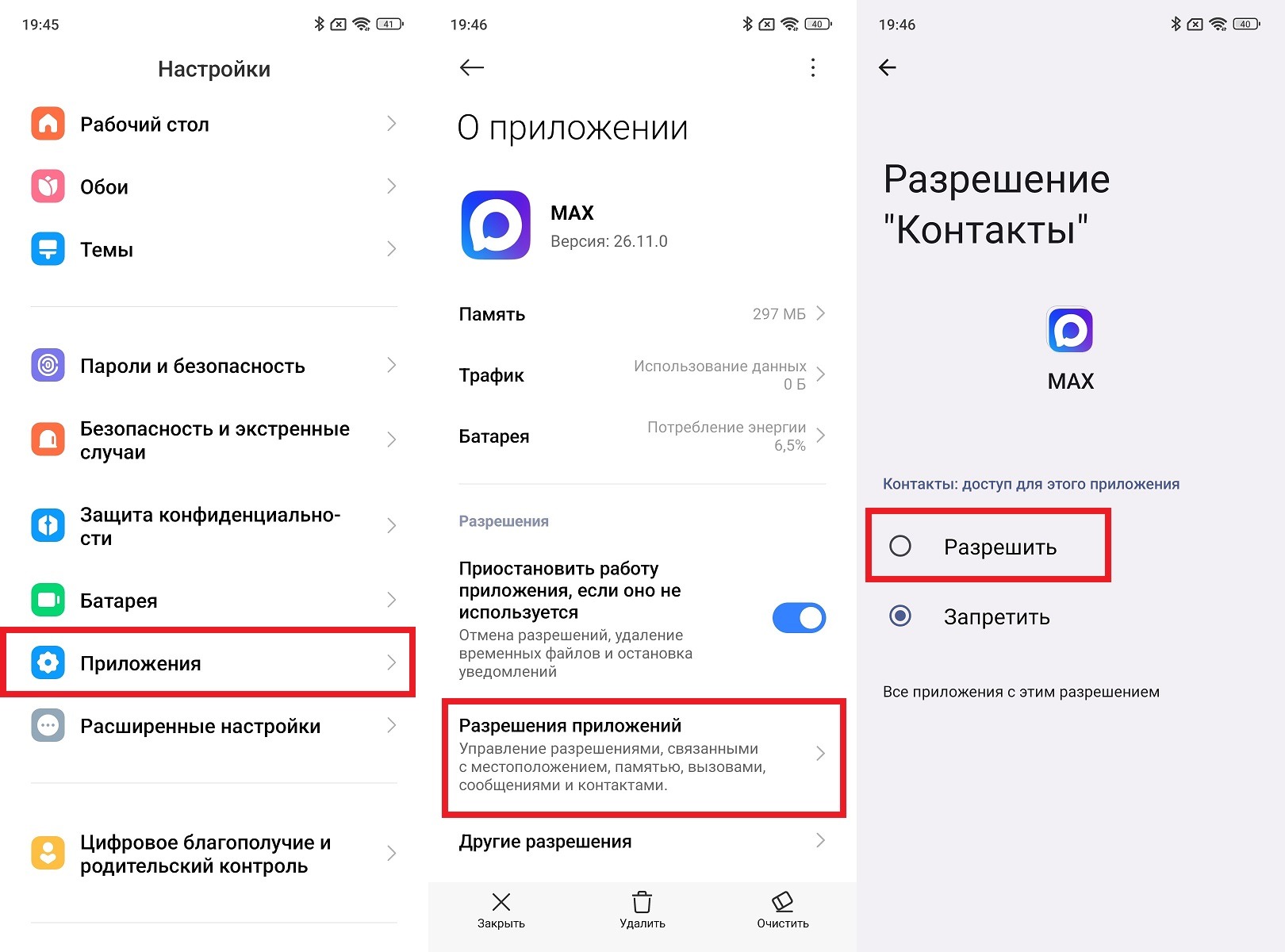
An alternative option that also works
After granting permission, the app will need a few seconds to load the list. If contacts still don’t appear, close MAX completely and reopen it. In rare cases, restarting the smartphone helps.
What to Do If a Person Isn’t in MAX
If the needed contact isn’t in the list and you’re sure it’s not about permissions, the person most likely simply isn’t registered in the messenger. In this case, you can invite them to MAX directly from the app. Here’s how to do it:
- Open the “Contacts” tab in MAX.
- Scroll down the list.
- Tap the invite button next to the name of the contact who doesn’t have a MAX account.
- Choose how to send the invitation: via SMS, through another messenger, or by copying a link.
- Send the invitation. The person will receive a link to download the app and register.
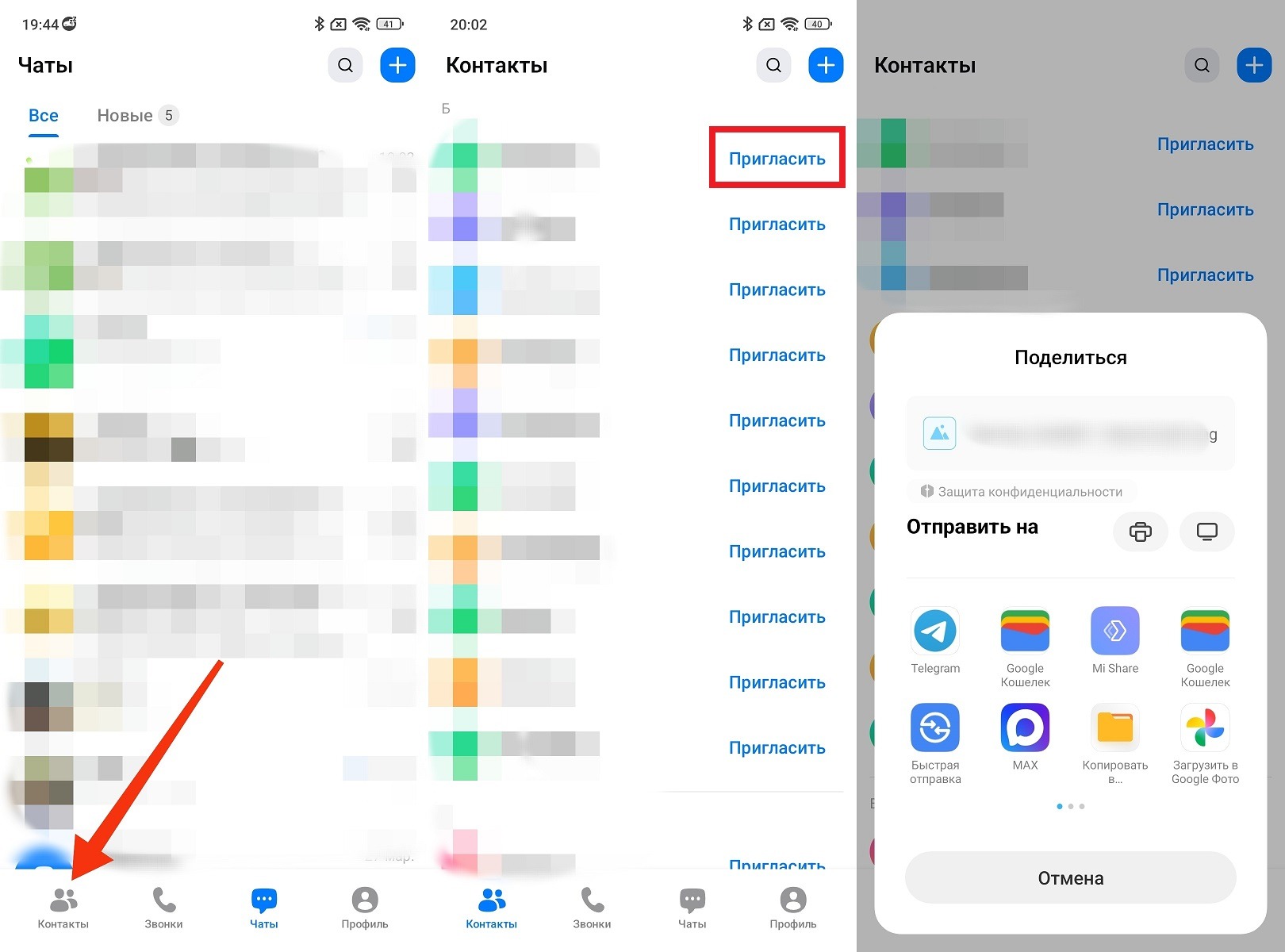
This is how you create a link for those who aren’t using MAX yet
After the person installs MAX and registers with the number you have saved, they will automatically appear in your contact list. No additional actions are required. Phone contacts aren’t visible in MAX only until the necessary permissions are granted or until people register in the messenger. Both problems are solvable: the first takes a minute, and fixing the second depends on the person themselves.


