Apple has added a “Slow Charger” notification to macOS 26.4 — now your MacBook will tell you that the connected adapter is too weak. Previously, this function only worked on iPhone starting with iOS 18 and allowed you to quickly understand that the power adapter wasn’t powerful enough, but now it has made its way to laptops as well. For anyone who has ever wondered why their MacBook can’t charge for hours — this is a useful innovation.
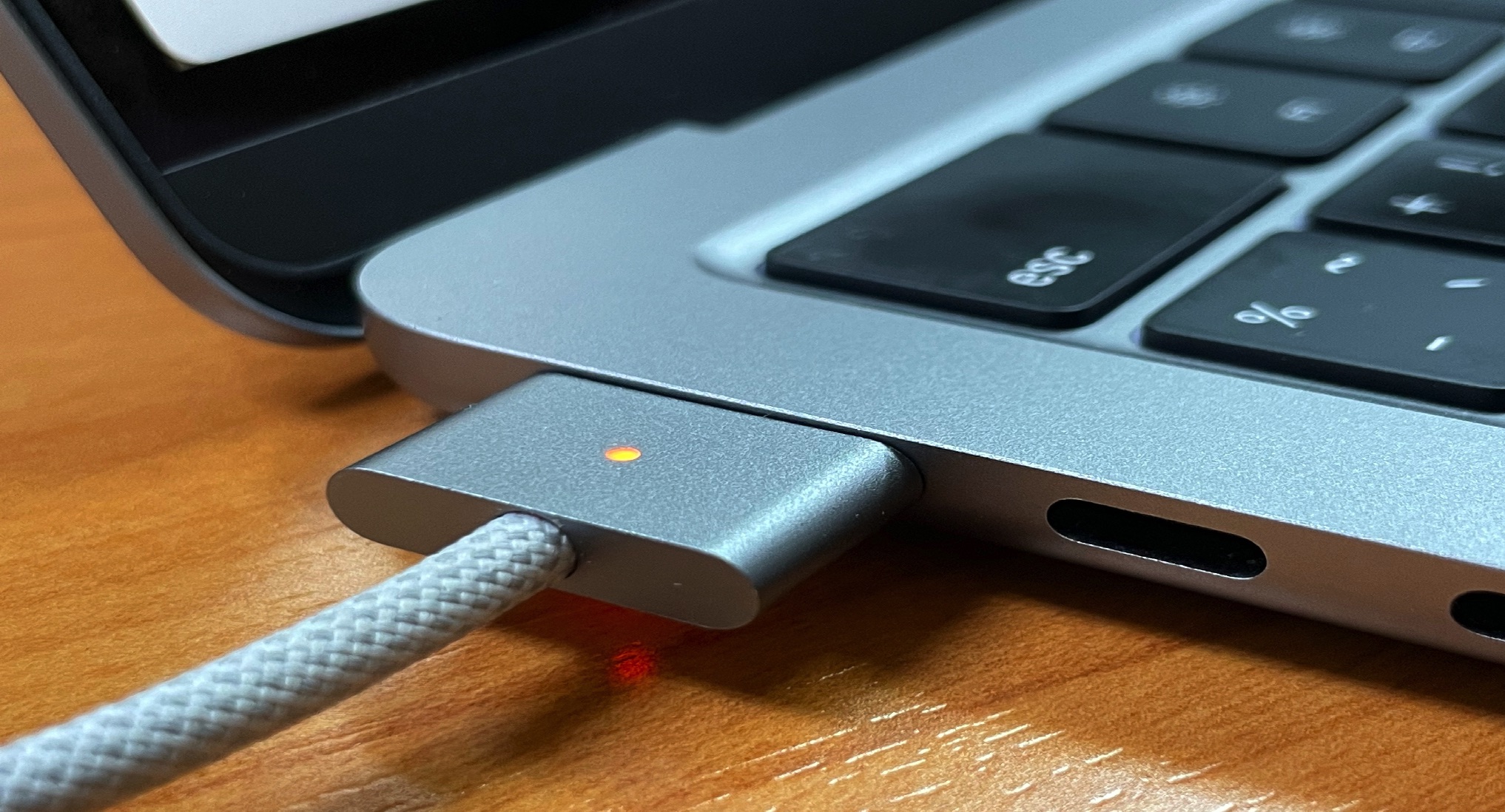
Now your MacBook will warn you if it’s charging slowly. Image: macworld.com
What the “Slow Charger” Notification Means in macOS 26.4
macOS Tahoe 26.4 introduced a slow charging indicator that informs MacBook owners that the connected power source isn’t delivering full power. The “Slow Charger” label appears in orange text in the battery menu in the top bar and above the charge level graph in the battery settings. Next to the notification, there’s an “i” button with more details.
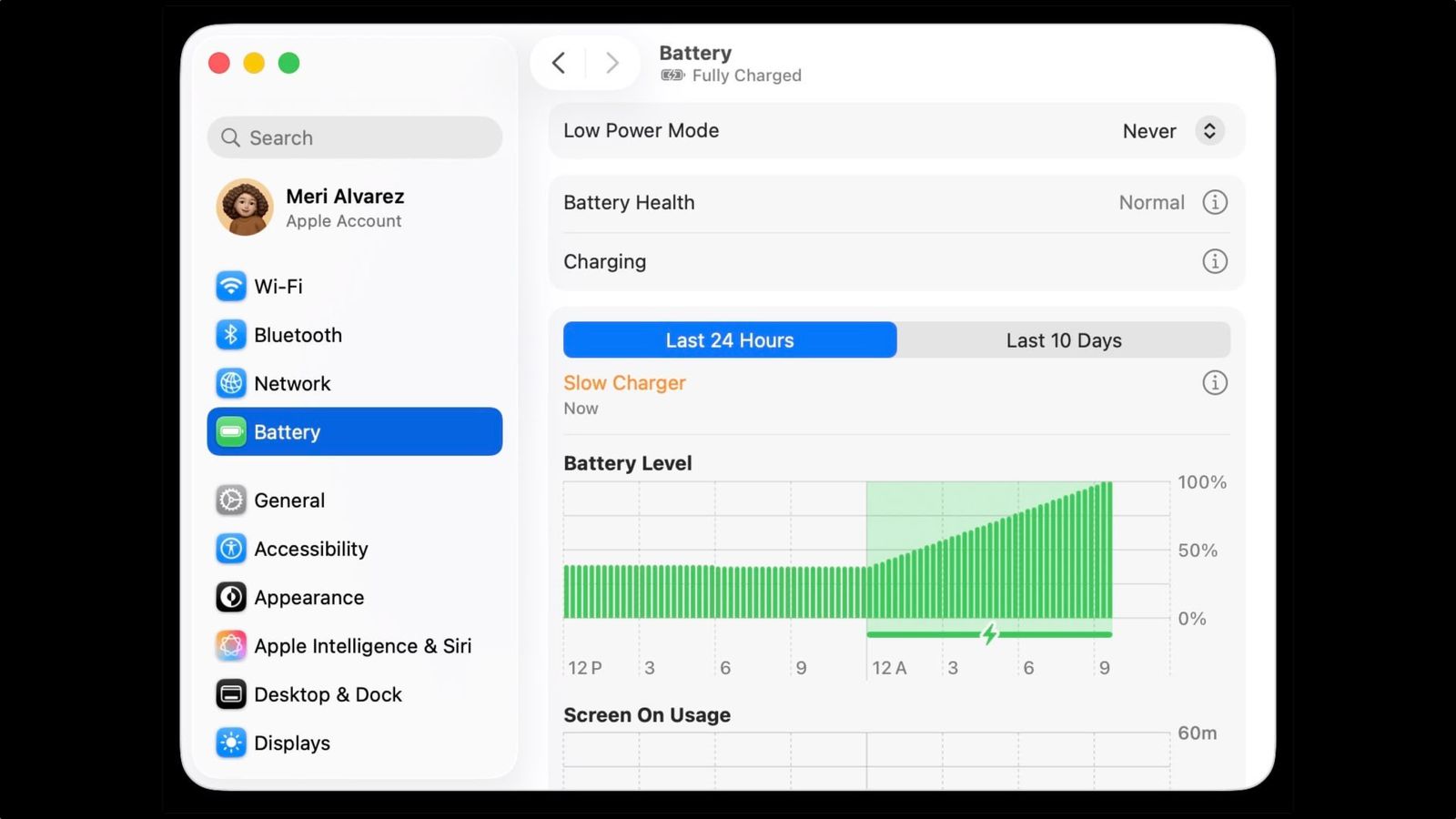
This small label appears in the battery section. Image: macrumors.com
The feature has already been tested on a MacBook Air M1 by connecting the laptop to a low-power Thunderbolt dock port. The system displayed a warning, and through the “System Information” section it was possible to find out that the adapter was delivering only 8W — compared to the recommended 30W for this model.
This feature mirrors what Apple added to iPhone with iOS 18, where slow charging periods are displayed as an orange bar in the “Battery” section of the Settings app. Now an analogous mechanism works on Mac as well.
Which Charger Does a MacBook Need — Minimum Wattage by Model
Apple recommends using a power adapter and cable that provide at least the recommended wattage for your specific MacBook model. If the adapter is weaker, the system will show a warning. Here are the approximate values for current models:
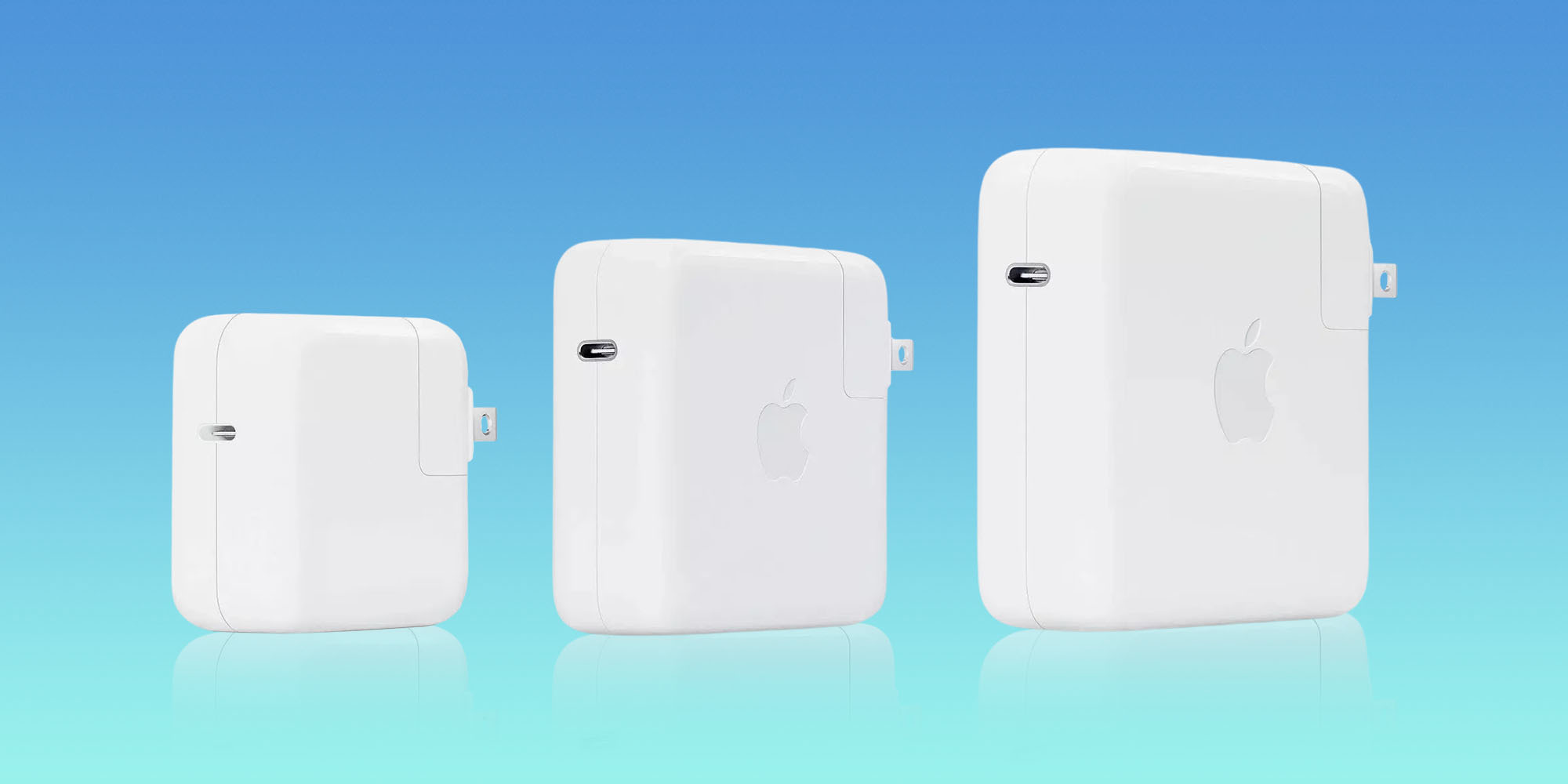
The included chargers are usually sufficient for fast charging. Image: 9to5mac.com
- MacBook Air M1 (13-inch) — adapter from 30W
- MacBook Air M2, M3, M4, M5 (13 and 15-inch) — adapter from 30W (13-inch) or from 35–70W (15-inch)
- MacBook Pro 14-inch — adapter from 67, 70, or 96W
- MacBook Pro 16-inch — adapter from 140W
The key rule is simple: use a USB-C adapter with wattage equal to or greater than the one that came with your Mac. A more powerful charger won’t cause any harm — the MacBook will only draw as much as it needs. But a weak adapter is a real problem. In such cases, the MacBook may charge very slowly or even lose charge during active use.
What to Do If Your MacBook Charges Slowly Even with the Right Adapter
Sometimes the “Slow Charger” notification may appear not because of the adapter itself. There are several common causes worth checking:
- Dock station or hub as a bottleneck. Many USB-C hubs deliver significantly less power than advertised — often 60W or less, regardless of the main adapter’s wattage. If charging slows down only when connected through a hub, the hub is to blame.
- Wrong cable class. USB-C cables are rated for different power levels (commonly 60W and 100/240W). Cheap and overly long cables tend to heat up and cause power drops. If the adapter is powerful but charging is slow — start by checking the cable and port.
- Optimized charging. macOS may temporarily hold the charge level to reduce battery aging. This isn’t a malfunction — the system learns your habits.
- High temperature. When overheating occurs, the system automatically reduces charging speed.
To find out exactly how many watts your MacBook is receiving right now, click the Apple logo in the top-left corner → hold the Option key → “System Information” → “Power” section. It displays the current wattage of the connected adapter.
Fast Charging for MacBook — What You Need
MacBook Air starting from 2022 and MacBook Pro 14/16-inch starting from 2021 support fast charging — up to 50% in approximately 30 minutes. But for this, you need an appropriate adapter:
- MacBook Air — adapters from 70W and above with a USB-C to MagSafe 3 or USB-C cable
- MacBook Pro 14-inch — adapters from 96W and above
- MacBook Pro 16-inch — only the 140W adapter
MacBook Air with the M1 chip does not support fast charging — for it, there’s practically no difference between 30W and 70W when charging.
An important note: Apple no longer includes a charging adapter with European MacBooks. This means many users grab the first cable or phone charger they find — and end up with that very “slow charging.” The new notification in macOS 26.4 helps you understand in time that the adapter is the issue.
Battery Charge Limit — the Second New Feature in macOS 26.4
The slow charging indicator is one of two battery-related changes in macOS 26.4. The update also adds a “Charge Limit” feature that allows you to set a maximum charge level from 80 to 100 percent to extend battery lifespan.
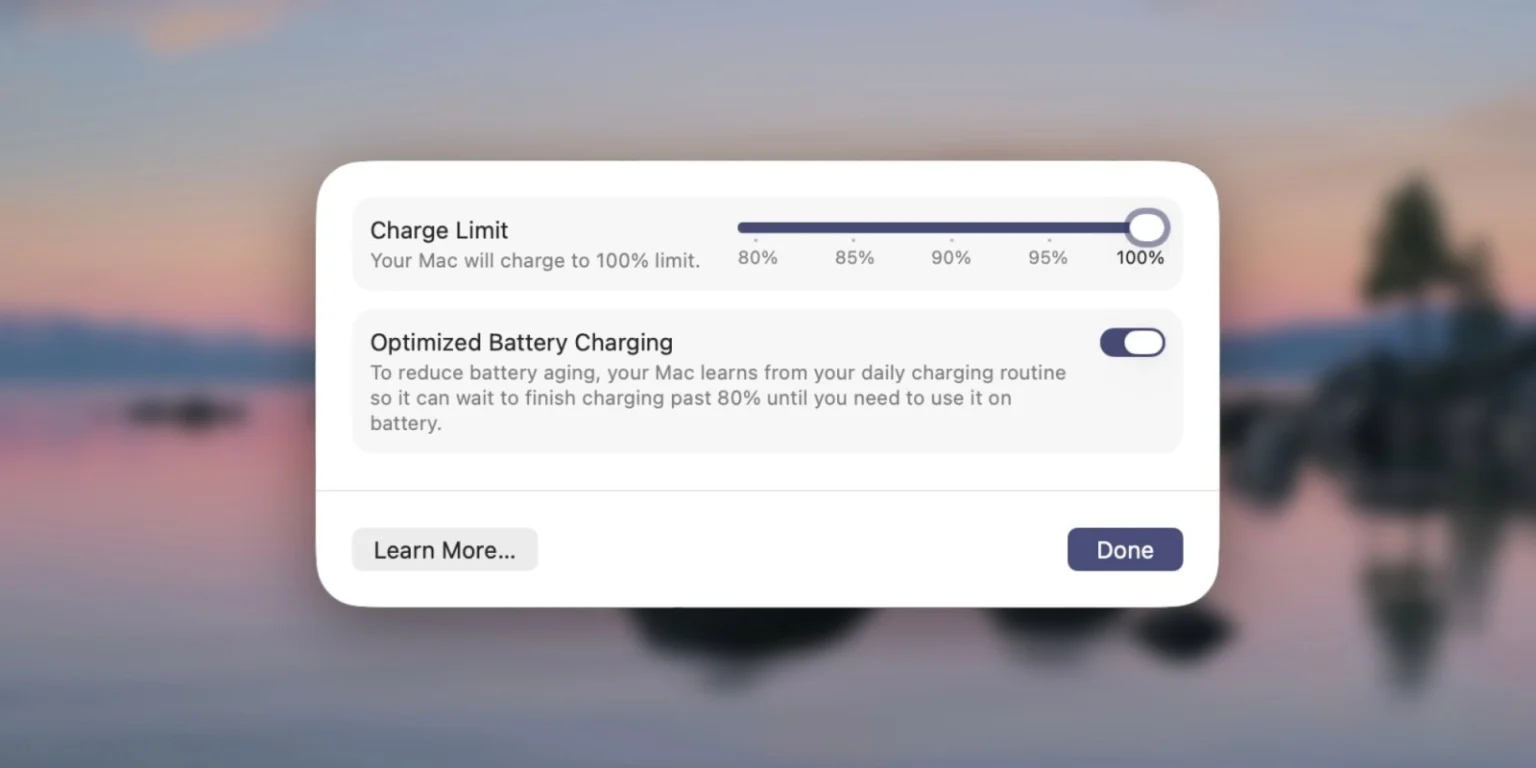
The charge limit has also appeared in settings. Image: 9to5mac.com
The limit can be set in 5% increments. Previously, this required third-party utilities like AlDente — now AlDente’s core feature is essentially built into the system, although the app still offers additional capabilities: battery recalibration, overheating protection, and MagSafe indicator color management.
The setting is located in “System Settings” → “Battery.” You need to click the “i” button next to the “Charging” option — the limit slider is hidden right there. It’s not the most obvious place, and many users complain that it’s hard to find.
Is It Worth Updating to macOS 26.4
macOS Tahoe 26.4 is already available through “System Settings” → “General” → “Software Update.” The update isn’t just about charging — it also includes compact Safari tabs, Rosetta 2 warnings, and other improvements.
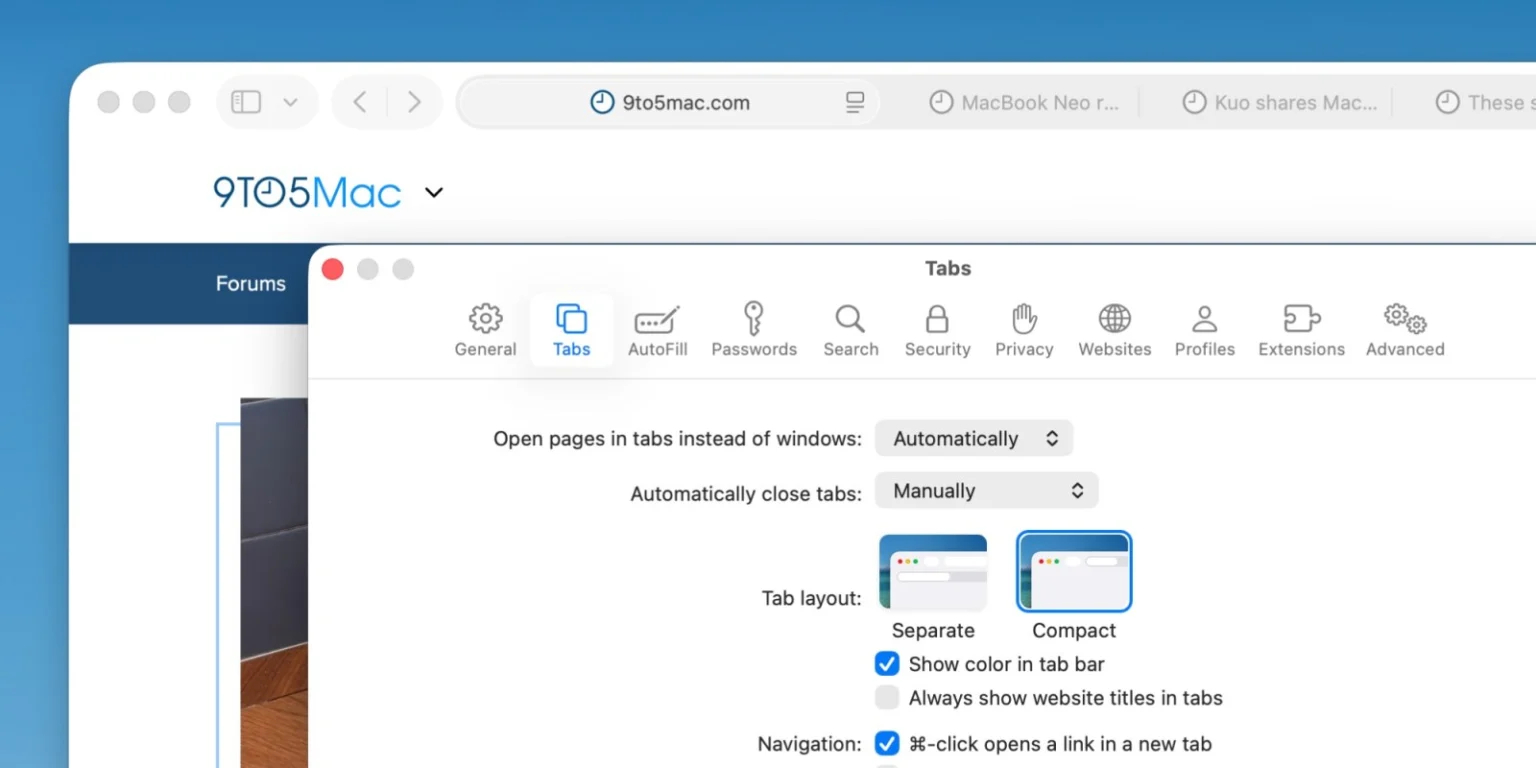
Safari brought back compact tabs. Image: 9to5mac.com
If you often use your MacBook with different charging devices — through hubs, dock stations, or someone else’s adapters — the slow charging notification will save you from guessing why the battery isn’t growing. And the ability to limit the charge to 80–85% will be useful for those who keep their laptop plugged in all day.