Xiaomi 12T Pro is my smartphone with a 5000 mAh battery. In theory, it should last all day without any issues. But at some point, the phone started dying by lunchtime, even though I barely used it. It just sat in my pocket and drained. My first thought: something broke, the battery degraded. Then it turned out the reason was completely different and was found in ten minutes. If you’re experiencing the same thing and your phone is draining faster than it should, most likely a specific app is to blame. Fortunately, you can find and neutralize it.
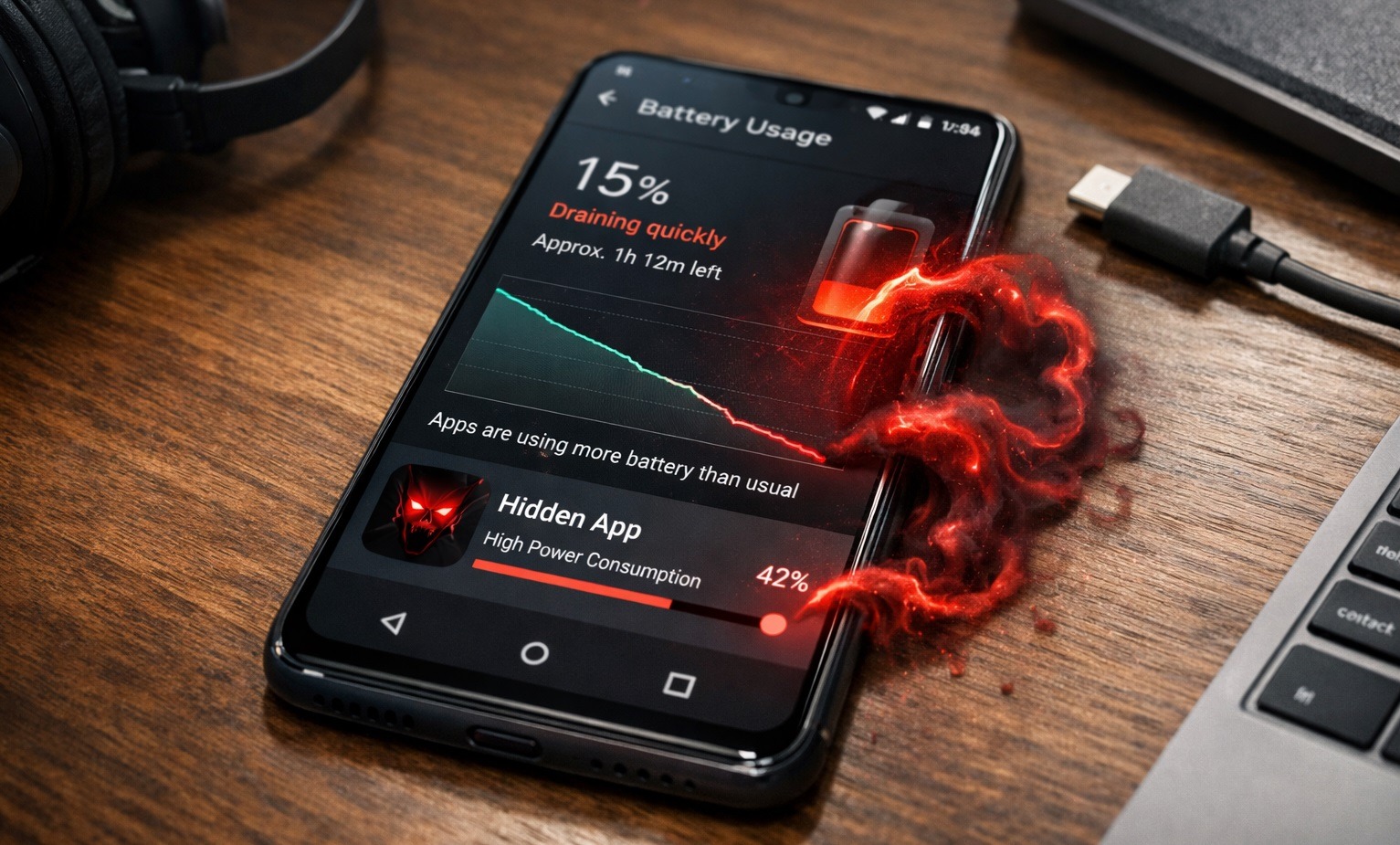
I found my battery hog — now find yours
Which Apps Drain Your Battery
Before searching for the specific culprit, it’s helpful to understand which types of apps are capable of draining your battery significantly. Here are the main categories:
- Messengers and social networks. They constantly maintain a connection to the server to deliver notifications in real time. The more such apps you have, the more background activity there is;
- Navigation and geolocation. GPS is one of the most power-hungry modules in a smartphone. Apps that request location in the background drain battery even when you’re not using them;
- App stores and system utilities. They update, check for new versions, and collect analytics. This category turned out to be my personal discovery;
- Streaming services and media players. Music and video put load on the processor and keep the screen active;
- Games. Especially those with 3D graphics. They can continue running in the background and consuming resources even after you minimize them.
Any of these apps works fine on its own. The problem starts when one of them behaves incorrectly: gets stuck in the background, can’t complete a process, or has too many permissions. That’s exactly when your phone starts draining quickly for no apparent reason.
How to Find Out What’s Draining Your Battery
Android keeps detailed battery usage statistics for each app. You can find the culprit in just a few minutes:
- Open “Settings” on your smartphone.
- Go to the “Battery” section.
- Find “Battery usage” or “Charge consumption.”
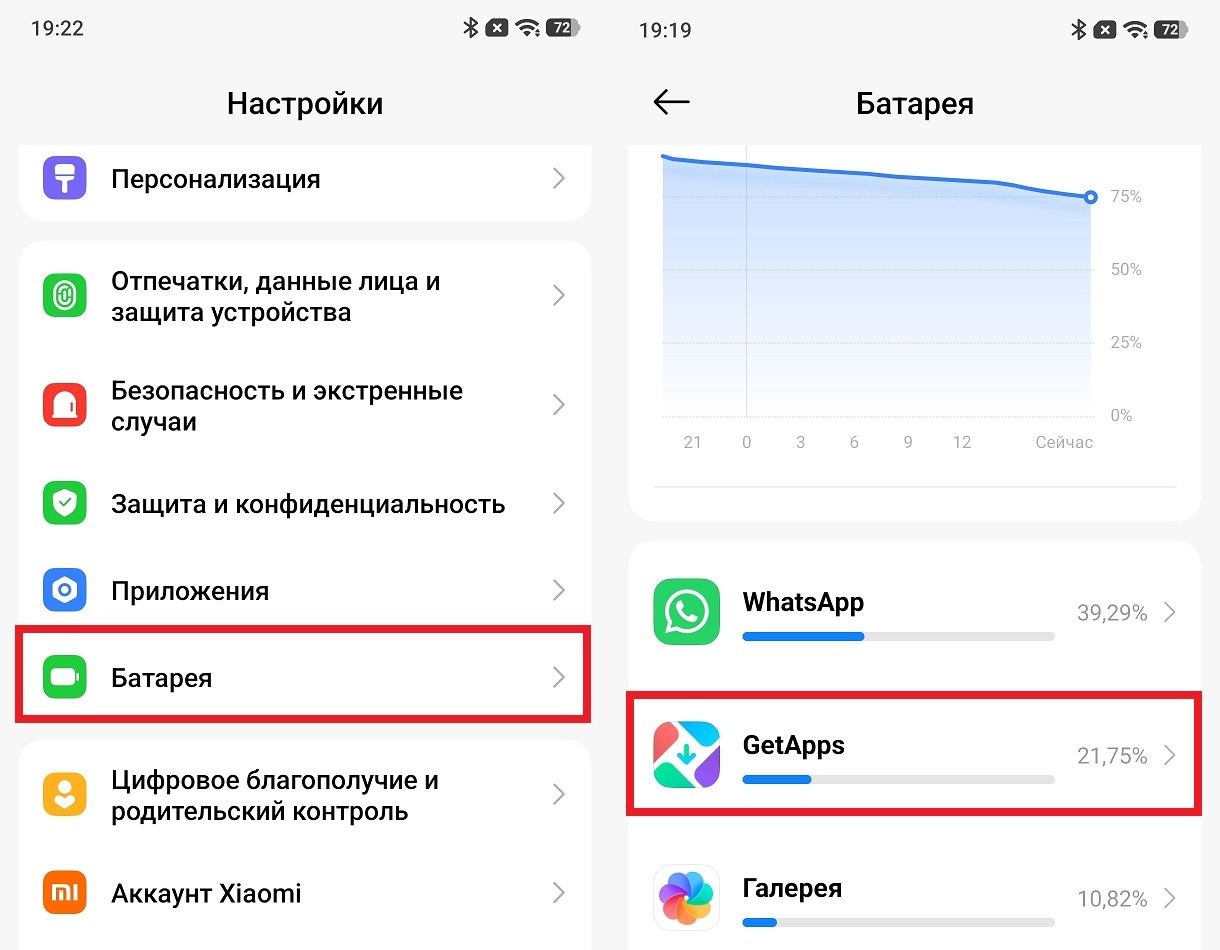
- You’ll see a list of apps showing the percentage of battery consumed over the last 24 hours.
- Scroll through the list and find anything that stands out. If an app you barely used consumed 15-20% of the battery — that’s your culprit.
Got you!
That’s exactly how I found my culprit. It turned out to be GetApps — the built-in Xiaomi app store. An app that I open maybe once a week managed to consume nearly 22% of the battery in a single day. I have no idea what it was doing in the background.
How to Configure an App That’s Eating Your Battery
Found the culprit. What’s next? There are several options in order of increasing severity. Restrict background activity. The gentlest approach. The app continues to work, but the system limits its background activity:
- Go to “Settings” — “Apps.”
- Find the app in question and open its page.
- Go to the “Battery” or “Battery usage” section.
- Select “Restricted” mode or disable background activity.
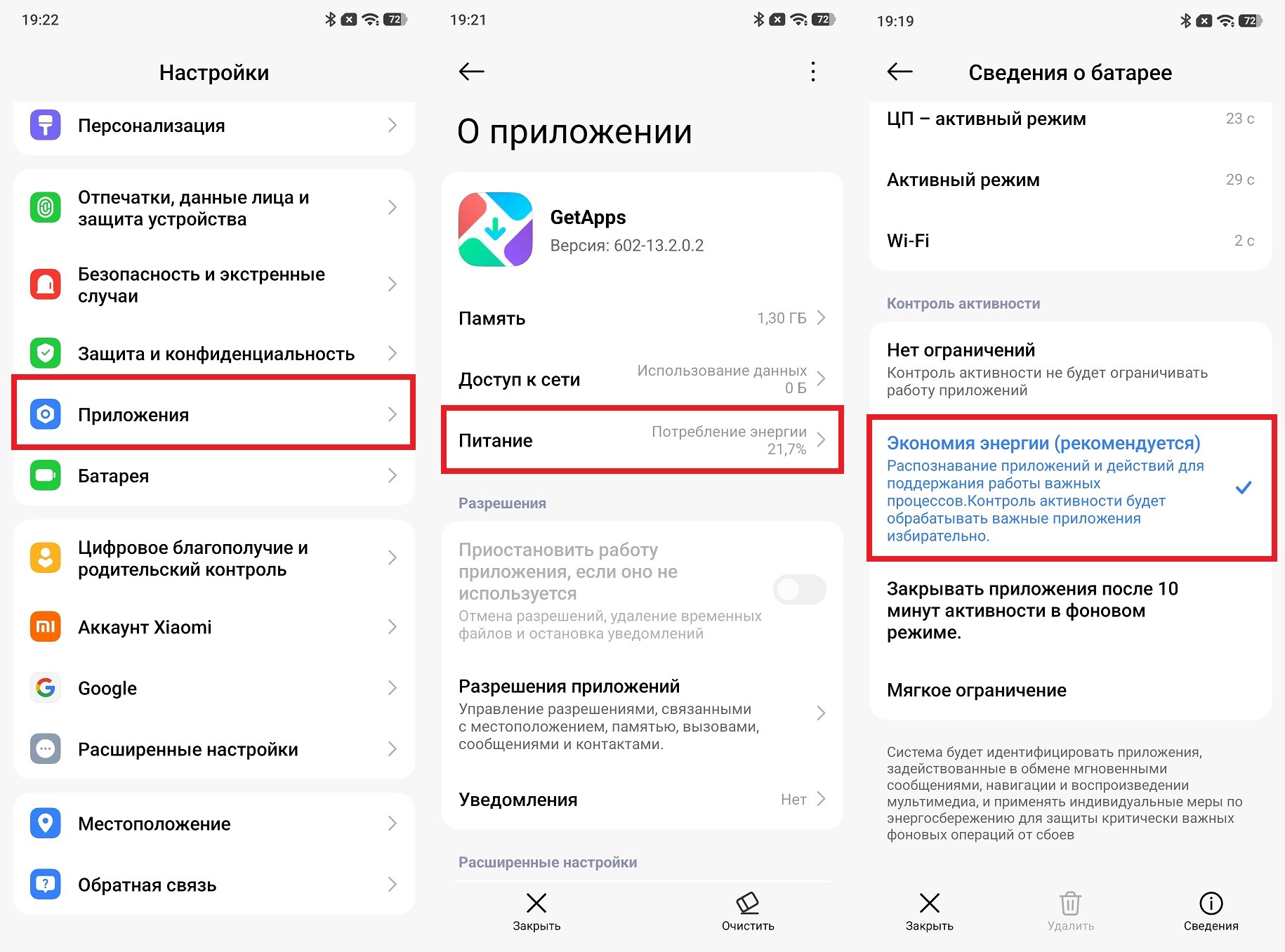
Restricted its activity, and things got better
Important note: after this, some apps may start working incorrectly. Messengers with restricted background activity will stop delivering notifications in real time, and messages will only appear when you manually open the app. For WhatsApp or Telegram, this is unacceptable. For an app store — it’s perfectly fine.
Revoke unnecessary permissions. If an app consumes a lot of battery due to constant access to geolocation or other modules, you can simply revoke those permissions:
- Go to “Settings” — “Apps” — select the app.
- Open the “Permissions” section.
- Disable access to geolocation, camera, microphone — everything the app clearly doesn’t need to function.
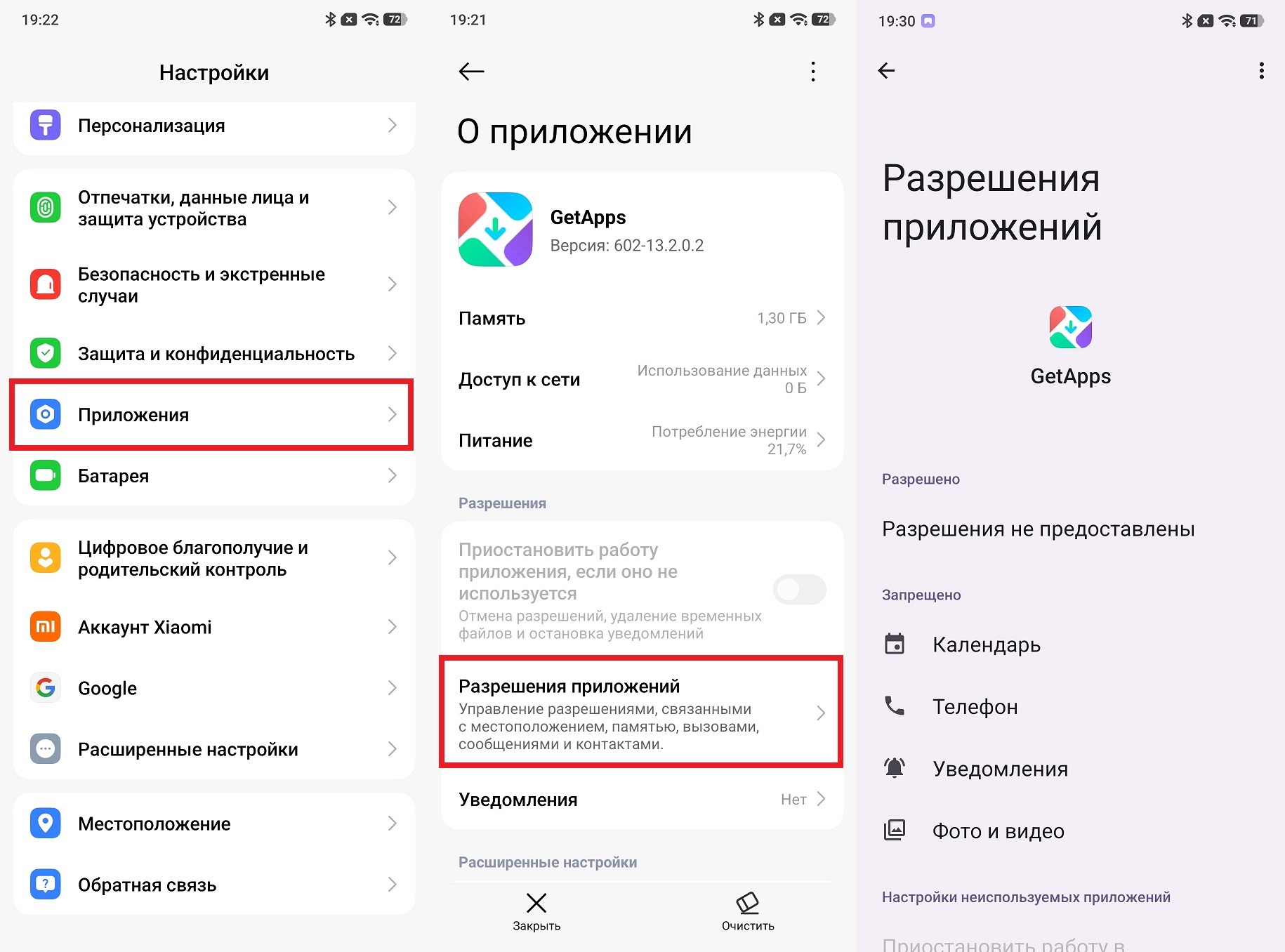
Strip that app of all its permissions!
Completely uninstall the app. The most radical and most effective approach. No app — no problem. That’s exactly what I did with GetApps. But it turned out that built-in Xiaomi apps can’t be uninstalled easily. There’s no uninstall button in settings — only “Disable,” which helps but not completely. Fully removing a system app requires additional steps.
After I dealt with GetApps, the Xiaomi 12T Pro went back to lasting all day on a single charge. The relief was enormous. The problem wasn’t battery degradation or hardware: just one background app quietly doing its thing.
What to Do If Your Phone Still Drains Quickly
Sometimes you’ve found and restricted all the suspects, but your phone still drains quickly. In that case, power saving mode helps. It systematically reduces battery consumption across several areas and can be enabled like this:
- Open “Settings” and go to the “Battery” section.
- Find “Power saving mode” or “Battery saver.”
- Turn on the mode manually or set it to activate automatically at a certain battery level — for example, at 20%.
- If desired, configure the mode parameters: limiting screen refresh rate, reducing brightness, disabling background sync.
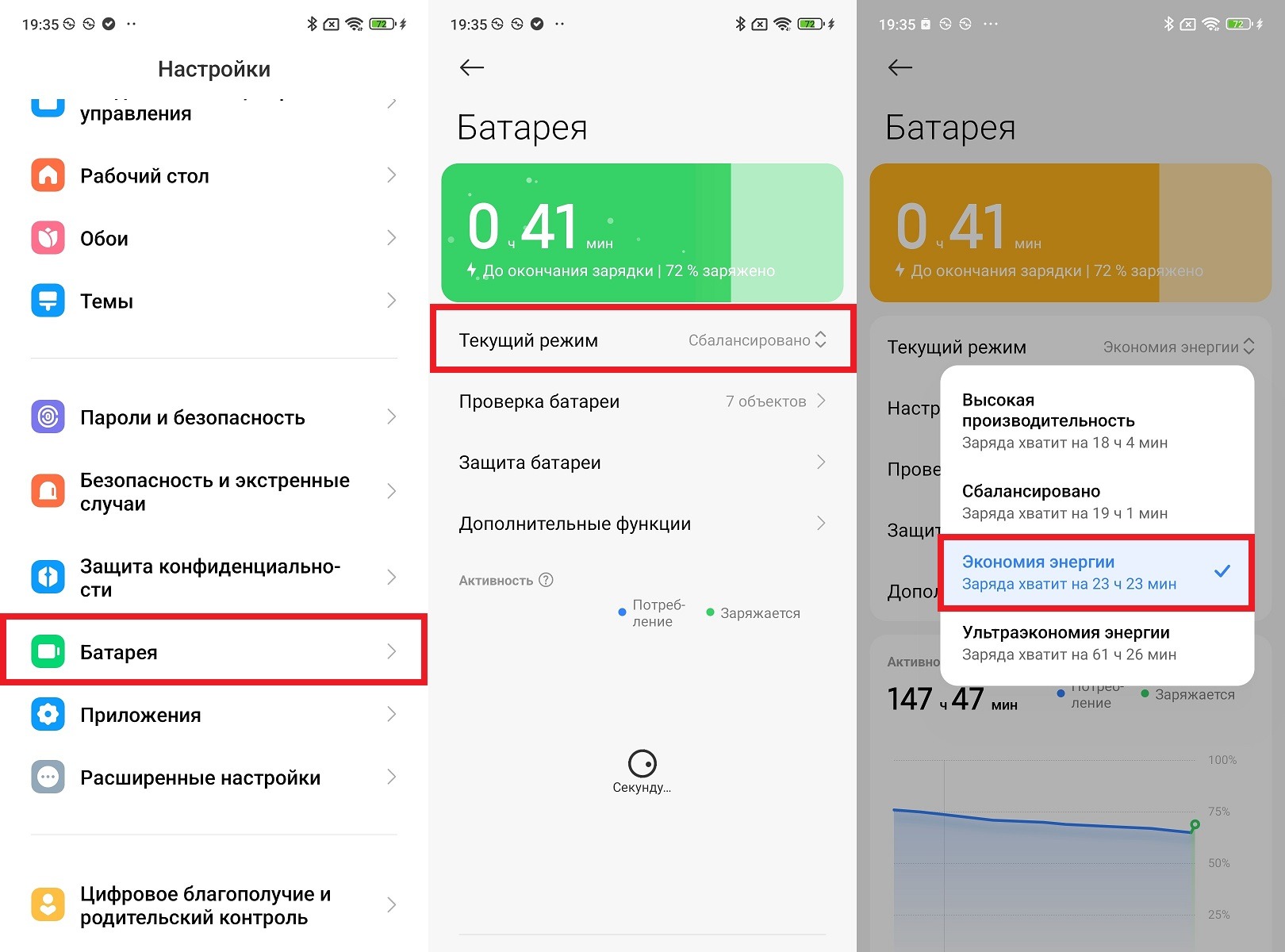
Power saving mode really helps
Phone power saving mode doesn’t solve the problem of a specific battery-hungry app, but it helps extend battery life overall when you need it most.