If your iPhone or iPad won’t wake up — the screen stays black when you press the button, touch, or lift it — don’t rush to take the device to a service center. In most cases, the problem can be solved in a few minutes. In this article, we’ll cover all the reasons why an iPhone or iPad doesn’t respond to attempts to wake the screen, and provide step-by-step instructions for each situation — from a simple restart to a full reset.
You’ve probably encountered an unresponsive screen on an iPhone or iPad at least once. Image: asurion.com
How to Turn On the iPhone or iPad Screen
Before looking for a malfunction, make sure you’ve tried not just one, but several wake methods. There are more of them in iOS and iPadOS than you might think:
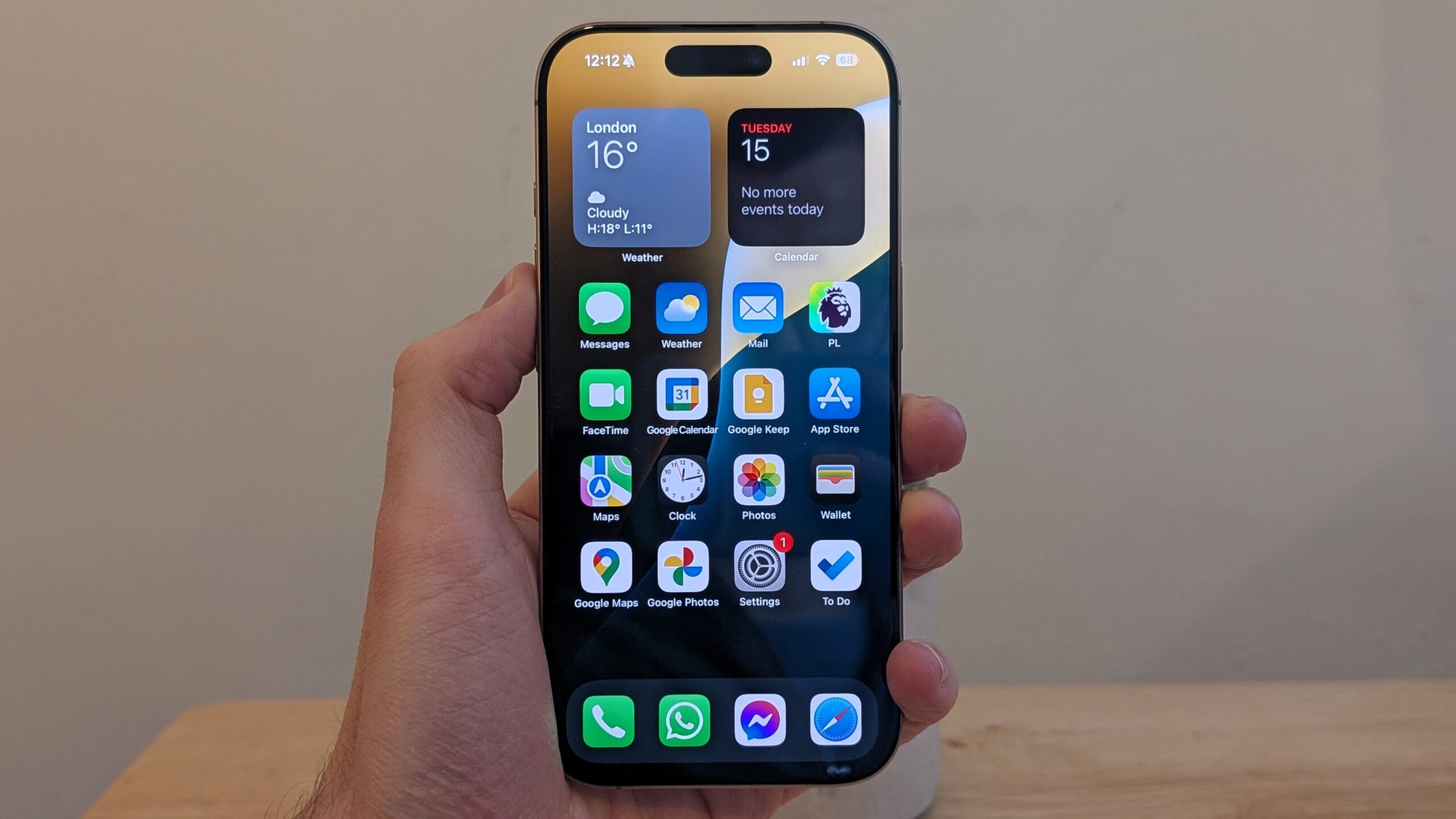
One of these methods will help you activate your iPhone screen. Image: macworld.com
- Press the side (top) button — a universal method for any model.
- Press the Home button — on models with a physical button (iPhone SE, iPad 9th generation and older).
- Tap the screen with one finger — the “Tap to Wake” feature on iPhone X and later, as well as on iPad with Face ID.
- Raise your iPhone — the “Raise to Wake” feature. Works only on iPhone, not on iPad.
- Say “Hey, Siri” — if voice activation is enabled, the screen will light up.
- Press the Camera Control button — on iPhone 16 and later (except iPhone 16e).
- Connect the charger — the screen will automatically light up when a Lightning or USB-C cable is connected.
- Connect to a computer — when connected to a Mac or PC, the screen also wakes up.
- Press a key on a connected keyboard — if a Bluetooth or Smart Keyboard is connected to the iPad.
- Receive a notification or incoming call — the screen will light up automatically.
If at least one of these methods works, the device is functioning normally — the problem is with a specific feature or setting. If none of them work — the issue is more serious, but there are solutions for that too.
The Side Button on iPhone Doesn’t Work — What to Do
The most common complaint is that the iPhone won’t wake up from the button. On iPhone 7 models and older, this problem is especially common due to mechanism wear. But the cause can also be software-related.
Try the following in order:
- Ask Siri to restart the device. Say “Hey, Siri, restart iPhone.” After restarting, check the button — this often fixes a software glitch.
- Remove the case. Some cases, especially silicone ones or those with thick edges, can block the side or top button press. Test without the case.
- Clean the area around the button. Dust and small debris can interfere with pressing. Wipe with a dry soft brush or blow with compressed air.
- Perform a force restart. This is not a regular restart — it resets more system processes:
iPhone 8 and later, iPad with Face ID: quickly press and release the volume up button, then the volume down button, then press and hold the side button until the Apple logo appears.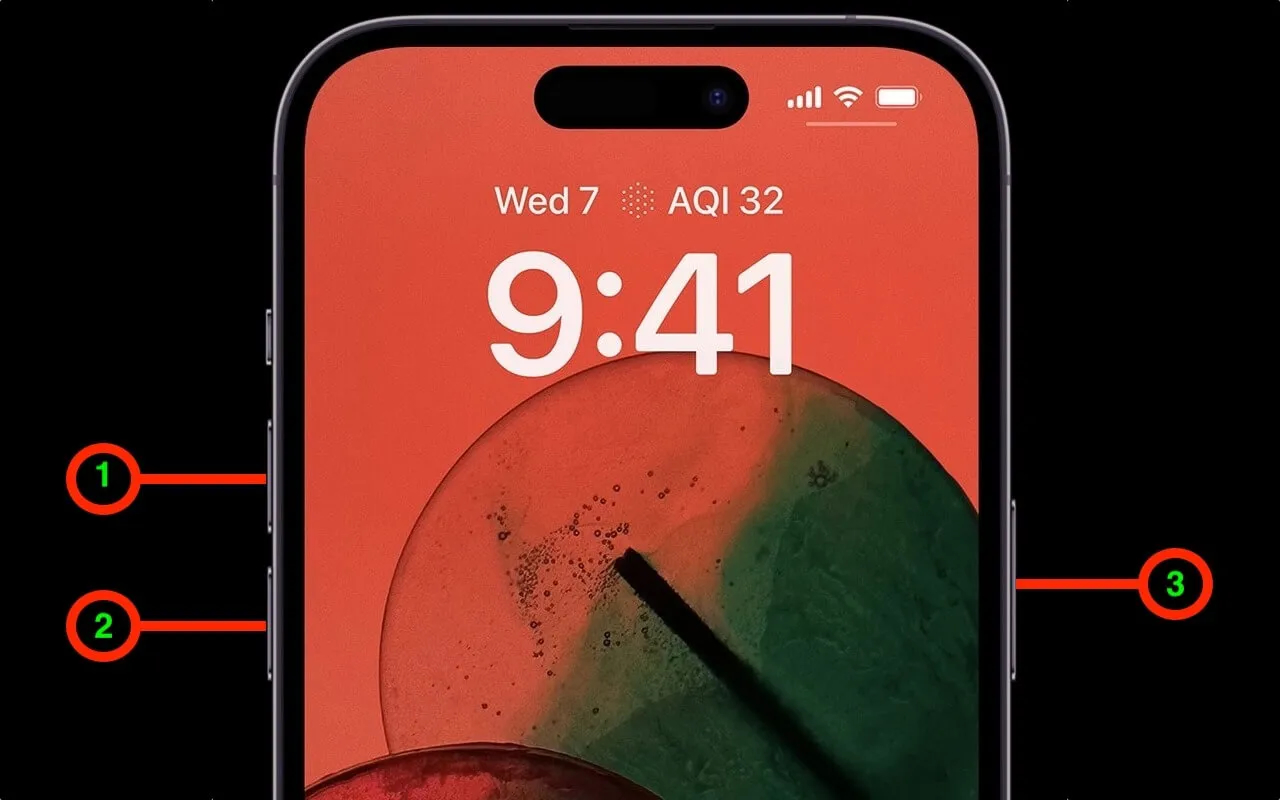
Perform a force restart of iPhone. Image: macrumors.com
iPhone 7 / 7 Plus: simultaneously press and hold the side button and the volume down button for 10 seconds until the Apple logo appears.
iPad with Home button: simultaneously press and hold the top button and the Home button for 10 seconds. - Update iOS or iPadOS. Open Settings → General → Software Update and install the latest version.
- Reset all settings. Go to Settings → General → Transfer or Reset iPhone → Reset → Reset All Settings. This won’t delete your data but will reset Wi-Fi, Bluetooth, and system settings.
Even if the side button has physically stopped working, you won’t be left without control. Here’s what you can do without it:
- Turn off iPhone through Settings → General → Shut Down or through the Control Center.
- Turn it on — simply by connecting the charging cable.
- Activate Siri by voice.
- Lock the screen via AssistiveTouch: Settings → Accessibility → Touch → AssistiveTouch — enable it and assign the “Lock Screen” action to one of the taps.
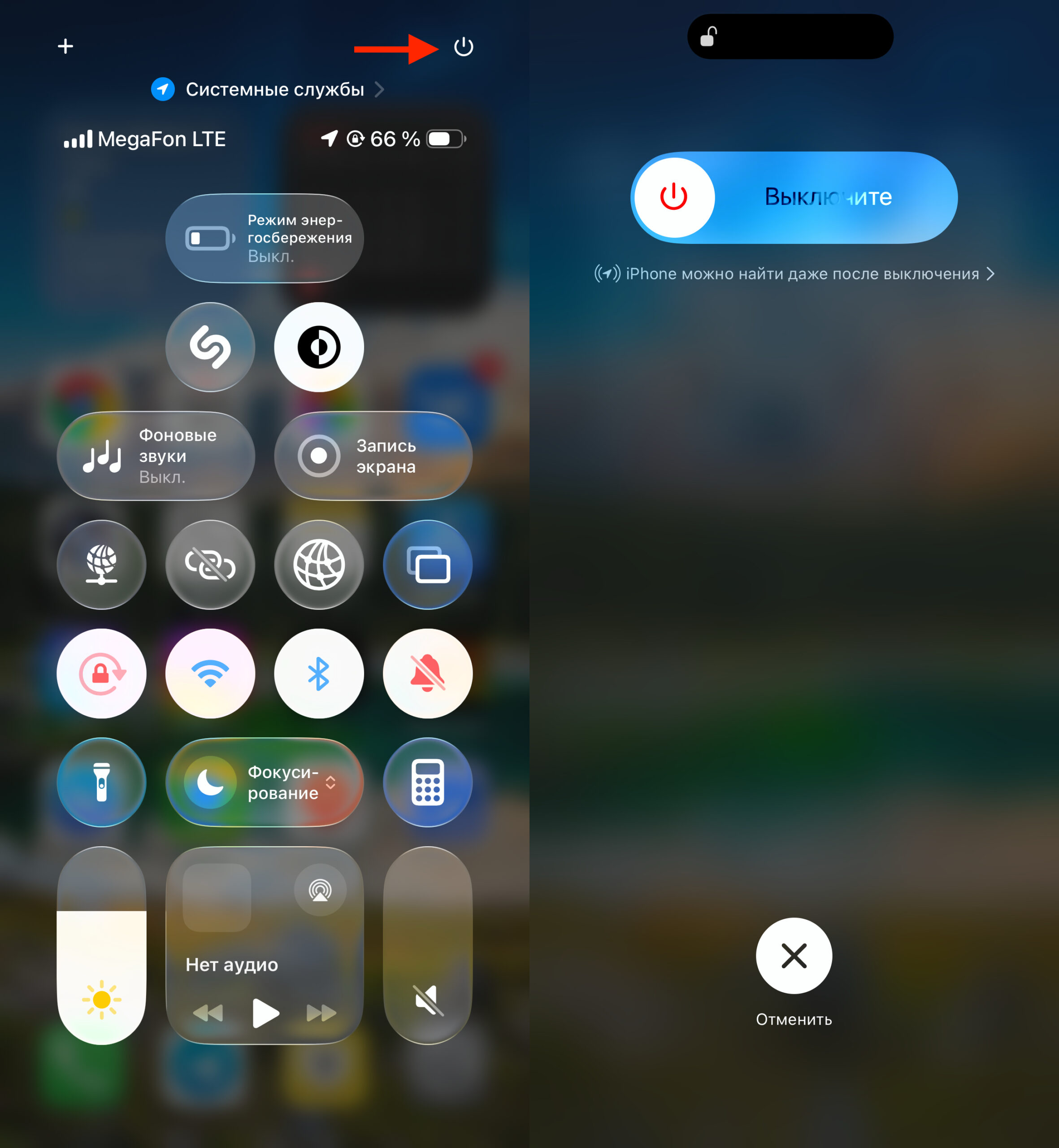
You can turn off iPhone through the Control Center
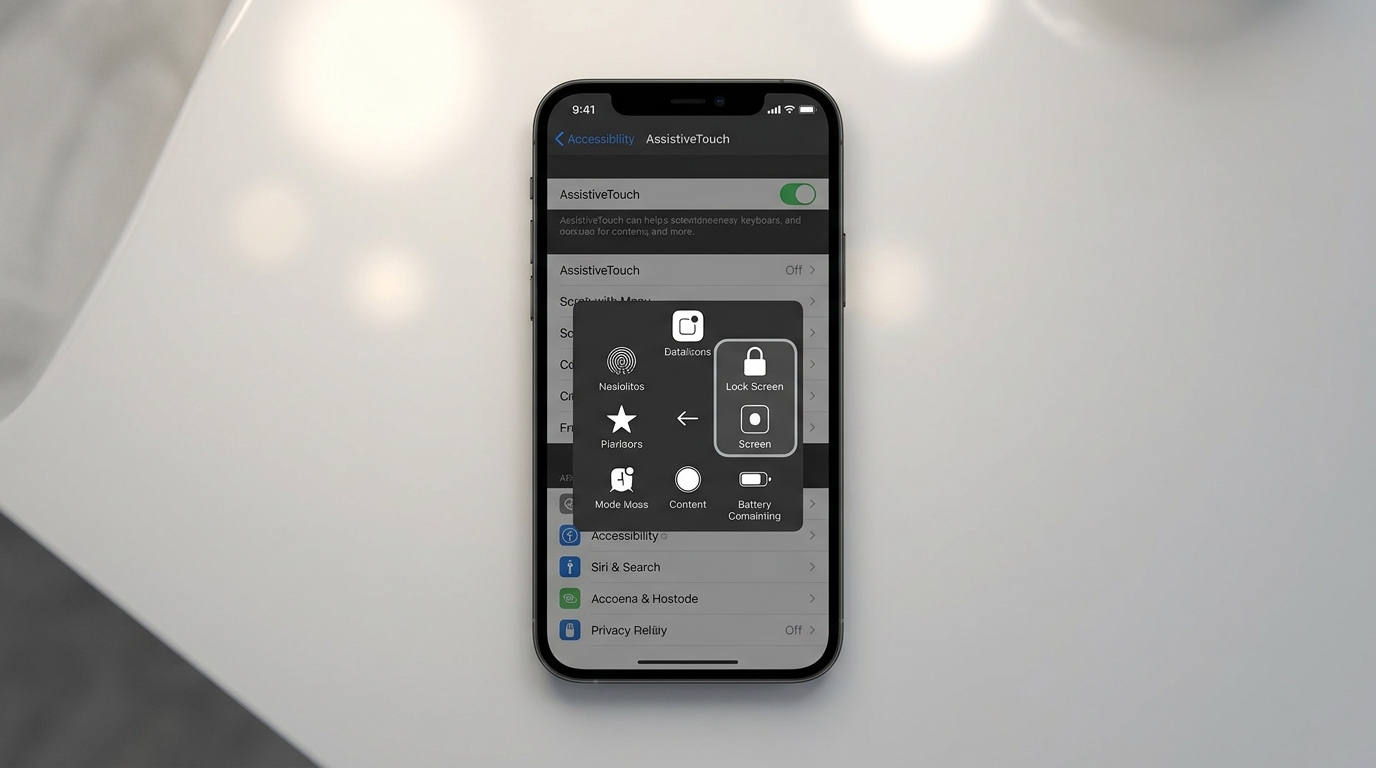
AssistiveTouch allows you to lock and unlock iPhone without using physical buttons
Raise to Wake Not Working on iPhone — How to Enable
The Raise to Wake feature turns on the screen when you pick up your iPhone and raise it. If the screen doesn’t light up when raised, check the setting:
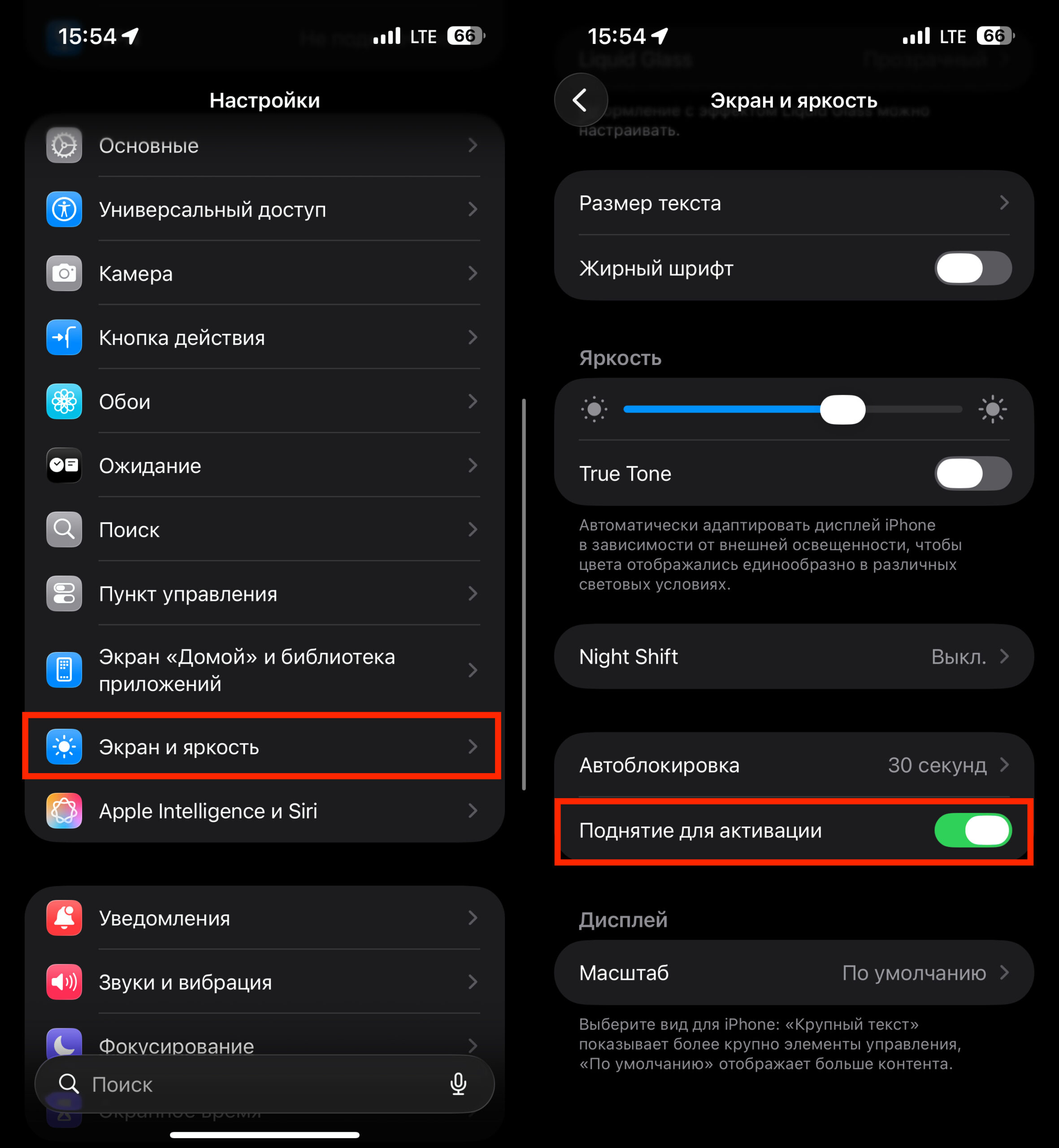
Check if this toggle is activated
- Open Settings.
- Go to Display & Brightness.
- Make sure the “Raise to Wake” toggle is on (green).
Important note: Raise to Wake works only on iPhone. This feature is not available on iPad — it’s not a bug, but a system limitation. If the feature is enabled on iPhone but doesn’t work, restart the device. The motion sensor (accelerometer and gyroscope) sometimes “freezes,” and a simple restart solves the problem.
Tap to Wake Not Working on iPhone and iPad — Why the Screen Doesn’t Respond to Touch
Tap to Wake allows you to wake the device with a single tap on the screen. If your iPhone or iPad doesn’t wake up from a tap, check: