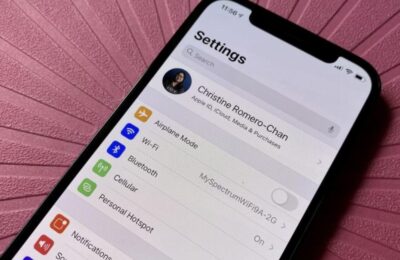
Starting April 1, 2026, Russian carriers disabled Apple ID top-ups from phone balances. For millions of users, this means that regular subscriptions to iCloud+, Apple Music, and other services will soon stop renewing. The only way out is to change your account region and link a foreign payment method. Apple met users halfway and quietly relaxed the rules: now you don’t have to cancel subscriptions, and you don’t need to link a card from the new region. But if there are remaining funds on your balance, you won’t be able to change the country on your iPhone. Even if it’s a measly 1-2 rubles. Here’s how to spend the money on your Apple ID balance and finally move to another region.
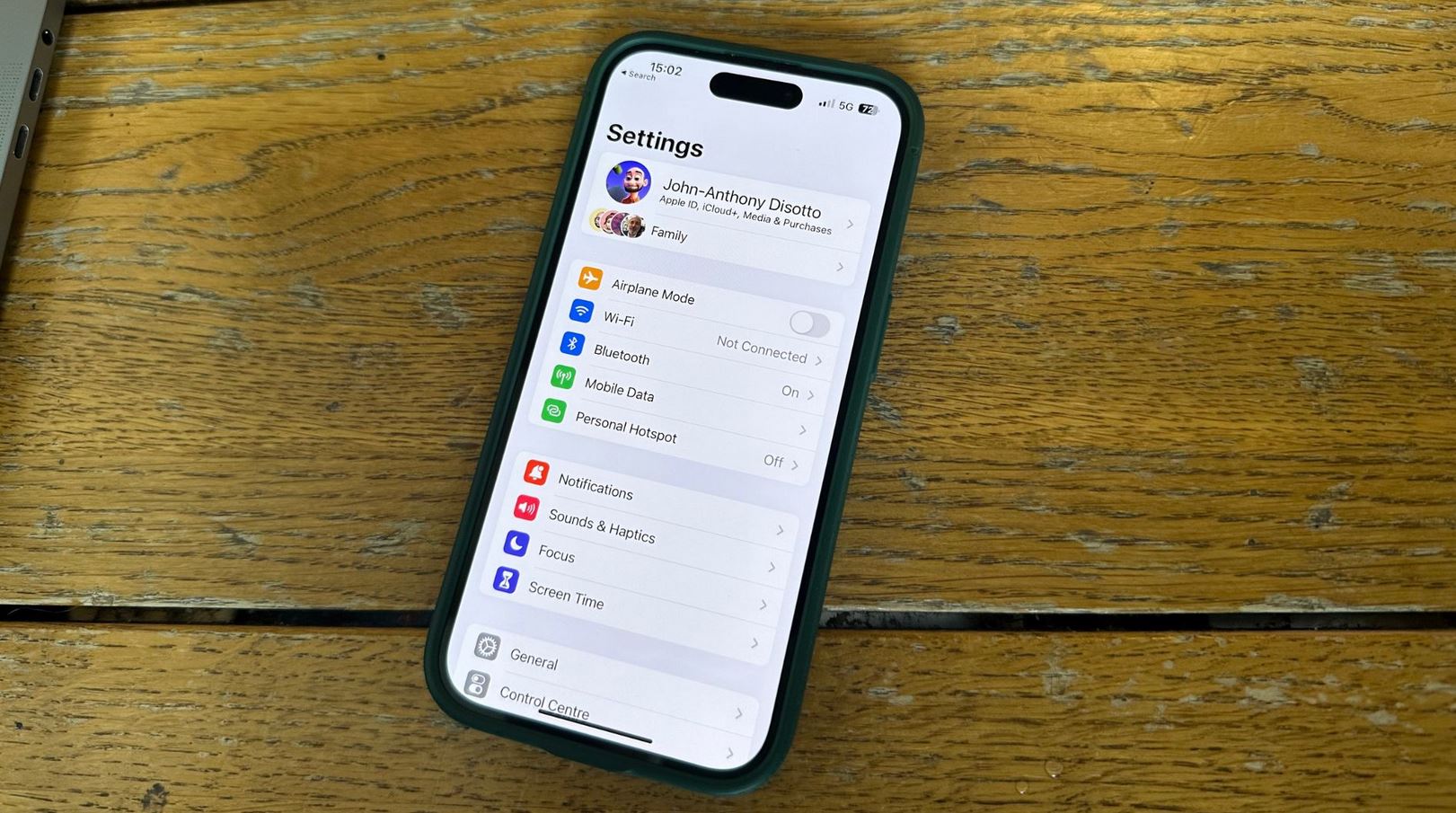
Figuring out what to do if you can’t change your Apple ID region because of money on your account. Photo: imore.com
Why You Can’t Change Your Region in the App Store
After the disabling of Apple ID top-ups from phone balances on April 1, 2026, Apple met Russian users halfway. The company made an exclusive exception specifically for accounts with the “Russia” region: active subscriptions like iCloud+ no longer block country changes, and at the payment method selection stage, you can simply tap “None.”
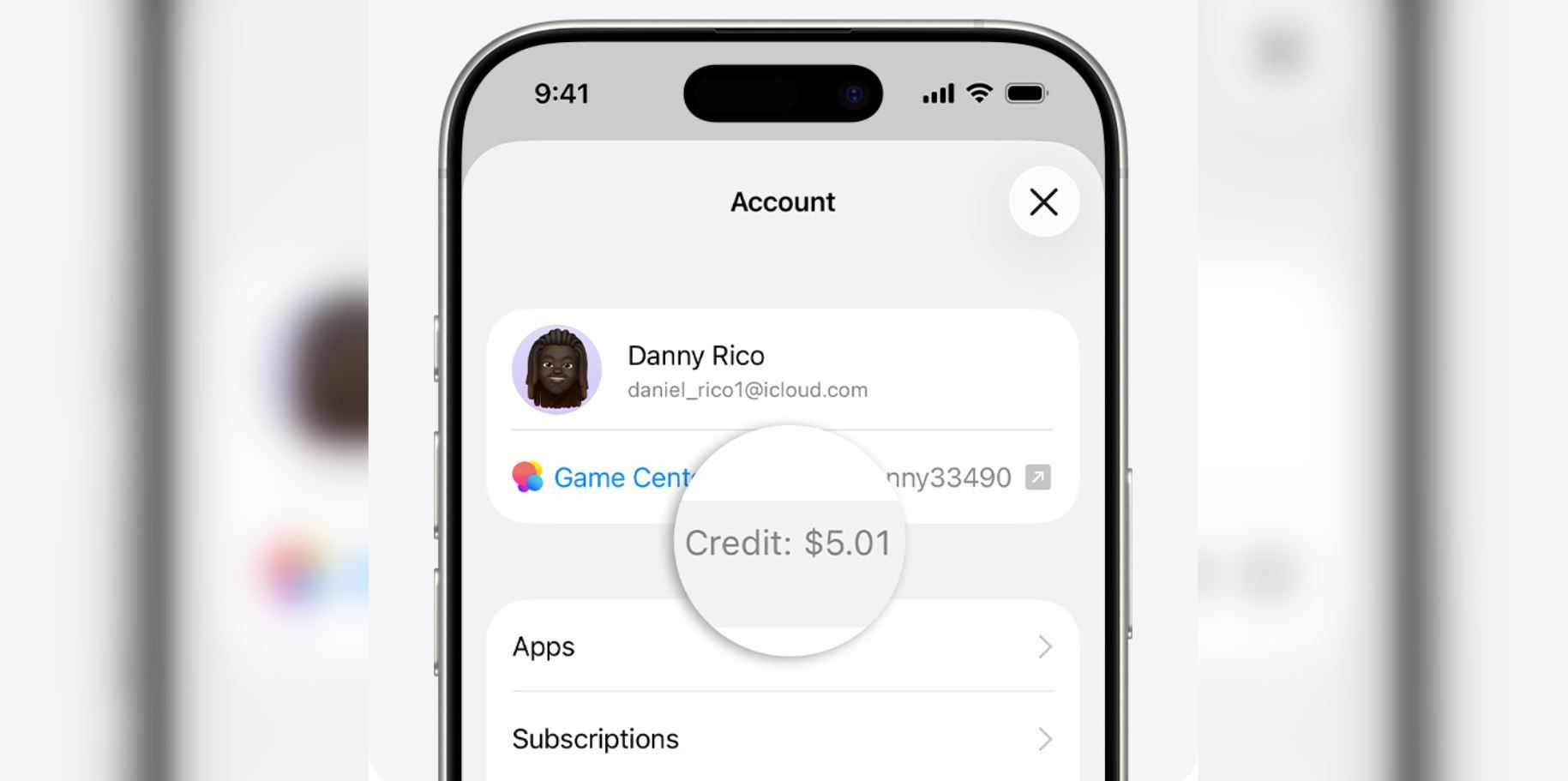
Unfortunately, if there are funds on your balance, you won’t be able to change your region
Apple’s logic is clear: if there’s money on your account, it means you can still pay for purchases — so why would you need to change your App Store region? That’s why you’ll have to zero out the balance. Below are all the working methods to do this, and there are no problems with any of them. The main thing is to spend a little time. Checking your Apple ID balance is easy.
- Open the App Store.
- Tap on your avatar in the upper right corner.
- The balance will be displayed right under your name.
If there’s no money on the balance — congratulations, you can go ahead and change your App Store region right away. If there is, here are several ways to zero it out.
How to Spend Money on Your Apple ID
The most obvious route is to buy something for the remaining amount. Open the App Store and find content that costs approximately the same as the amount of money on your Apple ID balance. A paid app will do — really anything, as long as the money gets charged. Fortunately, you can find software for as little as 20 rubles.
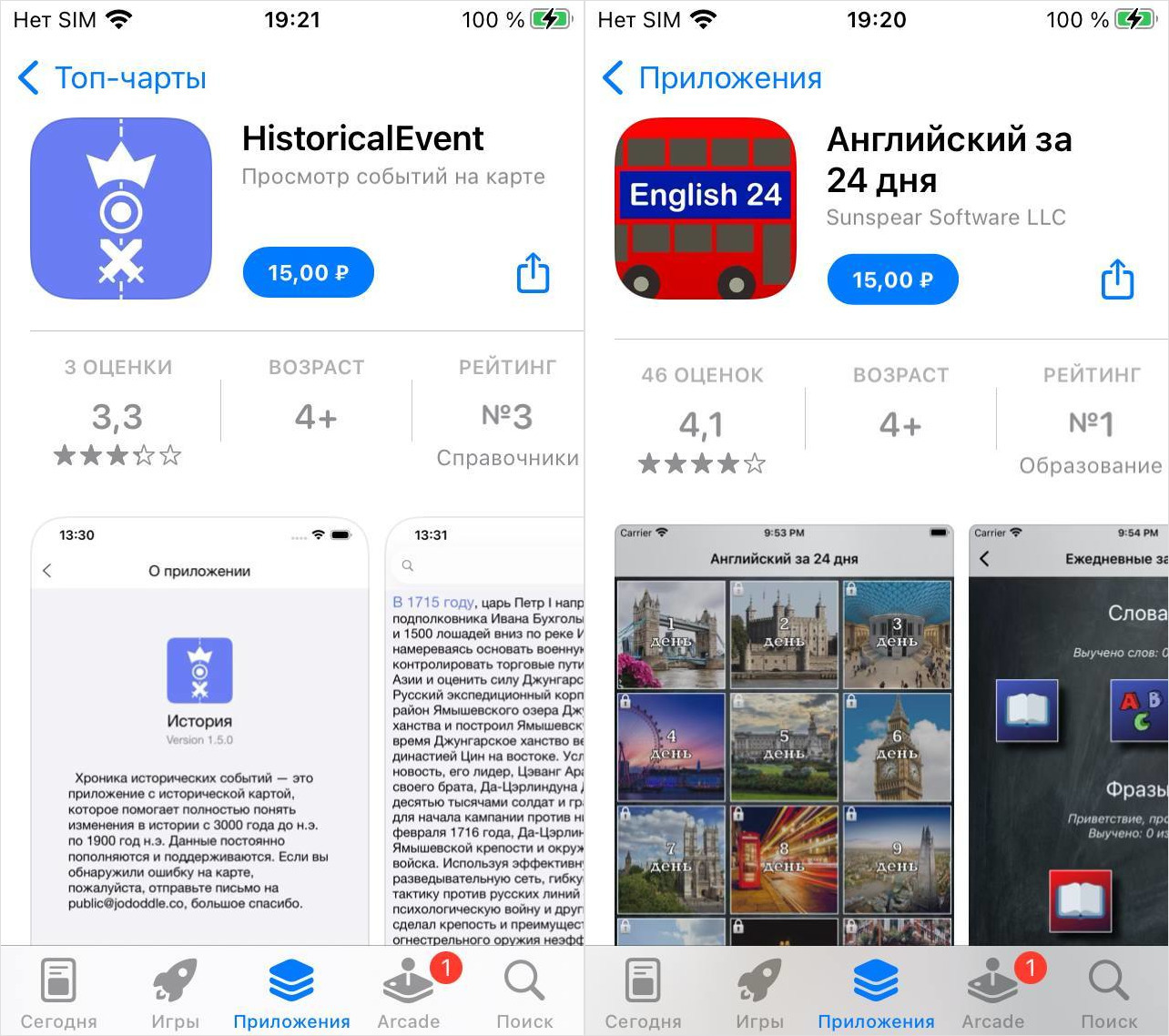
There are plenty of cheap apps in the App Store
Another option is to subscribe to something on your iPhone that will charge the remaining amount. iCloud+ for 50 GB, Apple Music, or Apple One — any of them will deduct the funds at the next billing. However, there’s a catch: Apple Music may block a subsequent region change due to music licensing. So if your goal is specifically to move regions, it’s better to choose iCloud+ or Apple One.
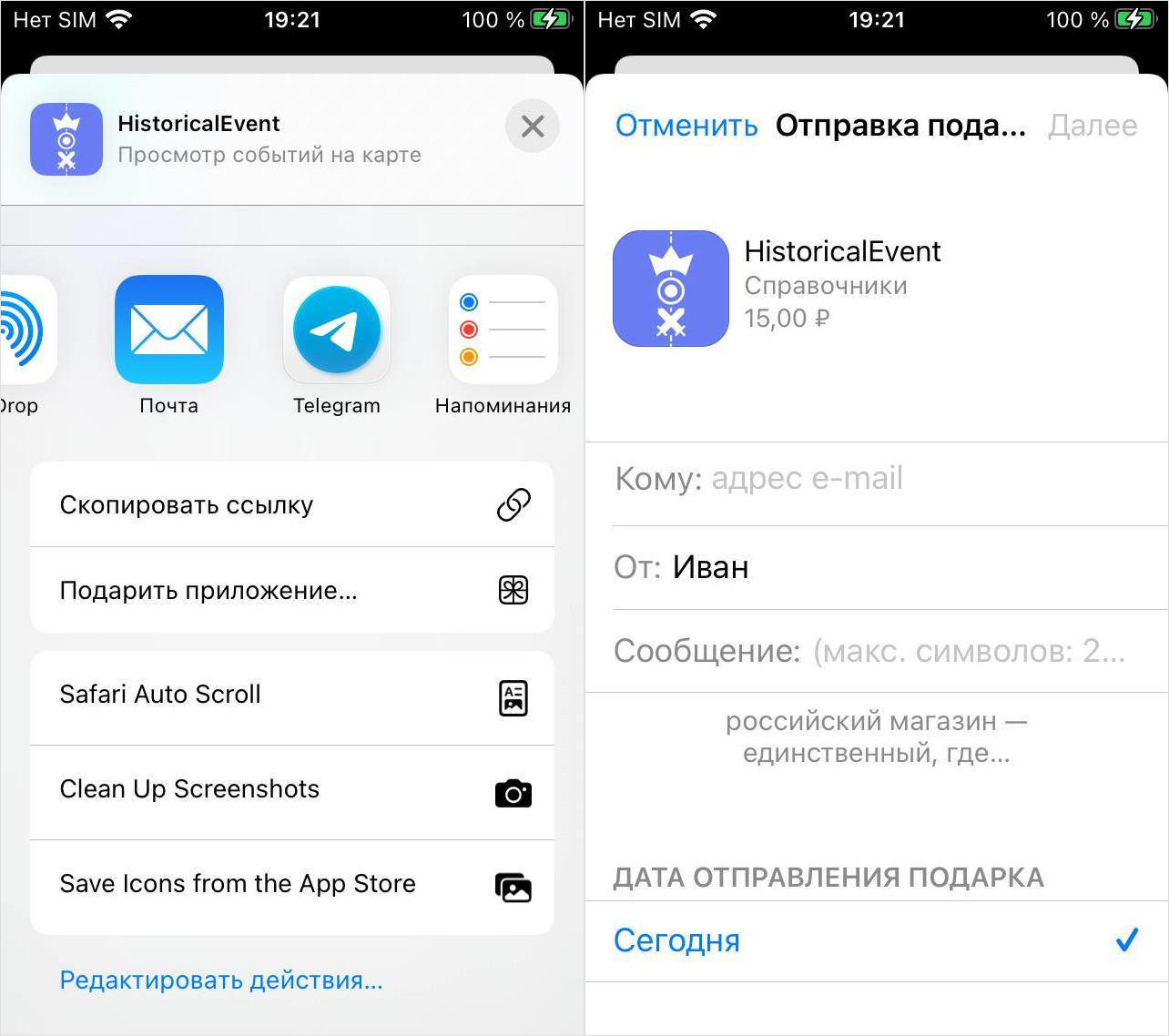
You can send an app as a gift to a friend
Finally, you can buy an iPhone app as a gift for another user. Go to the App Store, select a paid app, tap “Gift” — and the balance decreases. This method works great when you need to deduct a specific amount. You can gift to anyone who has an Apple ID — you just need to know their email. And remember — your goal is to bring the balance down to exactly zero, not just reduce it. Even one ruble on the account won’t let you change your App Store region.
How to Clear Money from the App Store
Sometimes a very small amount gets stuck on the balance — 3 rubles, 7 rubles. And there’s literally nothing to buy for that. In that case, it would be silly to try topping up the account just to make a purchase. The fastest route is to ask Apple Support to zero out your Apple ID balance manually. Yes, they do this, and it’s a confirmed practice. There won’t be any problems with it. What should you do?
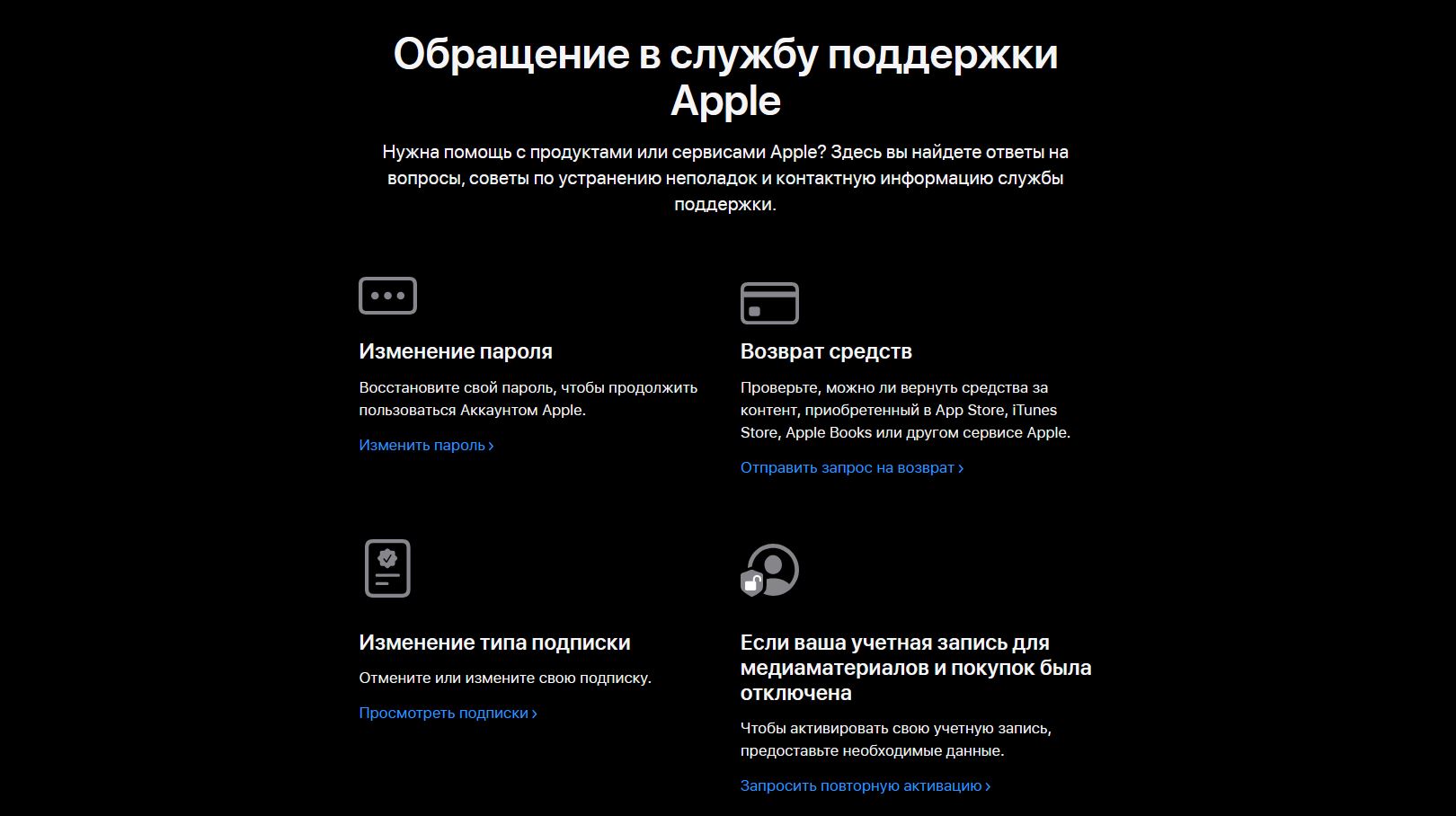
Don’t want to call? You can contact Apple Support through the website
- Simply call Apple Support in Russia at 8-800-555-67-34 and request a balance deduction.
- Have your Apple ID login (email), linked phone number, and preferably a screenshot of your balance ready to provide to the operator.
- The operator will process a refund from your Apple ID balance. The funds will be returned to your phone number if the top-up was made from it.
Usually, support resolves the issue in a single call — the funds are deducted, and within a few minutes you can change your region. If previously there were difficulties and sometimes it didn’t work to clear the Apple ID balance on the first try, the situation is different now. Readers report that there are no problems.
How to Create a New Apple ID for Another Country
If you don’t want to deal with the balance or aren’t ready to risk your main account, you can simply create a new Apple ID for another country and use it in parallel for App Store purchases. Your old account stays with your data, photos, and iCloud — nobody touches it.
- Go to iPhone Settings and sign out of your Apple ID.
- Follow this link and create a new one, selecting the US or another country in the settings. Keep your old phone number.
- Then fill in all the fields, after which enter the verification code — it will be sent to your email.
- Enter the new Apple ID credentials in your iPhone Settings, then go to the App Store and download any app to activate the account.
- You will need to enter a residential address — you can generate one using a randomizer.
- After that, your Apple ID will be active.
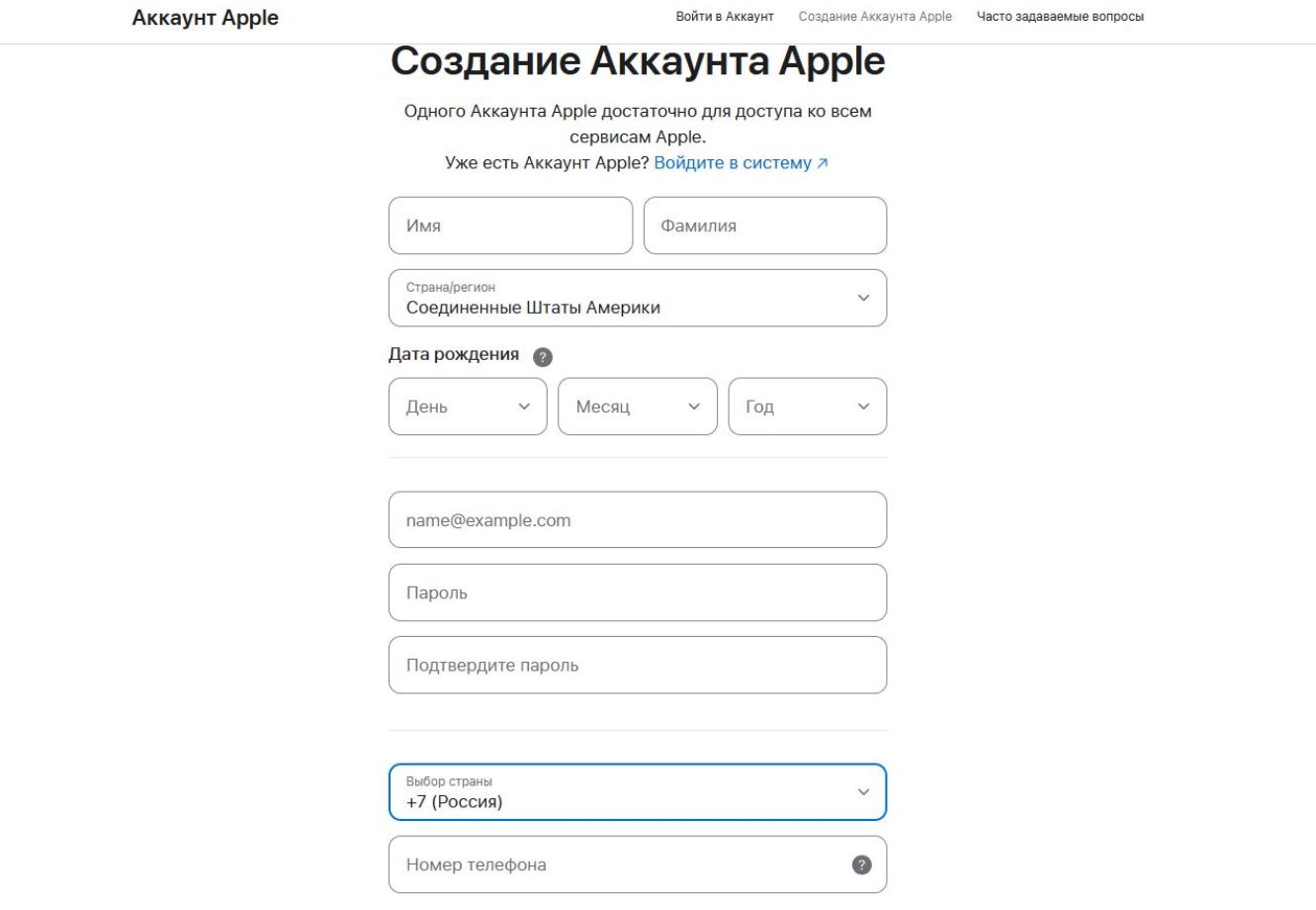
Creating a new Apple ID takes just a few minutes
The downside is obvious: two accounts are inconvenient. Subscriptions and purchases get split across different accounts, your Apple Music library disappears, and you have to constantly switch. But as a temporary solution, it works perfectly fine, especially if the old account still has a balance.