You set your child a one-hour TikTok limit per day, and they’ve been on it for three hours straight — sound familiar? The Screen Time feature in iOS 26 sometimes behaves as if limits don’t exist at all. The problem isn’t with your child — most often it’s due to incorrect settings or software glitches. Let’s figure out how to make restrictions work the way they should.
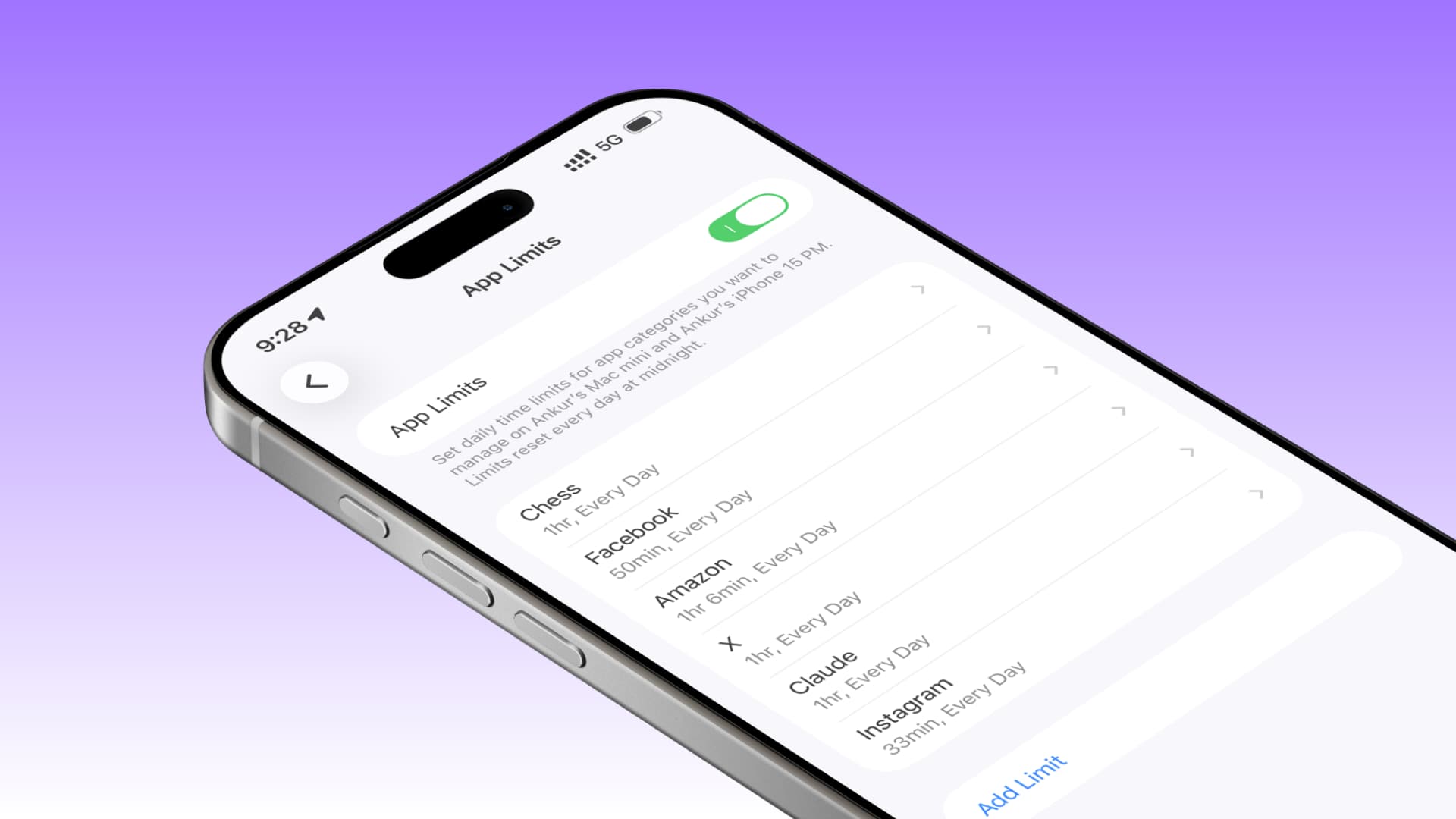
Fixing Screen Time restrictions that don’t work in iOS 26. Image: idownloadblog.com
Why Screen Time Limits Don’t Work on iPhone
The main reason app limits don’t block access is more mundane than you might think. The key option “Block at End of Limit” only appears after you set a Screen Time passcode. Without this passcode, the restrictions are merely advisory: a child can simply tap “Ignore Limit” and continue using the app. To set a passcode, do the following:

Create a Screen Time passcode
- Open Settings on your iPhone;
- Select the Screen Time section;
- Tap “Lock Screen Time Settings”.
If you’re setting up restrictions for your child’s device, make sure the passcode is set correctly — through Family Sharing. After that, go into an already created limit or create a new one and make sure the “Block at End of Limit” toggle is enabled. Without this toggle, everything else simply doesn’t matter.
How to Properly Set Up App Limits in Screen Time
Another common mistake is selecting the wrong apps when creating a limit. You can choose an entire category (for example, “Games” or “Social Networking”), or you can specify a particular app. If you’re restricting access to a website, make sure you’ve entered the correct URL. One typo — and the restriction simply won’t work.
There’s another nuance that catches parents off guard. All app limits reset at exactly midnight. This cannot be changed: the system doesn’t allow you to set restrictions for a week or a month. So if you see your child using a “blocked” app around midnight, the counter has most likely just reset.
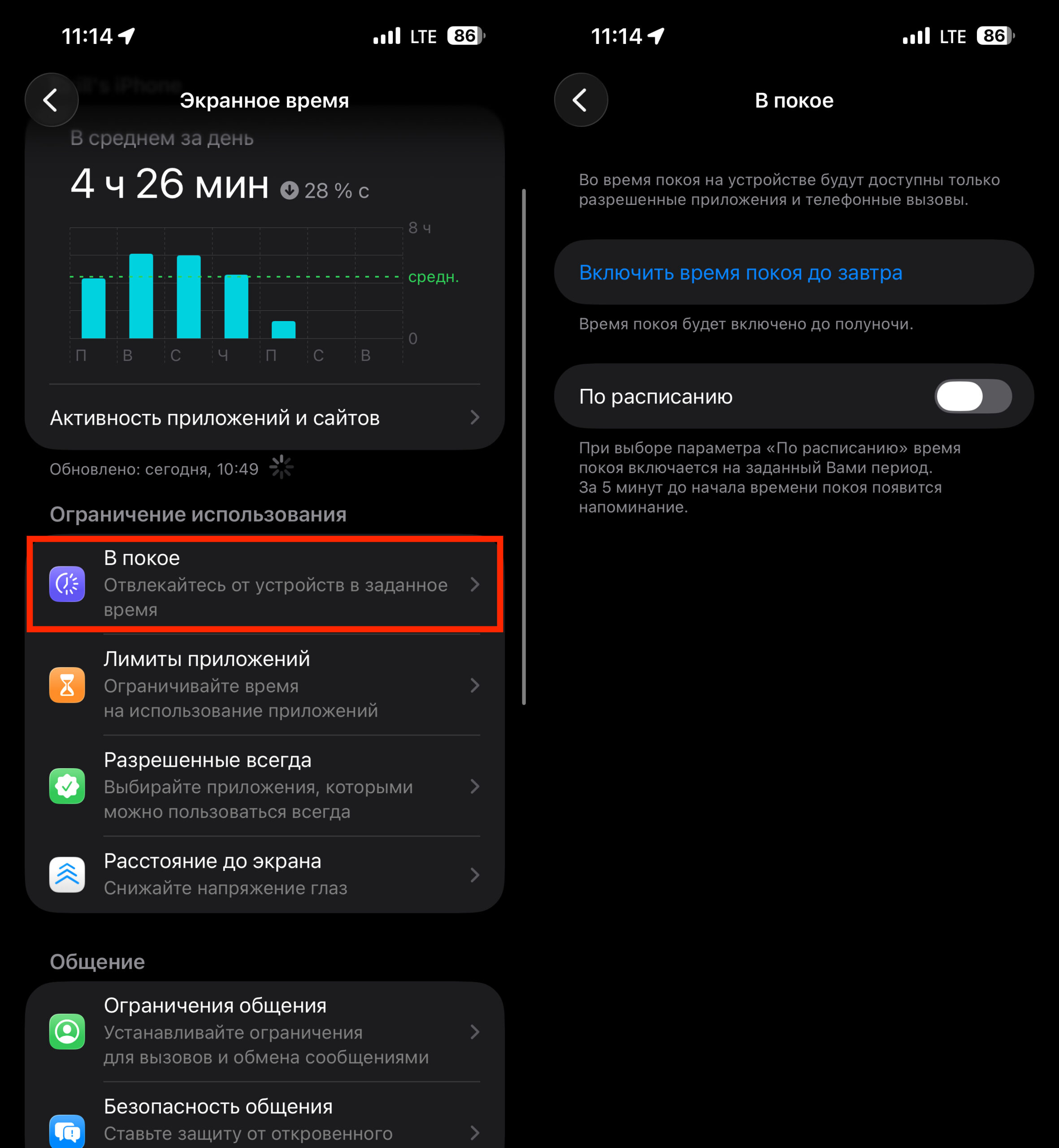
Use the Downtime setting so you don’t depend on counter resets at midnight
To control nighttime device usage, it’s better to use a separate feature — “Downtime”. It allows you to completely block access to an iPhone or iPad during specific hours, which is far more effective than regular limits.
How to Fix a Screen Time Glitch in iOS 26
If the settings are all correct but restrictions still aren’t working, the problem may be software-related. The first and simplest action is to restart your iPhone or iPad. Temporary Screen Time glitches happen, and a regular reboot often fixes the problem.
The second step is to check for updates:

Regularly update your OS
- Open Settings;
- Go to the General section;
- Select Software Update and make sure your device is running the latest version of iOS 26 or iPadOS 26.
Apple regularly releases patches that fix such bugs, so don’t ignore updates. If that doesn’t help either, try deleting the problematic limit and creating it again. To do this:
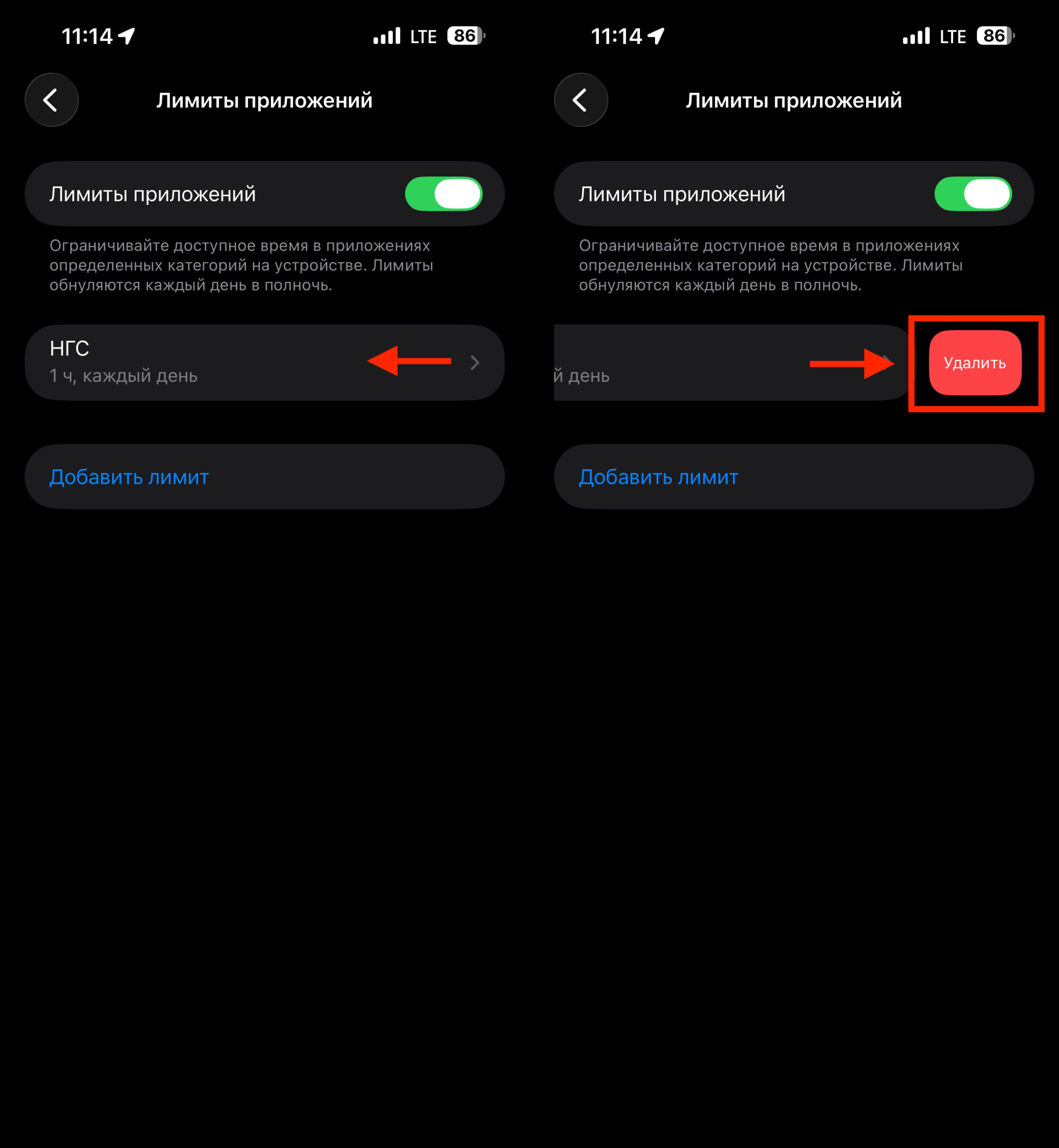
Delete the limit and set it again
- Open Settings;
- Select Screen Time and go to App Limits;
- Swipe the desired limit to the left and delete it;
- After that, restart the device and add the restriction again.
Another working method is to reset the Screen Time passcode. Go to Settings → Screen Time → Change Screen Time Passcode, select “Turn Off Passcode,” restart the device, and set the passcode again. Sometimes simply refreshing the passcode “revives” stuck restrictions.
How to Reset Screen Time and Set It Up Again
When none of the above helps, you can try more drastic measures. The first is to completely disable and re-enable Screen Time. To do this:
- Go to iPhone Settings;
- Select the Screen Time section;
- Tap “Turn Off App & Website Activity” at the bottom of the screen;

First, turn off Screen Time