Downloading MAX is a task that should take a minute in theory, but in practice sometimes turns into a quest. The messenger appeared not long ago, and a significant number of users experience problems specifically during the first installation. The issue might be with the phone’s storage, the Android version, the account region, or a glitch in the app store itself. Here we’ll figure out: what to do if the MAX app won’t install.
Solving MAX installation problems on Android
Why MAX Won’t Install
Before taking any action, it’s worth understanding the cause. MAX won’t install on Android most often due to one of four reasons. The solution depends on which specific reason it is:
- Not enough storage space. This is the most common reason. MAX is not the lightest app, and installation requires at least 200-300 MB of free space. Moreover, on Android, any software installation is restricted when storage is 85-90% full.
- Outdated Android version. MAX requires Android 8.0 or higher. If the phone has an earlier version — MAX won’t install on Android at all, and no workarounds will help. The only option in this case is to update the system or switch devices.
- The app is not supported in your country. Play Store may not show MAX to users with a foreign Google account. Technically, this is a regional restriction that can be bypassed through alternative installation sources.
- No internet or unstable connection. It sounds obvious, but this is often overlooked.
- MAX won’t download on Android if the connection drops during the download process, and Google Play doesn’t always display an error with a clear description.
Once the cause is identified, we move on to the solution. First, we need to fix the problem itself, and then choose the optimal method for installing the app on the phone.
What to Do Before Installing MAX
Before trying different methods of installing MAX, it’s worth completing basic preparatory steps. They solve most problems without any additional actions:
- Restart your smartphone. This is not a joke or mockery. Many installation errors occur due to temporary system glitches that a restart fixes in seconds.
- Check your internet connection. Open a browser and load any website. If the page doesn’t open or loads slowly, first resolve the connectivity issue. Switch between Wi-Fi and mobile data.
- Check your Android version. Go to “Settings” — “About Phone” — “Android Version.” If the version is below 8.0 — installing the MAX messenger on this device won’t be possible.
- Free up storage space. Go to “Settings” — “Storage” and check how much free space remains. You need at least 10-15% of the total storage capacity. Delete unnecessary photos, apps, or move files to a memory card.
- Clear Google Play cache. Go to “Settings” — “Apps” — “Google Play” — “Storage” — “Clear Cache.” This resolves non-obvious store glitches that cause installation to hang or throw errors.
After these steps, try to download the MAX app again. In most cases, the problem is already solved. If not — we move on to more specific instructions for each installation method.
How to Install MAX on Android
Installing MAX on Android is possible through three methods: via Google Play, via RuStore, and via an APK file. The first method is the simplest and recommended by default. The second is relevant if Google Play is unavailable or doesn’t show the app in your region. The third is a last resort for those who can’t use the first two.
Installing MAX via Google Play
The standard and safest method. MAX via Google Play receives automatic updates and passes store verification:
- Open the Google Play app on your smartphone.
- In the search bar, type “MAX messenger.”
- Select the app from developer MAX LLC.
- Tap “Install” and wait for the download to complete.
- After installation, tap “Open” or find the app icon on your home screen.
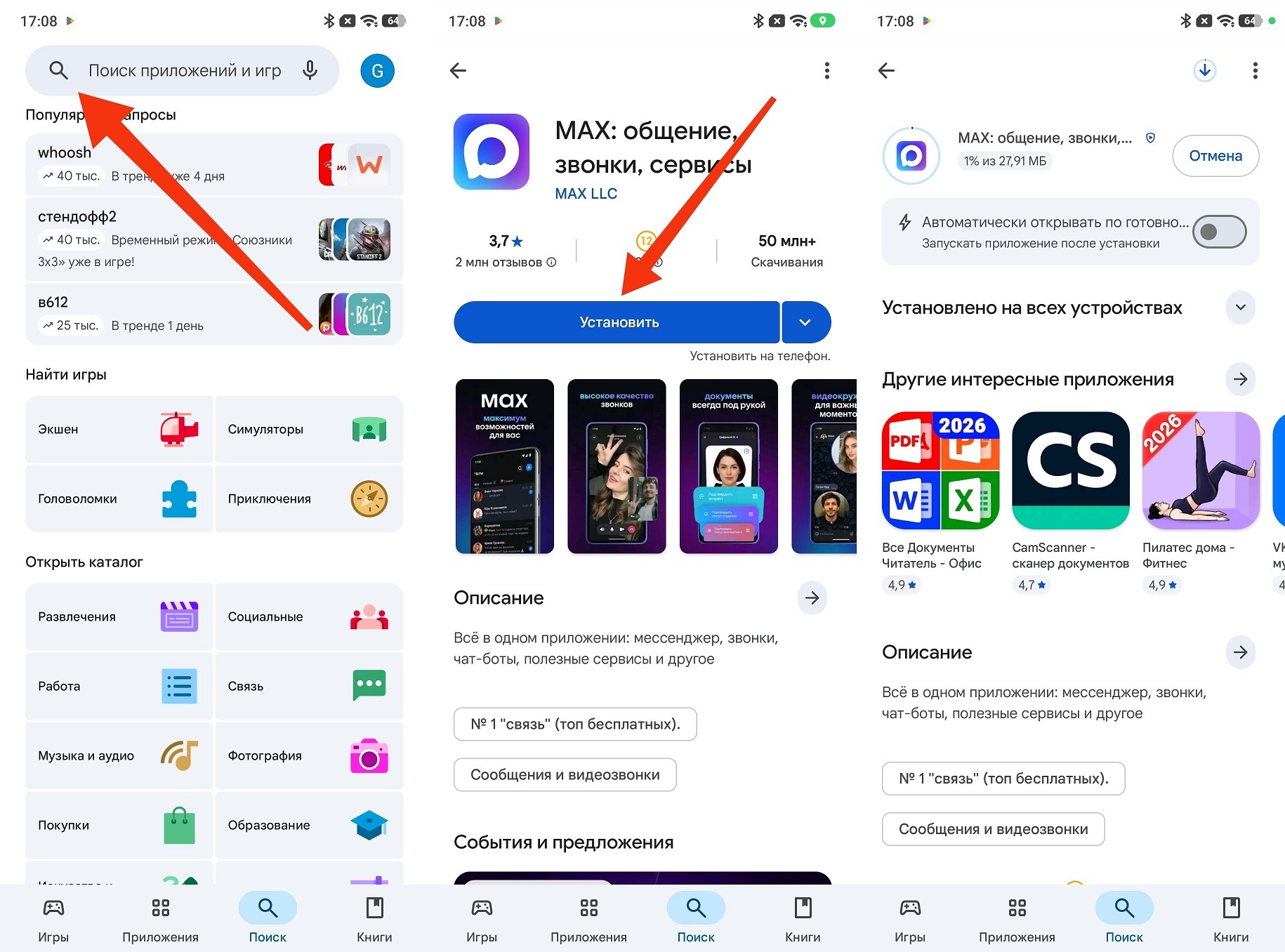
Standard installation method on Android
If the search doesn’t return the app or the “Install” button is unavailable — most likely, the Google account is registered in a region where MAX is not distributed. In this case, move on to the next method.
Installing MAX via RuStore
RuStore is a Russian app store from VKontakte, where MAX is available without regional restrictions. This is the best option if MAX won’t download through Google Play due to account region.
First, you need to install RuStore itself, if it’s not already installed:
- Open the browser on your smartphone and go to rustore.ru.
- Tap “Download RuStore” and confirm the APK file download.
- After downloading, open the file. The system will ask you to allow installation from unknown sources — allow it for the browser.
- Wait for the RuStore installation to complete.
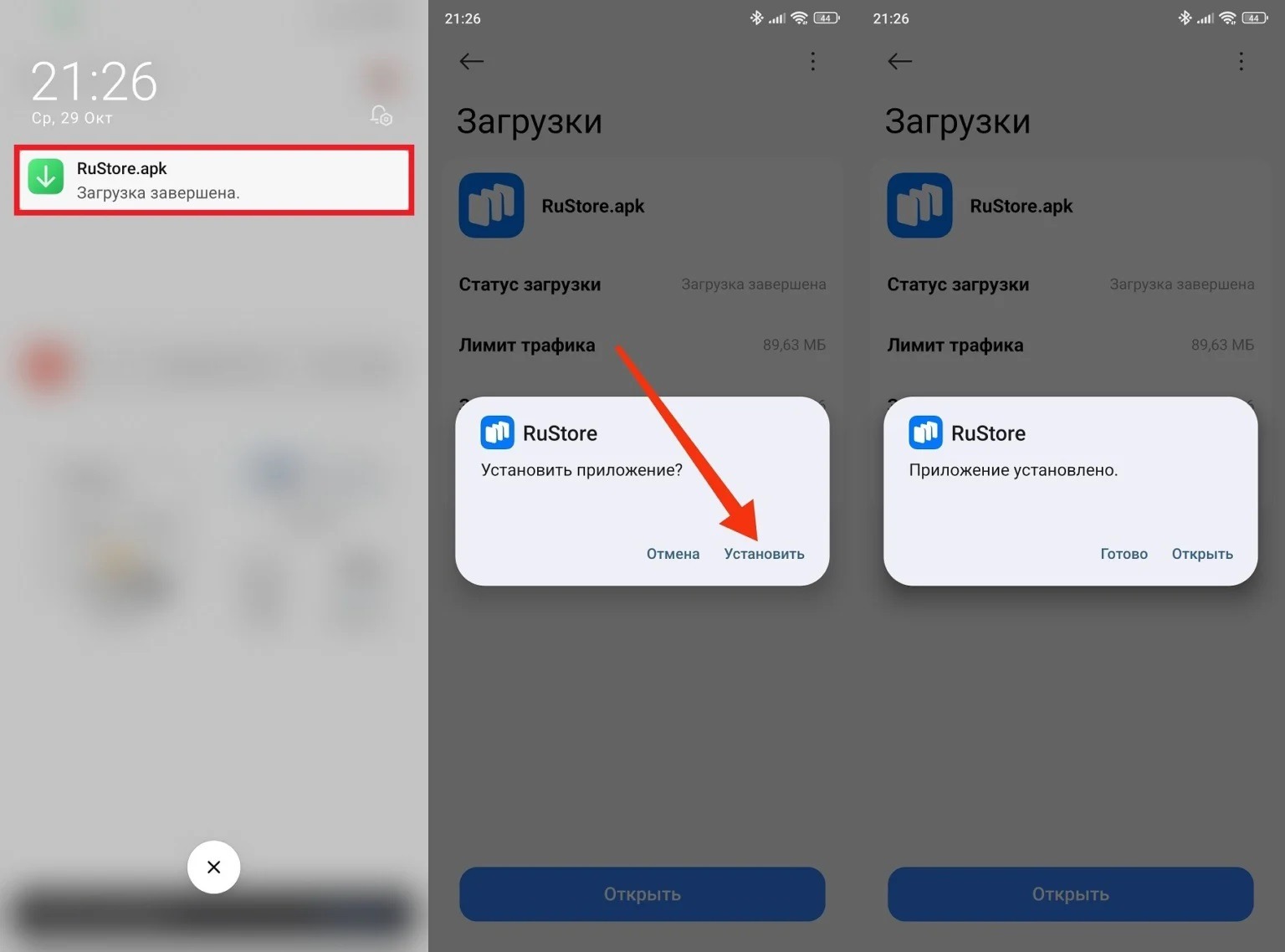
RuStore installation is done via APK
Now let’s try to download the MAX messenger through RuStore:
- Open RuStore and sign in to your account (you can use VK ID).
- In the search bar, type “MAX.”
- Select the MAX app and tap “Install”.
- Wait for the installation to complete.
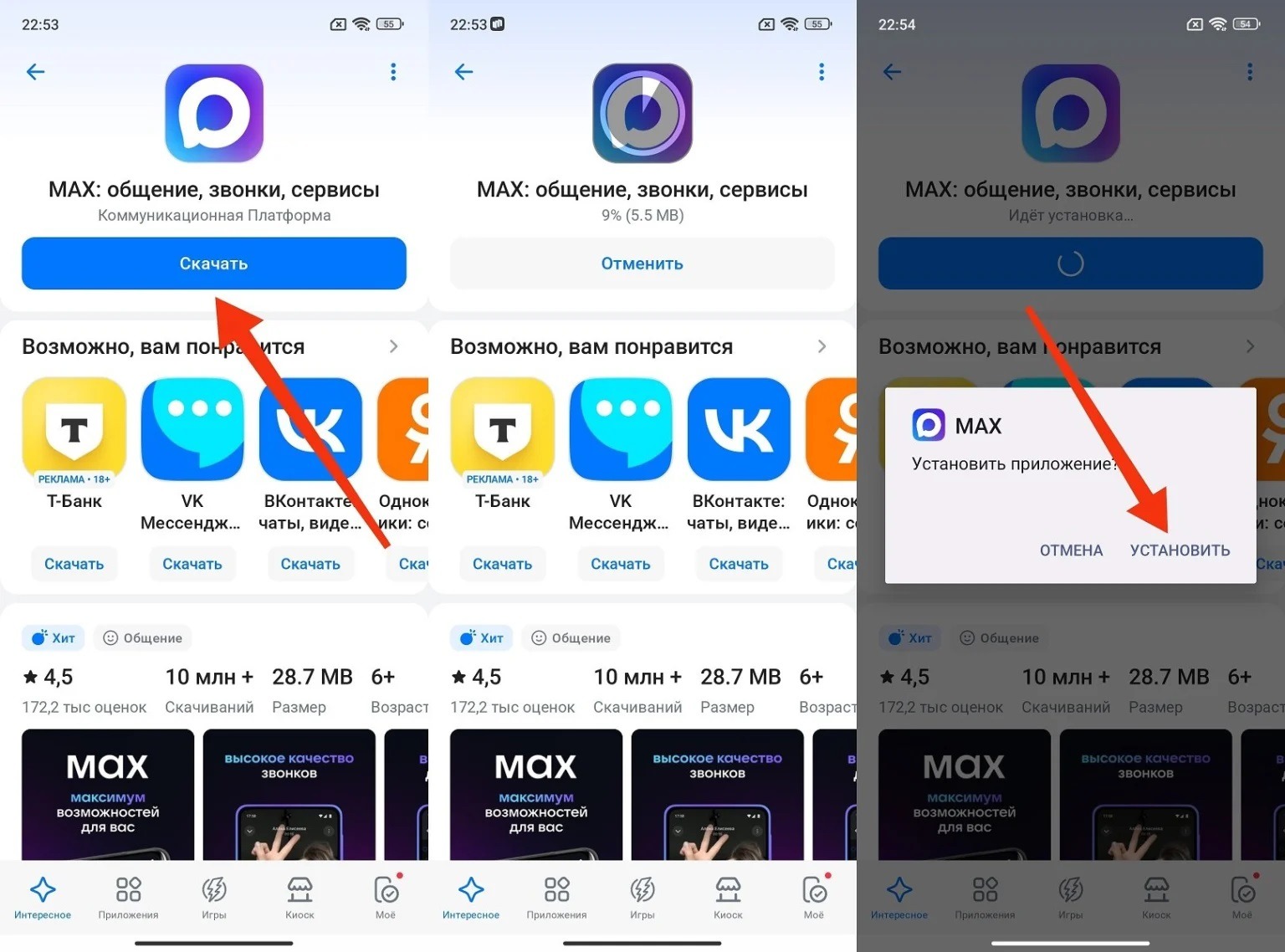
Installation here is almost the same as in Google Play
After installation, you can also keep RuStore enabled. It updates apps automatically, just like Google Play. This is convenient if you plan to use other Russian services as well.


