Read receipts in the national messenger are simpler than in most other messengers — there are only two main states here. But it’s precisely because of this simplicity that users often get confused: why has a single checkmark in MAX been sitting there for several hours, even though the message clearly went through? Let’s break down all the statuses in order so you understand exactly how message exchange works.
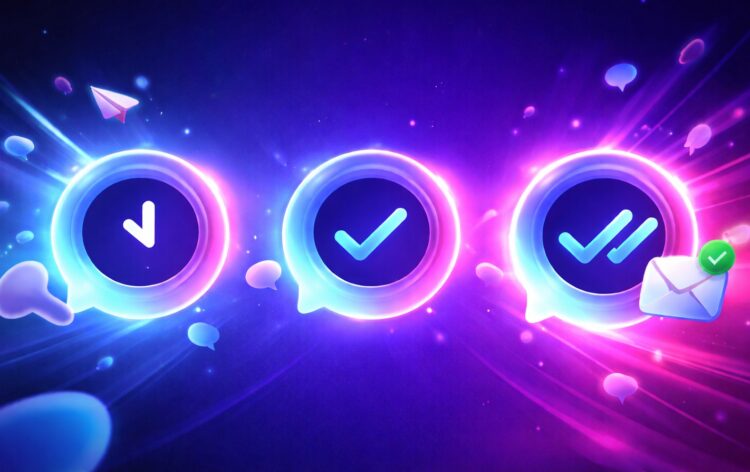
Understanding the checkmarks of the national messenger
What Does One Checkmark Mean in MAX
One blue checkmark in MAX means that the message was successfully sent from your device and transmitted to the messenger’s servers. It may have already been delivered to the recipient’s phone — but there is no read confirmation yet. The single blue checkmark in MAX remains in this state until the recipient opens the chat and reads the message.
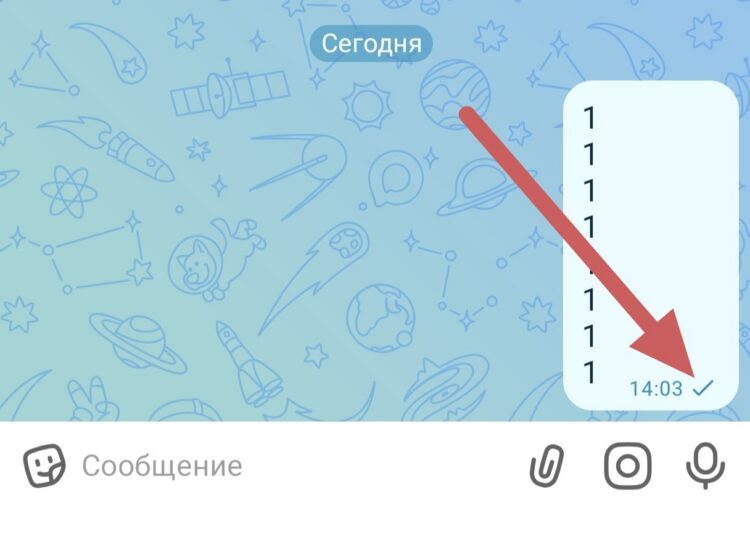
Message sent and possibly even delivered
It’s important to understand the difference with what happens before sending: while the message is being uploaded to the servers, an animated clock icon is displayed next to it instead of a checkmark. Once the clock changes to a checkmark — the message has been sent. A single blue checkmark on a MAX message doesn’t indicate a problem: it’s simply the normal state before the message is read.
Two Checkmarks in MAX — What It Means
Two blue checkmarks in MAX mean that the recipient opened the chat and read the message. This is the only meaning of two checkmarks in the messenger — there is no intermediate “delivered but not read” state here. Read receipt checkmarks in MAX appear the moment the recipient opens the conversation and the message comes into their view.
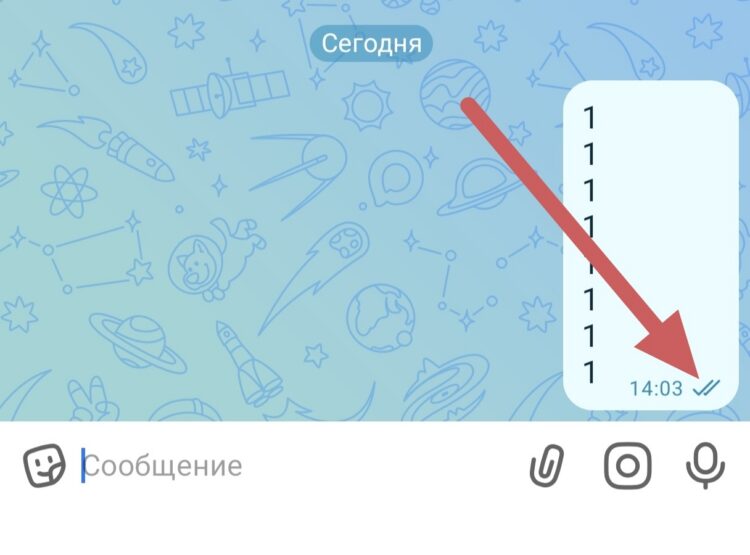
Message was read by the recipient
In group chats, the picture is slightly different. Two checkmarks in a group conversation mean that at least one participant has read the message. To find out who exactly in the group has seen the message, you need to long-press on it and select “Information” or “Message details” — a list with marks for each participant will open.
Why There Is Only One Checkmark in MAX
If one blue checkmark stays in MAX for a long time, there could be several reasons. The most common and obvious ones:
- the recipient has no internet or their phone is turned off;
- the person hasn’t opened the messenger since the message was sent;
- the person saw the notification but didn’t open the chat itself.
All these situations are normal and don’t indicate any technical problem. However, there is a more unpleasant possibility: if you’ve been blocked. Why there is only one checkmark in MAX for an indefinitely long time — this is exactly what often makes people think about being blocked. When you’re added to a block list, the message remains with one checkmark forever: it was sent to the servers but never reaches the device of the person who blocked you.
What Does “ed” (Edited) Mean in MAX
Next to some messages in a chat, you might notice the “ed” mark on a MAX message — this means that the sender edited the text after sending it. The mark appears for all chat participants and remains visible regardless of whether you read the message before or after the edit. This is a standard transparency feature: the messenger lets you know that the original version was changed, although you cannot see exactly what was changed.
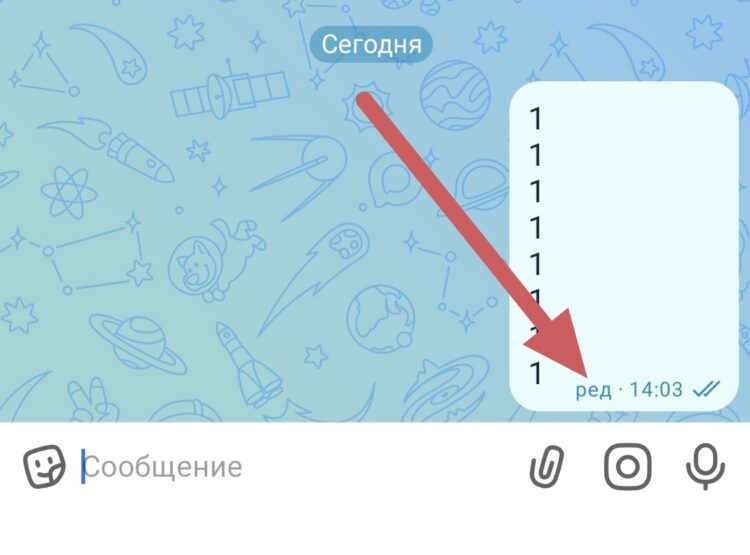
This is the sign of an edited message
In practical terms, this means the following: if you see “ed” under a contact’s message, the person corrected a typo, added information, or rephrased their thought after sending. There is nothing alarming about this.
How to Tell If Messages Aren’t Being Sent in MAX
If MAX isn’t sending messages, it’s immediately noticeable: instead of a checkmark, an animated clock icon spins next to the text. This means the message hasn’t left for the messenger’s servers yet and is in the sending queue. This usually happens when there are internet problems on your end.
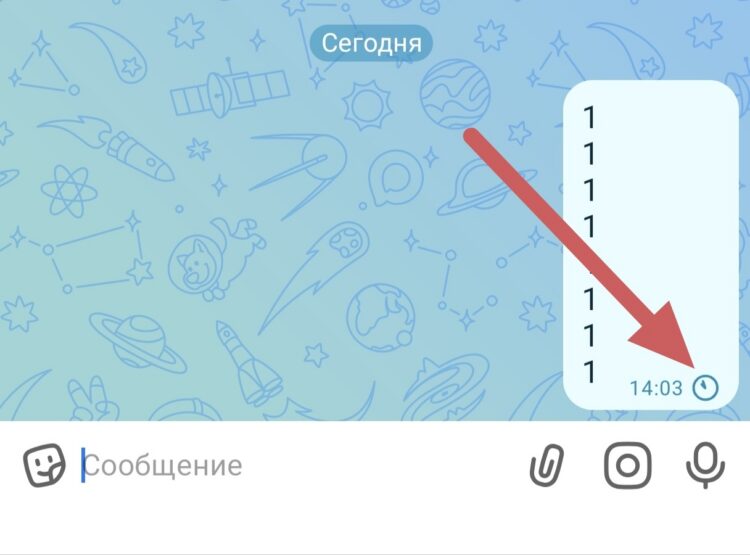
This icon means the message hasn’t been sent
If messages aren’t being sent in MAX, check the following:
- Make sure your internet connection is working — open any website or another app.
- Switch between Wi-Fi and mobile data: sometimes one of the connections is unstable.
- Restart the MAX app — close it completely and open it again.
- Check if there’s an app update in Google Play — outdated versions sometimes cause glitches.
- Restart your smartphone if none of the previous steps helped.
Once the connection is restored, queued messages will be sent automatically, the clock will change to a checkmark — and the conversation will continue normally. If the problem recurs regularly, the cause is most likely an unstable connection rather than the app itself.