If you use an iPhone in Russia, you’ve probably wondered at least once: “What happens if I can’t pay for iCloud?” Especially now, since from April 1, 2026, the “big four” carriers disabled Apple ID top-ups from mobile accounts at the request of the Ministry of Digital Development. For millions of users, this was the last convenient payment method. The only remaining options are gift cards. Let’s figure out what happens to your photos and data if your iCloud+ subscription expires — and how to prevent it.

Let’s figure out what happens to iCloud and your data if you don’t pay. Image: macrumors.com
What Happens to iCloud Right After Your Payment Expires
The first thing to understand: Apple doesn’t delete your data the same day your subscription ends. It’s too early to panic. But you shouldn’t relax either.
Here’s what happens immediately after your iCloud+ payment fails:
| What changes | What it looks like |
|---|---|
| Uploading new data | New photos, videos, and backups stop uploading to the cloud |
| Syncing | Automatic syncing between Apple devices is disabled |
| File access | All your files in iCloud remain in place — you can view and download them |
| iCloud+ features | “Hide My Email,” Private Relay, HomeKit Secure Video support — everything stops working |
| Backups | New iPhone and iPad backups are not created |
Essentially, iCloud switches to a “read-only” mode. You can still see your photos, documents, and notes, but nothing new gets uploaded. Apple gives you time — 30 days from when the subscription ends — to resume payment or download the files you need.
How Many Days Before Apple Deletes Your iCloud Data
This is where things get really unpleasant. If within 30 days you haven’t renewed your subscription and haven’t reduced your data to fit within the free 5 GB, Apple takes action. Key deadlines:
30 days after the subscription ends, you’re automatically downgraded to the free plan with a 5 GB limit. Everything that doesn’t fit within those 5 gigabytes is permanently deleted. No trash bins, no hidden archives. Apple’s servers clean the data automatically.

You’ll be rolled back to the free plan, and everything extra will be deleted
There’s a separate story with device backups. Even if you continue paying for iCloud but simply don’t use a specific device, Apple reserves the right to delete its backup after 180 days of inactivity. This is stated in the iCloud terms of use and applies, for example, to broken iPads or old iPhones that have been sitting in a drawer for a long time.
What does all this mean in practice? Let’s say you have a 200 GB plan, and it’s packed full of photos. Your subscription ends, and you don’t pay. After a month, Apple downgrades you to 5 GB — and 195 GB of your data simply disappears. Tens of thousands of photos, vacation videos, family archives — all of it vanishes forever.
Important: Apple sends notifications to the email linked to your Apple ID and to your devices. If you ignore them — that’s your responsibility.
How to Download All Photos from iCloud to iPhone and Mac
Even if you decide to give up iCloud, you don’t have to lose your photos. Apple has provided several ways to export everything to your device.
On iPhone or iPad:
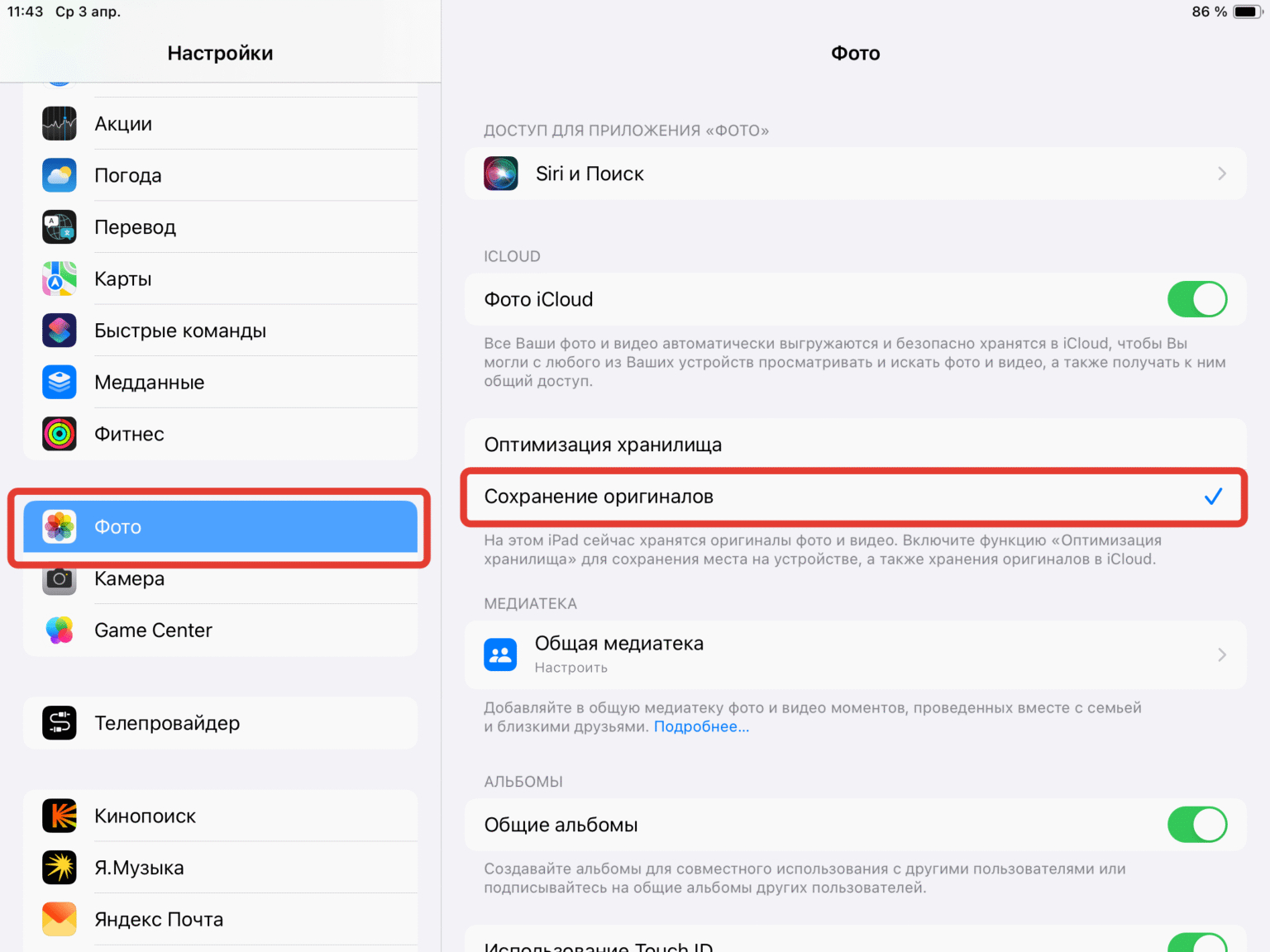
Make sure to connect to Wi-Fi so all data downloads
- Open “Settings” and tap your name at the top of the screen;
- Select “iCloud” and go to the “Photos” section;
- Switch the mode from “Optimize iPhone Storage” to “Download and Keep Originals”.
After this, your iPhone will start downloading all original photos and videos from the cloud to the device. Make sure your iPhone has enough free storage, connect it to Wi-Fi and a charger — the process can take several hours or even days if you have a large library.
You can monitor the progress in the Photos app — at the bottom of the screen, it will show how many originals are still left to download.
On Mac:
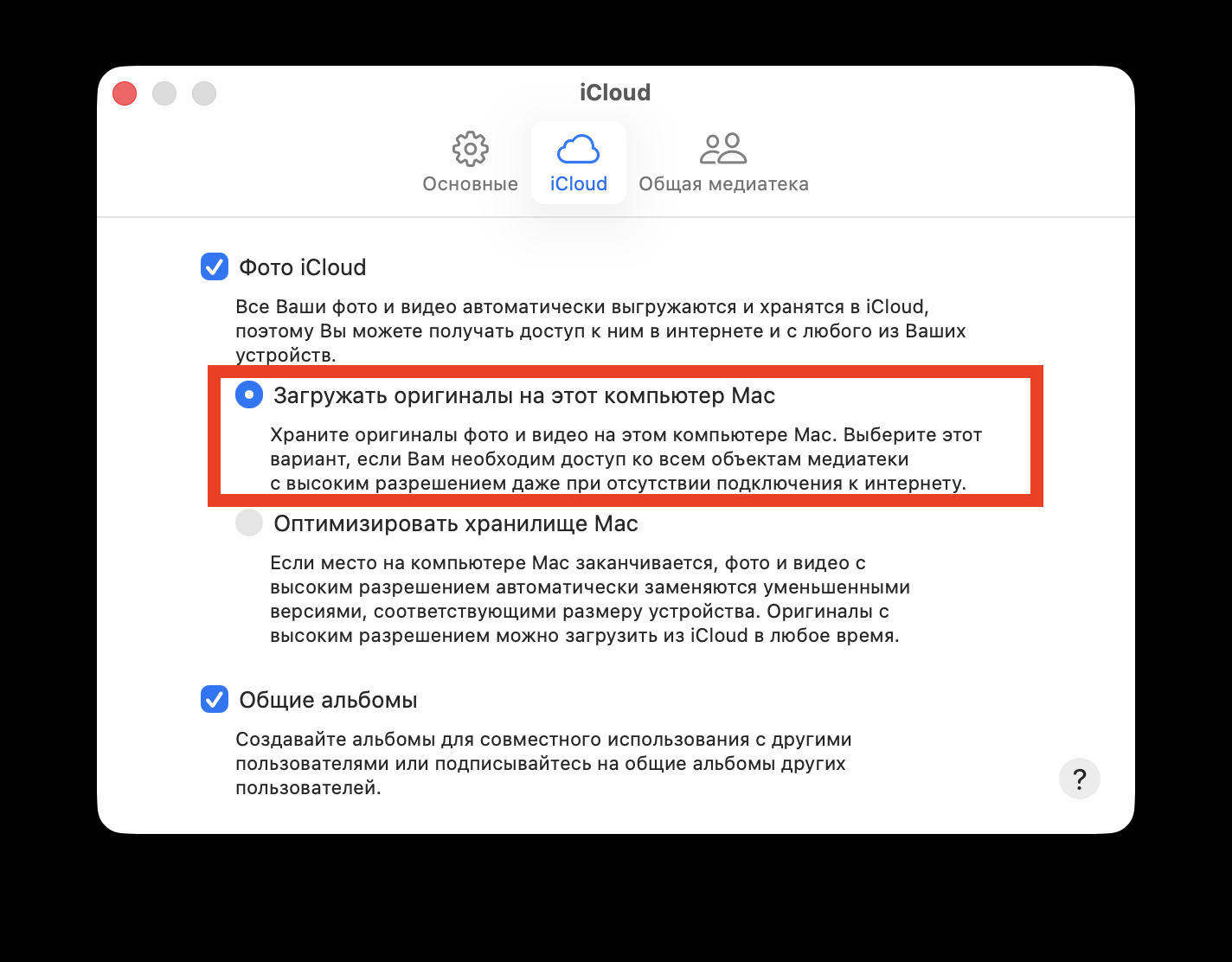
On Mac, you can also download everything very easily
- Open the Photos app and click “Settings” in the upper left corner;
- In the menu that opens, check “Download Originals to this Mac”;
- Wait for the download to complete. All photos and videos will appear in the Photos app library.
Via iCloud.com website:
Go to icloud.com, sign in, and open “Photos.” Select the photos you need and click the download icon (cloud with a downward arrow). This method works if you need to download specific photos — but for a library of tens of gigabytes, it’s too slow.
Via Apple data copy request:
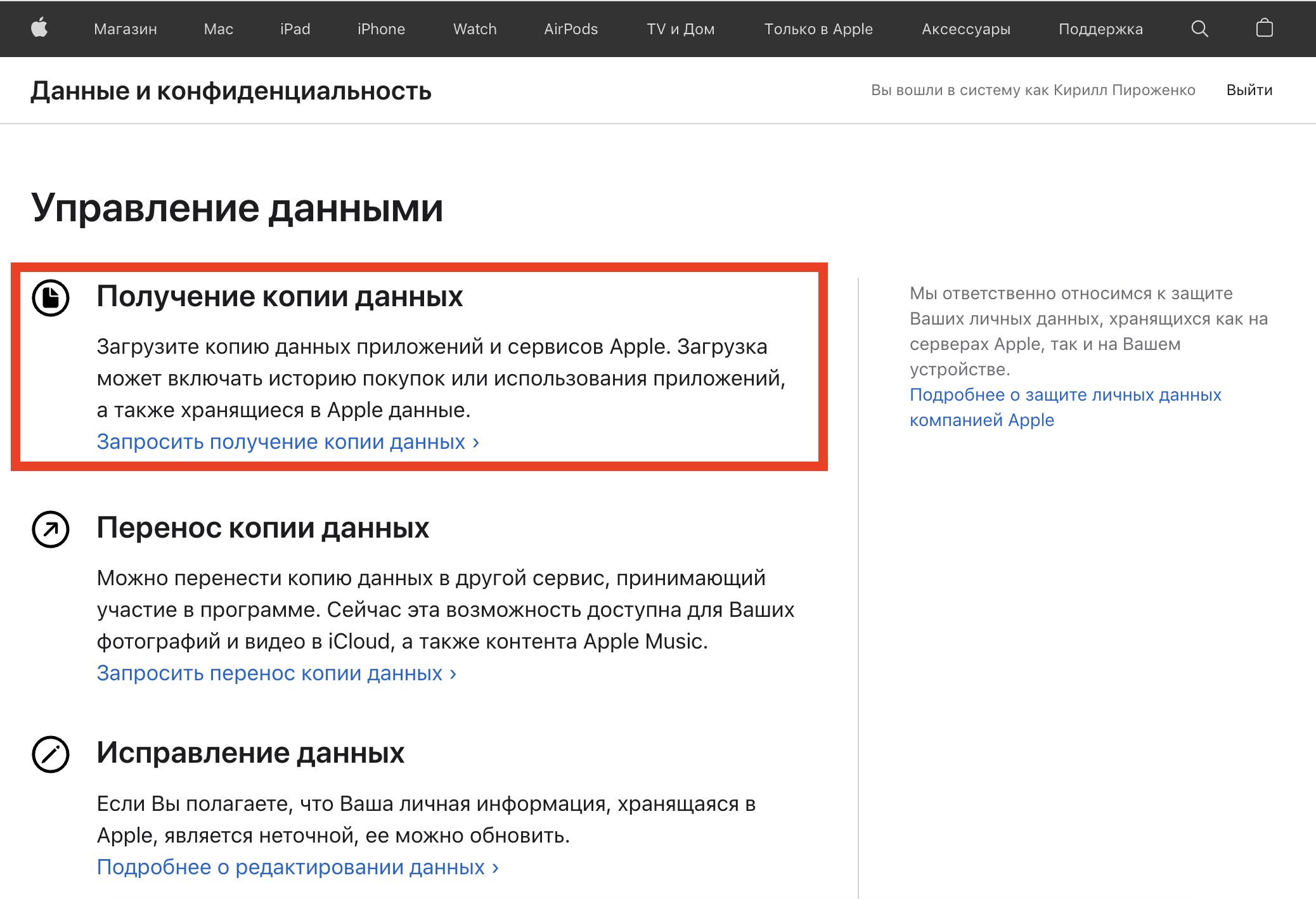
Request a copy of any of your data from Apple, including photos
If you want to take everything from iCloud — photos, videos, contacts, notes, iCloud Drive files — go to privacy.apple.com. Sign in, complete two-factor authentication, and in the “Obtain a copy of your data” section, click “Request a copy of your data”. Check the categories you need, select the maximum archive size (up to 25 GB per file), and wait. Apple will prepare the archives within a few days and send a notification when they’re ready to download.
Where to Transfer Photos If You’re Giving Up iCloud
If iCloud no longer suits you, there are several proven alternatives.
Yandex Disk. For Russian users, this is probably the most logical option. Payment in rubles, servers in Russia, no issues with sanctions. You get 5 GB for free, but for 319 rubles per month you can get 200 GB, and for 499 rubles — a full terabyte as part of a Yandex 360 subscription. There’s auto-upload of photos from iPhone — the app will automatically send new photos to the cloud.

I use Yandex Disk and couldn’t be happier


