When you open the iPhone camera, buttons with numbers appear at the bottom of the screen: 0.5, 1, 2, 5… Each zoom number on iPhone indicates the degree of magnification relative to the standard field of view. But behind some values there’s a separate lens with true optical zoom, while behind others — a software crop of the frame. In this article, we’ll break down all available zoom values — from the ultra-wide x0.5 to the maximum telephoto — and explain when to use each one.
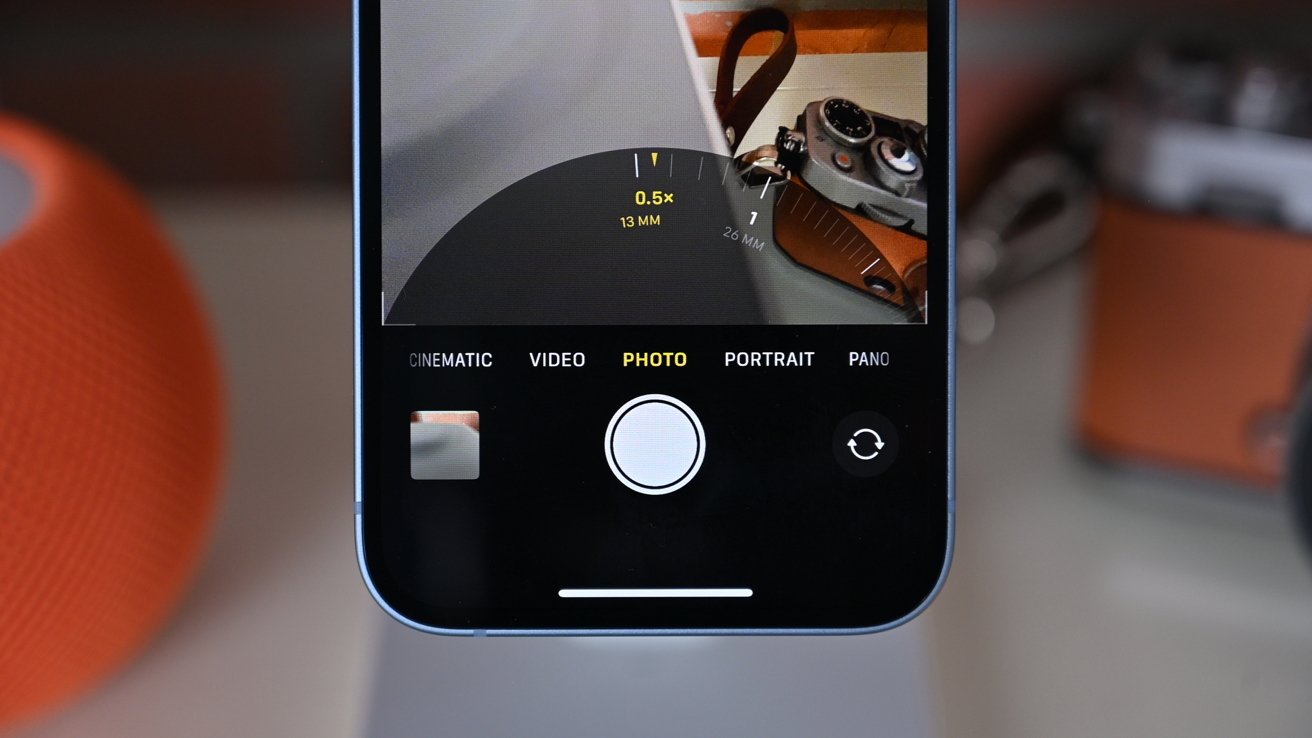
Understanding zoom on iPhone. Image: appleinsider.com
How the iPhone Camera Zoom System Works and What’s Behind It
The number next to the “x” symbol shows how many times the image is magnified compared to the base field of view of the main camera (x1). If you see x2, the image is enlarged twice, x5 — five times, and so on. The value x0.5, on the other hand, means the field of view has become twice as wide as standard. Behind each number there can be one of two mechanisms:
- Optical zoom — switching to a separate physical lens. Quality remains at its best because the full sensor area is used.
- Digital zoom (crop) — cropping the central part of the frame from one of the sensors. The more the crop, the more noticeable the loss of detail.
In modern iPhone Pro and Pro Max models (starting with iPhone 15 Pro), there are three physical lenses: ultra-wide, main, and telephoto. But in the camera interface, more fixed zoom values are available — the additional steps are achieved precisely through cropping from the 48-megapixel sensor. Apple calls these intermediate steps separate “cameras,” although physically the lens is the same.
It’s important to understand: intermediate values between the fixed buttons (for example, x3.7 or x6.2) are always digital zoom, which stretches pixels via software. Quality in such cases is lower than at fixed steps. Therefore, for the best results, try to shoot at the preset values.
Zoom x0.5 (13mm) — iPhone Ultra-Wide Camera
When pressing the x0.5 button, the iPhone switches to the ultra-wide lens with a focal length of about 13mm. This is the widest field of view available — almost everything you see in front of you fits in the frame.
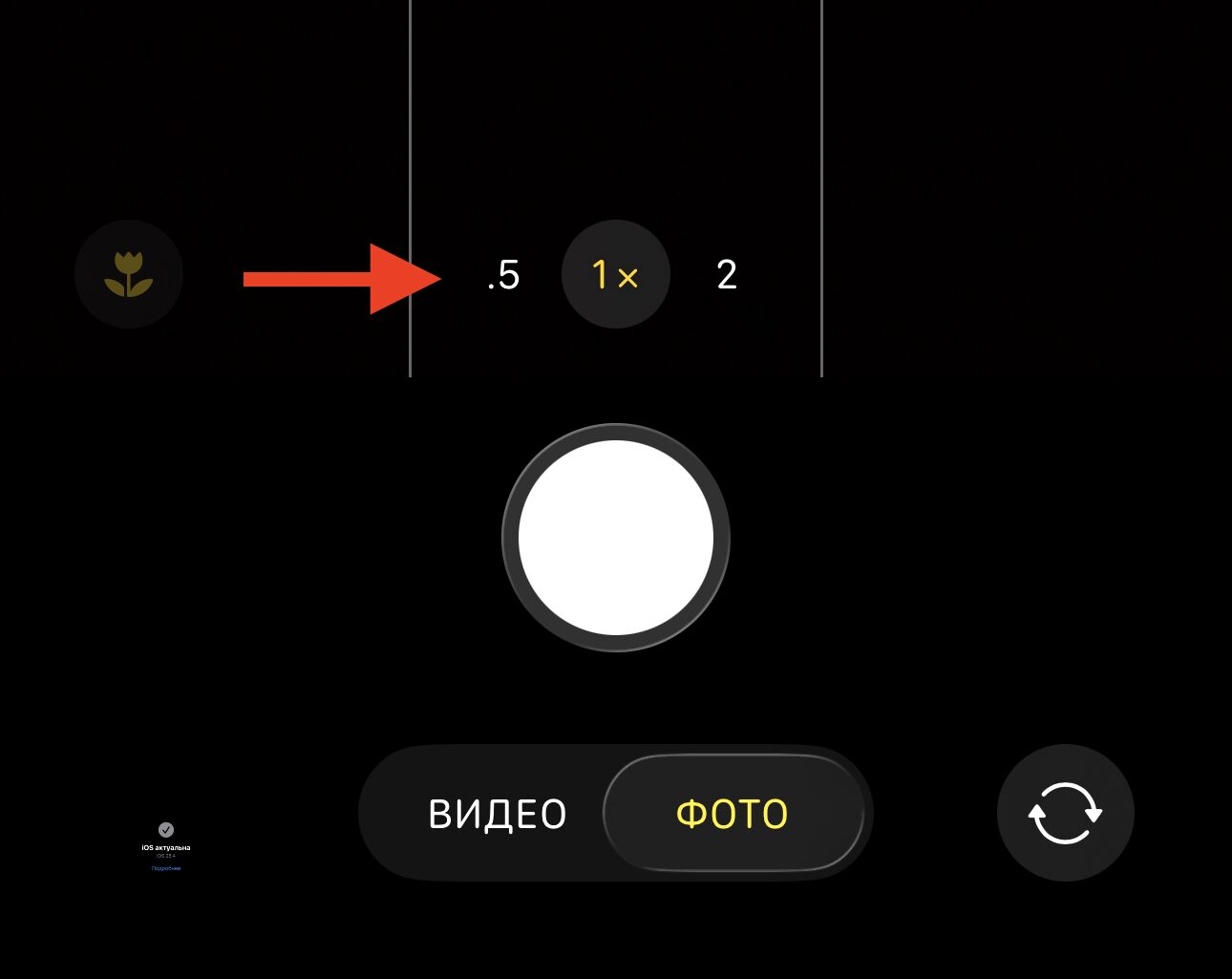
Super wide-angle on all models that have this mode
When to use x0.5:
- Architecture and interiors. An entire tall building, a spacious room, or a narrow street — the ultra-wide angle captures a scene that doesn’t fit in a standard frame.
- Landscapes. Mountain panoramas, seaside coastlines — anywhere you want to convey scale.
- Group photos. A large group in a tight space — at x0.5 everyone will fit without needing to step five meters back.
- Creative distortions. Objects at the edges of the frame stretch noticeably — this can be used to create dynamic, unusual shots.
Keep in mind that with such a wide angle, people’s faces at the edges of the frame become distorted — they stretch and deform. This mode is not suitable for portraits, but it’s indispensable for conveying a sense of space.
Zoom x1 (24mm) — Main Camera and Macro Mode
The value x1 corresponds to the main lens with a focal length of 24mm. This is the “workhorse” of the iPhone camera: the largest sensor, the fastest optics (more light reaches the sensor), and the best quality in low-light conditions.
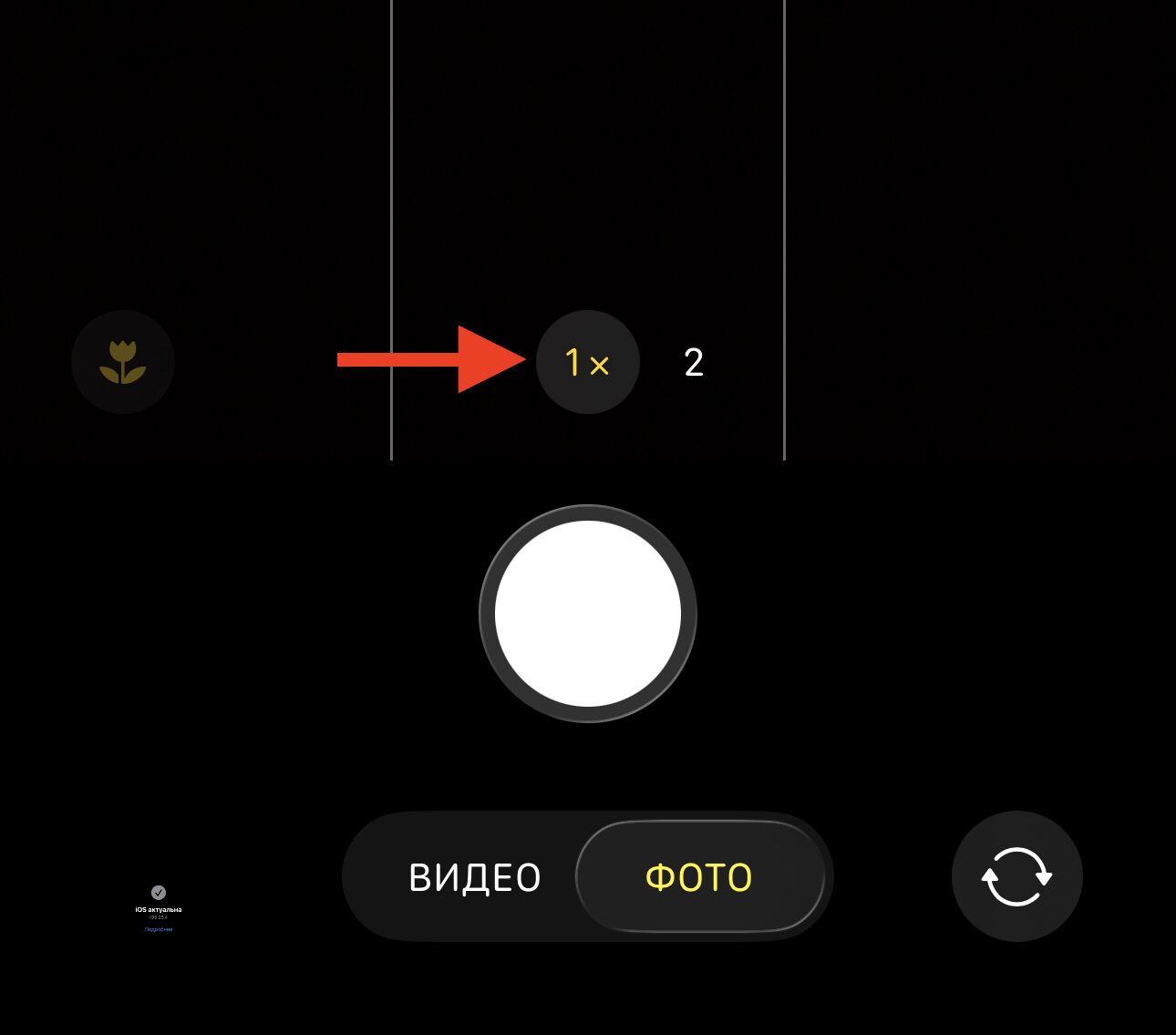
Standard mode that activates by default
The x1 mode is suitable for most everyday scenes: food photos, street shots, indoor photos, quick snapshots “for the memories.” The field of view at 24mm is wide enough to convey context but not so wide as to distort proportions.
There’s one nuance: when you bring the iPhone on x1 very close to an object (within a few centimeters), the camera automatically switches to the ultra-wide module and activates macro mode. Visually, the switch is seamless — the number still shows x1, but a different lens is now shooting, one that can focus at a minimum distance. This is convenient for photographing small details: textures, insects, text on labels, jewelry.
Zoom x1.2 and x1.5 (28mm and 35mm) — Crop from the Main Sensor for Street Photography
On iPhone Pro models with a 48-megapixel main sensor, additional fixed steps x1.2 (28mm) and x1.5 (35mm) are available. Physically, it’s the same main lens, but the camera crops the central part of the frame. Thanks to the high sensor resolution, the quality remains excellent — the final image contains about 12 megapixels, which is more than enough for screens and printing.
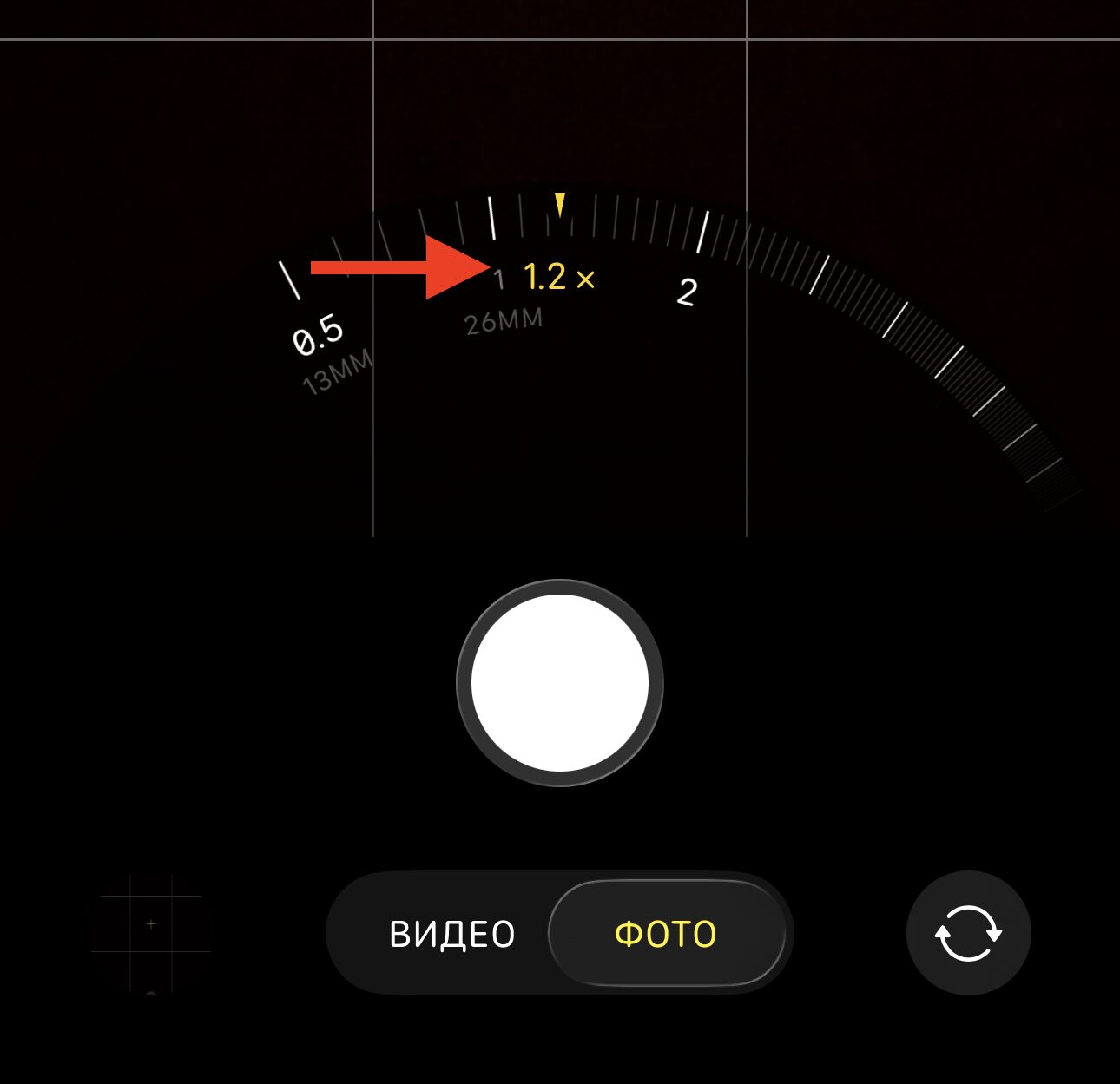
Mode 1.2 — a slight zoom in
28mm (x1.2) — a slightly tighter frame compared to standard. This field of view is used in the iconic compact Ricoh GR cameras, beloved by street photographers. It’s suitable for reportage shots when you need to slightly “pull in” the subject without losing the surrounding context.
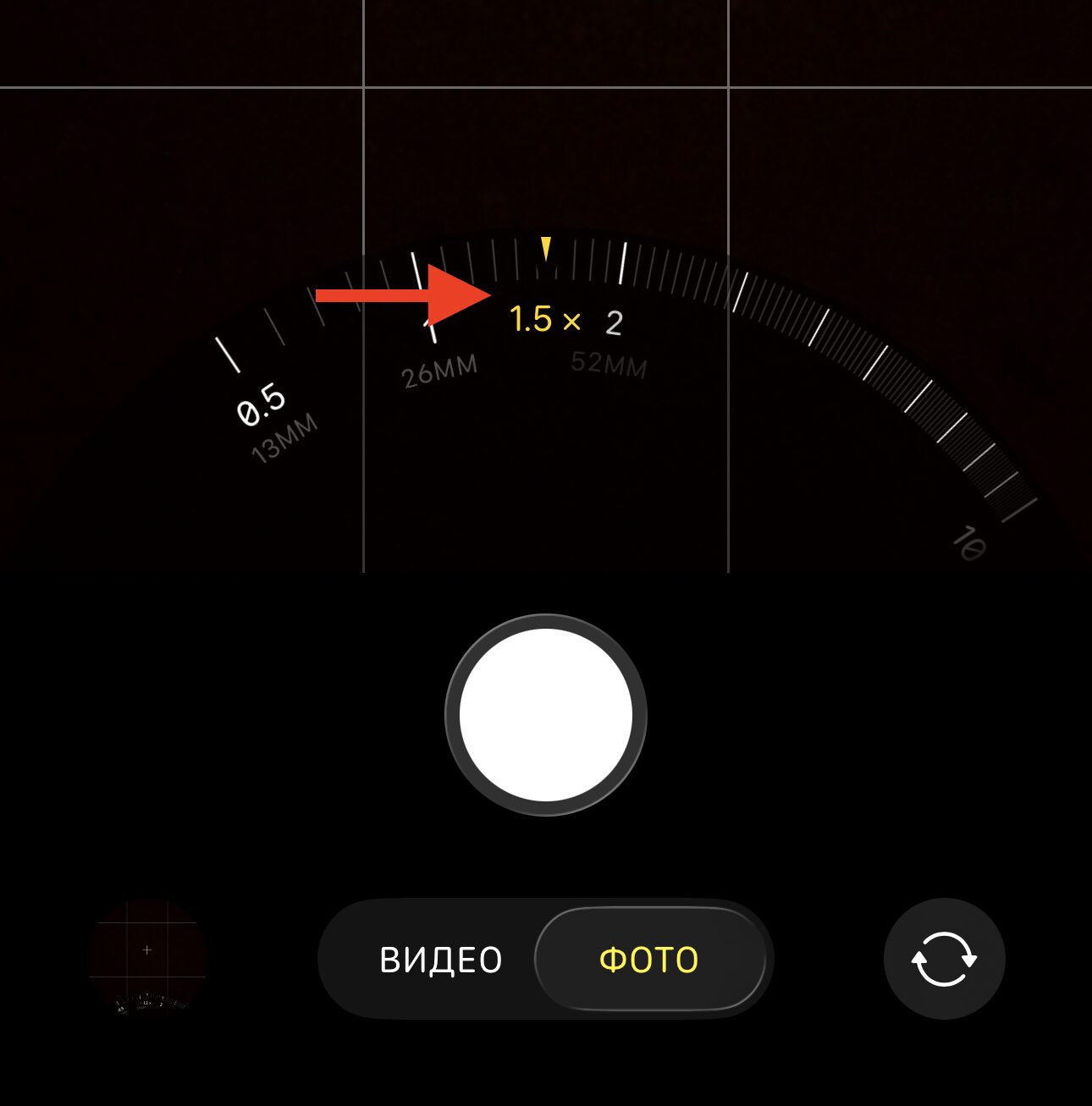
You can zoom in a bit more
35mm (x1.5) — the classic focal length of documentary and street photography. Henri Cartier-Bresson and many photographers from the Magnum agency shot at 35mm. The field of view is close to how we perceive a scene with one eye. Portraits at this focal length already look quite natural, and there’s still “air” in the frame — space around the subject.
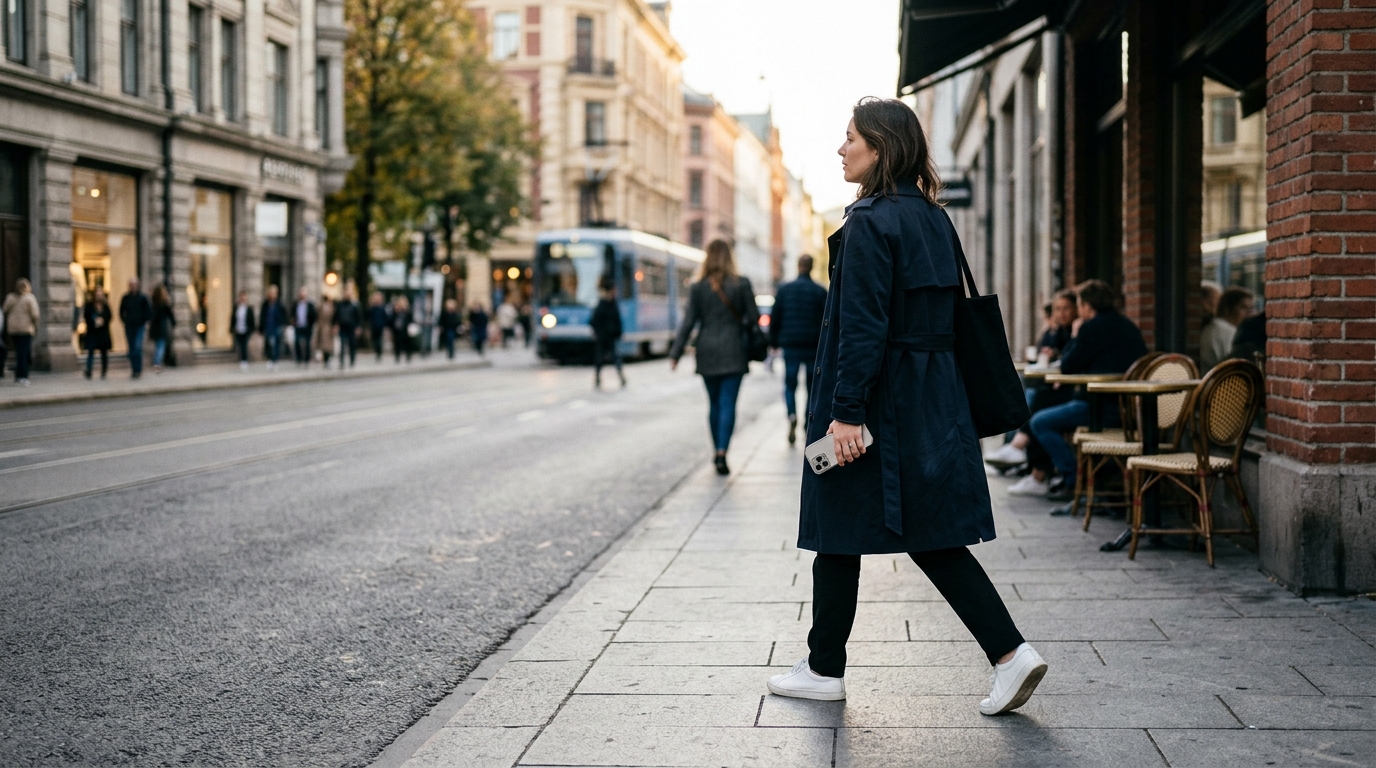
Focal length 35mm (x1.5) — the golden middle between wide angle and portrait zoom
These values can be set as default instead of the standard x1. To do this, open “Settings” — “Camera” — “Fusion Camera” and select the desired option — 24mm, 28mm, or 35mm. After that, when launching the camera, the main lens will immediately work in the selected mode.
Zoom x2 (48mm) — Portraits and Product Photography Without Distortion
The x2 magnification gives an equivalent of 48mm — this is already close to the classic 50mm portrait lens, which has been considered the standard in photography for decades. At this focal length, perspective becomes “flat” and natural.