Google has released a Chrome update for desktop computers with two notable features: vertical tabs and an updated reading mode. Both work on Mac, Windows, and Linux and can be enabled in just a couple of clicks.
Chrome now has vertical tabs
New Google Chrome Features in 2026
Google has updated its Chrome browser, adding support for vertical tabs, which are displayed in a side panel rather than at the top of the browser window. This is a feature popularized by the Arc browser and later implemented by Edge, Firefox, and Brave. Google was the last among major browsers to add this option — until now, Chrome was the only popular browser without vertical tab support.
The second change is a full-screen reading mode. Google has added a new full-page interface for reading mode. Right-clicking on a page and selecting “Open in reading mode” removes all clutter and shows clean text across the entire screen. Previously, reading mode only worked in a narrow side panel.
Both features began rolling out on the desktop version of Chrome on April 7 and should appear for all users soon.
How to Enable Vertical Tabs in Chrome
Activation takes literally three seconds:
- Make sure you have the latest version of Chrome. Click the three dots in the upper right corner and select “Settings” — choose the “About Chrome” tab — install the new version of Chrome if necessary.
- Right-click in the Chrome window area and select “Show vertical tabs.”
- Done — the tabs will move to a side panel on the left.
- If you don’t see the “Show vertical tabs” button, paste the link chrome://flags in the address bar, search for “Vertical Tabs,” and switch it to “Enabled.”
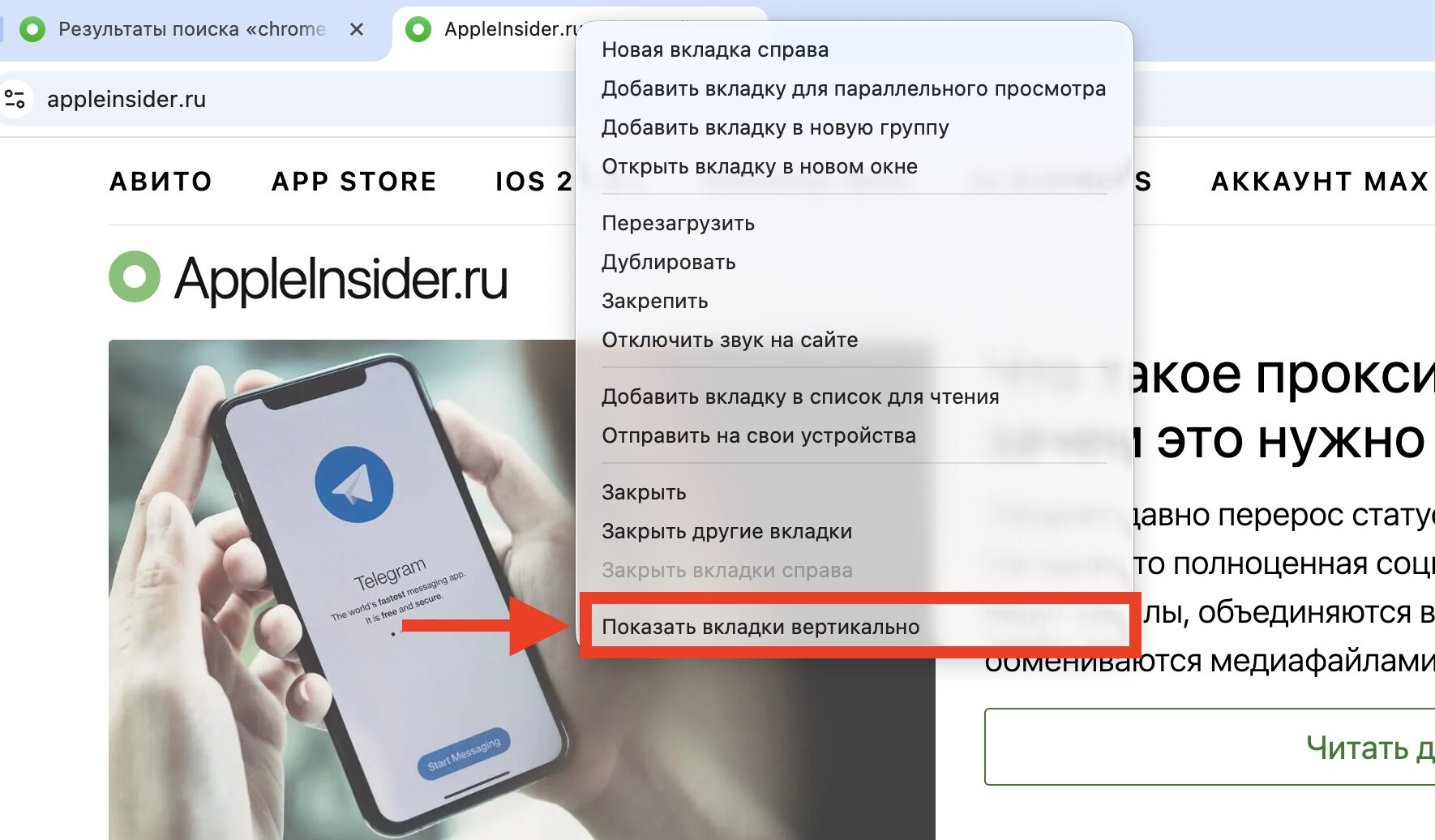
One button, and tabs move to the side
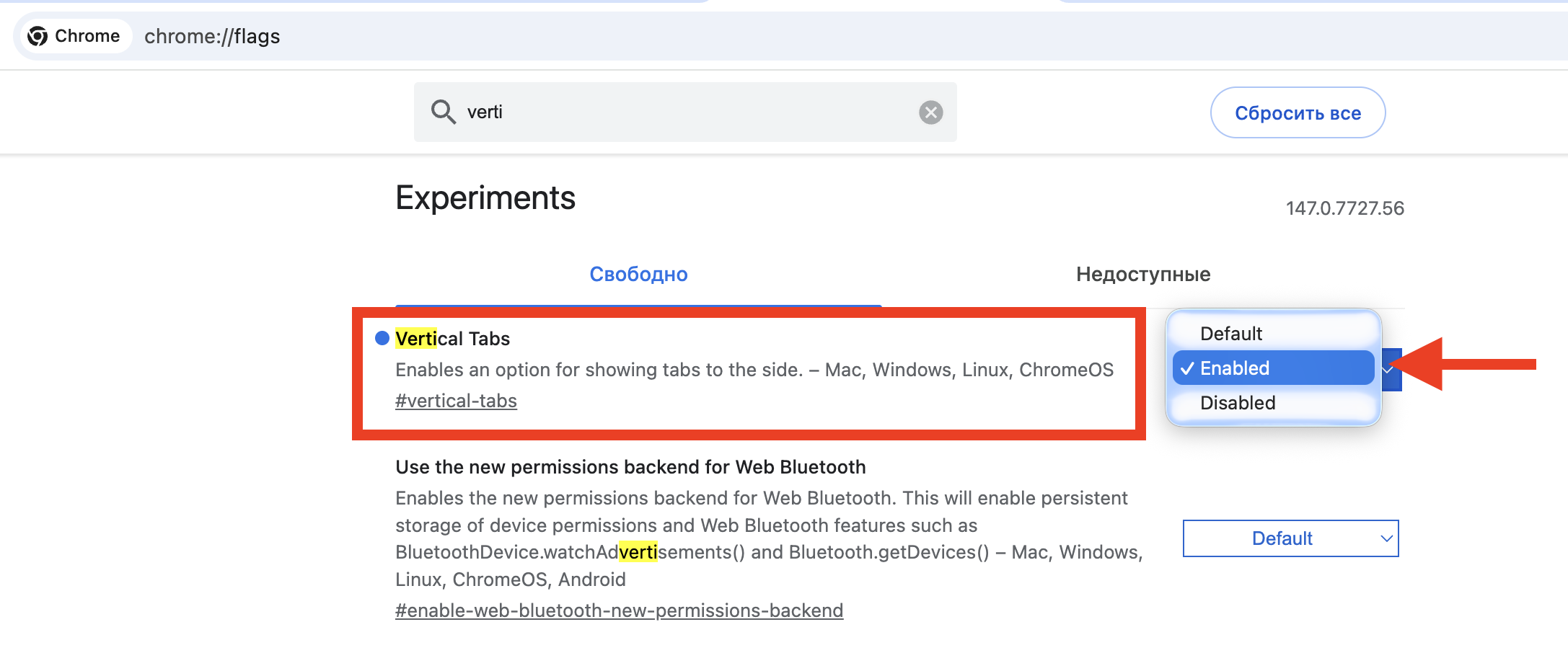
If the button isn’t there, enable it here and start over
Once enabled, vertical tabs will remain the default setting until you switch back yourself. To return to the normal view, simply right-click again and choose horizontal layout.
The side panel with tabs can be collapsed to a column of site icons so it takes up less space. This is an important point for MacBook Air 13″ owners and other laptops with relatively small screens.
Why You Need Vertical Tabs in a Browser
Vertical tabs are typically preferred by power users and those who work with a large number of open pages: researchers, analysts, journalists, and students.

You can fit many more tabs vertically
In the side panel, full page titles are visible, and tab groups are easier to organize. When you have 15–20 tabs open, the horizontal bar turns each tab into an indistinguishable tiny rectangle. In a vertical list, you can see the full name of each page.
This is especially useful if you frequently open multiple pages from the same website: when the icons are identical, the only way to tell tabs apart is by their titles.
Vertical tabs work the same way as horizontal ones: each Chrome window has its own set of tabs and tab groups.
Reading Mode in Google Chrome on Mac
Reading mode in Chrome existed before but was inconvenient. Previously, a simplified version of the page without images, videos, and ads was displayed next to the original page in a side panel. Now reading mode takes up the entire window.
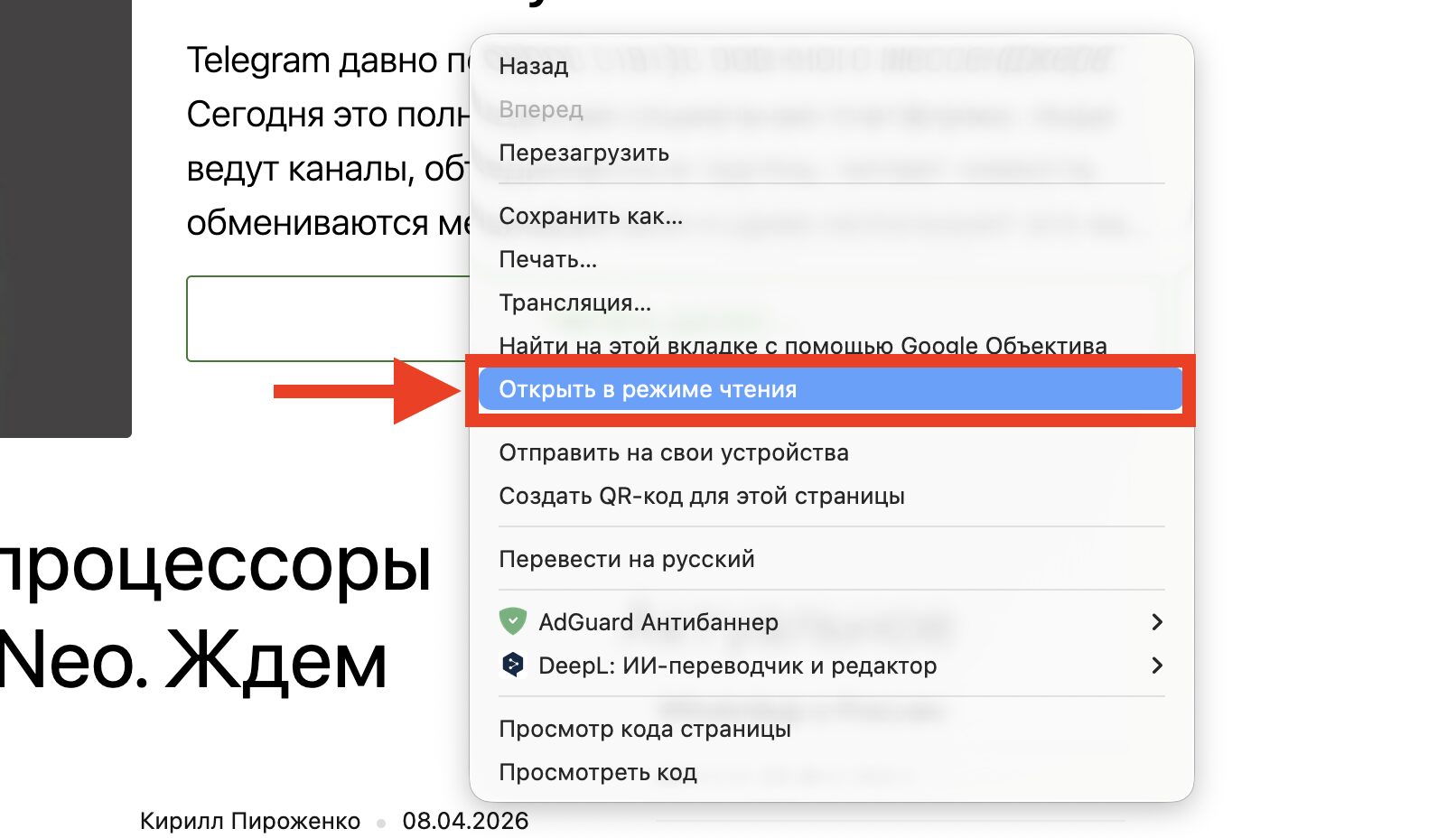
Reading mode now stretches to full screen, like in Safari
To enable it, right-click on any page and select “Open in reading mode.” Chrome will remove ads, banners, site menus, and leave only text with links.
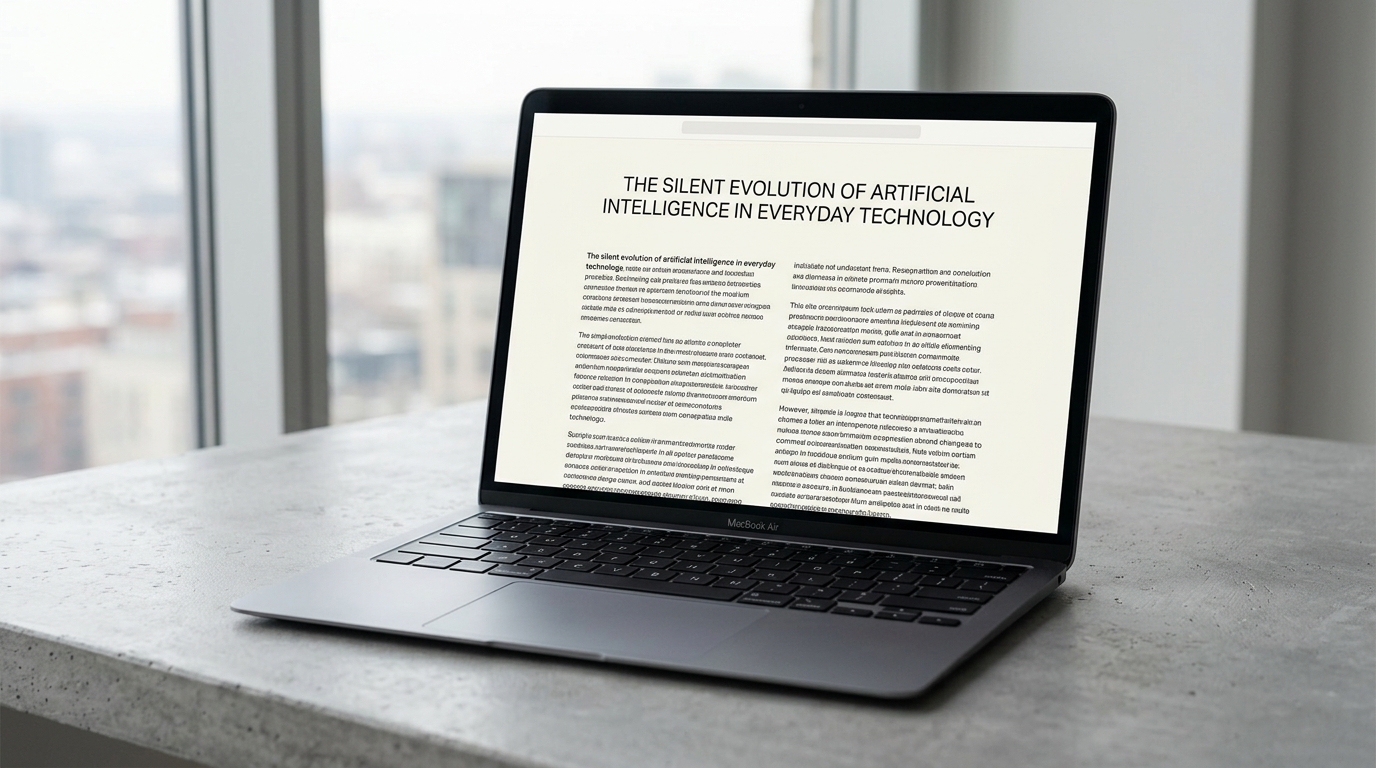
Full-screen reading mode in Chrome removes everything except text
This mode is similar to “Reader” in Safari (View — Show Reader), although Safari can also display images in reading mode. Chrome shows only text and links. Note that full-screen reading mode in Chrome is not yet available to everyone. Google is rolling it out in waves.
Chrome or Safari: What to Choose on Mac
Vertical tabs are not a unique feature. Safari has a sidebar where you can view a list of open tabs, but these are not full-fledged vertical tabs: the regular tab bar still takes up space at the top. In Firefox, Edge, and Brave, vertical tabs appeared much earlier.
If you already use Chrome on Mac and keep dozens of tabs open, the update will noticeably simplify navigation. No additional extensions need to be installed.
Full-screen reading mode is a nice touch, especially if you read long articles on websites overloaded with ads. The update came at a time when web pages, especially news sites, have become cluttered with ads and subscription forms.
But if you use Safari and are happy with it, there’s no reason to specifically switch to Chrome for these two features. Safari’s built-in “Reader” is still more convenient — it preserves images.