uTorrent for Android is one of the most popular torrent clients for smartphones. The current version of the app, 8.3.6, is compatible with Android 17 and allows you to download files via the BitTorrent protocol directly to your smartphone: movies, music, games, documents, and archives of any size. We recommend starting with uTorrent, as it is the most recognizable client with a long history and a simple interface.
Setting up uTorrent on Android
What Is uTorrent for Android and Why Do You Need It
The uTorrent app is the mobile version of the desktop torrent client from BitTorrent Inc. The working principle is the same as on a computer: you open a torrent file or a magnet link, and the app begins downloading the content by receiving file fragments from other users on the network. The more seeders there are, the higher the download speed.
On a smartphone, this is especially convenient when you need to download a large file in the background (for example, leaving a download running overnight). uTorrent on Android supports background downloading, queue management, speed limiting, and works over Wi-Fi or mobile data. The app comes in a free version with ads and a paid uTorrent Pro version without limitations. The interface is fully translated into Russian, so uTorrent in Russian works by default, and you don’t need to change anything.
How to Download and Install uTorrent on Android
Downloading uTorrent on Android is easiest through the official app store. Here’s how to do it:
- Open Google Play on your smartphone.
- In the search bar, type “uTorrent” or “BitTorrent”.
- Select the uTorrent app by developer BitTorrent Inc.
- Tap “Install” and wait for the download to complete.
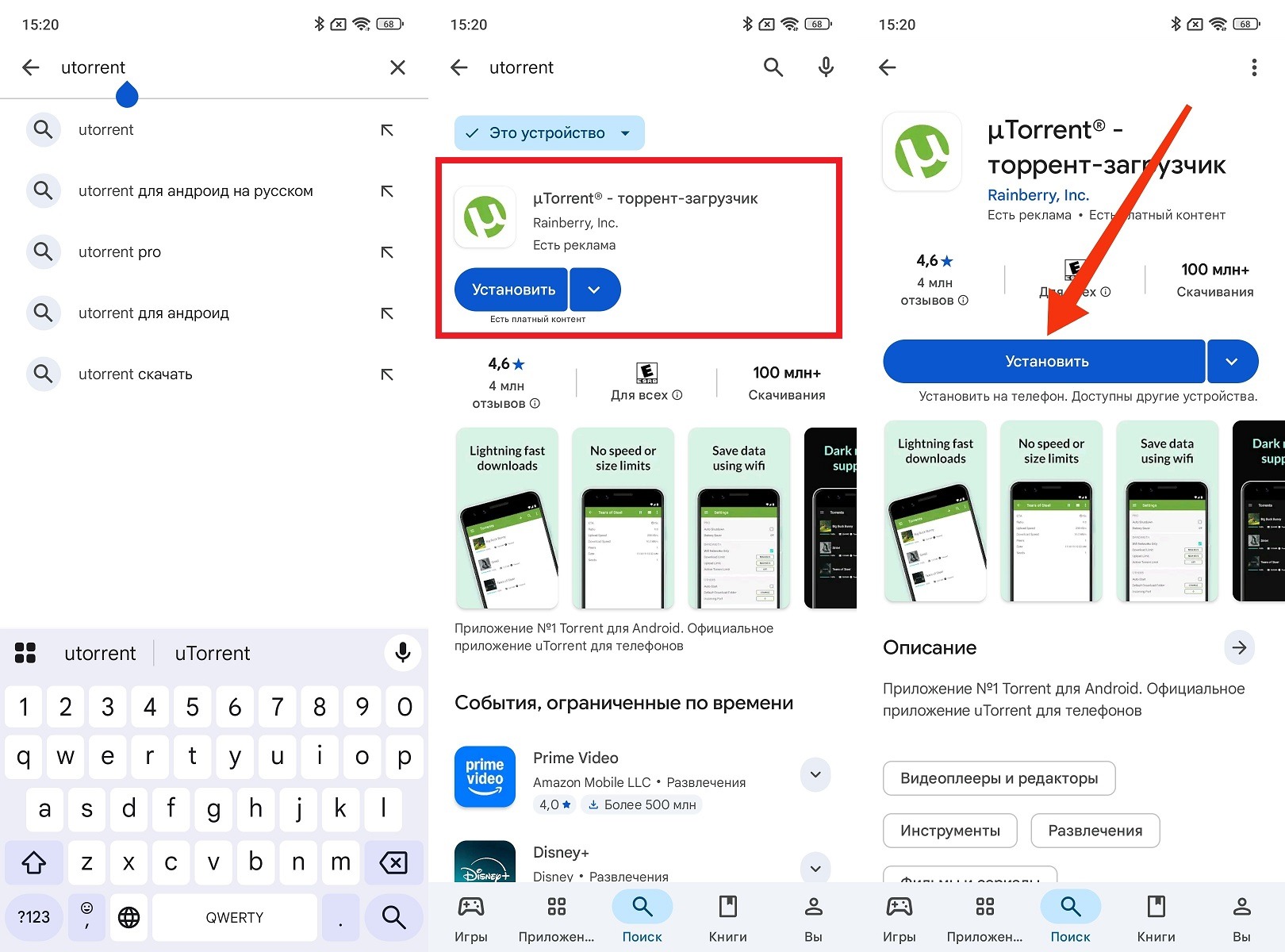
You can download uTorrent from the familiar app store
If Google Play is unavailable, you can download the uTorrent app as an APK file. Before installing the APK, you’ll need to allow installation from unknown sources in your smartphone’s security settings.
Keep in mind that installing files from third-party sources carries risks — make sure you’re downloading from a trusted website.
How to Set the Storage Location in uTorrent on Android
By default, uTorrent on your phone saves all downloaded files to the internal storage in the “Downloads” folder. If you need to change the save path, do the following:
- Open the uTorrent app.
- Tap the menu icon in the upper left corner and select “Settings”.
- Go to the “Other” tab.
- Tap “Default download folder” and choose the desired location in internal storage.
- Confirm your selection.
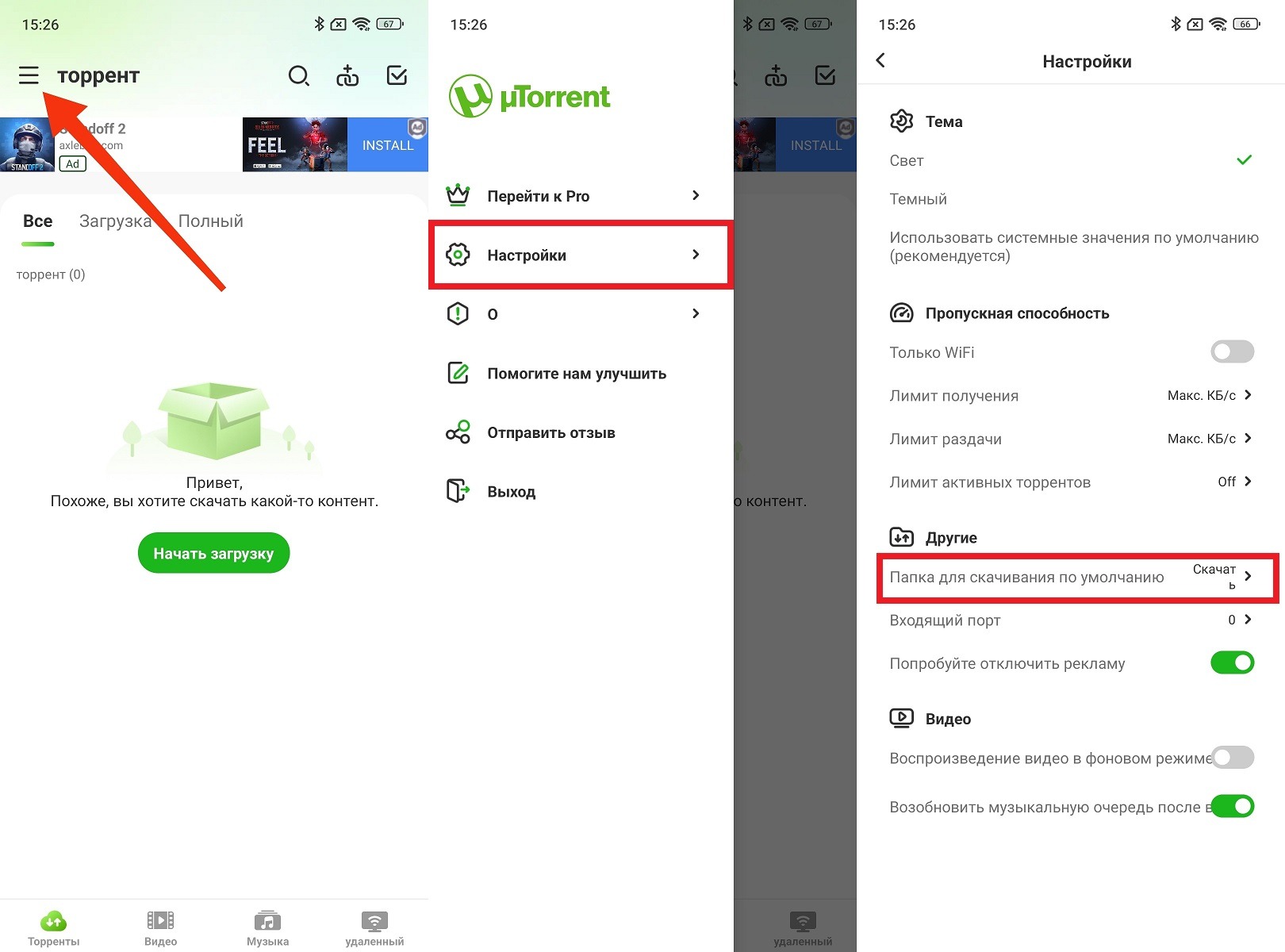
Files can be downloaded to any folder on the phone
After this, all new downloads will be saved to the specified folder. Already downloaded files are not automatically moved when you change the path — you’ll need to transfer them manually using a file manager. You can also set the save folder individually for each torrent after adding it: when opening a torrent file or magnet link, a dialog will appear with a path selection option.
How to Set the Save Location in uTorrent on Android to a Memory Card
Configuring uTorrent to save files to a memory card requires a few additional steps, since Android restricts app access to external storage. Here’s how to set it up:
- Make sure the memory card is inserted and mounted — check in “Settings” — “Storage”.
- Open uTorrent and go to “Settings” — “Other” — “Default download folder”.
- In the folder selection dialog, tap the storage icon in the left corner and switch to the SD card.
- Select the desired folder on the memory card or create a new one.
- Tap “Allow” if the system requests access to external storage.
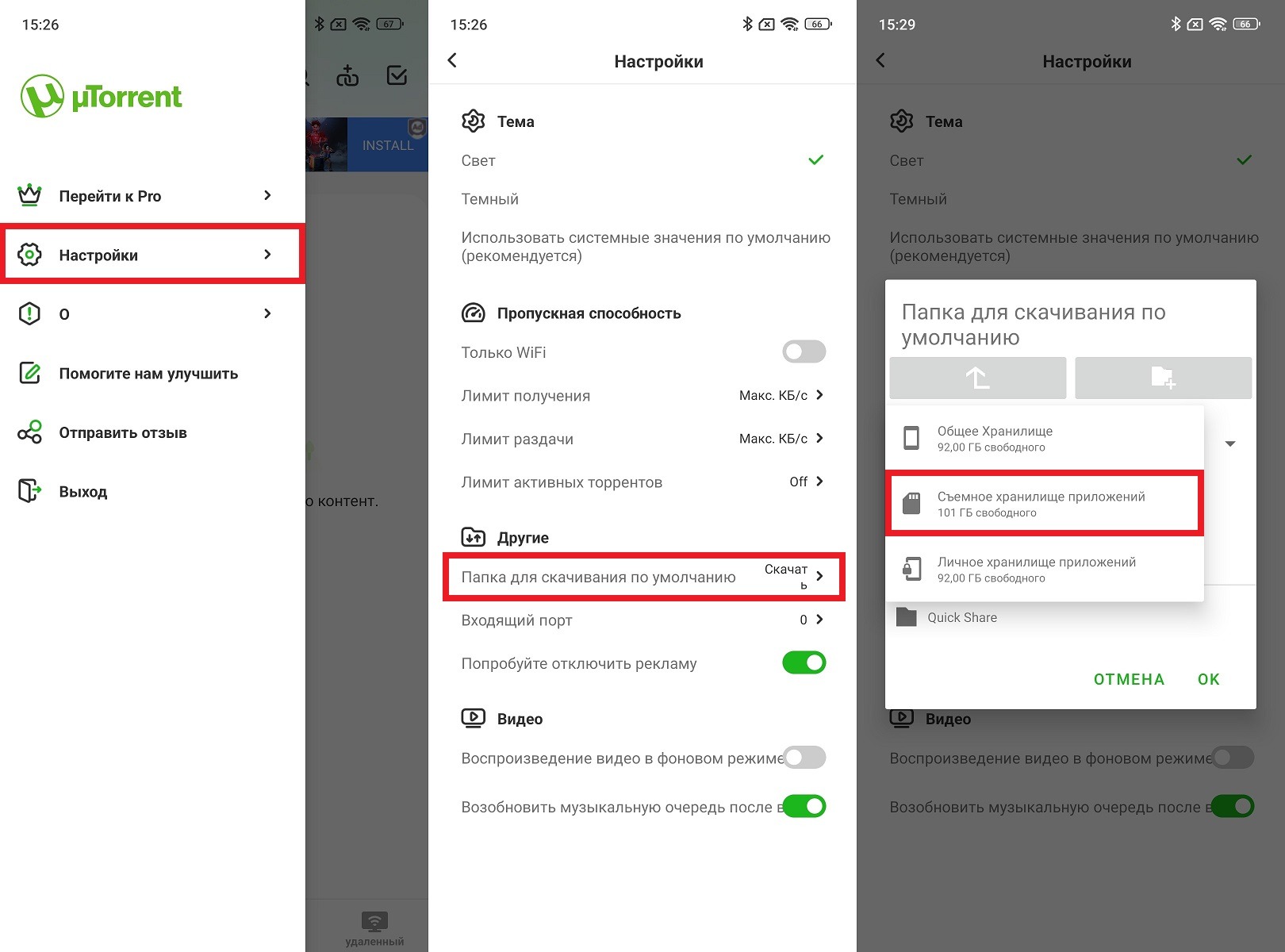
Saving files to a memory card is allowed
If the path to the memory card is not displayed, try granting the app file access permission manually through “Settings” — “Apps” — uTorrent — “Permissions” — “Files and media”. On some devices running Android 13 and newer, access to the external SD card may be restricted at the system level. In this case, selecting a folder through the system file manager when first adding a torrent can help.
Setting Up uTorrent on Android
Proper uTorrent setup allows you to speed up downloads and reduce battery drain. Here are a few settings worth paying attention to right after installation.
Setting up uTorrent for maximum speed: go to “Settings” — “Bandwidth” and make sure that download and upload speed limits are not set (a value of 0 means no limits). If the speed is still low — increase the maximum number of connections to 200 and the maximum number of connections per torrent to 50.
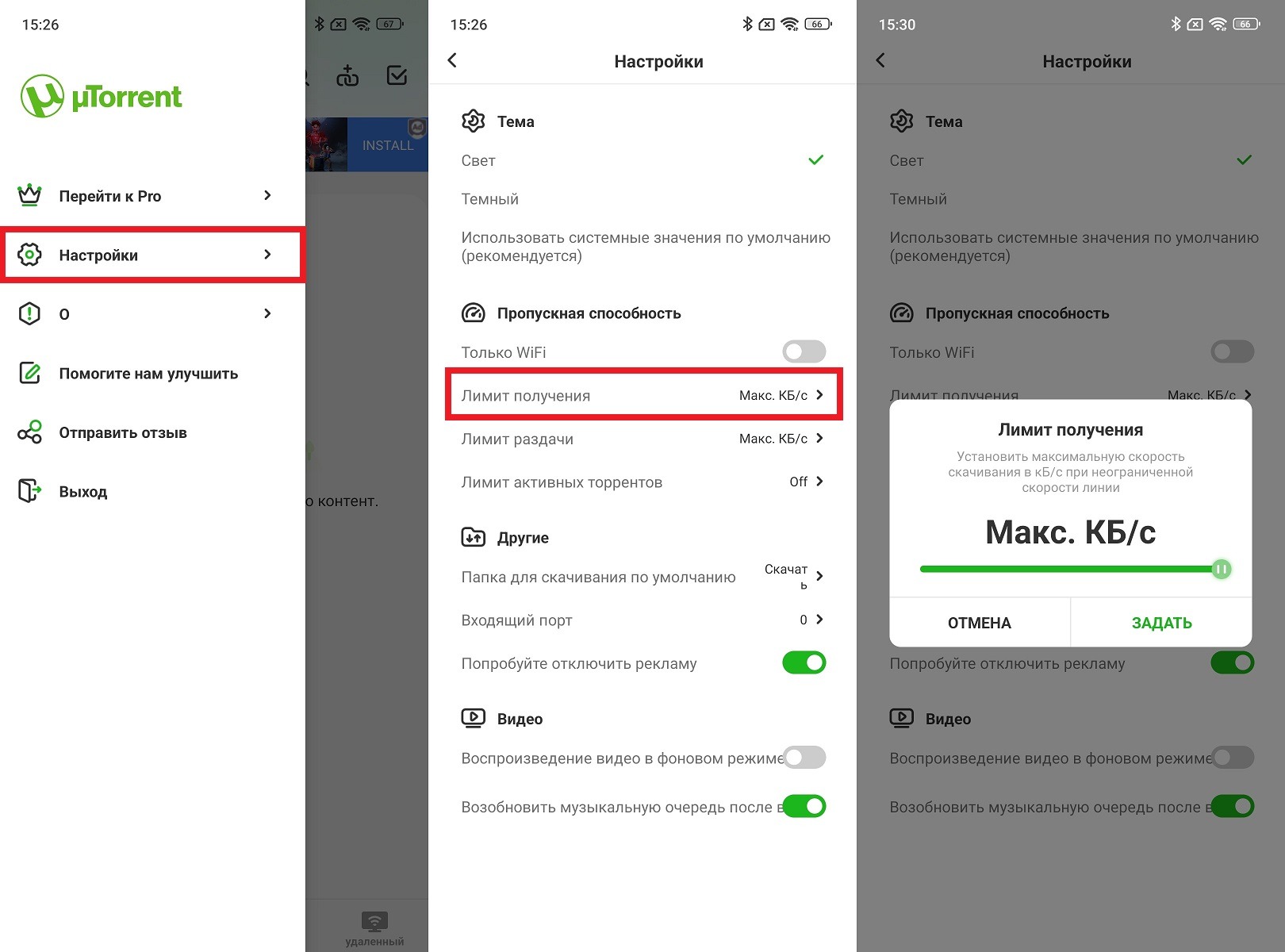
Set the maximum download speed
Download only over Wi-Fi: in the “Bandwidth” section, enable the “Download only over Wi-Fi” option. This will prevent mobile data usage.


