For the first few years with Android, I regularly dug into settings with one goal: find and turn off whatever was annoying me. Brightness jumped around on its own, the screen went dark at the worst possible moment, apps closed without asking. It seemed like the phone had a life of its own and did everything to spite me. Then it turned out that most of these “glitches” are deliberate decisions by developers that actually make life more convenient. It’s just that nobody warns you about it.
Bright examples of features being mistaken for bugs
Screen Brightness Changes on Its Own
This annoyed me the longest. You’re watching a video, and the screen suddenly dims. You go outside, and the brightness shoots up. It seems like the phone is broken or the UI is glitching. In reality, this is adaptive brightness — one of the most useful Android features. The ambient light sensor measures the light level around you and adjusts screen brightness accordingly. In sunlight, brightness goes high so the screen remains readable. In the dark, it decreases to avoid blinding your eyes and to save battery.
Why it seems like a bug: the algorithm learns from the specific user and works inaccurately in the first few days. Plus, abrupt transitions between indoors and outdoors look like a malfunction. How to make it more convenient: Android lets you manually correct auto-brightness. If it seems too dark indoors, just slide the brightness slider a bit higher — the system will remember your correction and set the right level on its own next time. After a few days, adaptive brightness works almost perfectly.
Why the Phone Screen Turns Off
Two scenarios that regularly cause panic among new Android users:
- First: the screen turns off after a few seconds of inactivity. This is auto-lock — protection against accidental touches and battery saving. If the phone is sitting on a table and you’re not looking at it, there’s no point keeping the screen on.
- Second: the phone screen turns off by itself during a call when you bring the phone to your ear. This is the proximity sensor: it detects that the phone is near your face and turns off the screen so your cheek doesn’t press buttons. This is exactly what allows you to talk on the phone without accidentally ending the call or turning on speakerphone.
If the auto-lock timer triggers too quickly, it’s easy to change:
- Open “Settings.”
- Go to the “Display” or “Active screen and lock” section.
- Find the “Screen timeout” or “Sleep” option.
- Choose a convenient interval (I recommend 1-2 minutes).
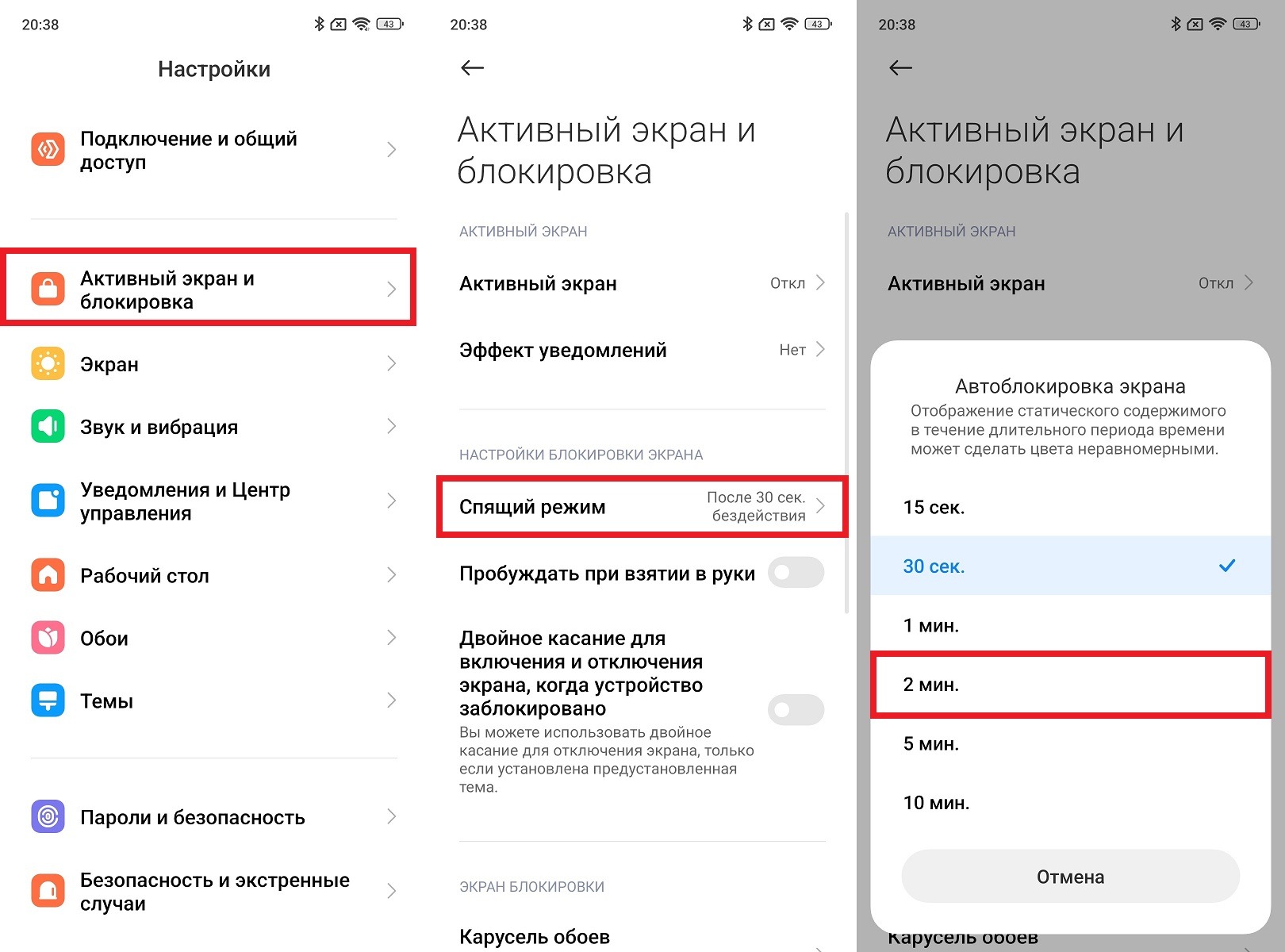
Set the timer to 2 minutes for more convenience
I wouldn’t recommend setting it to more than two minutes: the screen runs idle and drains the battery. On top of that, the risk of display burn-in increases.
Phone Lags After an Update
Android lags after an update — a complaint I hear regularly. And the first thought is: the update broke the phone. But lagging in the first days after a major update is a normal phenomenon. The system re-indexes files, recompiles apps for the new kernel, and rebuilds databases. This is background work that loads the processor and memory. It usually takes from a few hours to two days depending on the amount of data on the device.
What helps speed up the process: restart the phone immediately after installing the update and plug it in to charge overnight. During that time, the system will finish background processes, and by morning the phone will be working normally. If the lagging doesn’t go away after three to four days — that’s a different story.
Apps Close in the Background
You opened an app, minimized it, came back an hour later, and it’s no longer running and loads from scratch. It looks like an Android bug, but it’s actually aggressive RAM management. Android automatically unloads apps from memory that haven’t been used in a while to free up resources for active tasks. On smartphones with 6 GB of RAM or less, this happens especially often.
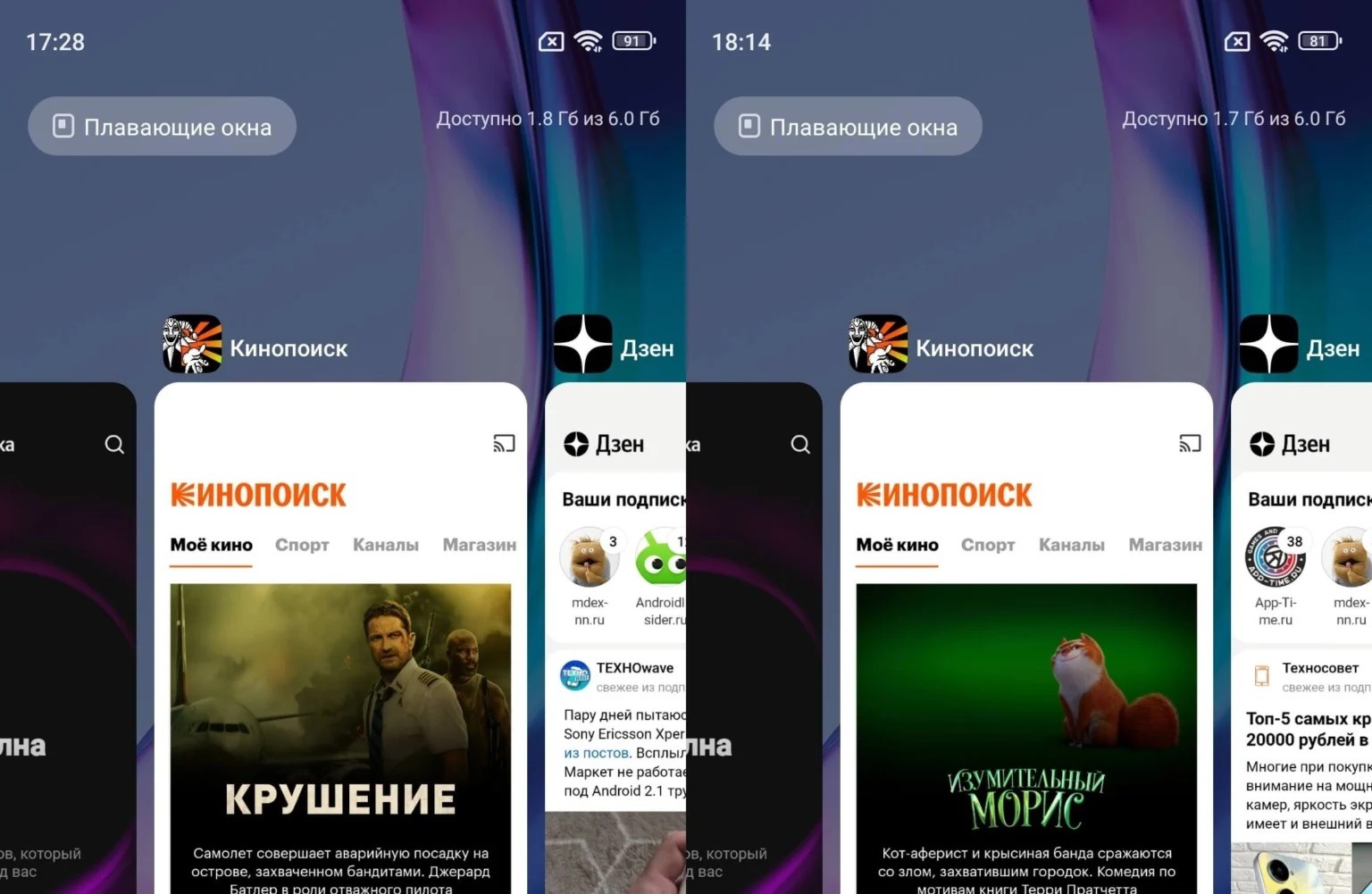
Background apps may close automatically
Why this is useful: without such management, the phone would lag constantly, not just when returning to an old app.
If you want specific apps to stay in memory:
- Open “Settings” and go to “Apps.”
- Select the desired app.
- Find the “Battery” or “Background activity” section.
- Enable the “Unrestricted” or “Allow background activity” option.
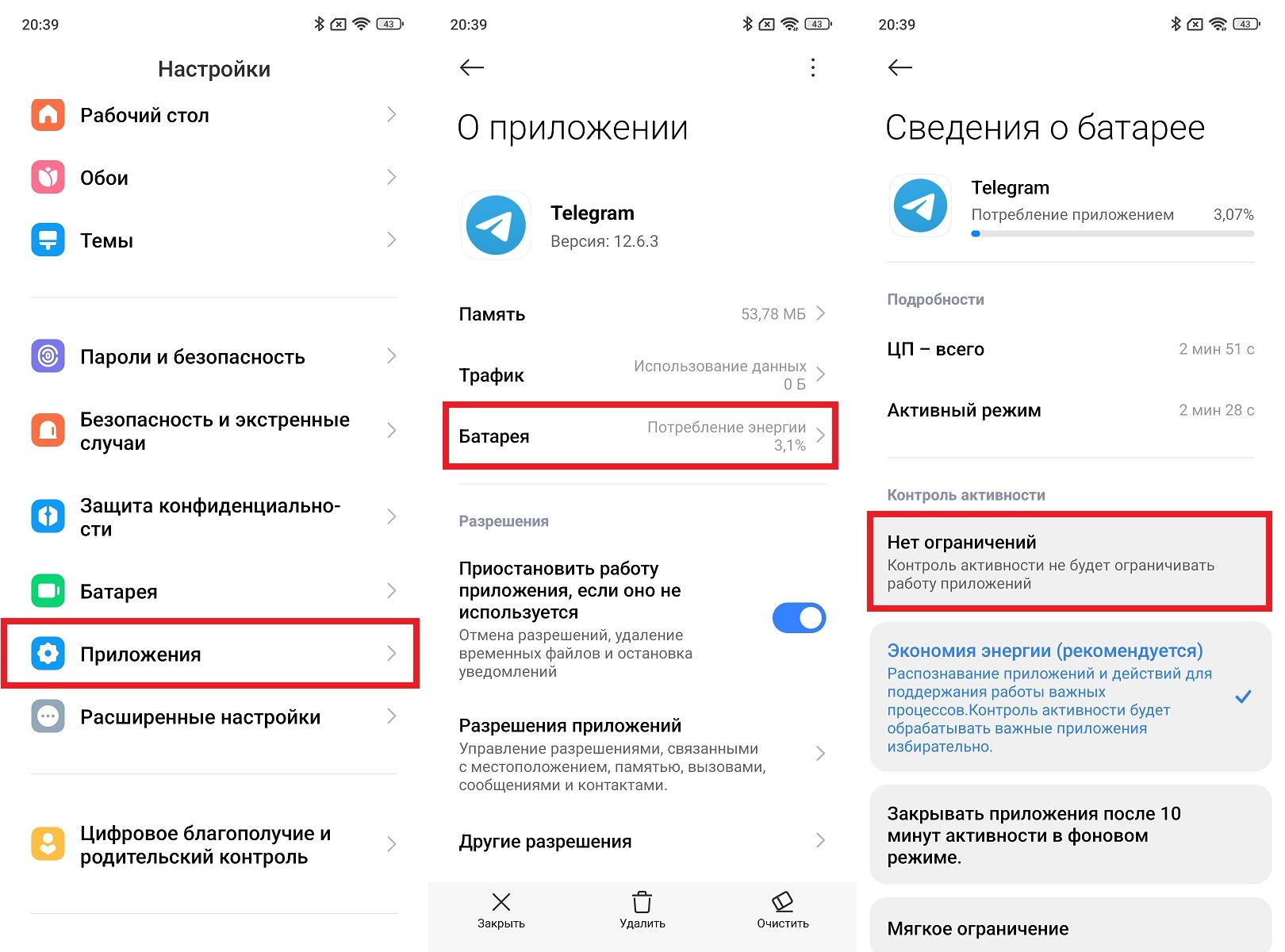
If needed, remove restrictions on background activity
Do this only for truly important apps: messengers, navigation, music player. If you grant this permission to everything, the phone will run slower.
Phone Charges Slowly
The phone started charging slowly, and the first thought is: something’s broken. However, slow charging under certain conditions is intentionally built into the battery’s operating logic. Most modern smartphones with fast charging charge quickly up to 80%, then significantly reduce power. This is called step charging: high current in the first stage and a gentle mode at the end. This is how the manufacturer extends battery lifespan. Lithium-ion batteries degrade faster if constantly charged at maximum power to 100%.
Another scenario: nighttime optimized charging. Some smartphones intentionally stretch the charging over several hours if you usually charge your phone at night. The system analyzes your routine and calculates charging so that by the time you wake up, the battery is at 100%, but hasn’t been sitting at that level for several hours doing nothing.