Smartphone manufacturers love to develop their own unique features. For example, there are unique features found only on Samsung devices, and they often become the reason for choosing a device from the Korean brand. But besides these special features, there are also basic Android functions available on almost every phone. Some of them are hidden deep in the menus, so many owners don’t even realize what useful capabilities are already built into the system. If you properly explore Android settings, you can make your smartphone more convenient, efficient, and secure without installing additional apps.
Tips available to every Android smartphone owner
Android Digital Wellbeing
One of the most useful system features is Android Digital Wellbeing. This tool allows you to monitor how much time you spend in apps, limit notifications, and track how your phone is used throughout the day. Such smartphone features are especially useful for those who want to be less distracted or reduce time spent on social media.
To enable Digital Wellbeing, follow these steps:
- Open your phone settings.
- Find the “Digital Wellbeing & Parental Controls” section.
- Open device usage statistics.
- Enable activity tracking.
- If needed, set timers for apps.
- Configure sleep mode or notification-free mode.
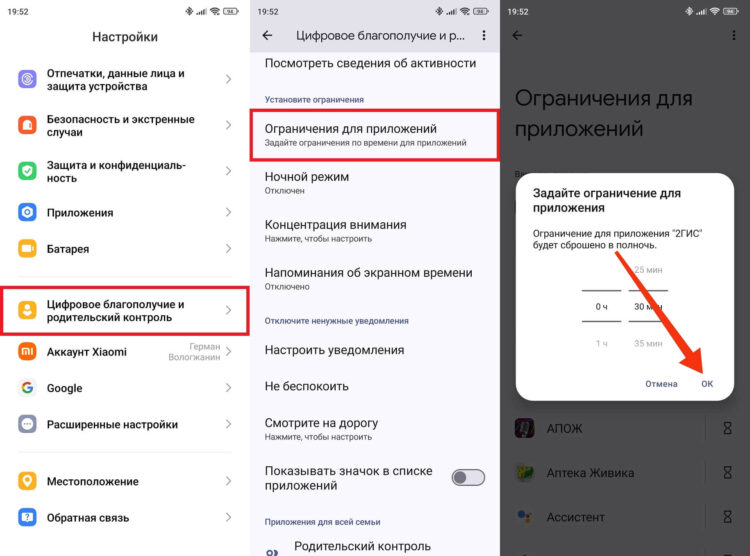
Digital Wellbeing lets you set more than just a timer
After enabling it, you can explore phone settings in more detail and set restrictions for specific apps. Such Android tips help you stay less distracted and better control your device usage time.
How to Share Internet from Your Phone
Almost any modern smartphone can function as a modem. This means you can share internet from your phone to a laptop, tablet, or another phone. This feature is often used on the go or where there’s no Wi-Fi. The system has a dedicated hotspot setting that allows you to quickly enable internet sharing.
To enable modem mode, do the following:
- Open your phone settings.
- Go to the “Network & Internet” section.
- Find the “Hotspot” option.
- Enable modem mode.
- Set a network name and password.
- Connect another device to the network.
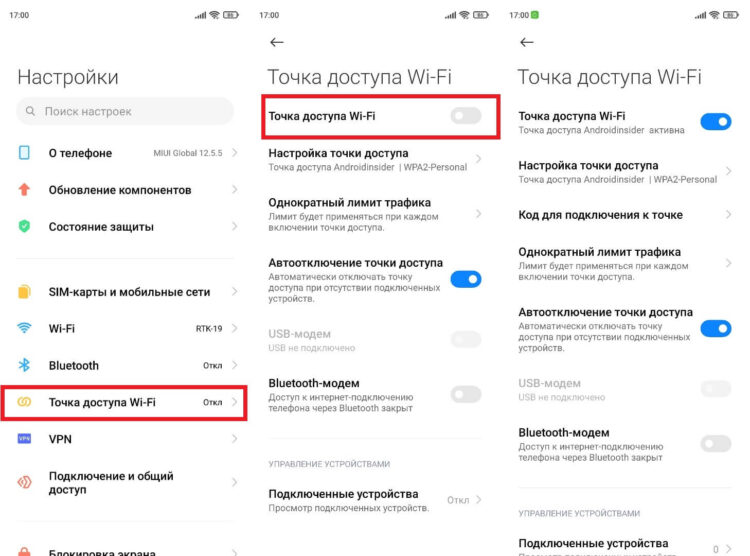
A hotspot is available on any smartphone
After that, the Wi-Fi hotspot will start working, and other devices will be able to connect to the internet through your smartphone. Such Android phone features are especially useful during trips and when working away from home.
Saving Data on Your Phone
If your data runs out too quickly, it’s worth checking how data saving on your smartphone works. Android has a built-in mode that limits background data transmission and prevents apps from using internet unnecessarily. Such Android settings allow you to noticeably reduce mobile data usage.
To enable data saving, follow these steps:
- Open your phone settings.
- Go to the “Network & Internet” (“Mobile Network”) section, then “Data Management”.
- Find the “Data Saver” option.
- Enable data restriction mode.
- Add necessary apps to exceptions.
- Check if the internet works in the background.
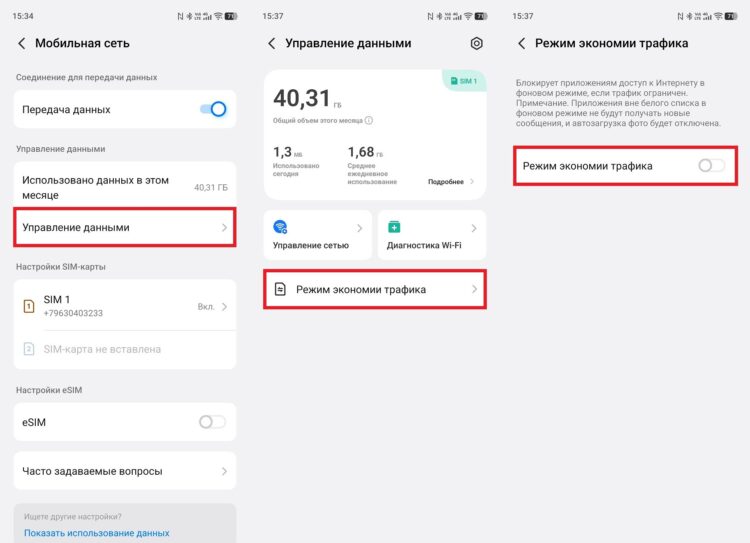
This way your smartphone will consume less data
After enabling restrictions, many Android features continue to work, but unnecessary data transmission is disabled. This Android phone setting is especially useful with a small data plan or a slow connection.
Battery Saver Mode on Android
When the battery drains too quickly, battery saver mode helps. It reduces brightness, limits background processes, and decreases the load on the processor. Thanks to this, phone energy saving becomes noticeable within just a few minutes of being enabled.
To activate battery saver mode, do the following:
- Open your phone settings.
- Go to the “Battery” section.
- Find the battery saver option.
- Enable the saving mode.
- If needed, set up automatic activation.
- Check if brightness and app activity have decreased.
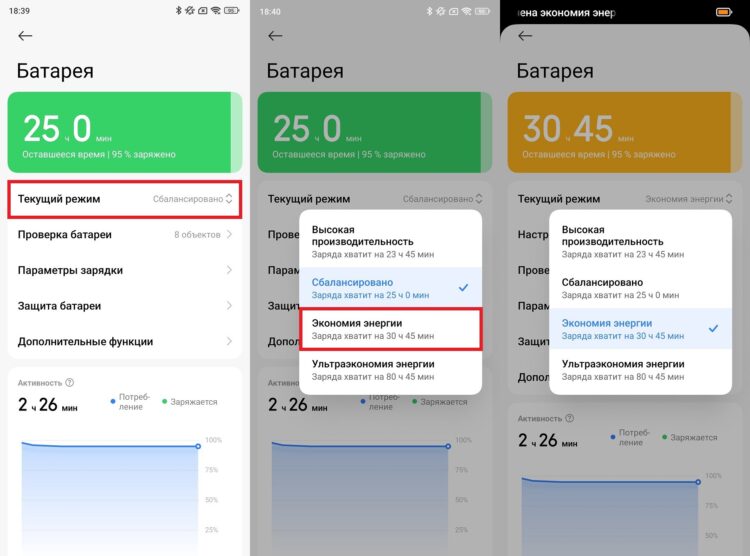
An easy way to extend Android battery life
After enabling it, you can additionally change phone settings and disable unnecessary features. Such smartphone features help extend device operation when there’s no way to charge the battery.
How to Find Your Phone If It’s Lost
Android has a built-in phone finder that helps locate a device via the internet. It works through a Google account and allows you to see the location on a map, sound an alarm, or lock the phone. This capability is part of standard Android features and doesn’t require installing third-party programs.
To enable device finding, follow these steps:
- Open your phone settings.
- Go to the Google section.
- Find the “Find My Device” (“Find Portal”) option.
- Enable location detection.
- Allow internet access.
- Test it through the Google website.
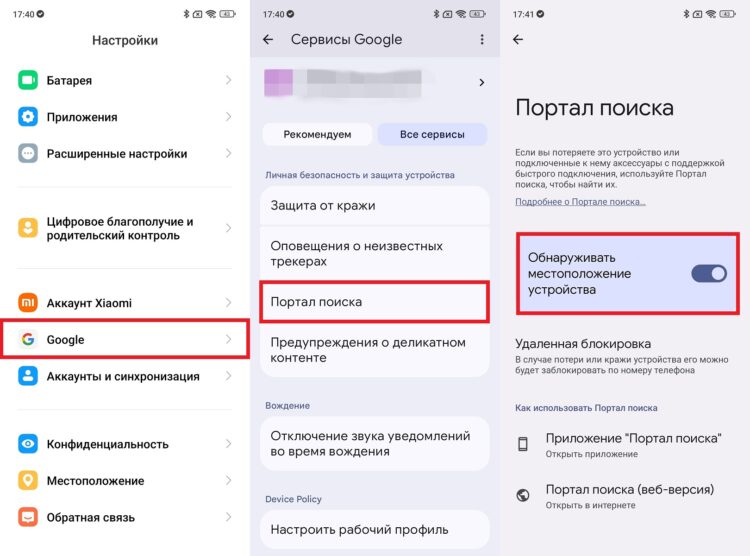
Perhaps the most important Android feature
After this, phone finding through Google will be available, and you’ll be able to locate the device from a computer or another smartphone. Such Android phone features are especially important because they help recover a lost phone or protect your data.