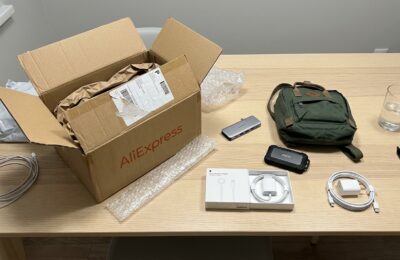
A docking station is the simplest way to turn a MacBook into a full-fledged workstation: plug in one cable — and your laptop is instantly connected to monitors, external drives, wired internet, and charging. Macworld tested over twenty models with Thunderbolt 5, Thunderbolt 4, and USB-C and compiled a ranking of the best ones. We broke down this review and picked out the key takeaways: what will actually be useful for MacBook owners in 2026. Especially since new MacBook M5 Pro and M5 Max models support even more external monitors.
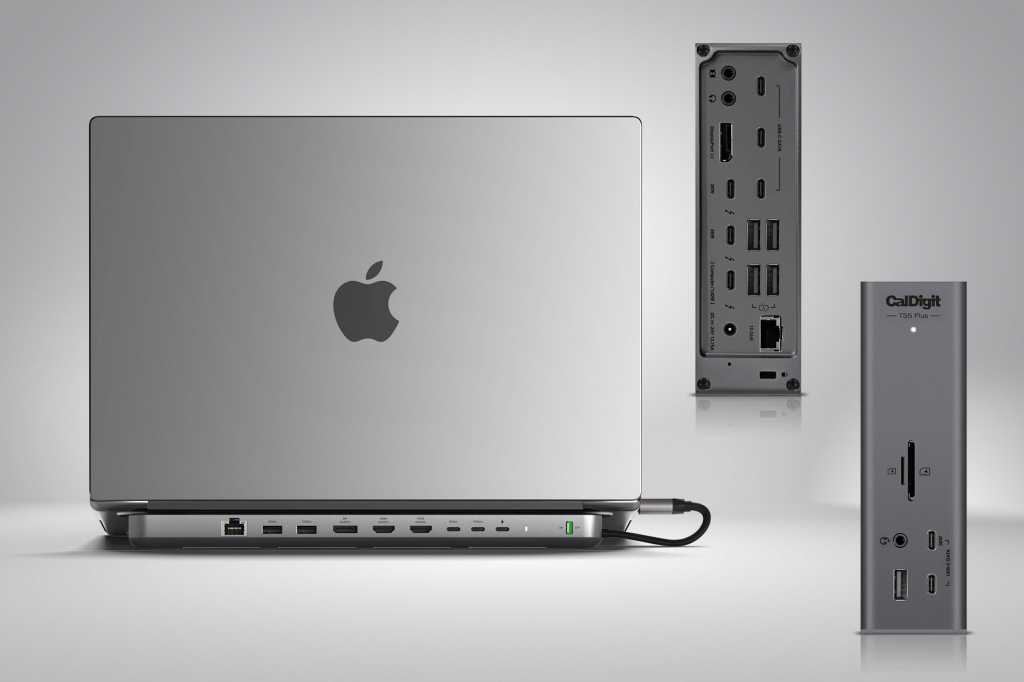
Top Thunderbolt and USB-C Docking Stations for MacBook Air and Pro 2026: Which One Should a Professional Choose
Thunderbolt 5, Thunderbolt 4, or USB-C: What’s the Difference for a MacBook Owner
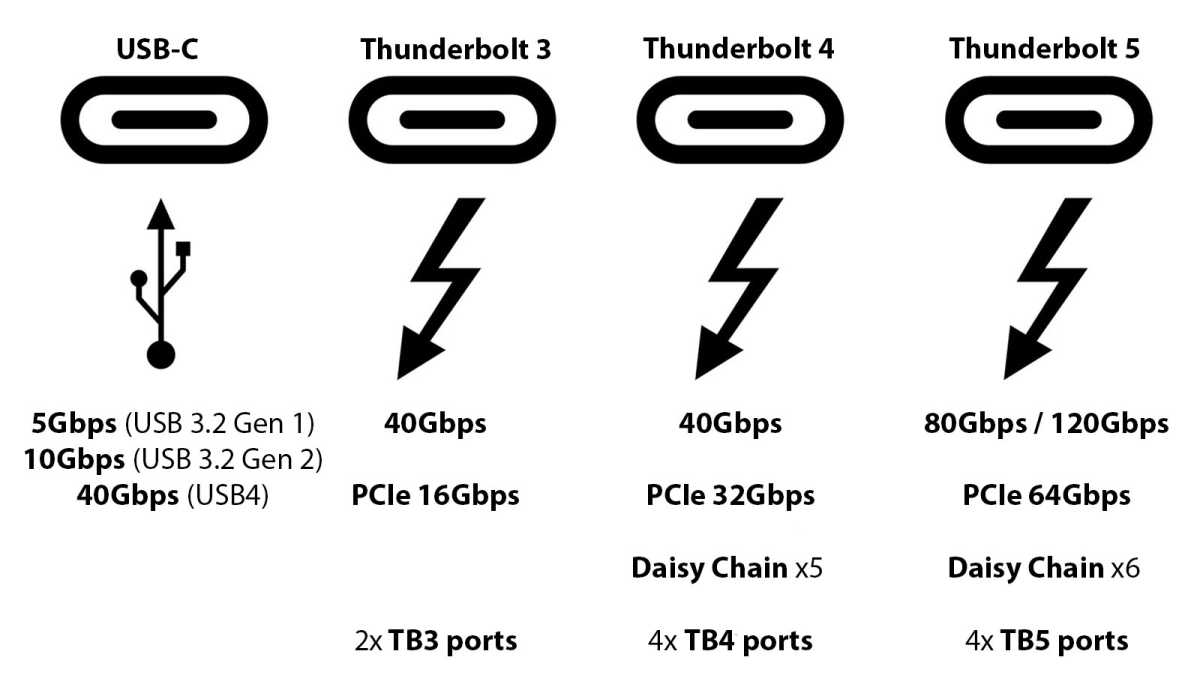
All three standards use the same connector (the familiar oval USB-C), but data transfer speeds and monitor connectivity capabilities differ significantly:
- USB-C — 5 or 10 Gbps. The most basic option.
- Thunderbolt 3 and 4 — 40 Gbps. Found on most MacBooks from recent years.
- Thunderbolt 5 — 80 Gbps (up to 120 Gbps for video). Introduced in MacBook Pro models with M4 Pro / M4 Max and M5 Pro / M5 Max chips.
The practical takeaway is simple: the faster the standard, the more high-resolution monitors you can connect and the faster files copy to external drives. At the same time, Thunderbolt 5 is backward compatible with Thunderbolt 4 and 3 — you can buy a dock “for the future” and use it with your current MacBook, and later with a future one.
MacBook Air (M1–M4) is equipped with two Thunderbolt 4 ports (or Thunderbolt/USB4 on earlier models). MacBook Pro with M4 Pro and M5 Pro/Max chips has three Thunderbolt 5 ports. If you have the base M4 MacBook Pro, it also has three ports, but Thunderbolt 4.
Best Thunderbolt 5 Docking Stations for MacBook Pro
Thunderbolt 5 is the choice for those who need maximum speed and support for multiple high-resolution monitors. Here are the three most interesting options based on testing results:
CalDigit TS5 Plus — the flagship of the ranking. 20 ports, including 10-gigabit Ethernet (wired internet 10 times faster than standard), three Thunderbolt 5 ports, five USB-A, and six USB-C. The 330W power supply allows simultaneous power delivery to all connected devices without drops. MacBook charging — up to 140W, enough even for the 16-inch MacBook Pro. Price — $500. This is the most expensive but also the most fully equipped dock on the market.
Plugable Thunderbolt 5 Dock — best value for money. 11 ports, four Thunderbolt 5, 2.5-gigabit Ethernet, fast card readers. There’s no dedicated USB-C for fast iPhone charging — that’s a downside. But the price is $300. Only available in North America.
CalDigit TS5 (without “Plus”) — the sweet spot from the same manufacturer. 15 ports, three Thunderbolt 5, 2.5-gigabit Ethernet. Features a 20W USB-C on the front for iPhone charging. Price — $400.
CalDigit TS5 Plus — 20 ports in a compact vertical enclosure
A special mention goes to iVanky FusionDock Max 2 ($450) — the only docking station that natively (without additional software) supports three external monitors even on a MacBook with the M4 Max chip. However, this requires occupying two Thunderbolt ports on the laptop instead of one.
Thunderbolt 4 Docking Stations: When You Don’t Need Thunderbolt 5
If your MacBook doesn’t support Thunderbolt 5 or you don’t want to overpay, Thunderbolt 4 remains an excellent option — the speed is the same as Thunderbolt 3 (40 Gbps), and it’s enough for two 4K monitors and fast external drives.
Wavlink Thunderbolt 4 Triple Display Dock — the budget favorite. Two HDMI 2.1 ports, one Thunderbolt 4, 2.5-gigabit Ethernet, fast card readers, 30W USB-C on the front for phone charging. Laptop charging — 96W. Price — $200. Important caveat: the third monitor in extended mode only works on Windows; on Mac, it’s mirroring only.
CalDigit TS4 — 18 ports, a 230W power supply (the most powerful among Thunderbolt 4 models), 2.5-gigabit Ethernet, 98W laptop charging. Price — $380. Can be positioned vertically or horizontally.
Sonnet Echo 20 SuperDock — 19 ports and a built-in bay for an SSD up to 8 TB, which the user installs themselves. This allows expanding MacBook storage through the docking station. Price — $330.
Docking Stations with Built-in SSD: Why You Might Need One
Upgrading memory in a MacBook after purchase is impossible, and Apple’s surcharge for increased storage costs about the same as an entire docking station. That’s why docks with built-in SSDs are a practical solution for those who need more space.
Sonnet Echo 13 Thunderbolt 5 SSD Dock comes with a pre-installed SSD of 1, 2, or 4 TB. In Macworld’s tests, the internal drive performed almost as fast as the Mac’s built-in storage — an impressive result. Price — starting at $480 (for the 1 TB version). The SSD cannot be replaced — you need to choose the capacity at purchase.
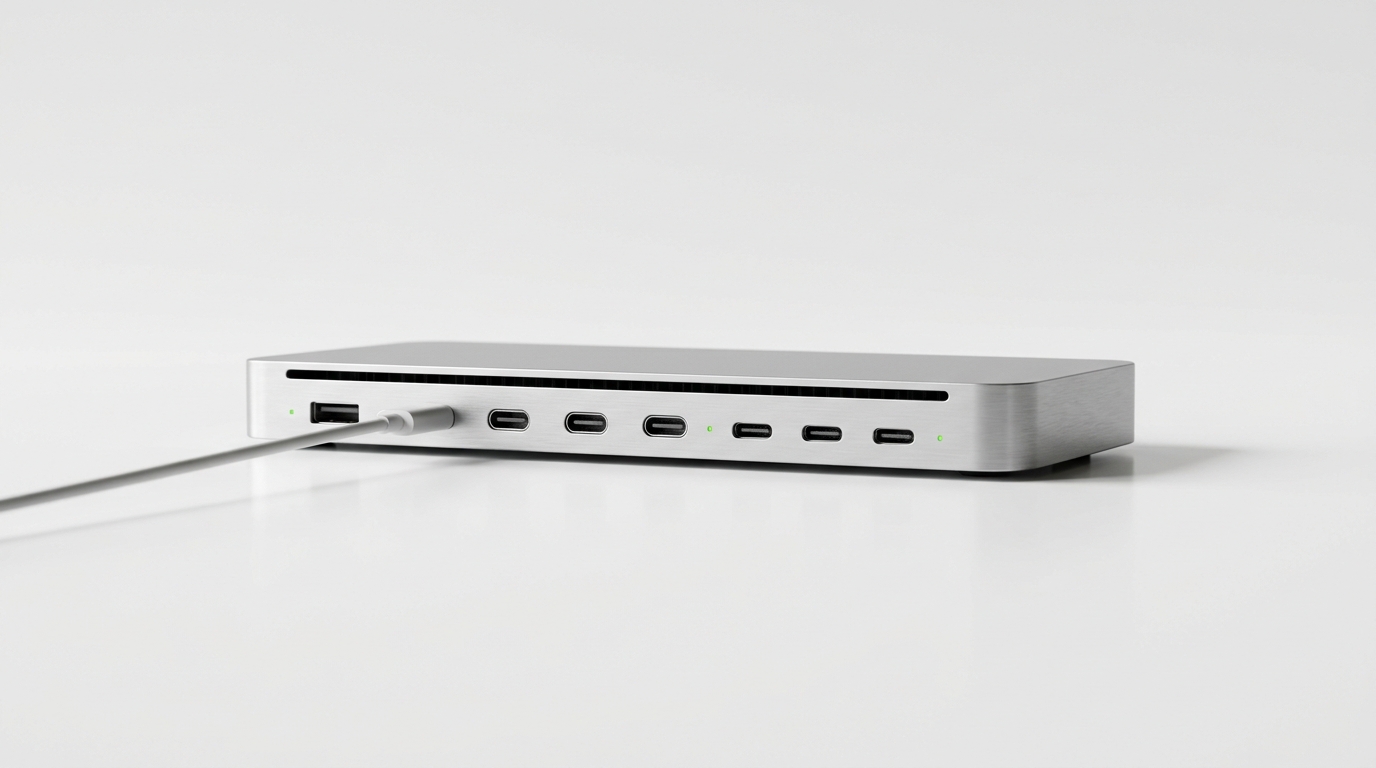
Sonnet Echo 13 — a Thunderbolt 5 docking station with a built-in high-speed SSD
Razer Thunderbolt 5 Dock Mercury ($390) also has an SSD slot (up to 8 TB), but the drive must be purchased separately and installed by the user. However, the enclosure has an Apple-esque style: silver aluminum, all ports on the back, no indicators on the front. The downside — only gigabit Ethernet instead of 2.5 Gbps.
USB-C Docking Stations and Hubs: Budget Alternatives
If a Thunderbolt dock seems like overkill, USB-C models will cost noticeably less. Data transfer speeds are lower (10 Gbps instead of 40–80), but for connecting a couple of monitors and basic devices, it’s sufficient.
Satechi Dual Dock Stand ($170) — simultaneously a docking station and a stand that elevates the MacBook at a comfortable angle. It has an SSD bay (purchased separately), two HDMI and DisplayPort for connecting two 4K monitors. Laptop charging — 75W via USB-C (your own charger needs to be plugged into the dock).
Satechi Pro Hub Max ($100) — a portable hub with USB4 (40 Gbps), seven ports including HDMI, Ethernet, and a card reader. Connects directly to two Thunderbolt ports on the MacBook. Compact and convenient for travel, but only suitable for MacBooks with two ports on the same side.
For the most budget-conscious — OWC Thunderbolt 5 Hub ($190). Five ports: four Thunderbolt 5 and one USB-A. Laptop charging — 140W. No Ethernet, no card reader, no audio — just pure Thunderbolt. But it’s the most affordable way to get three high-speed Thunderbolt 5 ports.
How Many Monitors Can You Connect to a MacBook Through a Docking Station
The number of external monitors depends not only on the dock but also on your MacBook’s chip:
- M1, M2 (base models) — only one external monitor natively. For two or more, you need DisplayLink — third-party software that works around the macOS limitation.
- M3, M4, M5 (base models) — two external monitors. For M3 — only with the laptop lid closed.
- M1–M4 Pro — two monitors up to 6K at 60 Hz.
- M5 Pro — up to three monitors through a single Thunderbolt port (this is new; it didn’t work this way before).
- M5 Max — up to four monitors through a single port.
- M1–M4 Max — up to four monitors, but through multiple ports.
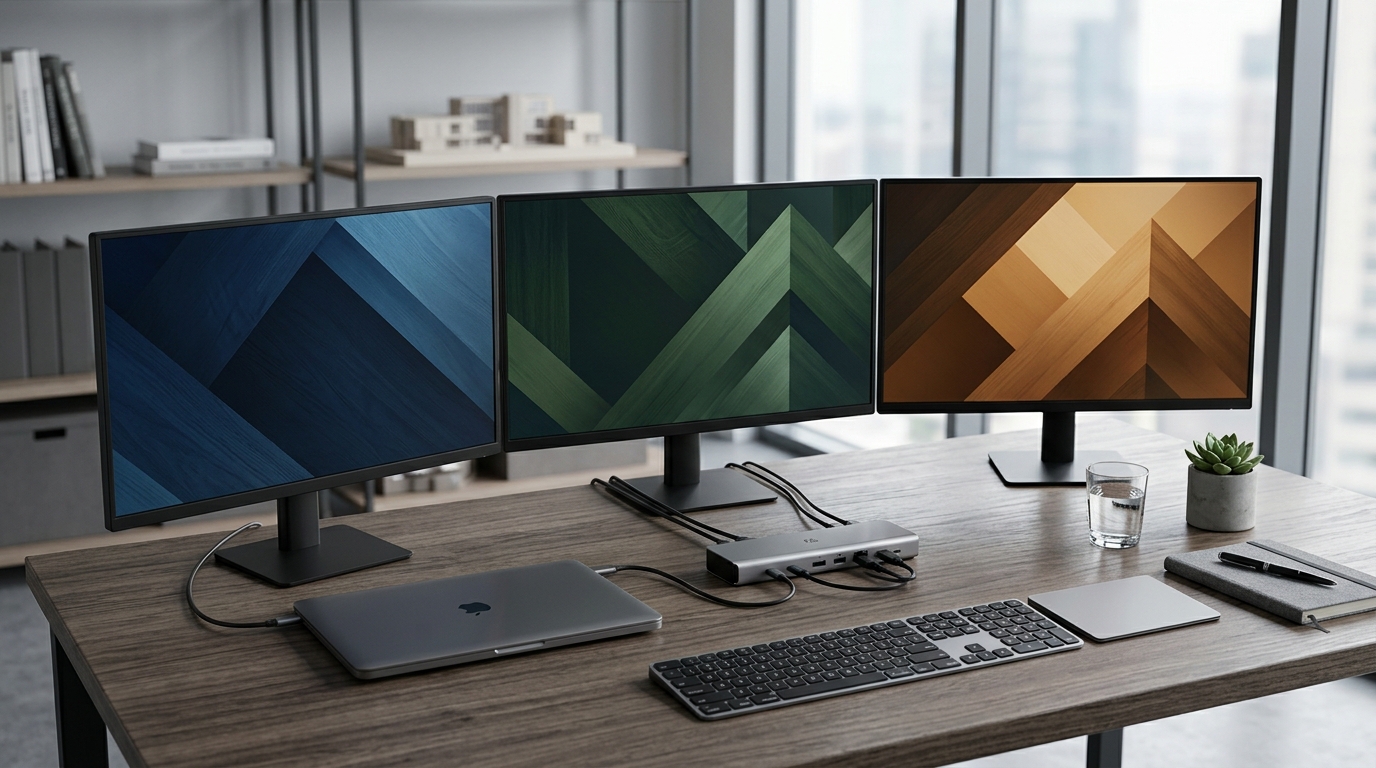
MacBook Pro on M5 Max can work with four external monitors