In iOS 26, the Reminders app received a new useful feature. Now an alert about something important can come in the form of an alarm, which won’t let you forget to do it. But along with this, some users have also encountered a rather annoying side effect. Every time you open the app, a message “Time Sensitive Notifications Access Is Turned Off” may pop up, which doesn’t let you simply go into your task list and continue working. It looks like a bug, although the reason usually lies in the system settings themselves.
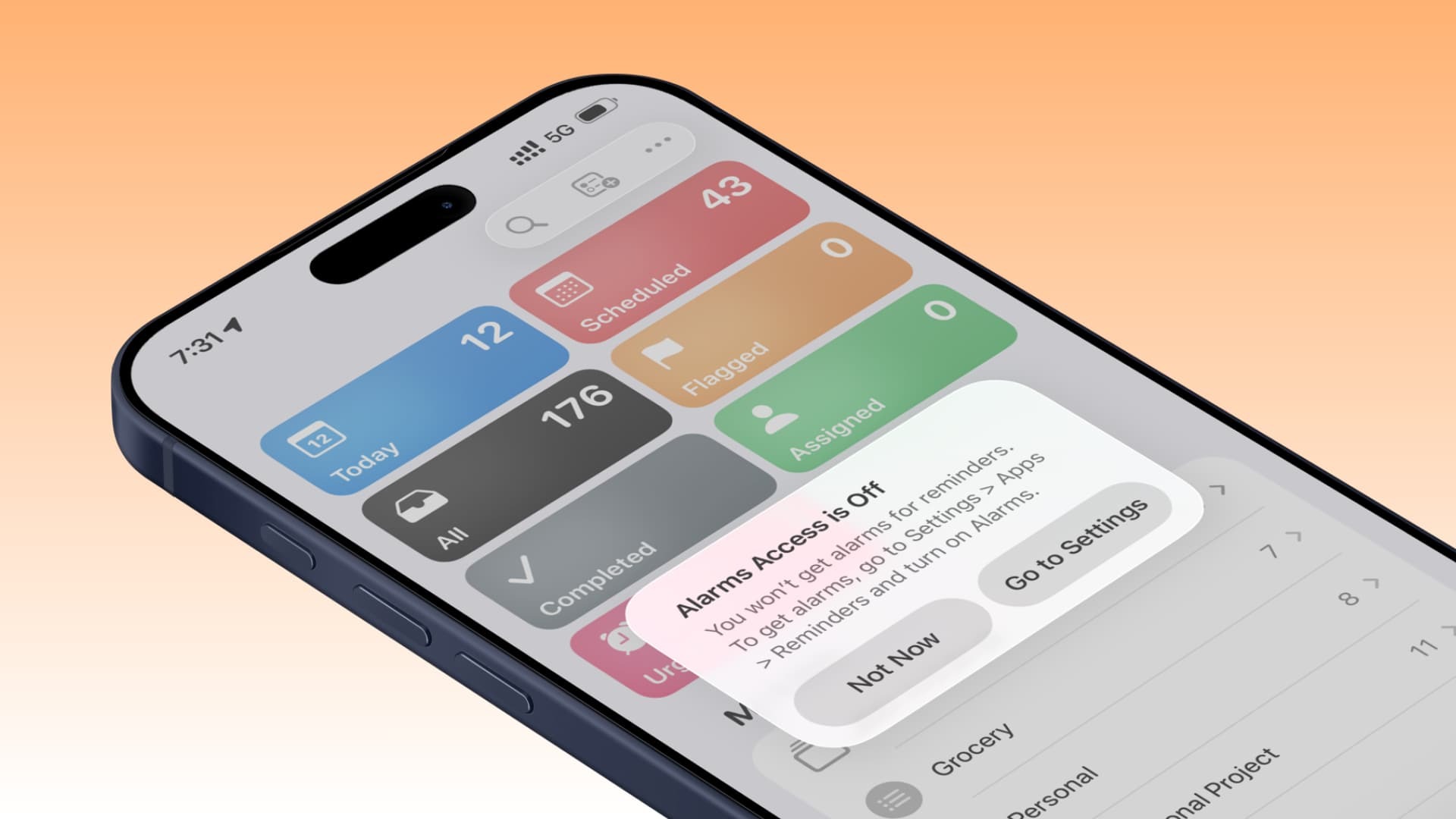
You may encounter this alert if Reminders are configured incorrectly. Image: idownloadblog.com
Why iPhone Says “Time Sensitive Notifications Access Is Turned Off”
Starting with iOS 26.2, Apple added a new mode to Reminders for tasks that can’t be missed. Now when creating a task, you can enable the “Urgent” toggle, and the system will treat such a reminder not as a regular notification. Essentially, the iPhone tries to make it as noticeable as possible so you definitely don’t forget about an important event.
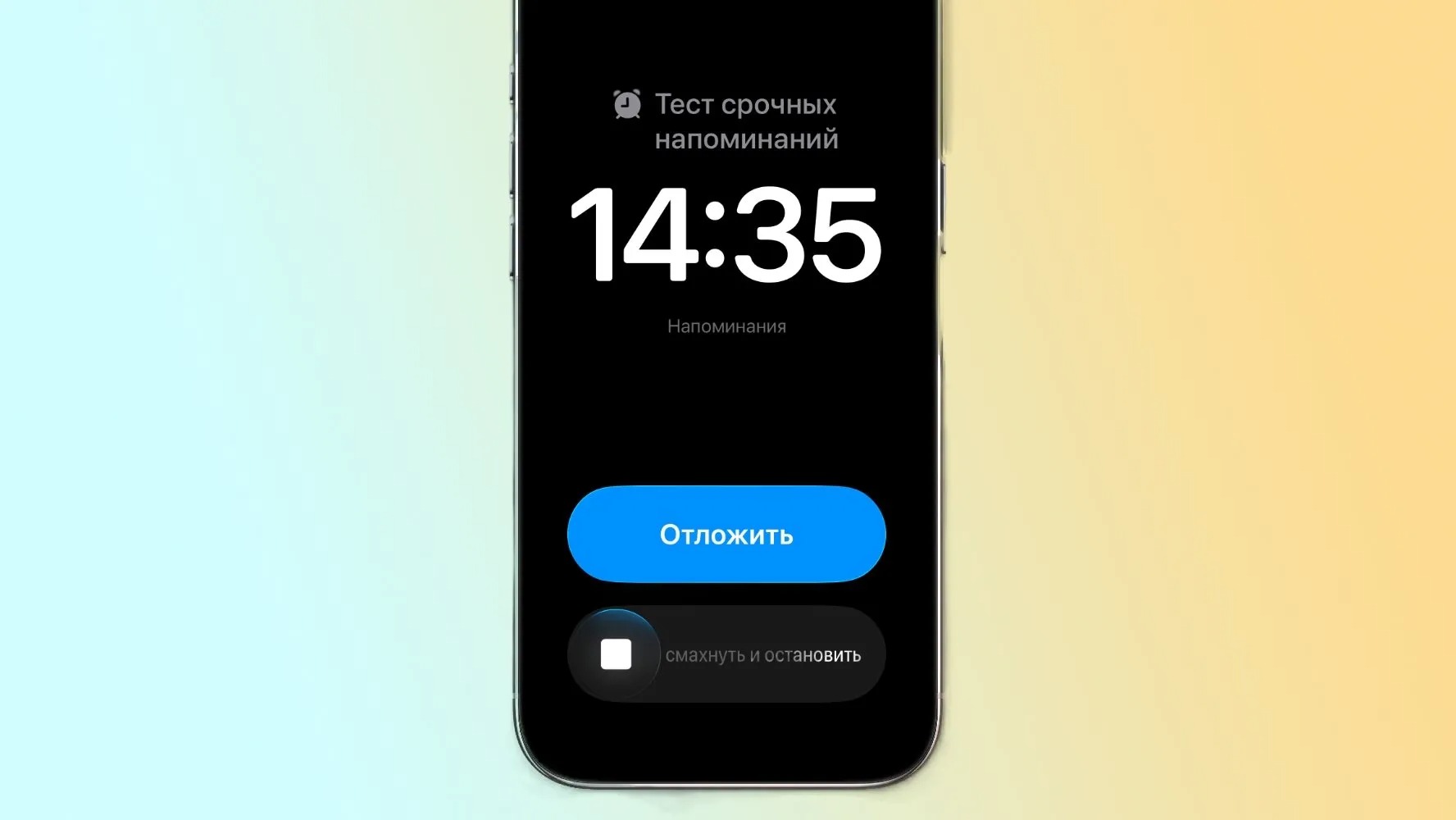
Reminders with an alarm look like this
That’s exactly why the app needs access to alarms. If an urgent reminder has already been created but the permission hasn’t been granted, iPhone considers this configuration incomplete. Because of this, every time you launch Reminders, the same warning appears until you remove the cause.
How to Turn Off Urgent Reminders on iPhone
The quickest way to get rid of this popup is to disable the “Urgent” mode on tasks where it’s already activated. This option is suitable if you don’t need the alarm format specifically and a regular notification at the right time is enough. In this case, you won’t need to change system permissions because you’ll simply remove the source of the conflict.
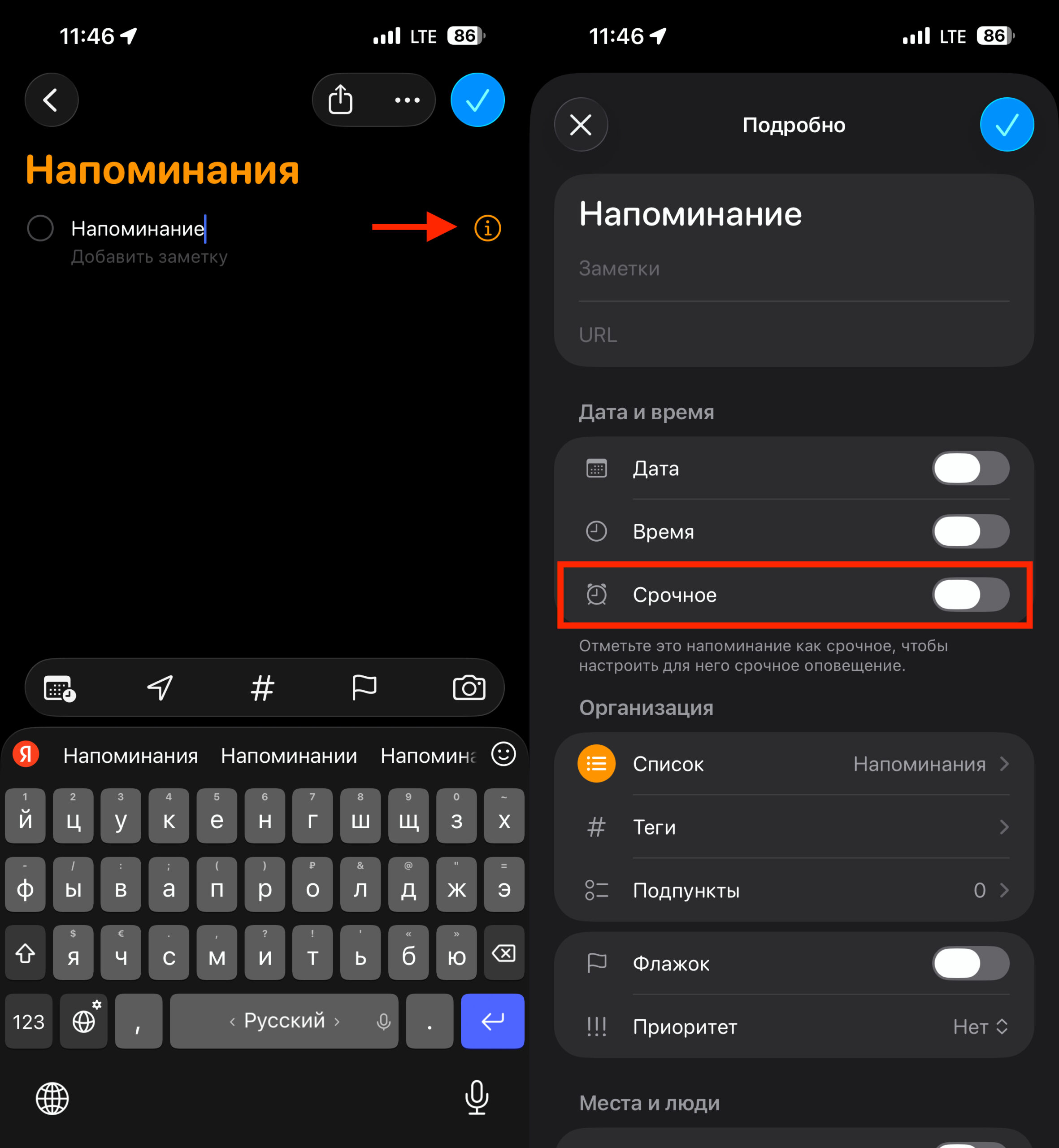
Make sure this toggle is disabled for all reminders
- Open the Reminders app and tap “Not Now” in the popup window.
- Go into each reminder from all active ones using the “i” button in a circle.
- Turn off the “Urgent” toggle and save the changes.
- After that, force close the Reminders app and open it again.
After this change, the popup usually disappears immediately. If everything is done correctly, the app will no longer request access to alarms because there will be no urgent reminders left in it. This is the simplest scenario for those who don’t plan to use Apple’s new feature on a regular basis.
How to Enable Alarm Access for Reminders
If you do need urgent reminders, there’s no real point in disabling them. In this case, it makes more sense to grant the app the necessary permission once so it can use the feature as intended in iOS 26. After that, both the popup window will disappear, and the important tasks themselves will start working correctly.
This option is especially useful for those who use Reminders not just as a to-do list but as a tool for truly critical events. For example, for medications, appointments, deadlines, or calls that can’t be missed. In such a situation, it’s better to set everything up properly right away and never come back to this problem.
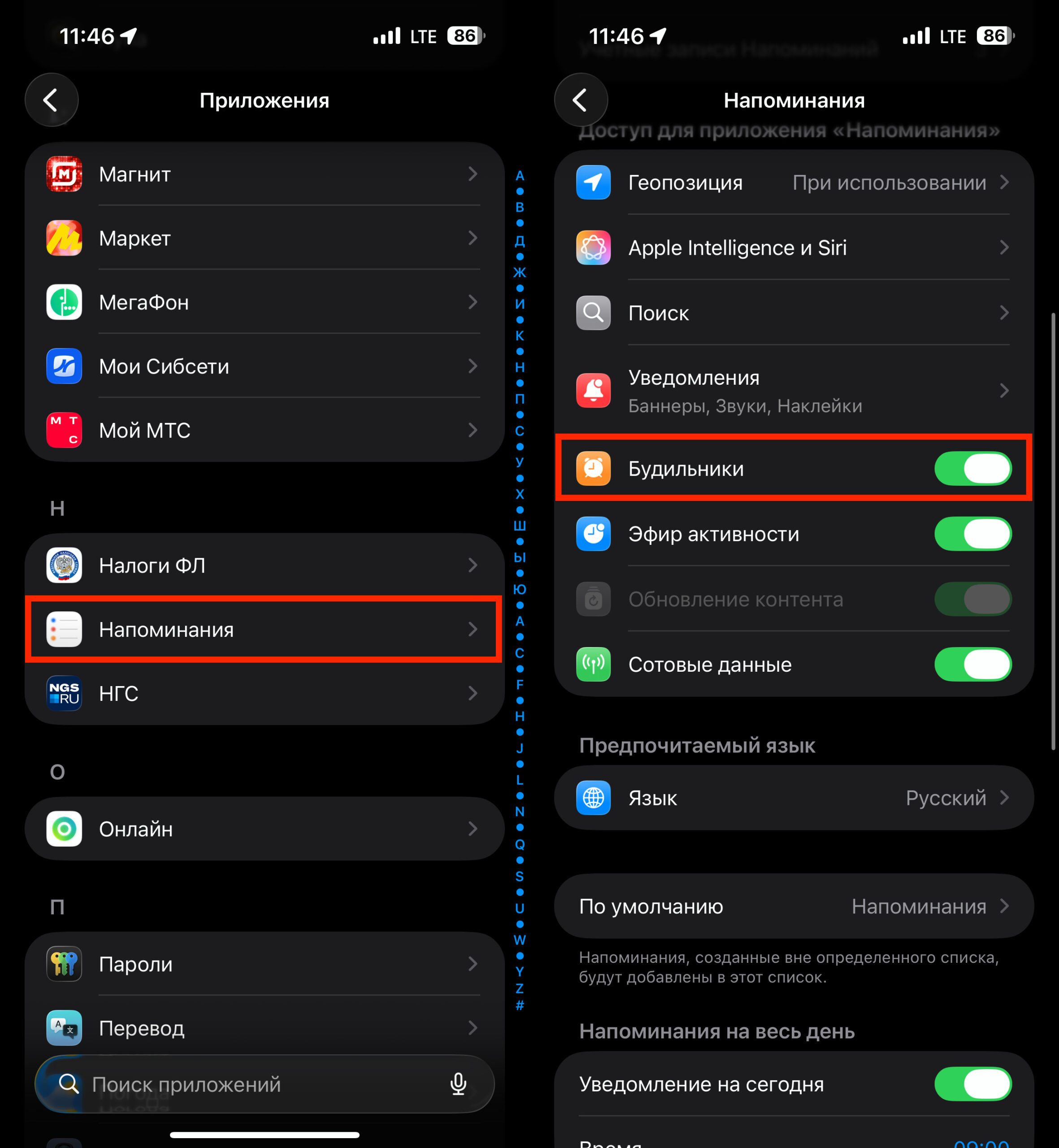
Give Reminders on iPhone access to alarms
- Open Settings on your iPhone.
- Go to the “Apps” section.
- Find “Reminders” in the list and open it.
- Enable the toggle related to alarm access.
- After that, force close the Reminders app and launch it again.
Typically, after granting the permission, the warning disappears for good. From that point on, urgent reminders can use the required notification type without conflicts with the system. In other words, you’re not only removing the error but also activating one of the truly useful features of iOS 26.
What to Do If “Time Sensitive Notifications Access Is Turned Off” Won’t Go Away
Sometimes it happens that you’ve already fixed everything, but the window still keeps appearing. In this case, the reason is most likely no longer in the settings themselves but in a temporary iOS glitch. The system may have incorrectly applied the changes or simply not updated the app’s internal state after your actions.
There’s no need to look for complicated workarounds here. Usually, a few basic steps are enough to help the system re-read the settings and get rid of the stuck warning. It’s not the most elegant part of the process, but in practice, it works quite often.
- Completely turn off your iPhone.
- Turn the device back on and wait for the system to fully load.
- Open Reminders and check if the warning has disappeared.
- If the window still appears, go to Settings and make sure the latest version of iOS is installed on your iPhone.
- After updating the system, open the app once more and check the result.
Usually, this is where the problem ends. If the warning has disappeared, it was indeed a temporary glitch rather than an incorrect setting. However, if the window continues to appear, it’s likely a system bug in a specific iOS version that Apple will most likely fix in one of the upcoming updates.
What Are Urgent Reminders on iPhone
The new feature itself turned out to be quite useful. It makes Reminders significantly more serious and allows you to use the app not only for everyday lists but also for truly important tasks that can’t be missed. Essentially, Apple is gradually turning it into a hybrid of a planner and an alarm clock.
But this approach also has a downside. As soon as you activate an urgent reminder, the app becomes dependent on an additional system permission. So it’s simple: either set up access properly right away, or disable this option to avoid dealing with a constant popup window.