Your smartphone dies by evening even though you barely used it today? The culprit may be hiding where you least expect it — in the settings of a regular messenger installed on almost every phone. And no, it’s not some rare bug. It’s simply a function enabled by default that most people don’t even know exists.

Here’s how you can stop Telegram on Android from devouring your battery
On my Honor Magic 8 Pro, the battery optimization app regularly showed Telegram in the list of the most power-hungry programs. A messenger — and such battery drain? Especially since the consumption was happening in the background, when I wasn’t even using the app. I started investigating and stumbled upon a setting that few people know about. It turned out that this setting was quietly working in the background and draining the battery — even if you haven’t opened Telegram for hours.
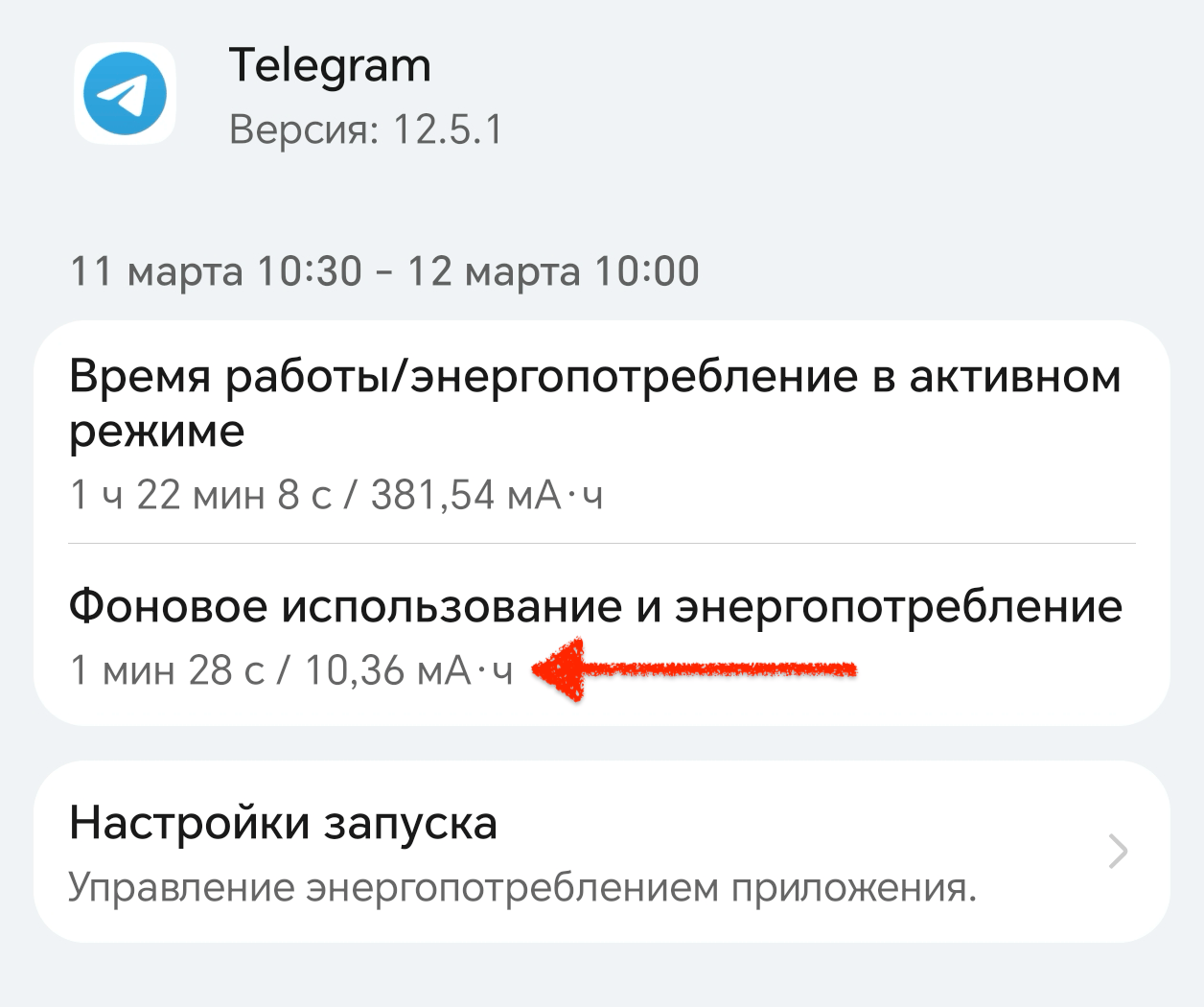
After disabling the setting, power consumption dropped by at least ten times
Why Telegram Drains Your Battery
In Telegram’s settings, there’s an option called Background Connection. You can find it here:
- Open the messenger and tap the “Settings” menu
- Go to “Notifications and Sounds”
- Scroll down to the “Other Notifications” section
The idea is simple: this function maintains a constant minimal connection to Telegram servers in the background — even when the app is closed. Officially, this is needed so that Telegram notifications on Android arrive more reliably and quickly. The developers explain that on some smartphones, the system aggressively “kills” background apps, causing messages to be delayed or not delivered at all.
Sounds useful. But in practice, it’s not so straightforward.
Proper Telegram Setup
I disabled Background Connection in Telegram several days ago and have been monitoring the results since. Notifications continue to arrive properly — not a single missed message, no delays. At the same time, the smartphone started draining its battery noticeably slower.
Why does it work this way? On modern Android smartphones, app notifications are delivered through Google Firebase Cloud Messaging. This is a centralized system that doesn’t require the app itself to constantly maintain an active network connection. In other words, Telegram’s Background Connection is an additional layer on top of an already functioning notification system.
Bottom line: the function consumes battery but provides no real benefit on most modern devices.
How to disable Background Connection in Telegram:
- Open Telegram
- Go to “Settings”
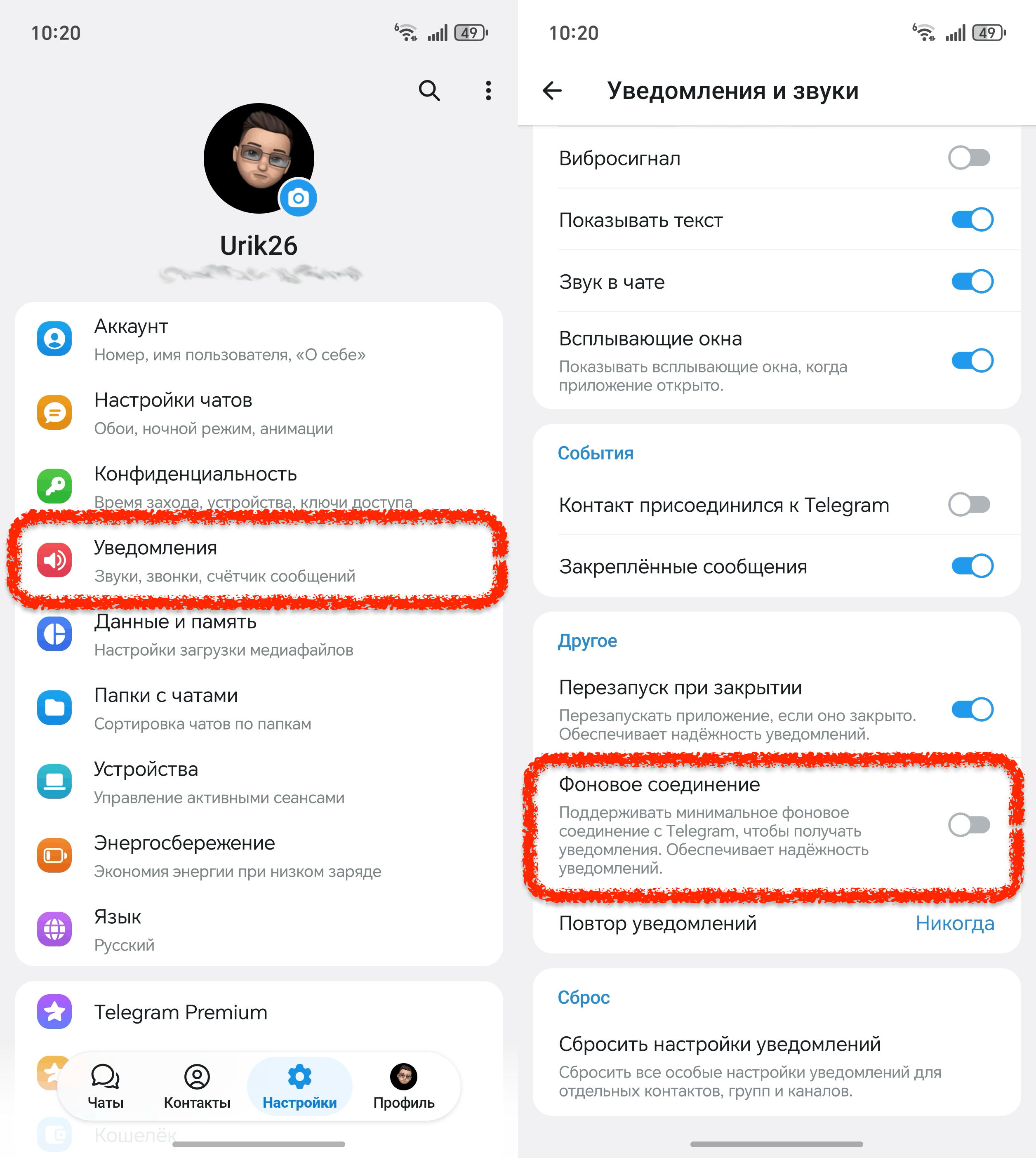
Go ahead and disable this setting
- Select “Notifications and Sounds”
- Find the “Background Connection” option and toggle it to “Off”
That’s it — it takes literally 20 seconds, but it can extend your battery life by dozens of minutes.
Other Telegram Settings Worth Disabling
While you’re in settings — it’s worth checking other options that drain energy without your knowledge.
Disable automatic media downloads. By default, Telegram automatically downloads photos, videos, and voice messages from all chats and channels. This works in the background, straining the network and processor:
- Go to “Settings”
- Then “Data and Storage”
- Select “When Using Mobile Data” and disable automatic downloads for videos and files
Enable the power saving mode within the app. Telegram has its own power saving mode — it disables animated stickers, slows down GIF playback, and removes heavy visual effects. You can find it here:
- Open “Settings”
- Go to “Privacy and Security”
- Select “Power Saving”
In this section, you can configure automatic activation at a certain battery level — for example, from 30%.
Disable Stories. Telegram Stories is a separate content feed that constantly loads in the background. If you don’t use them, you can disable them in just a couple of clicks in the settings — and save both battery and mobile data.
Other Ways to Preserve Your Android Battery
Telegram isn’t the only culprit behind fast battery drain. Here are some general tips that actually work.
Check which apps are active in the background. Go to “Settings” — “Battery” — “Battery Usage” and see which apps are at the top of the list. Often you’ll find something unexpected there.
Lower the screen refresh rate. If your smartphone has a 90, 120, or 144 Hz screen, but you mainly read and text — switch to 60 Hz. Android battery savings from this can amount to 10–15% per day.
Restrict background activity for specific apps. Go to “Settings” — “Apps,” select the desired app, then go to the “Battery” section and set “Restricted mode.” The app won’t work in the background at all — only when you open it.
Disable Always-On Display (AOD). It’s a nice feature, but for many people it silently eats 5–10% of battery overnight. If your phone is lying face down — there’s no point in it at all.
Use a dark theme on an AMOLED screen. On smartphones with AMOLED displays, black color literally means turned-off pixels. A dark theme on Android actually saves battery in this case — especially with prolonged use of apps with white backgrounds.
Should You Disable Background Connection in Telegram?
If you’re using a relatively modern smartphone and don’t have system-level issues with notification delivery — go ahead and disable it. The likelihood that it will affect message delivery speed in any way is extremely low.
If your notifications actually arrive late or don’t arrive at all — first check something else: whether Android itself has blocked Telegram in the system battery manager. This is a much more common cause of notification problems than a disabled Background Connection.
In any case — go into the settings and check for yourself. Five minutes, and your battery will thank you.