Telegram Web is a full-featured version of the messenger that works right in the browser and doesn’t require installation. It’s a convenient way to access your chats from any computer — a work PC, someone else’s, or simply when your phone isn’t handy. Below are step-by-step instructions for logging in using all available methods, as well as tips for iPhone and Mac owners.

Telegram Web: How to Log In to the Web Version of the Messenger by Phone Number, QR Code, and in Russian
What Is Telegram Web and How Does It Differ from Telegram Desktop
Telegram Web is a browser-based version of the messenger available at web.telegram.org. It doesn’t require downloading or installation: just open the page in Safari, Chrome, or any other browser, log in — and you’re in your account with all your chats, channels, and bots.
Visually, Telegram Web is almost identical to the mobile app: the same minimalist interface, support for animated stickers, dark theme, chat folders, voice and video messages, calls, and file sharing up to 2 GB. There are even two official versions of the web client — A and K — which you can switch between right from the menu. There’s almost no difference between them: they’re simply developed by different teams within Telegram.
Telegram Desktop is a separate application that needs to be downloaded and installed. It’s available for Windows, macOS, and Linux. The desktop version works slightly faster with notifications and integrates better with the system, but in terms of features, it’s practically identical to the web version. The main limitation of Telegram Web compared to the apps is that you can’t use multiple accounts simultaneously.
If you need Telegram on a computer occasionally — the web version works perfectly. If you use the messenger constantly — it’s more convenient to install Telegram Desktop.
How to Log In to Telegram Web by Phone Number
Logging in by phone number is the simplest and most reliable way to authorize. Important condition: you must already be logged into Telegram on some other device (for example, on an iPhone), because the verification code will be sent there, not via SMS.
- Open web.telegram.org in any browser.
- Click on “Log in by phone number.”
- Enter your number and click “Next.”
- Telegram will send a verification code to the app on the device where you’re already logged in. Find it in the Telegram service chat.
- Enter the code in the corresponding field on the website.
- If you have two-factor authentication enabled, enter your cloud password.
- Done — you’re in your account.
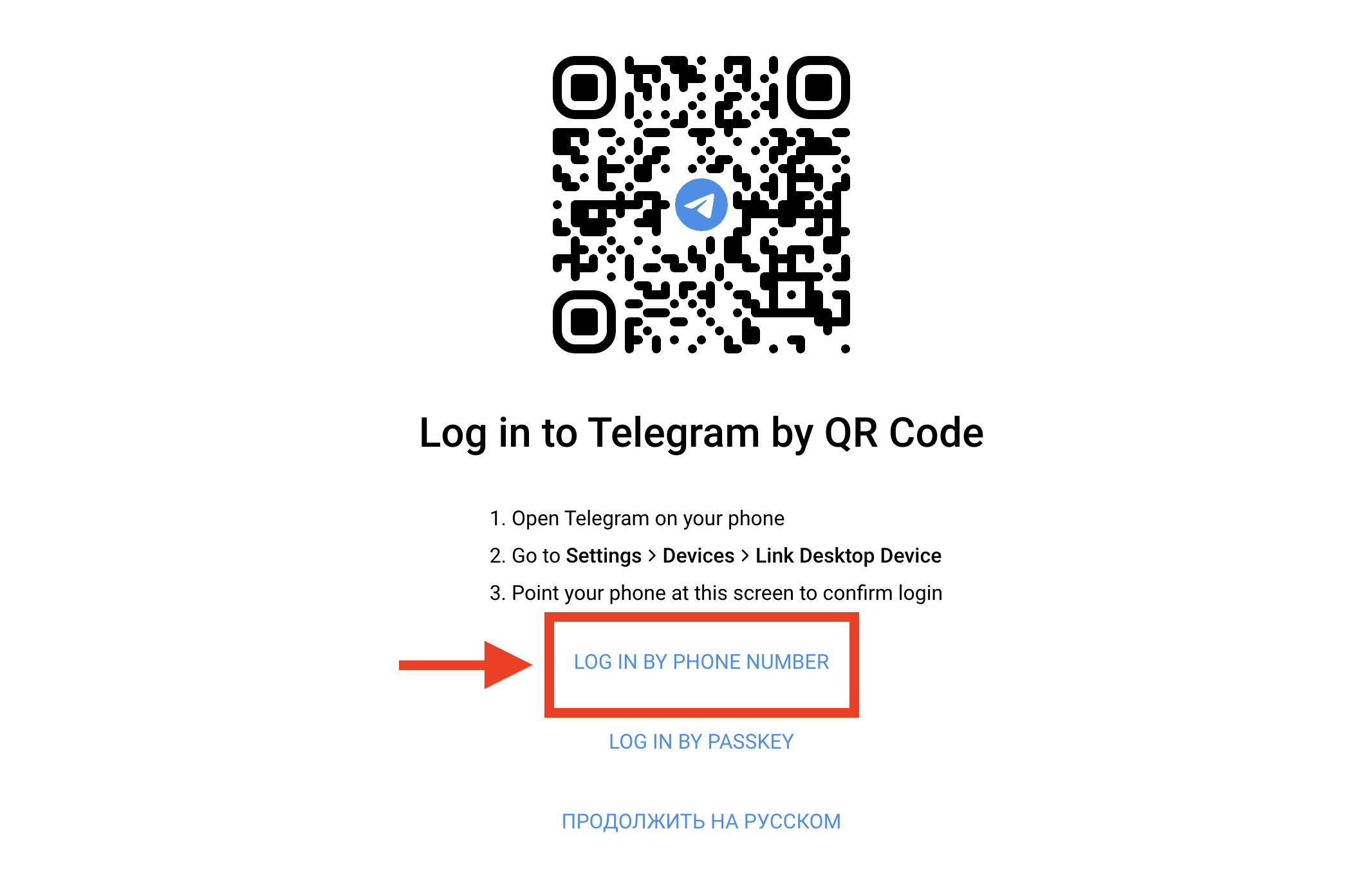
Switch to phone login
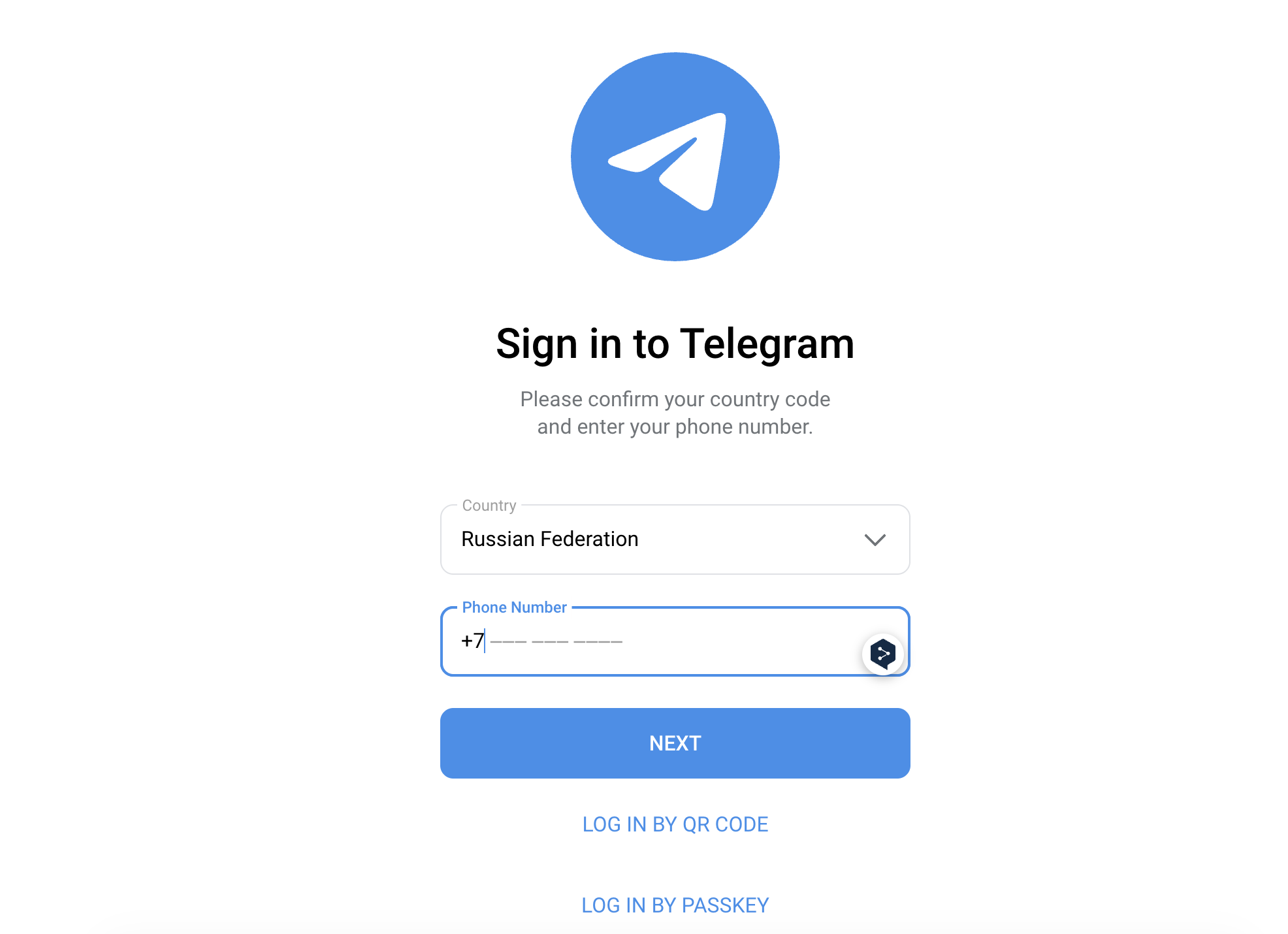
Enter your number and receive the verification code
Tip: if you regularly use Telegram Web on the same computer, check the “Remember me” box — so you won’t have to go through authorization every time. Keep in mind that if you don’t have any device where you’re logged into your account, you won’t be able to authorize in the messenger using only your phone number. Since late 2025, SMS messages with verification codes from Telegram have practically stopped arriving.
How to Log In to Telegram Web by QR Code
Logging in by QR code is even faster, but it requires specifically a smartphone with Telegram installed — a tablet or a second computer won’t work.
- Open web.telegram.org — a QR code will appear on the screen immediately.
- On your iPhone, open Telegram and go to “Settings” → “Devices.”
- Tap “Link Desktop Device” — the camera will open.
- Point the camera at the QR code on the computer screen.
- In a couple of seconds, the authorization will be complete. If two-factor authentication is enabled, you’ll need to enter your cloud password.
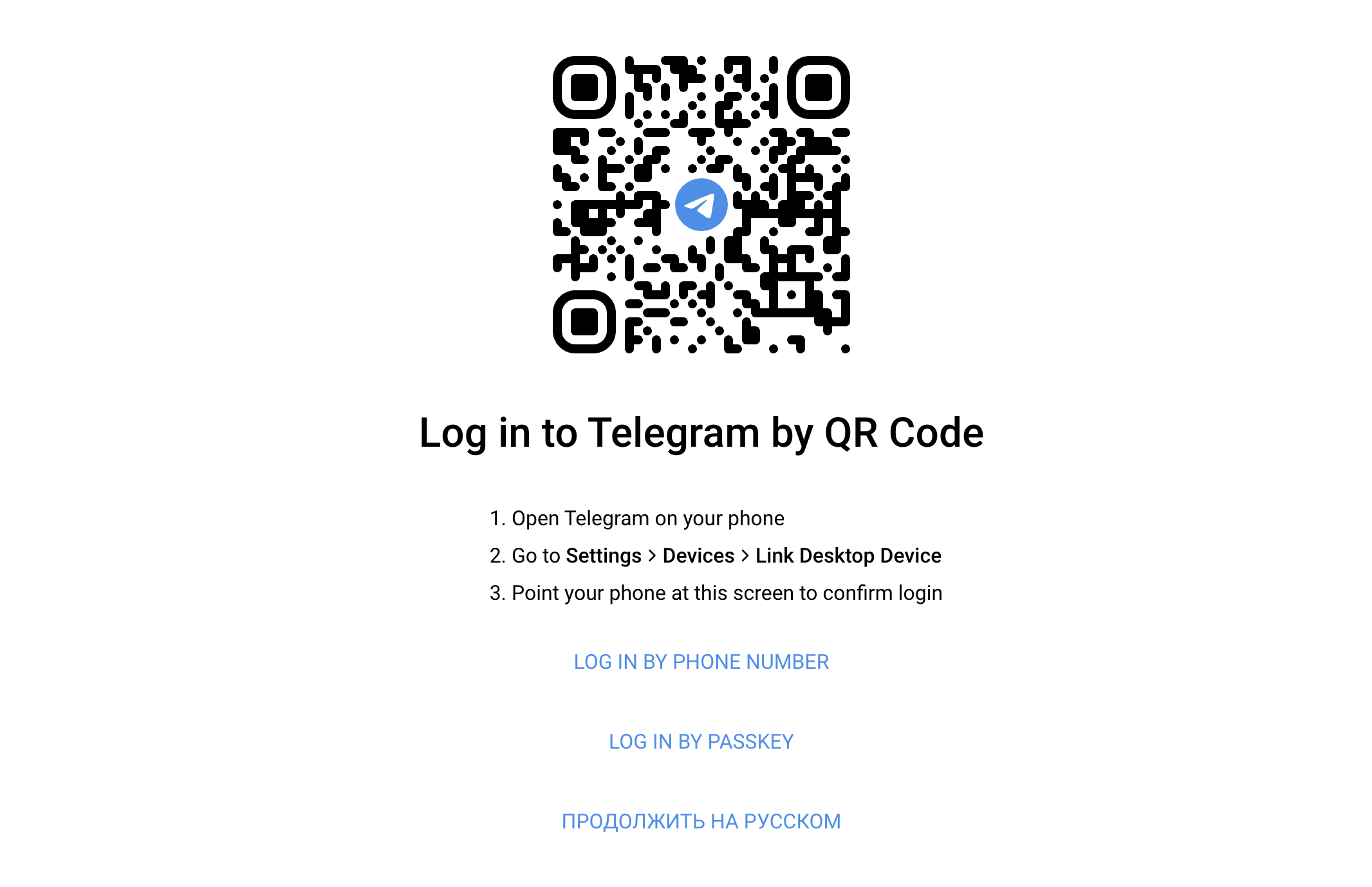
The QR code is generated right on the login page
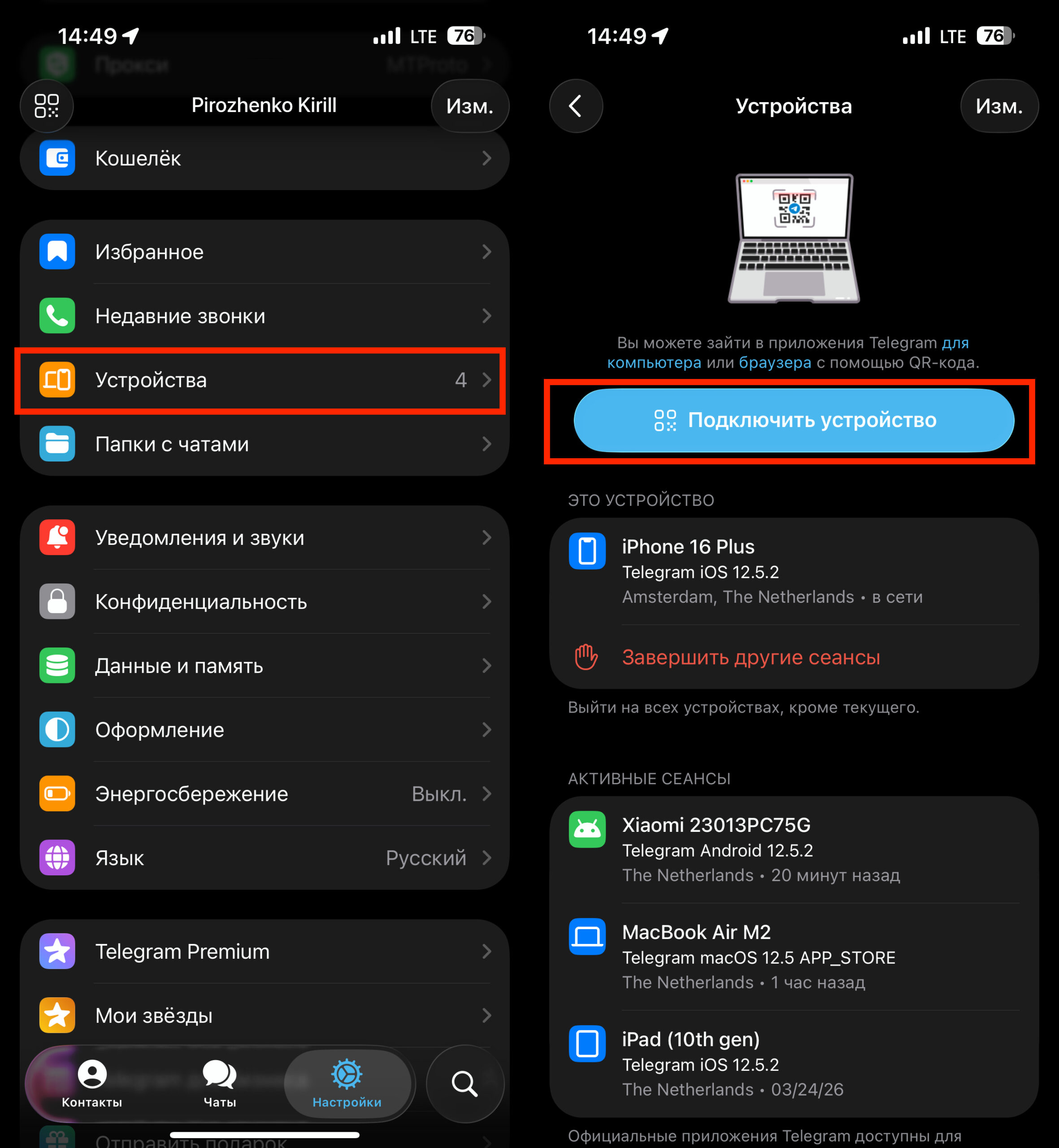
The device connects very quickly
This method is the most convenient if your phone is nearby — no need to enter a number and wait for a code. Just point the camera — and you’re done.
How to Switch Telegram Web to Russian Language
When you first open Telegram Web, the interface may load in English. You can switch it to Russian in just a few seconds.
If you haven’t logged in yet: on the login screen, click “Continue in Russian.”
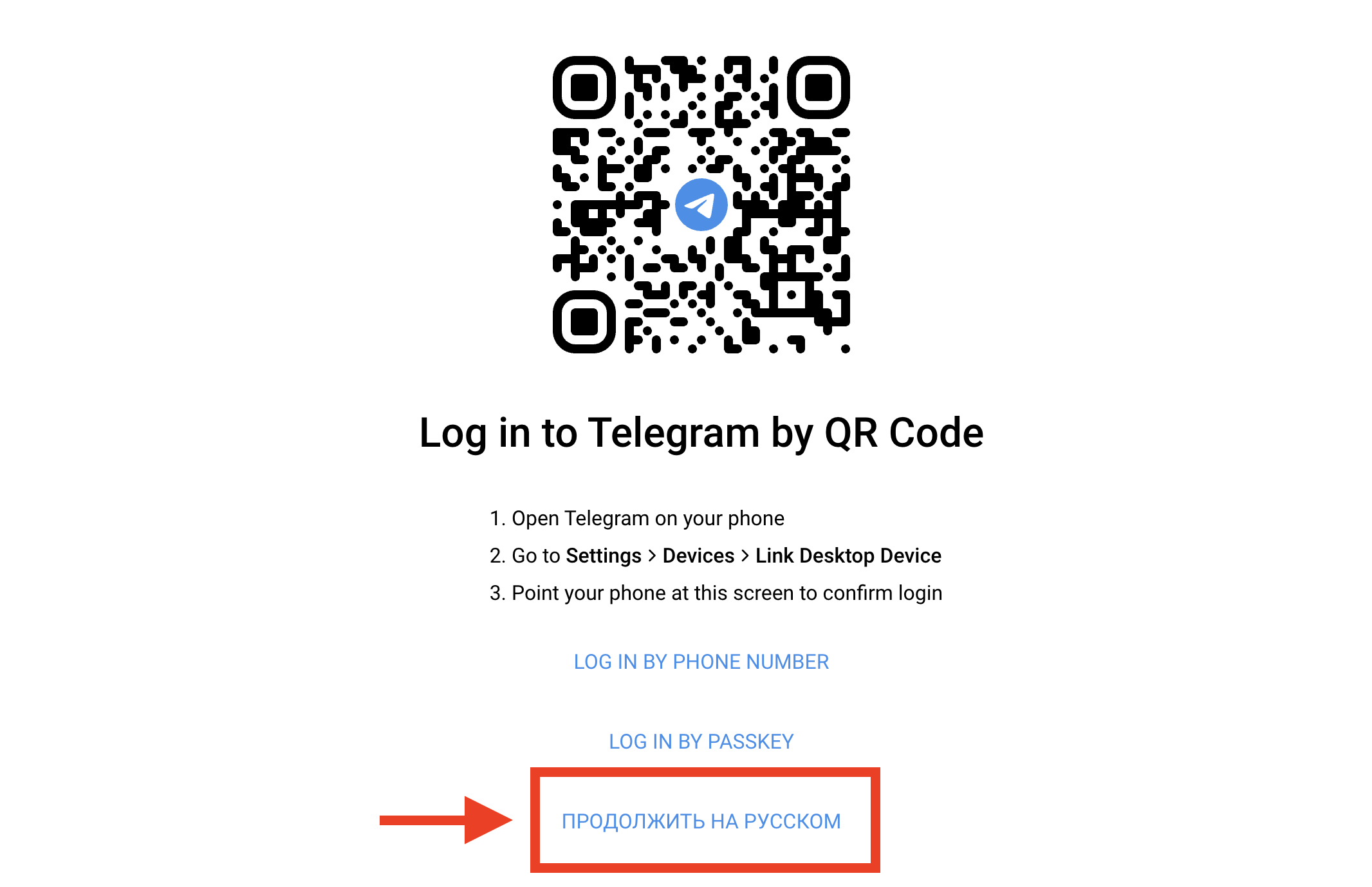
Russian can be set on the main page
If you’re already logged in: open the menu (three lines in the upper left corner) → “Settings” → “Language” → select “Russian.” The interface will switch instantly — no page reload needed.
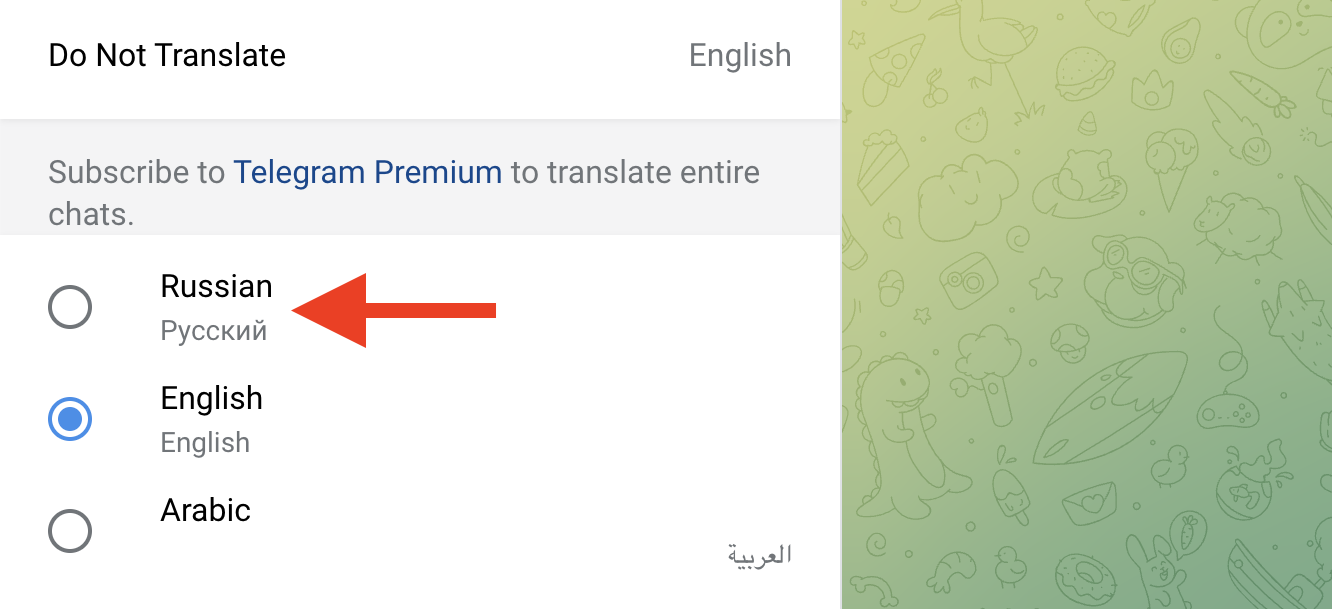
Or switch to it through settings
Also, the interface language may be pulled automatically from your account settings — if Russian is already set in the mobile app, the web version often picks it up on its own.
How to Use the Telegram Web Browser Extension
If it’s inconvenient to open a Telegram Web tab every time, you can install a browser extension. It launches the official web version in a separate pop-up window — essentially, it’s the same Telegram Web, just with quick access.