ChatGPT now works in CarPlay — you can talk to the neural network by voice right during your trip without taking your eyes off the road. In this guide, we’ll cover how to connect voice ChatGPT in CarPlay, what you need for it, what limitations exist, and how the ChatGPT voice assistant differs from Siri in the car.
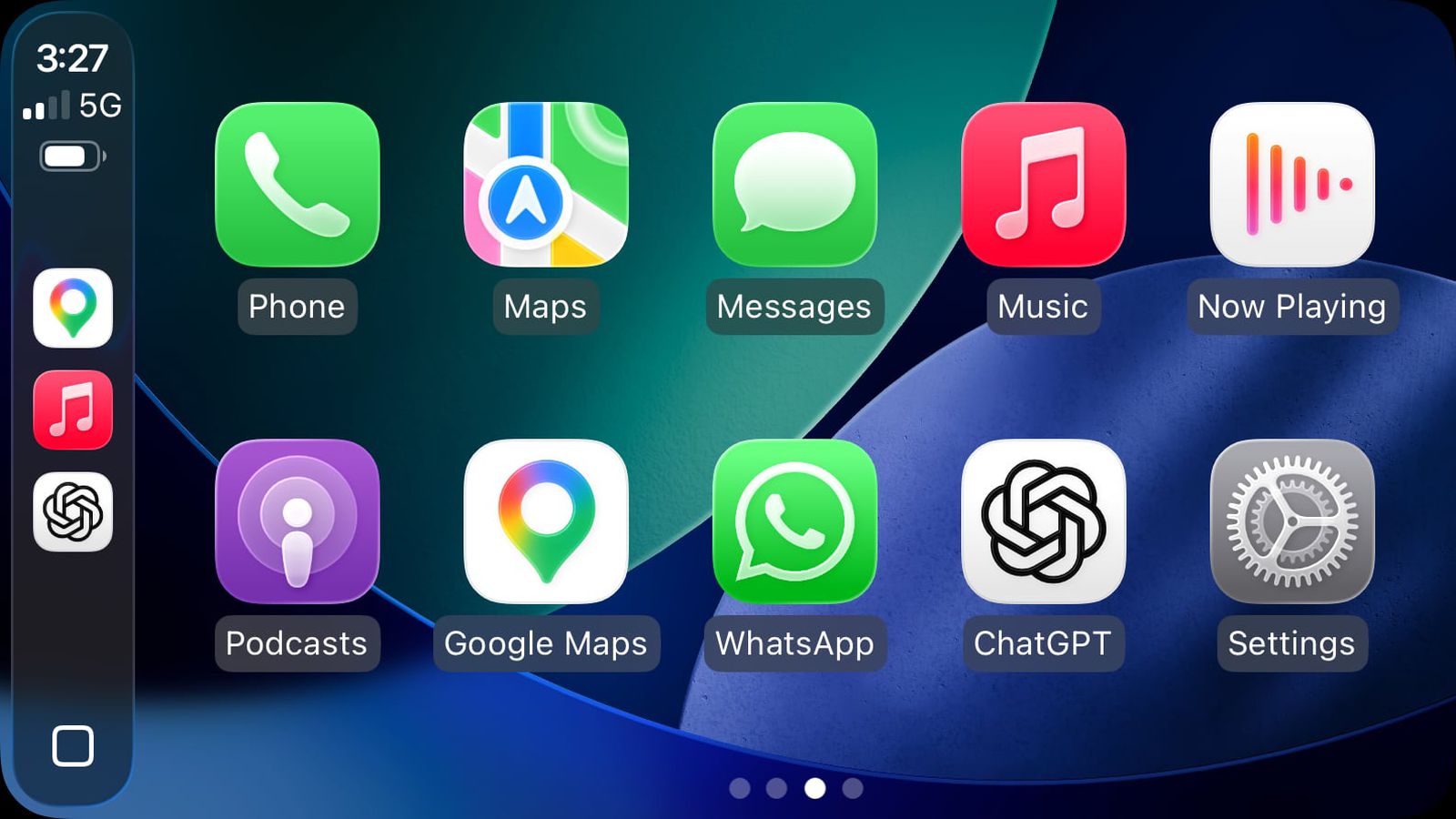
ChatGPT can now be used right behind the wheel. Image: macrumors.com
What Is CarPlay and Why Use ChatGPT with It
CarPlay is an Apple system that mirrors the iPhone interface on the car’s multimedia screen. It makes it convenient to use navigation, calls, messages, and music without taking the phone out of your pocket. Apps launch directly on the car’s display, and you can control them by voice or through the touchscreen on the head unit.
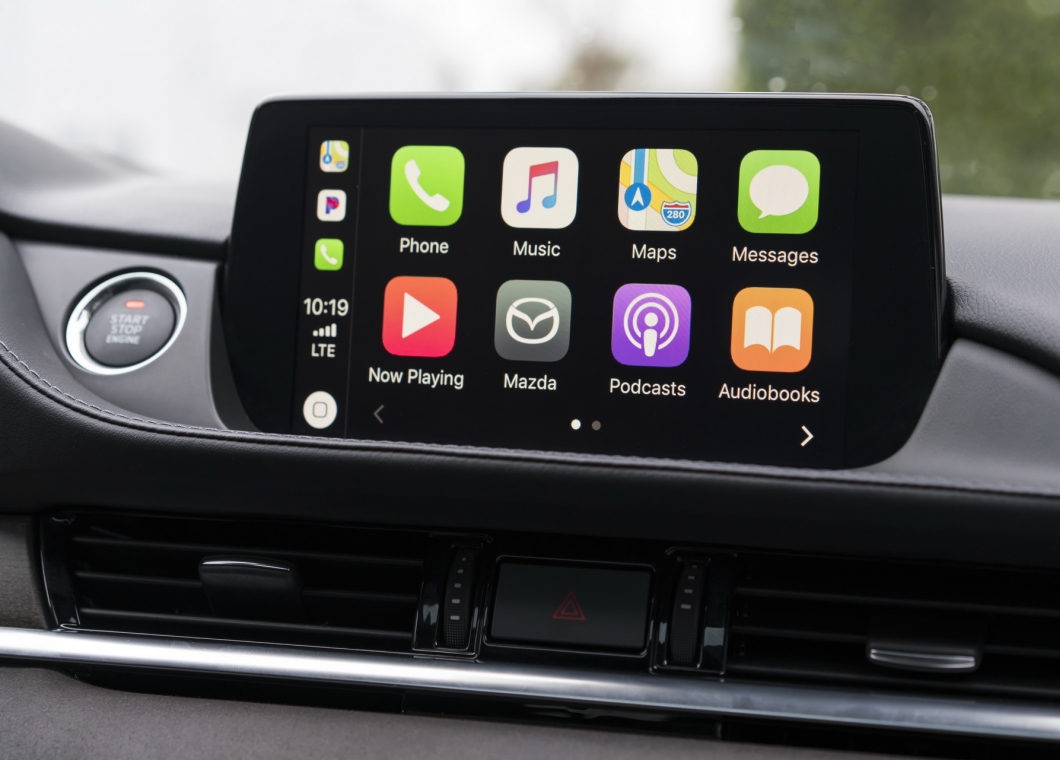
CarPlay is a really handy thing. Image: stylegarage.ru
With the addition of CarPlay support in the ChatGPT app, a new possibility has opened up: asking the neural network questions by voice and receiving voice answers while you drive. This is convenient for long trips — you can look up a dinner recipe, ask for an explanation of a complex topic, create a plan for the day, or simply chat with the AI when you’re bored in traffic.
Essentially, ChatGPT in CarPlay becomes a voice assistant that works alongside Siri. While Siri is designed for system commands (making calls, setting timers, building routes), ChatGPT excels at detailed answers, explanations, idea generation, and free-flowing dialogue.
Requirements for Running ChatGPT in CarPlay
To launch voice ChatGPT in CarPlay, you need to meet several conditions. Without any one of them, the feature simply won’t appear.
- iPhone with iOS 26.4 or later. CarPlay support in ChatGPT was introduced in this specific system version. If your iPhone is updated to iOS 26 but not to 26.4, the app won’t show up in CarPlay.
- Latest version of the ChatGPT app from the App Store. Make sure the app is updated — CarPlay support was added in one of the recent updates.
- OpenAI account. You need to be logged into the ChatGPT app on your iPhone. A free account will work, but for extended voice mode capabilities (Advanced Voice Mode), a ChatGPT Plus subscription may be required.
- A car or head unit with CarPlay support. CarPlay is supported by most modern cars manufactured after 2016. It also works with third-party head units that claim CarPlay compatibility.
- iPhone connected to the car. Via a Lightning cable, USB-C cable, or wireless CarPlay (if the car supports it).
- Stable mobile internet. ChatGPT processes requests on OpenAI’s servers, so it won’t work without a network connection.

Make sure to update your iPhone to iOS 26.4 or later
How to Connect and Set Up ChatGPT in CarPlay
Setup takes just a couple of minutes. If you already use CarPlay, adding ChatGPT is very simple.
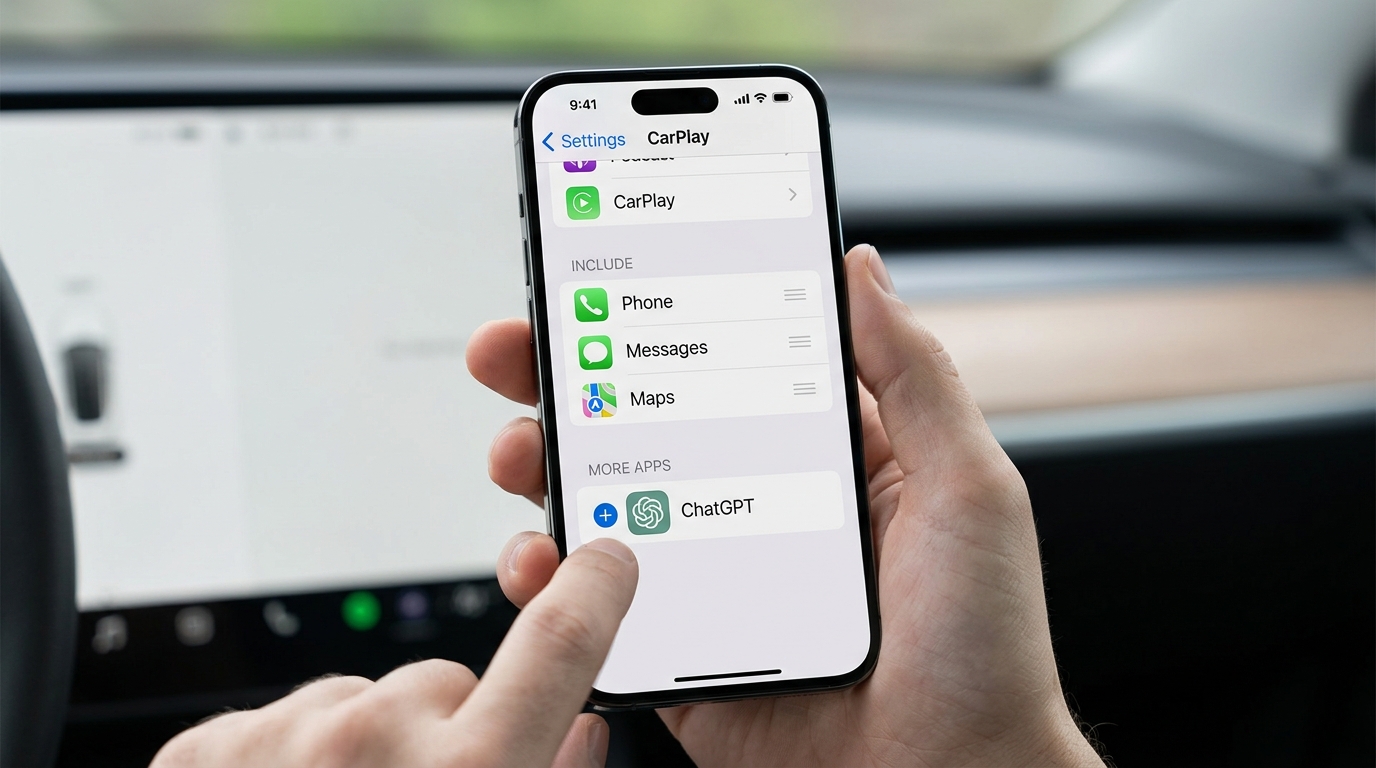
Adding ChatGPT to the CarPlay app list through iPhone settings
- Update your iPhone to iOS 26.4 or later. To do this, go to Settings — General — Software Update and install the latest version.
- Open the App Store and update the ChatGPT app to the current version.
- Make sure you’re logged into your OpenAI account inside the ChatGPT app on your iPhone.
- Connect your iPhone to the car via cable or wireless CarPlay.
- On the car’s multimedia screen, find the ChatGPT icon among the CarPlay apps. If it doesn’t appear, go to Settings — General — CarPlay on your iPhone, select your car, and add ChatGPT to the app list.
- Tap the ChatGPT icon on the CarPlay screen — the app will launch in voice mode.
After launching, you can start speaking right away — ChatGPT will listen and respond by voice. No additional setup within the app itself is required.
ChatGPT Voice Mode in CarPlay
The voice mode of ChatGPT in CarPlay works on a simple principle: you speak — the AI listens — it responds by voice. The interface on the car screen is minimalist because the main goal is not to distract the driver.
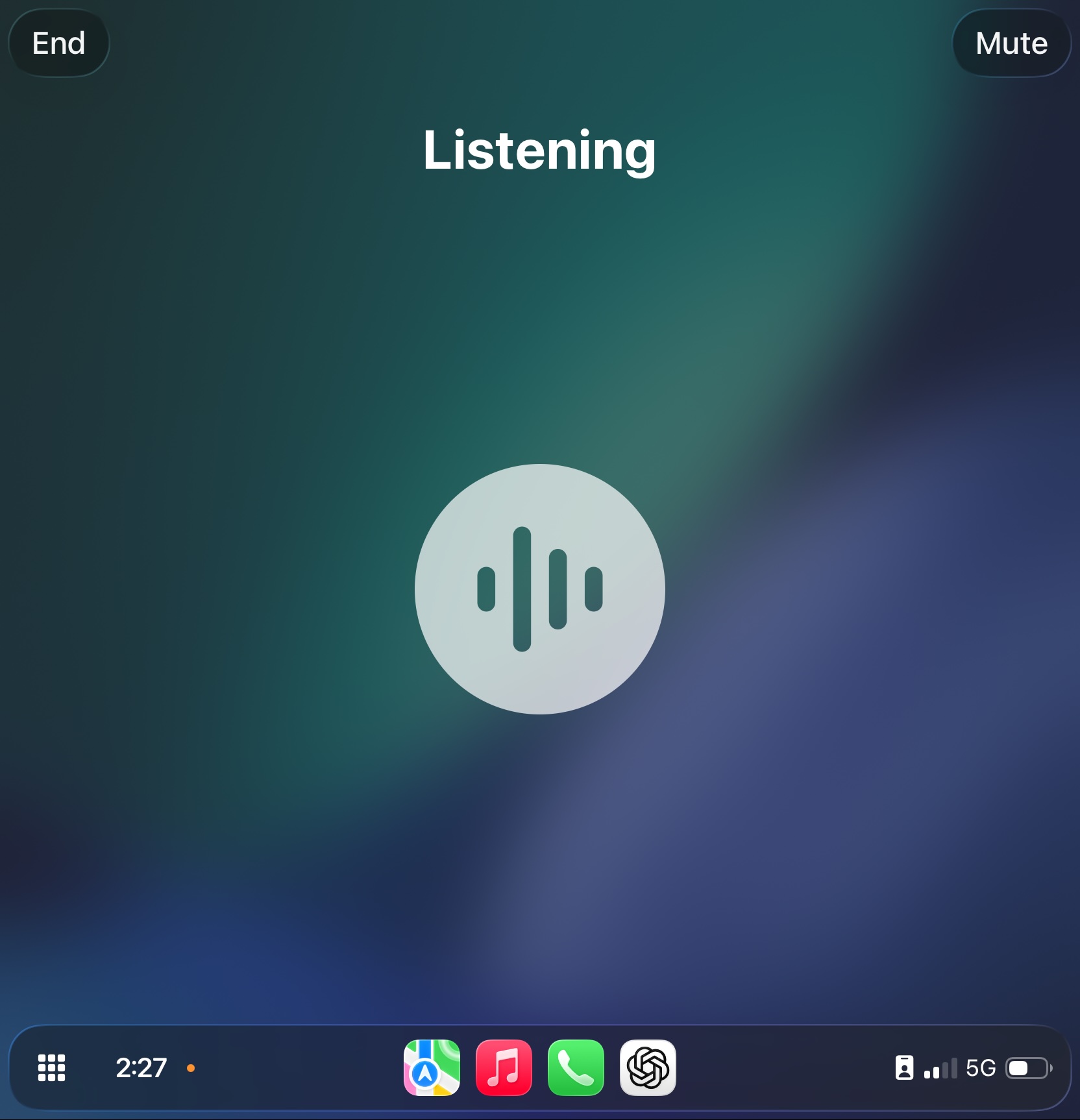
ChatGPT will listen to you and prepare answers. Image: 9to5mac.com
To start a conversation, you need to manually open the ChatGPT app on the CarPlay screen each time. Activation by a wake phrase (like “Hey, ChatGPT”) is not supported — this is one of the key limitations at the moment. You cannot invoke ChatGPT through Siri or a voice command — you can only tap the icon on the screen.

You can even browse previous queries. Image: macrumors.com
After launching, the app immediately enters listening mode. Speak naturally, as you would to a regular conversation partner. ChatGPT understands context well, so you can have a full conversation with follow-ups and additional questions.
A few tips for comfortable communication:
- Formulate your questions specifically — this way the answers will be shorter and more useful.
- If the answer is too long, you can interrupt ChatGPT and ask it to be more brief.
- Voice ChatGPT remembers the conversation context, so you can say “tell me more” or “what about…” without repeating the entire question.
- To change the topic, simply ask a new question — the AI will switch.
Limitations of ChatGPT in CarPlay
Voice ChatGPT in the car is a handy thing, but it has notable limitations you should know about in advance.
- Voice only. ChatGPT in CarPlay does not display text responses or images. All communication is exclusively through speech. If you need to see code, a table, or an image —


