You place your smartphone on the nightstand, turn off the light, and fall asleep. The phone is silent, the screen is dark. It seems like it’s resting too. But it’s not. While you sleep, Android at night keeps working. Not as actively as during the day, of course, but its “heart” keeps beating and invisible hands keep doing things. If you’ve ever noticed that your phone seems to have a life of its own without your involvement, nighttime is exactly when this is most noticeable.
Unlike you, your smartphone never rests
Why Your Smartphone Loses Charge Overnight
In the morning, you pick up your phone and see that it lost up to 10% of its charge overnight, even though it was just sitting on the table. Sound familiar? It’s not a malfunction or a glitch. It’s Android’s background processes. While you sleep, the processor doesn’t sit idle. It periodically wakes up, performs tasks, and goes back to standby mode. Each such wake-up consumes battery power. The more apps you have installed and the more actively they work in the background, the more your smartphone discharges overnight.
Add to that the constant network searching if the signal in your area is unstable. The phone spends extra energy maintaining a connection. In areas with poor coverage, this can eat up several percent of charge per hour.
What Android Does at Night
Let’s break down specifically what your smartphone does at night:
- Data synchronization. Contacts, calendar, email, notes — all of these periodically sync with the cloud. Google, Yandex, corporate services — each one wakes up on its own schedule;
- Auto-updating apps. Android auto-updates are set to run at night by default, when the phone is connected to Wi-Fi. Google Play downloads and installs updates for dozens of apps at once;
- Backup. Google creates backups of photos, settings, and app data. This happens at night, when the phone is charging and connected to Wi-Fi;
- App analytics. Many apps send usage statistics to their developers. This process also happens in the background;
- File indexing. Android periodically scans storage and updates the media library. It does this especially actively after installing updates;
- Push notifications. Messengers, email, social networks — all of these maintain a constant connection to servers to deliver notifications in real time.
Each of these processes individually consumes very little. Together, they add up to a noticeable battery drain overnight. To understand which app is the biggest culprit, check the battery statistics in settings — it shows who consumed how much over the last 24 hours.
Is It Safe to Charge Your Smartphone Overnight?
One of the most popular questions. Short answer: yes, but with caveats. For a long time, there was a myth that charging your smartphone overnight kills the battery. The idea was that the phone sits at 100% for hours, and this harms the battery. There’s some truth to this: lithium-ion batteries do degrade faster when kept at maximum charge for extended periods.
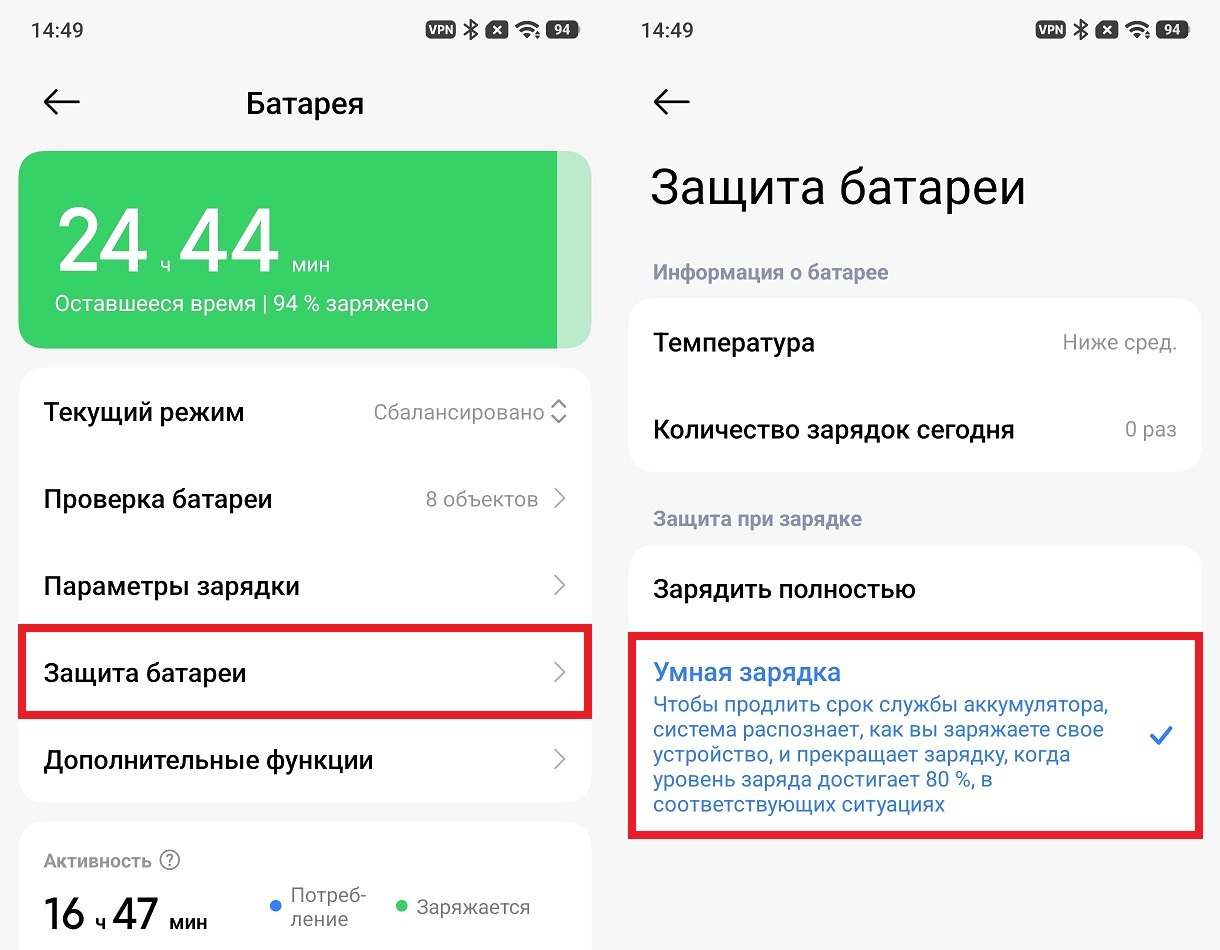
This feature helps safely charge your smartphone overnight
But modern smartphones know how to handle this. The optimized charging feature analyzes your daily routine and intentionally slows down charging at night. For example, the phone charges to 80% in the first hour, then waits until six in the morning and only then tops up to 100%. This way, the battery spends less time at maximum. Check if this feature is enabled on your smartphone. On most devices, it’s called “Optimized Charging” or “Adaptive Charging” and can be found in the “Battery” section in settings.
Setting Up Android for the Night
If you want your smartphone to drain less overnight and not disturb your sleep, here’s what you should set up:
- Enable “Do Not Disturb” mode. Go to “Settings” — “Sounds and Vibration” — “Do Not Disturb.” Set a schedule: for example, from 11:00 PM to 7:00 AM. In this mode, the phone won’t ring or vibrate from notifications, but the alarm will still go off.
- Disable auto-updating apps. Open Google Play, tap your profile icon — “Settings” — “Network preferences” — “Auto-update apps” — select “Don’t auto-update apps.” It’s better to run updates manually at a convenient time.
- Limit background sync. Go to “Settings” — “Accounts.” Disable synchronization for services that don’t need real-time updates. Email and contacts can be synced once every few hours rather than every five minutes.
- Enable battery saver mode. “Settings” — “Battery” — “Battery Saver.” In this mode, the system limits background app activity and reduces the screen refresh rate. Battery consumption slows down noticeably.
- Switch your phone to airplane mode. If no one needs to reach you at night and your alarm is already set, airplane mode is the most effective way to reduce battery drain. The phone stops searching for a network, maintaining Wi-Fi and Bluetooth. By morning, the charge will barely change.
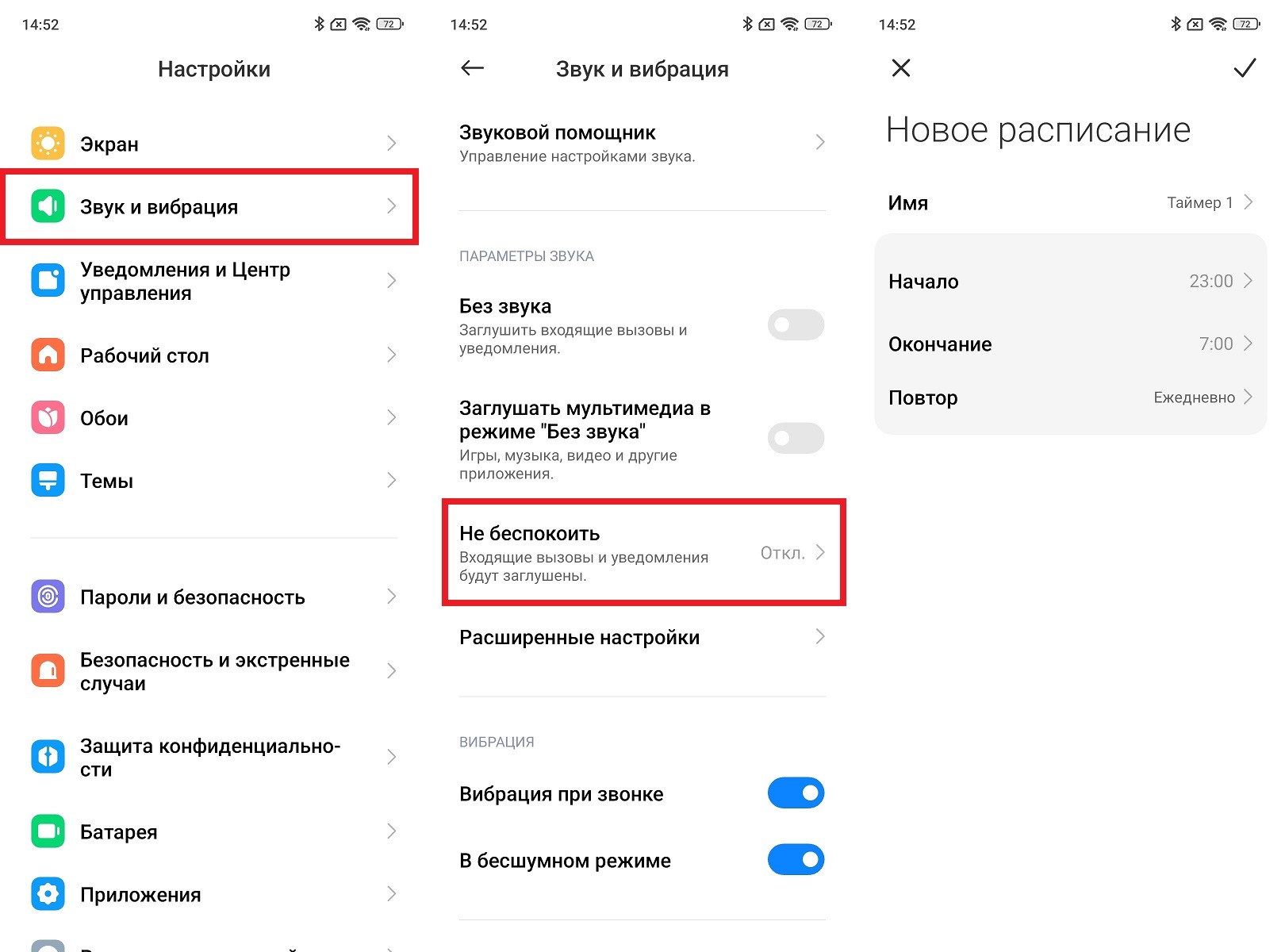
“Do Not Disturb” mode will turn on automatically
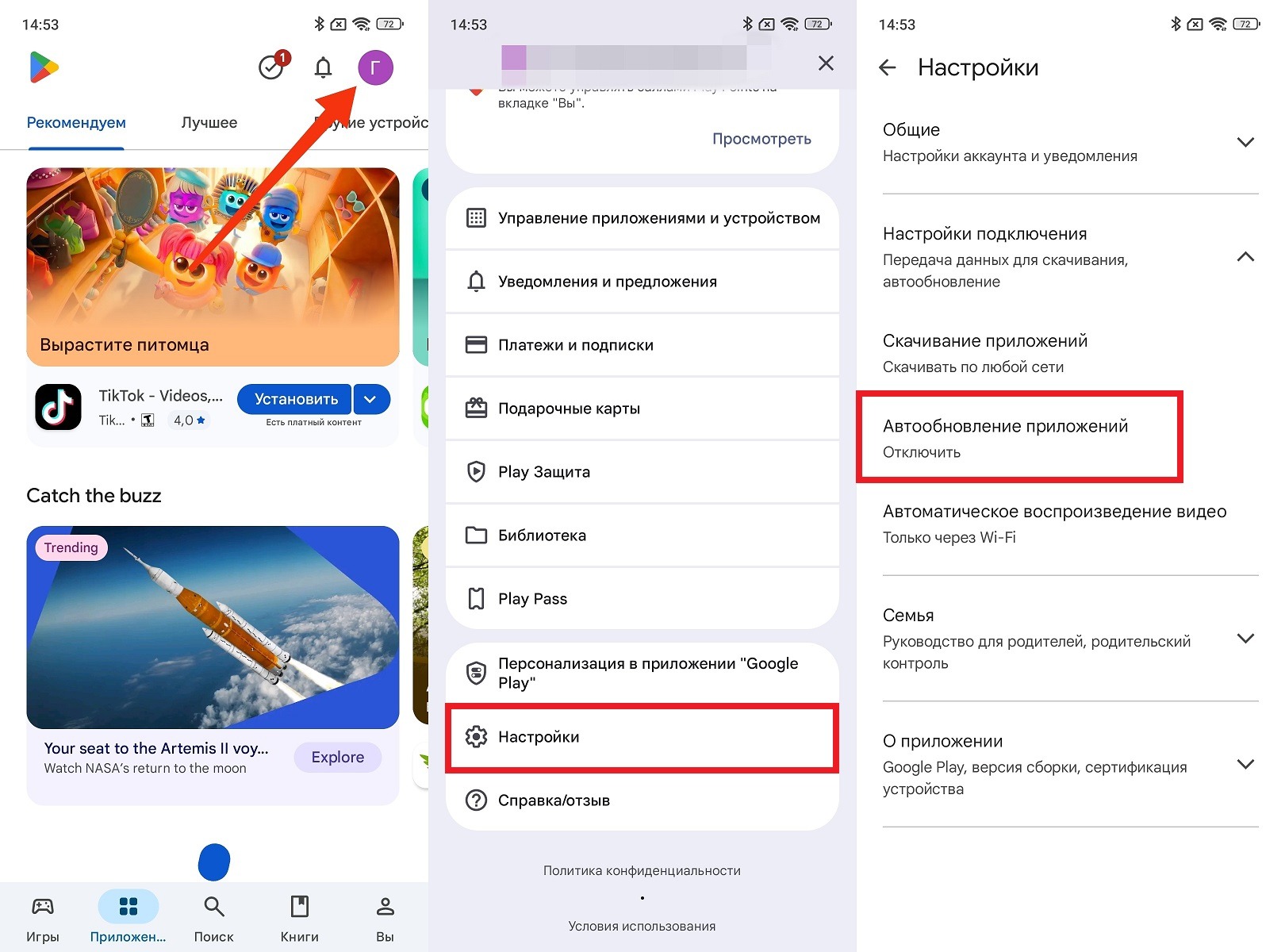
Auto-updates run at night and drain your battery
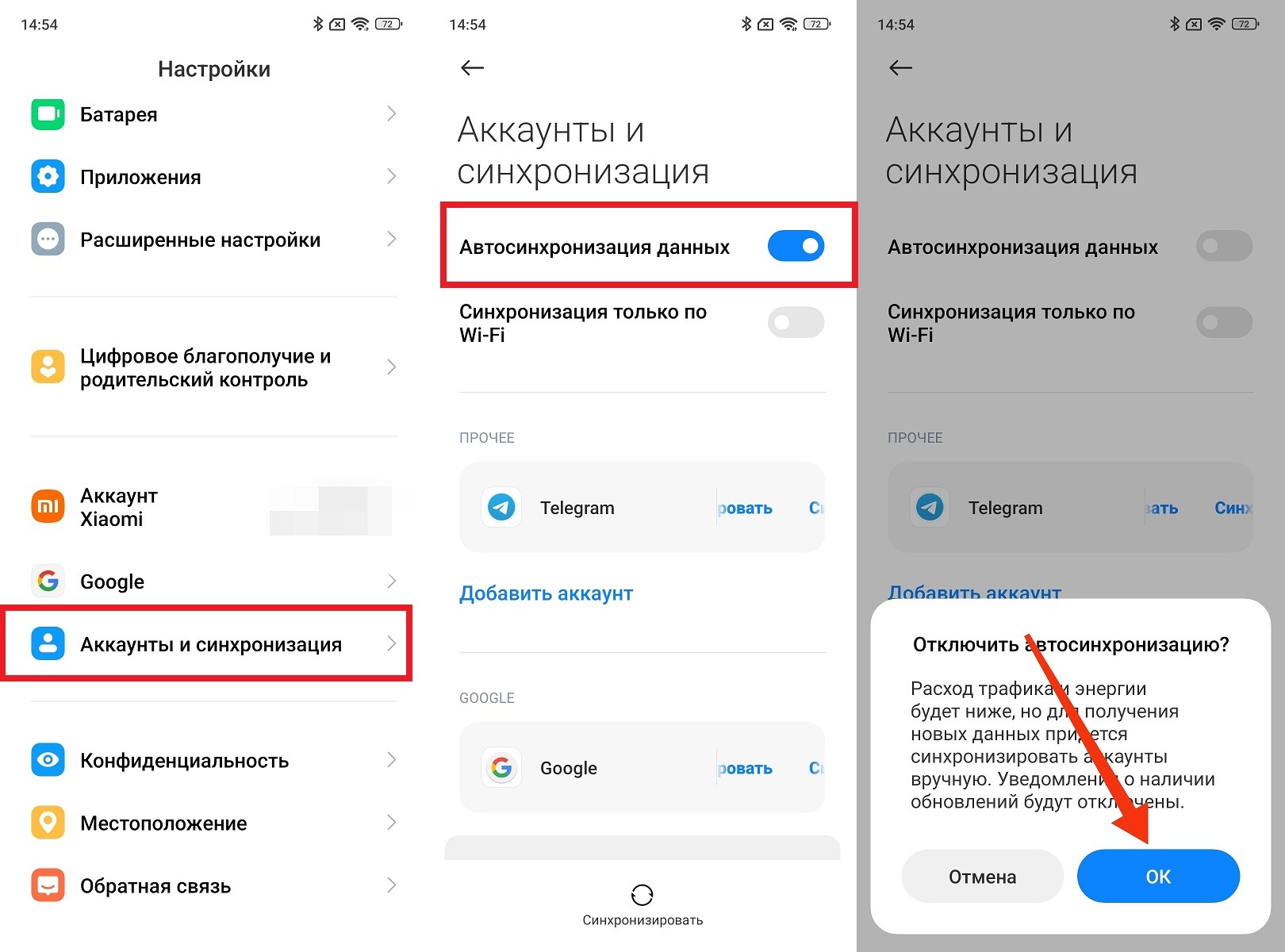
Synchronization can be turned off completely
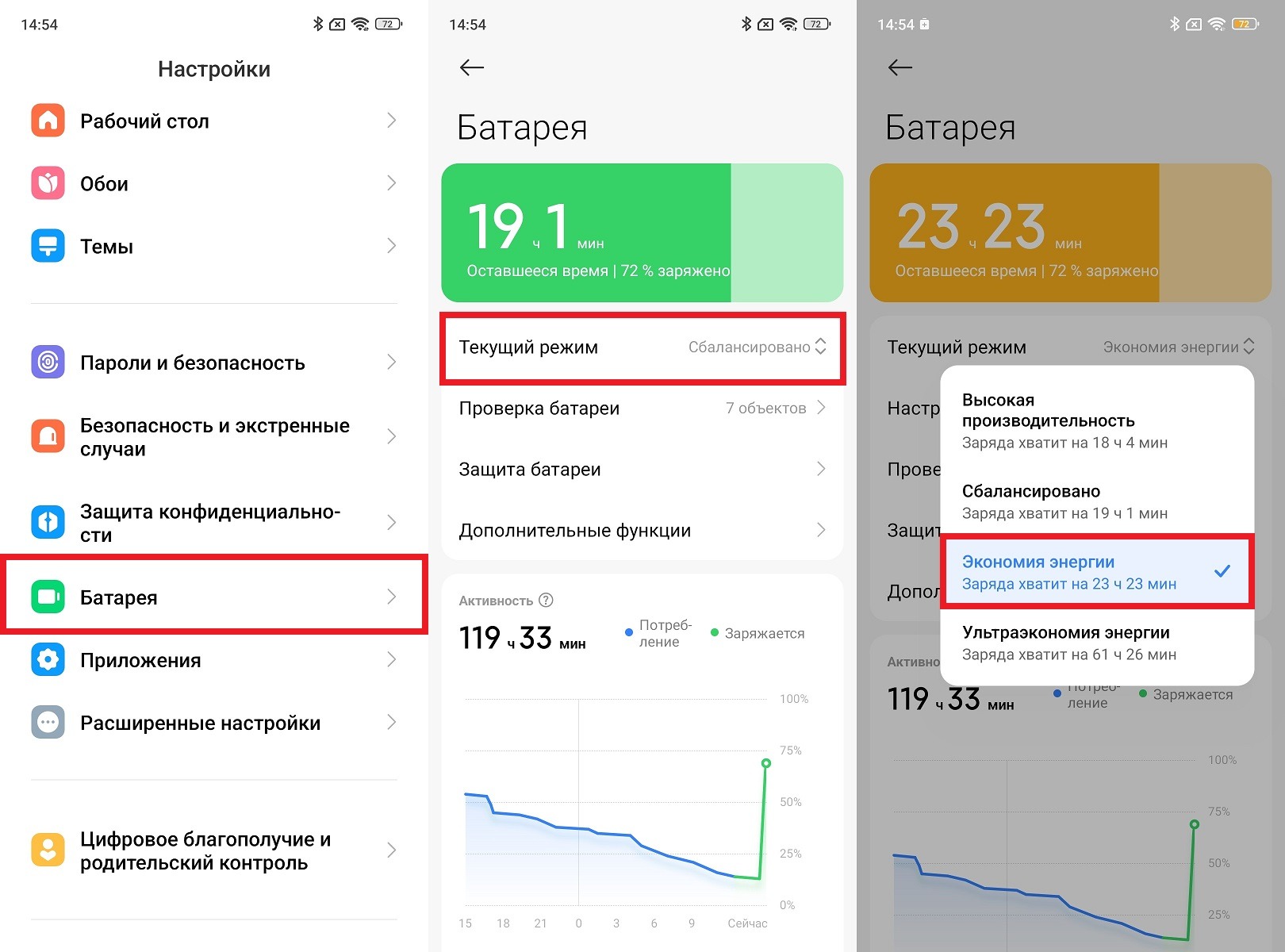
At night, this mode is more useful than ever


