I’ve been catching myself dealing with something strange for a while now: during calls, the screen wouldn’t turn off, and my cheek would manage to press something important right in the middle of a conversation. The volume would change, the call would accidentally end, or the speakerphone would turn on. Incredibly annoying. The culprit behind all of this is one single smartphone component: the proximity sensor. Let’s figure out why it might not be working properly and how to fix it.
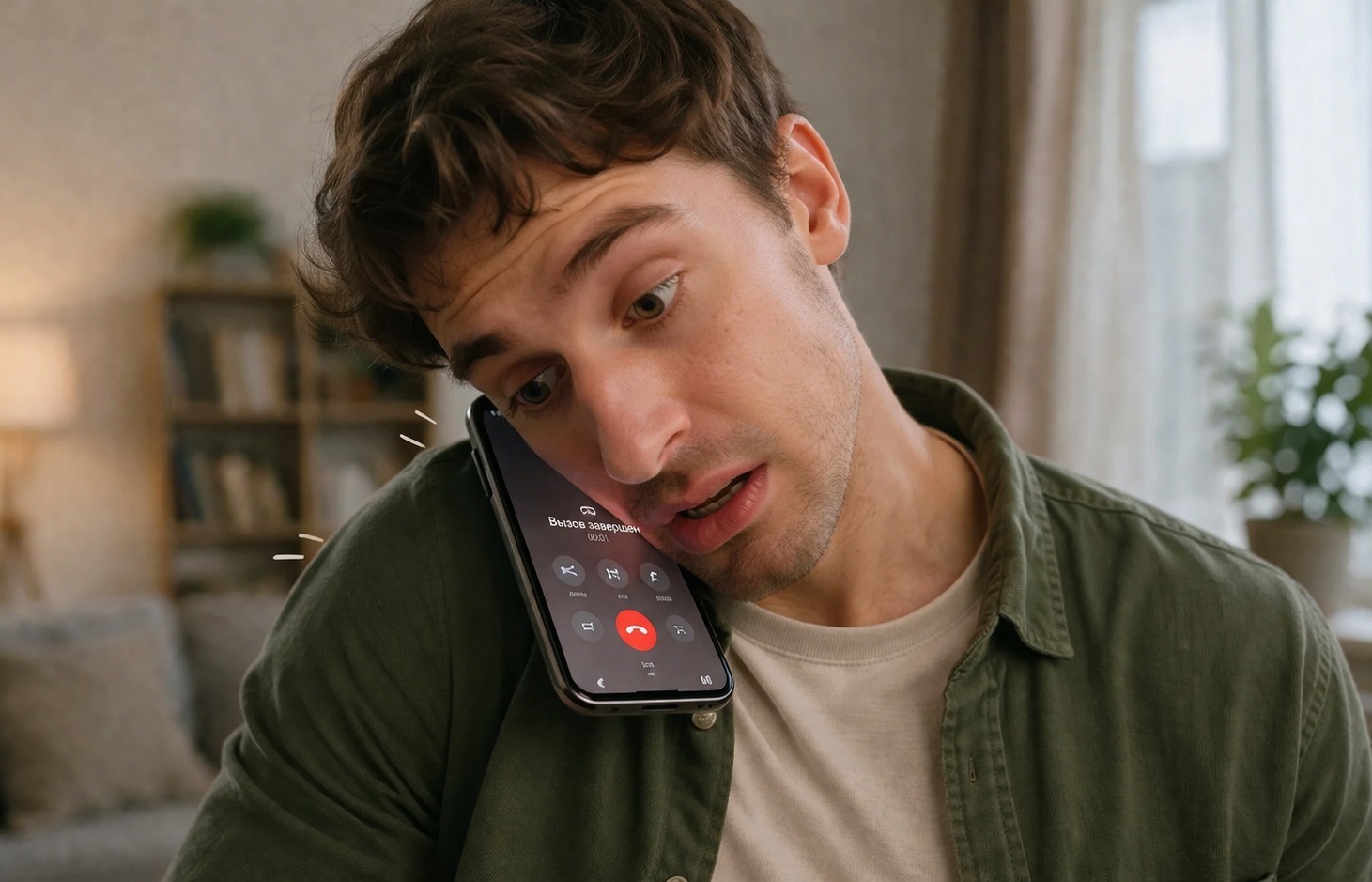
Figured out how to make the screen turn off at the right moment
Why the Screen Doesn’t Turn Off During Calls
The proximity sensor is responsible for turning off the screen during calls. The principle is simple: when you bring the phone to your ear, the sensor detects that an object is nearby and sends a signal to the system — turn off the screen so your cheek doesn’t press anything. Remove the phone — the sensor sees this, and the screen turns back on.
When the proximity sensor isn’t working, this cycle breaks. The system doesn’t receive a signal that the phone is at your ear, and the screen stays on throughout the entire call. Or the opposite: the sensor triggers at the wrong moment, and a black screen during calls appears when the phone isn’t even near your ear. There are several reasons:
- a screen protector or film is covering the sensor, especially if the glass has curved edges;
- the case extends too high and physically covers the sensor area;
- dirt or grease on the upper part of the screen where the sensor is located;
- a software glitch: the sensor works, but the system reads its data incorrectly.
The type of proximity sensor also plays an important role. The stability depends on which component your smartphone uses.
Physical vs. Virtual Proximity Sensor
Smartphones used to have a physical proximity sensor — a small infrared emitter near the front camera. Reliable, straightforward, and repairable.
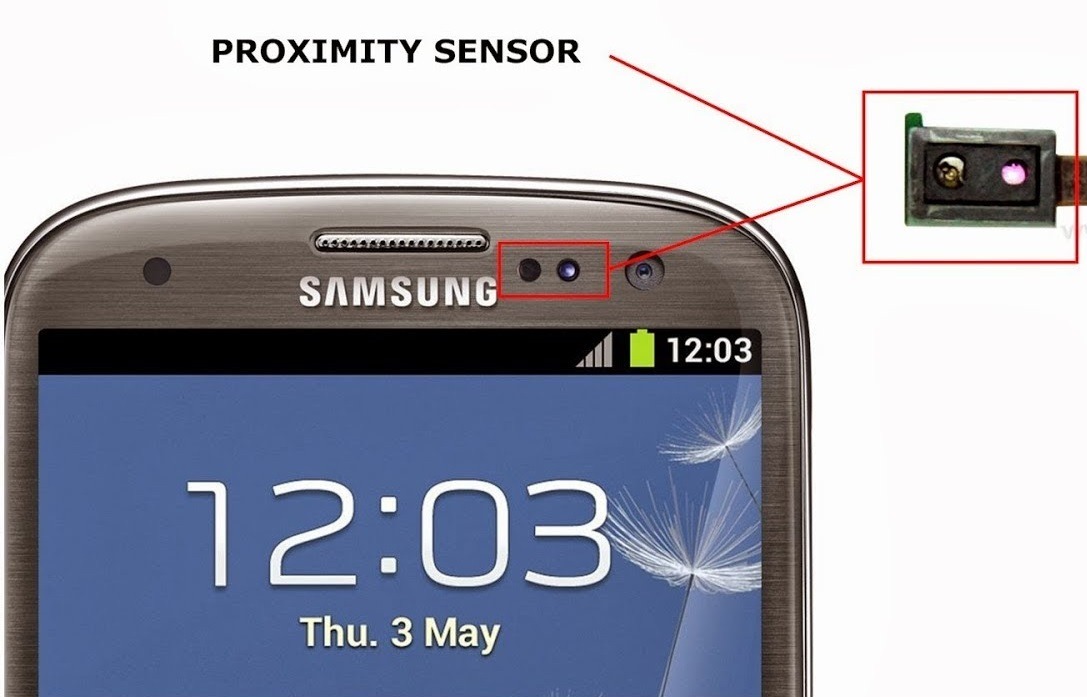
The sensor used to always be somewhere around here
Now many manufacturers, including Xiaomi, have switched to a virtual proximity sensor. Instead of separate hardware, the camera and an algorithm are used to determine the proximity of an object based on the image. This is cheaper to produce and allows removing extra elements from the front panel, but this approach has a weak point: the algorithm can be thrown off.
The Xiaomi proximity sensor of the virtual type is particularly sensitive to two things: thick glass that scatters light, and contamination on the upper part of the screen. Proximity sensor calibration in this case helps more often than you’d think.
How to Configure the Proximity Sensor and Fix the Screen During Calls
I’ll go in order, from simple to complex. Usually the problem is resolved within the first three steps:
- Wipe the upper part of the screen with a dry cloth. Grease and dust on the sensor area is the most common cause of the problem. Takes ten seconds and fixes it in a third of cases.
- Remove the case and screen protector and make a test call. If the screen starts turning off, the accessory is the problem. Look for a thinner film or a case that doesn’t cover the upper edge.
- Restart your smartphone. A software glitch in sensor operation after a system update is a common occurrence. A restart clears temporary system states.
- Check call settings. Go to “Phone” — “Settings” — find the option related to the proximity sensor or screen behavior during calls. On some firmware versions, there’s a separate toggle “Turn off screen during calls”: make sure it’s enabled.
- Calibrate the sensor through the engineering menu. On Xiaomi, this is done as follows: dial *#*#6484#*#* or *#*#64663#*#* in the phone app, and the service menu will open. Find the “Proximity Sensor” section and start calibration. During calibration, keep the phone screen-up on a flat surface — nothing should be covering the sensor.
- If nothing helped — contact a service center. The physical sensor may have failed, and the virtual one sometimes requires reflashing the system module. This is no longer a DIY fix.
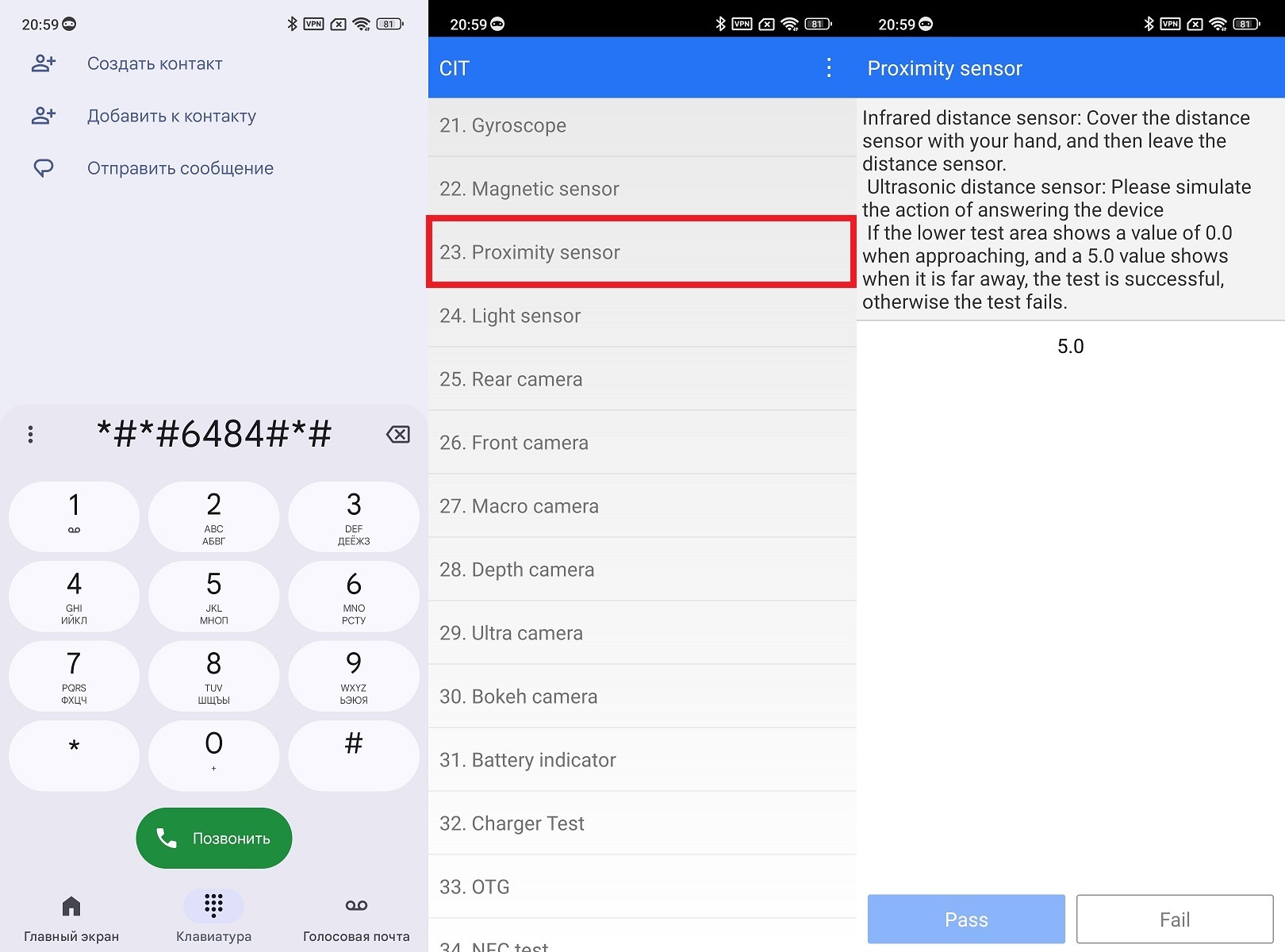
Calibration should help
After each step, make a test call. This way you’ll immediately know at which stage the problem was resolved, and you won’t have to guess what exactly helped.
What to Do If the Sensor Works but the Screen Still Turns On
Sometimes the sensor is fine, calibration is done, the case is removed — but the phone screen still doesn’t turn off during calls. This is a rare but real situation that’s related not to hardware but to firmware.
A few additional things worth checking:
- disable “Do Not Disturb” mode and check whether it affects screen behavior;
- check if a third-party call management app is installed — they sometimes intercept sensor control;
- try enabling Developer Mode and in its settings find the option “Keep screen on” — make sure it’s disabled.
Proximity sensor configuration through Developer Mode is a separate topic. There are useful diagnostic tools there: you can watch in real time what exactly the sensor sees and how the system interprets its signals.