Android viruses most often end up on a smartphone not through hacking, but through the user themselves — when they install an app without checking it first. Scammers disguise malicious programs as games, useful utilities, updates, and popular services. Russia’s Cyber Police published a list of simple checks to help prevent giving attackers access to your device. We’ve already covered the most dangerous Android apps in a separate article, but it’s worth starting with the basic rules that work in any situation.

Breaking down advice from the cybersecurity department of Russia’s Ministry of Internal Affairs
Only Download Apps from Official Stores
This is the first and most important rule. Android phone hacking in most cases starts precisely with installing an APK file from a third-party source or following a link from a messenger. Google Play and RuStore check apps before publishing — this isn’t a guarantee of absolute security, but it’s a serious barrier against overtly malicious software.
If someone offers to install an app “urgently,” “via a special link,” or “bypassing the store” — that’s a red flag. Legitimate services are not distributed this way. Verified apps are always available through official channels, and there is never any urgency in installing them.
How to Check an App’s Developer
Before installing, it’s worth studying the developer’s page in the store. A reputable company or author has a history of other apps, a working website, and contact information. Here’s what to pay attention to:
- Tap on the developer’s name on the app page in Google Play or RuStore.
- Check how many other apps they’ve released and when the account was registered.
- Visit the developer’s website, if listed, and make sure it actually exists and matches the app.
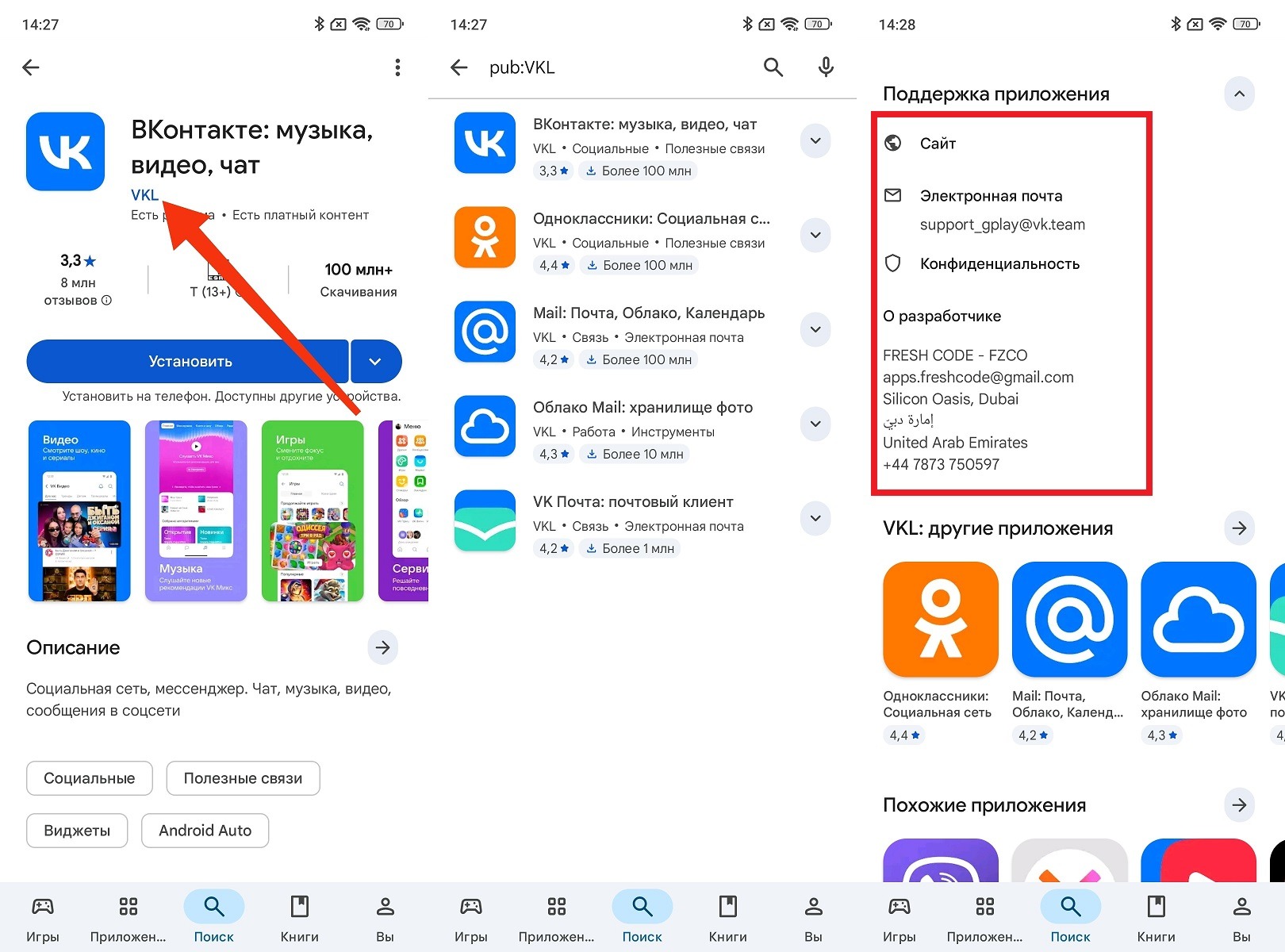
Make sure to study the developer information
If the profile was recently created, contains only one app, or looks empty — that’s a serious reason to be cautious. Dangerous apps on your phone are often published under newly created accounts that mimic the names of well-known companies with slight spelling variations.
What a Fake App Looks Like
The page of a dangerous app in the store often gives itself away — you just need to examine it carefully. Errors in the name, machine-translated descriptions, low-quality or clearly stolen screenshots, inconsistency with the original service’s branding — all of these are signs of a fake.
Pay especially close attention to comparing the app’s name with the original: scammers often change one letter, add an extra character, or use a similar font. Such details are easy to miss when browsing quickly, but they are precisely what distinguishes a real app from a clone created for phone hacking and data theft.
Why Store Reviews Can’t Be Fully Trusted
A high rating and hundreds of positive comments don’t guarantee safety. Is an app dangerous — this question can’t be answered by looking at stars alone. Fake reviews are easy to spot by several signs:
- repetitive short texts without specifics — “great app,” “everything works,” “I recommend it”;
- mass publication of reviews within one or two days;
- absence of critical comments despite a large number of ratings;
- accounts with no history, created specifically for the review.
A few detailed negative reviews describing specific problems are a far more valuable signal than a thousand identical positive ones. Read the criticism carefully: that’s where users describe the app’s real behavior.
How to Check an App Through Search Before Installing
One of the simplest and most underrated ways to check an app for viruses is a regular search query. Before installing, enter the app’s name along with words like “scam,” “phishing,” “virus,” or “reviews.” If other users have already encountered problems, information about it will almost certainly appear in the search results.
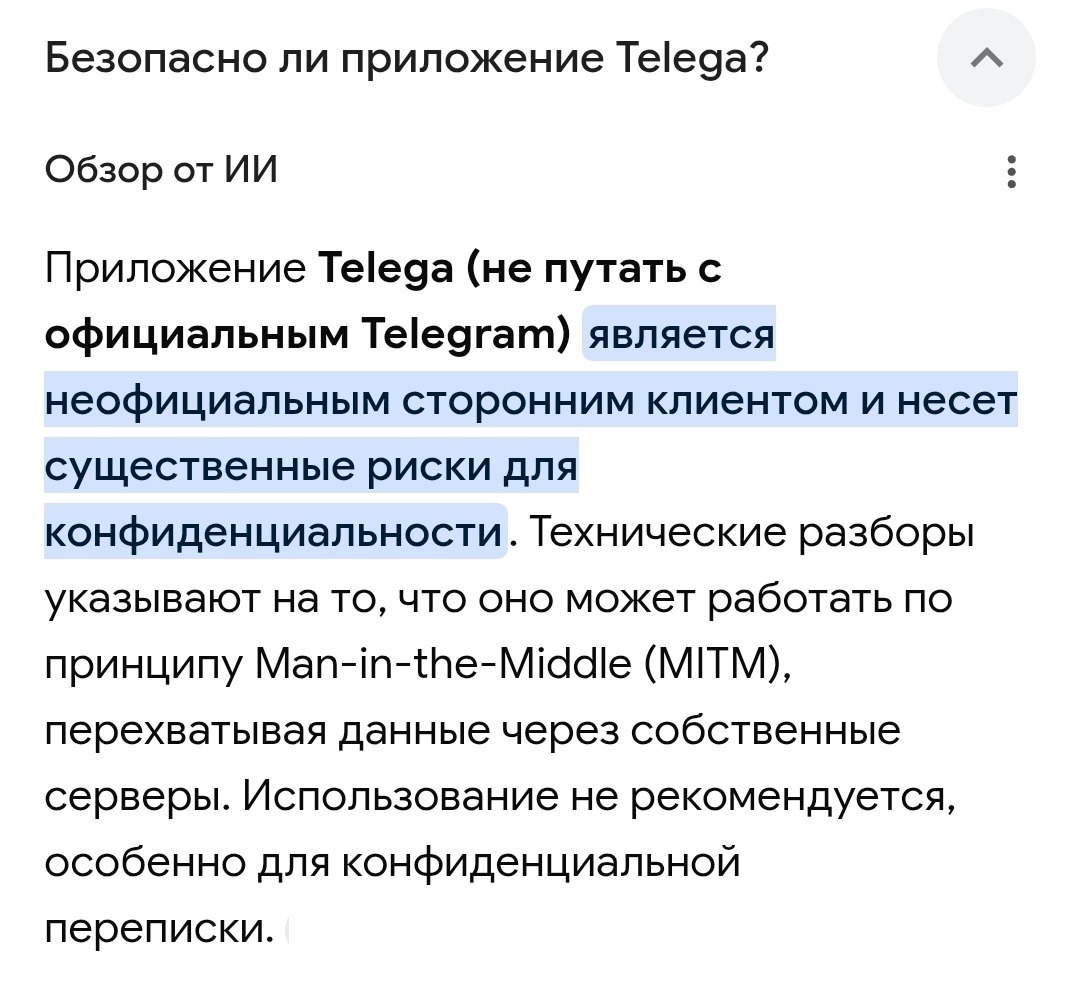
Check what people are writing about the app online
Additionally, you can use the VirusTotal service (virustotal.com): it allows you to upload an APK file or paste a link and check them against the databases of dozens of antivirus engines simultaneously. This is especially relevant if you need to install an app from outside an official store (for example, proprietary corporate software).
How to Check App Permissions on Android
Checking an app for viruses includes a mandatory analysis of requested permissions. This is where the main threat often hides: an innocent-looking calculator or game requests access to SMS, calls, or device administrator functions. Here’s how to check permissions before and after installation:
- On the app’s page in Google Play, scroll down to the “About this app” section and open “Permissions.”
- After installation, go to “Settings” — “Apps” — select the app — “Permissions.”
- Evaluate whether each permission corresponds to the app’s actual functionality.
- If a simple service requests access to SMS, calls, location, or administrator functions — deny those permissions or delete the app.
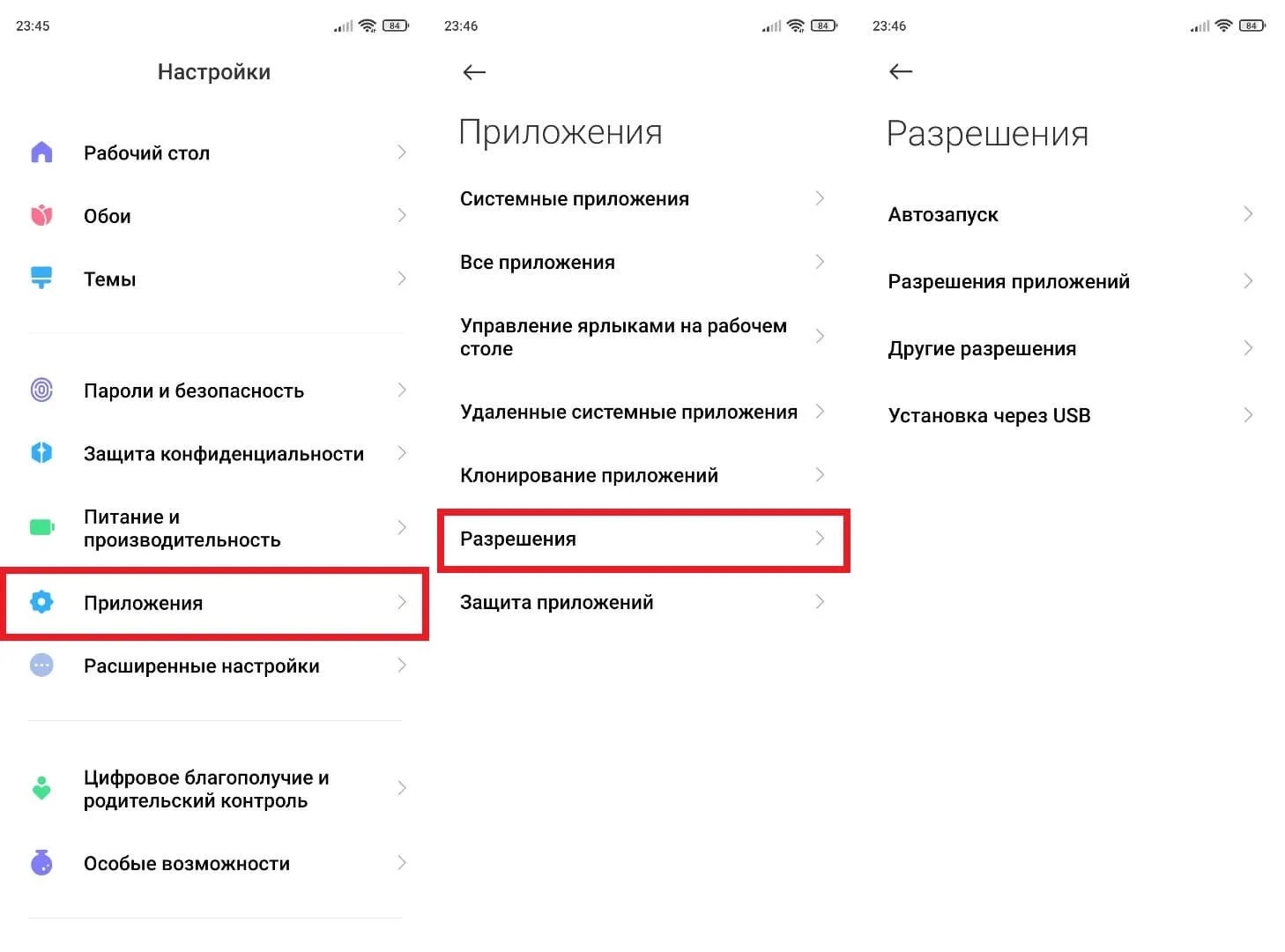
Always check app permissions
The logic is simple: a flashlight doesn’t need access to contacts, and a game shouldn’t be reading your SMS. If the requested permissions are clearly excessive for the stated functions — that’s one of the main signs of the latest Android viruses. A new Android virus that steals data and spies on users, in most cases, gains access to the device exactly this way: through permissions that the user granted without looking.