Over several years of working with Android smartphones, I’ve developed specific habits when it comes to screen settings. Not because some manual told me to, but because I’ve tested everything myself. Some default settings are poorly configured. Some kill the battery, others interfere with normal phone use, and some are simply useless. When I analyzed 7 Android settings that everyone enables by mistake, it turned out that the screen is the most underrated section on that list. Let’s break down five points that need immediate changes.
Showing the correct screen settings
Where to Find Phone Screen Settings
Before changing anything, you need to find it. On different smartphones, Android screen settings are hidden in different places, but the logic is the same everywhere:
- Open “Settings” (it’s the gear icon on the home screen or in the notification shade).
- Find the “Screen” or “Display” section (on Xiaomi it’s called “Screen,” on Samsung it’s “Display,” and on stock Android it’s also “Display”).
- Most of the settings you need are right here. Some are hidden in submenus — “Additional settings,” “Advanced settings,” or “Brightness.”
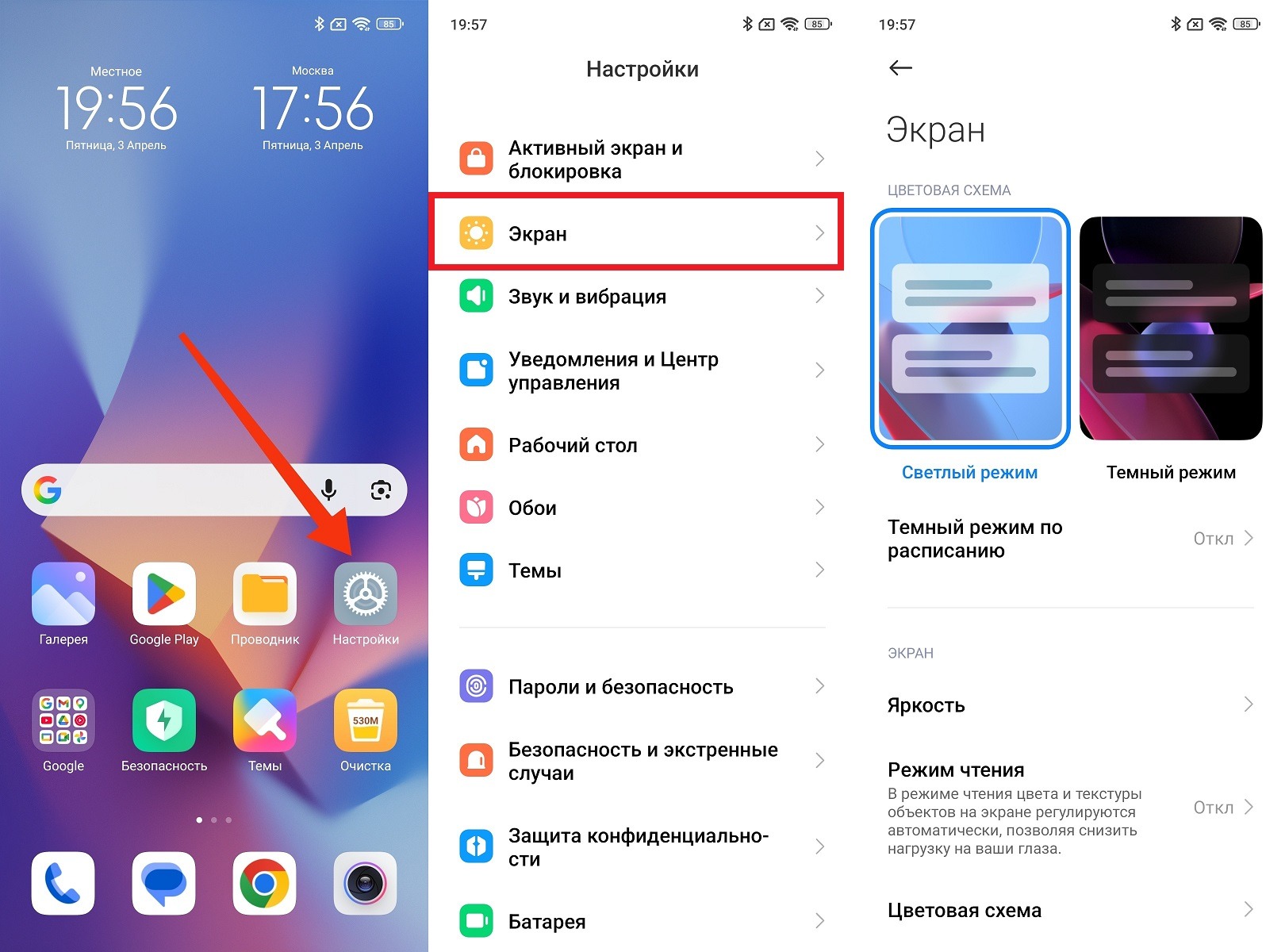
Most settings are here, but not all
On some smartphones, some phone screen settings are accessible via quick toggles in the notification shade — auto-rotate, reading mode, and brightness are available from there without entering settings. But for fine-tuning with schedules, you still need to go into the menu.
Why You Need Auto-Brightness
Auto-brightness is one of those features that people disable after the first week — and they shouldn’t. The logic is understandable: the algorithm sometimes makes mistakes in the first few days, and that’s annoying. But it learns from your manual corrections and after a week or two starts guessing almost perfectly.
Why this matters: having brightness constantly cranked to maximum is one of the biggest battery killers. Screen brightness settings in automatic mode allow the system to lower brightness in dark rooms and raise it outdoors exactly as much as needed. You stop thinking about it, and your battery will thank you. On smartphones with AMOLED screens, the savings are especially noticeable: every dark pixel literally consumes no energy:
- Open “Settings” and go to the “Screen” section.
- Open the “Brightness” tab.
- Find the “Adaptive brightness” or “Auto-brightness” option.
- Turn on the toggle.
- During the first few days, manually adjust brightness when the automation makes mistakes — the algorithm remembers your preferences and learns faster.
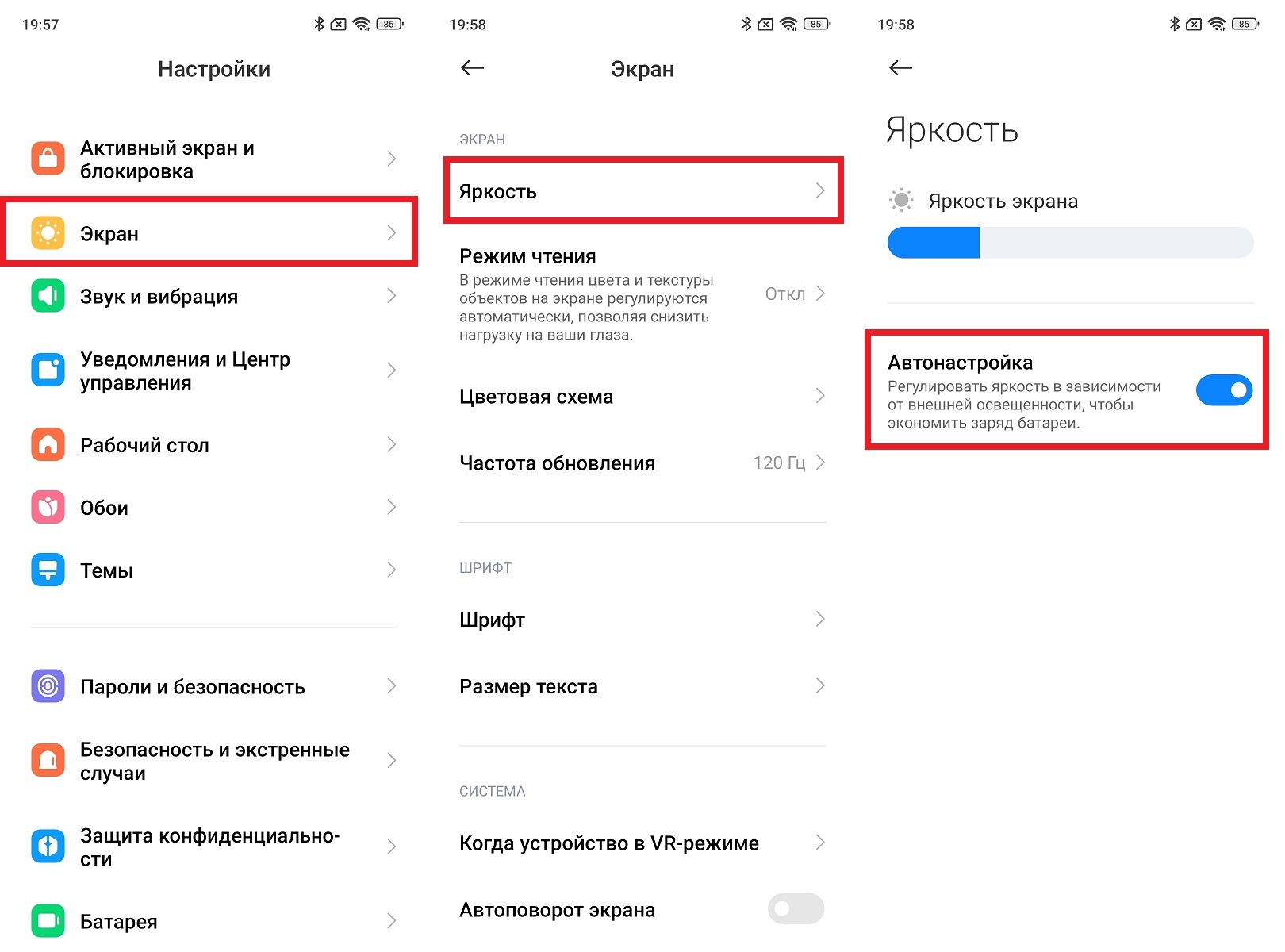
Auto-brightness is a must-enable
If after two weeks auto-brightness still works poorly, the problem is most likely with the light sensor. But that’s a different story.
Should You Turn Off Auto-Rotate?
Auto-rotate on Android looks convenient in theory: turn the phone, and the screen rotates. In practice, it’s a constant source of annoyance. Lie down on the couch to read — the screen flips. Look at the phone at an angle — it flips again. Scroll through a feed while lying down, and suddenly everything shifts.
Manual screen rotation settings solve this problem once and for all. Lock the portrait orientation, and the screen never rotates — except in apps that explicitly require landscape mode, like a video player or YouTube. They rotate the image on their own, regardless of the system lock. So you lose nothing. For those who want to understand the nuances of this feature, it’s worth reading about all the secrets of auto-rotate on Android — there are non-obvious details. Now, to disable this option:
- Pull down the notification shade by swiping down from the top.
- Find the quick toggle “Auto-rotate” (on Xiaomi it’s called “Orientation lock”).
- Tap it to disable auto-rotate. The icon will change to a lock or a static arrow.
- If the toggle isn’t in the shade: “Settings” — “Screen” — “Auto-rotate screen” — turn off.
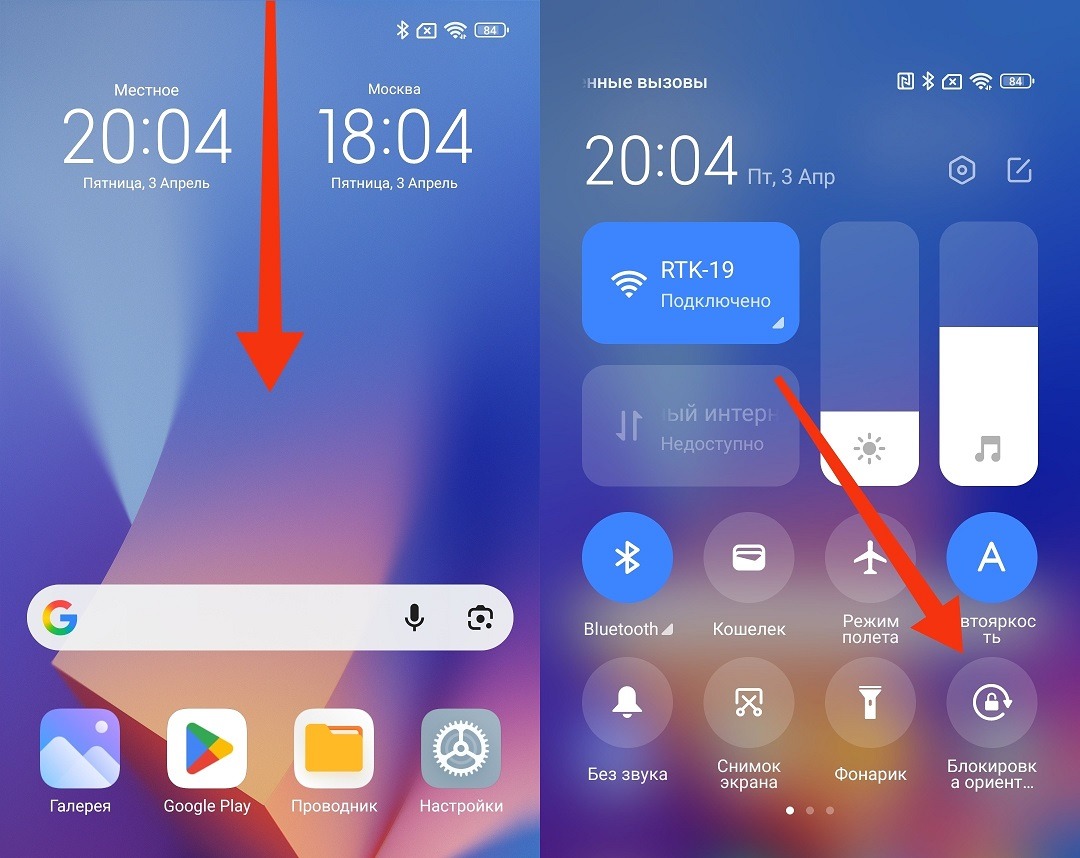
Orientation lock disables auto-rotate on Xiaomi
Auto-rotate remains accessible from the notification shade, so if you ever need to enable it temporarily, it’s just one tap away.
Always-On Display: Enable or Disable?
Always-on display looks great in commercials and in stores. In real life, it’s a feature that constantly keeps part of the screen active — time, notifications, widgets. Even when the phone is lying face up on a table and you’re not looking at it.
On AMOLED screens, power consumption in AOD mode is indeed small — manufacturers claim about 1-2% per hour. But that’s under ideal conditions: no notifications and no animations. In reality, the phone screen in AOD mode consumes noticeably more, especially if animated clocks or live wallpapers are set on the lock screen. Over the course of a day, 5-10% of charge accumulates that simply burns away for nothing. Plus there’s additional strain on the matrix, and pixel burn-in on AMOLED hasn’t been eliminated. I experienced this personally when the screen burned in on my Redmi Note 10 Pro. So AOD should be turned off immediately:
- Open “Settings.”
- Go to the “Always-on display & Lock screen” section (it may be hidden under “Screen”).
- Find the “Always-on Display,” “Lock screen,” or “Active screen” option.
- Turn off the toggle or select “Off.”
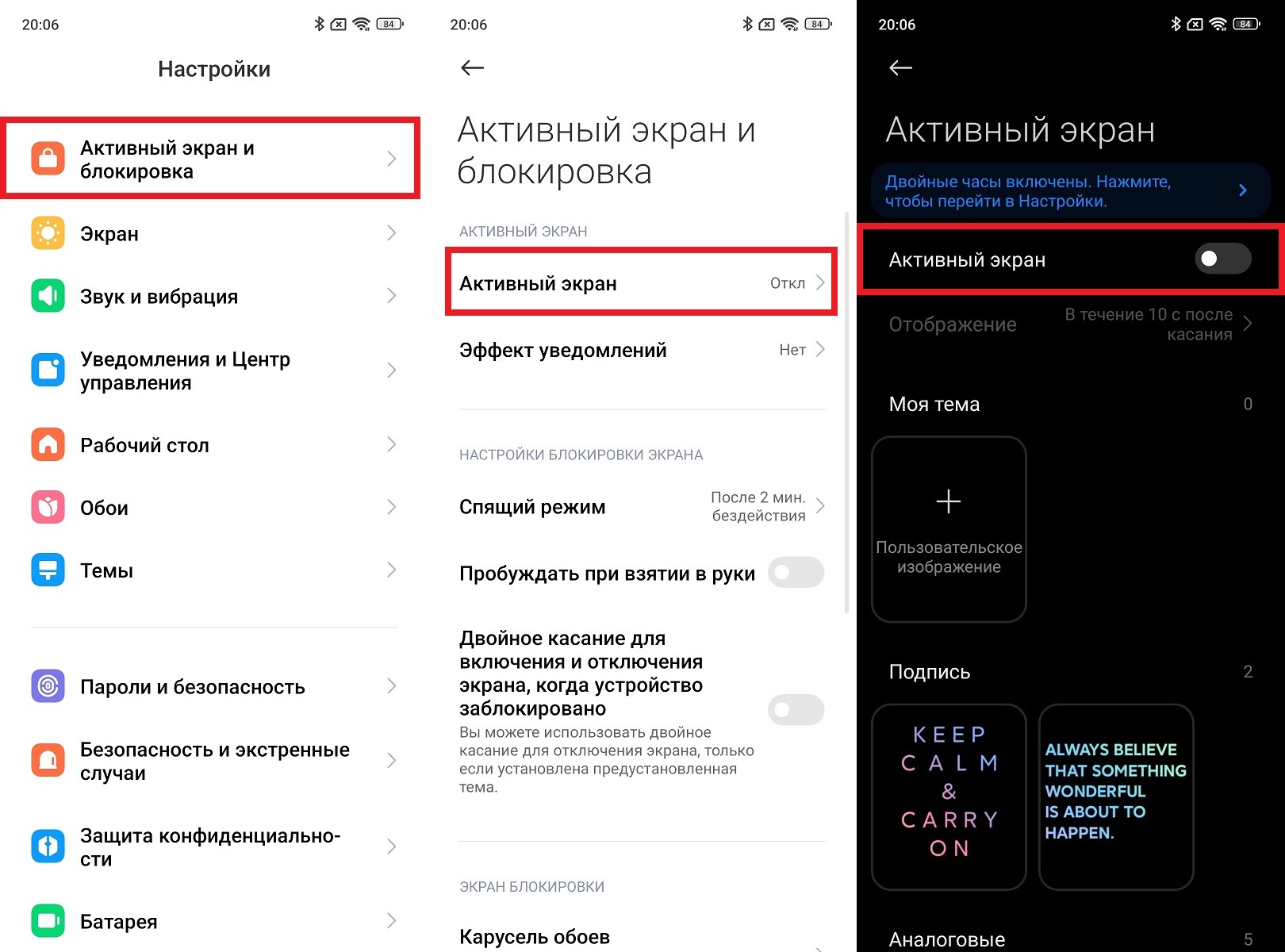
Always-on display consumes a lot of energy
If you want to see the time without picking up the phone, there’s a “Lift to wake” feature.


