Pinterest is a visual platform for discovering ideas and inspiration, used by over 600 million people worldwide. In this article, we’ll cover what Pinterest is and how to use it in Russia in 2026: from registration and feed customization to downloading videos and working with boards. Everything comes with step-by-step instructions and up-to-date information about the service’s availability.
Understanding what Pinterest is and how to use it
Pinterest: Description and How It Works
Pinterest (pronounced “Pinterest”) is a platform for visual search and storing ideas. You won’t find a person using it — you’d need other services for that — but you can definitely pick out a kitchen design. The name comes from the English words pin and interest. The concept is simple: you find an image or video you like and “pin” it to your virtual board — like pinning photos to a cork board in real life.
Unlike regular social networks, where the focus is on communication and friends’ feeds, Pinterest works more like a search engine with a visual interface. Users come here not to chat, but to look for specific ideas: interior design, recipes, photoshoot looks, renovation inspiration, and much more.
Key platform concepts:
- Pin — a unit of content: an image or video with a description and a link to the source.
- Board — a themed folder where you save pins. For example, “Kitchen Ideas” or “Summer Outfits.”
- Feed — a personalized selection of pins based on your interests and subscriptions.
- Pinterest Lens — visual search through your smartphone camera: point the camera at an object, and the platform finds similar ideas.
Pinterest was launched in 2009 by developers from California — Ben Silbermann, Paul Sciarra, and Evan Sharp. According to the company’s Q4 2025 report, the platform’s monthly audience grew by 12% and reached 619 million active users. Pins from Pinterest frequently appear in Google and Yandex search results, making the platform an important traffic source for businesses and bloggers.
What Is Pinterest For
Pinterest solves several tasks at once — both for regular users and for businesses. Here are the main use cases:
- Finding ideas and inspiration. Interior design, recipes, wedding planning, wardrobe, nail art, photoshoots — Pinterest is suitable for any visual task.
- Project planning. You can put together a mood board for a renovation, prepare a collection of seasonal outfits, or create a board with gift ideas.
- Brand promotion. Business accounts on Pinterest allow you to promote products and services through visual content, gaining organic traffic to your website.
- Product search. Catalogs from Amazon, Zara, Sephora, ASOS, and other major brands are featured on the platform. Many pins lead directly to a purchase page.
- Traffic source. Every pin contains a link to the source — a website, blog, or online store. This makes Pinterest a powerful channel for attracting visitors.
An important feature of the platform is the long lifespan of content. A single pin can generate views and clicks for months or even years after publication. By comparison, a post on other social networks “lives” for just a few hours or days.
Registering on Pinterest and Installing the App
You can register on Pinterest through the website ru.pinterest.com or through the mobile app. The process takes a couple of minutes.
How to download the Pinterest app:
- iPhone and iPad — via the App Store.
- Android — via Google Play or RuStore.
- Computer — the app is available for Windows 10/11 via Microsoft Store, but you can simply use the web version in a browser.
Step-by-step registration:
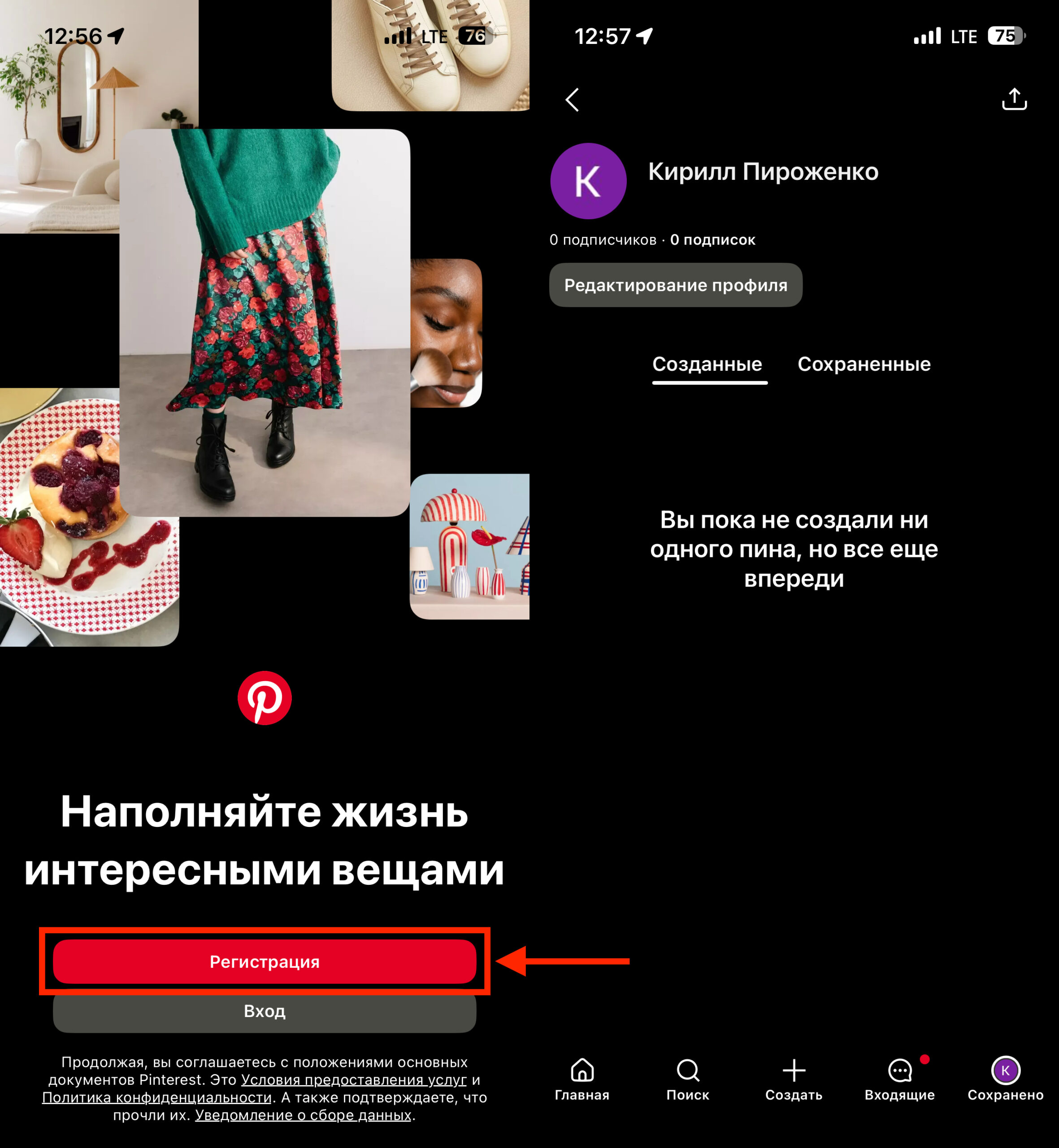
Signing up for Pinterest is super easy: enter your email, then sign in via Apple or Google
- Open the website ru.pinterest.com or the app and tap “Sign up.”
- Enter your email address, create a password, and provide your date of birth. Tap “Continue.”
- Select your gender (optional) and tap “Next.”
- Specify your language and country.
- Select topics that interest you — this will help Pinterest create a personalized feed for you.
After registration, you immediately get access to all features: search, saving pins, creating boards. You can also register using your Google or Apple account — that’s even faster.
Creating Pins on Pinterest
Pins are the foundation of everything on Pinterest. Let’s break down three key actions: searching, saving, and creating your own pins.
How to search for pins
At the top of the screen, there’s a search bar. Enter a query — for example, “small kitchen design” or “autumn nail art” — and Pinterest will show relevant images and videos. Below the search bar, suggestions will appear for refinement: color, style, material, and other parameters.
For visual search, use Pinterest Lens — tap the camera icon in the search bar, point your camera at the object of interest (a piece of furniture, clothing, a plant), and the platform will find similar ideas. This feature is especially useful when you see something interesting but don’t know how to describe it in words.
How to save someone else’s pin
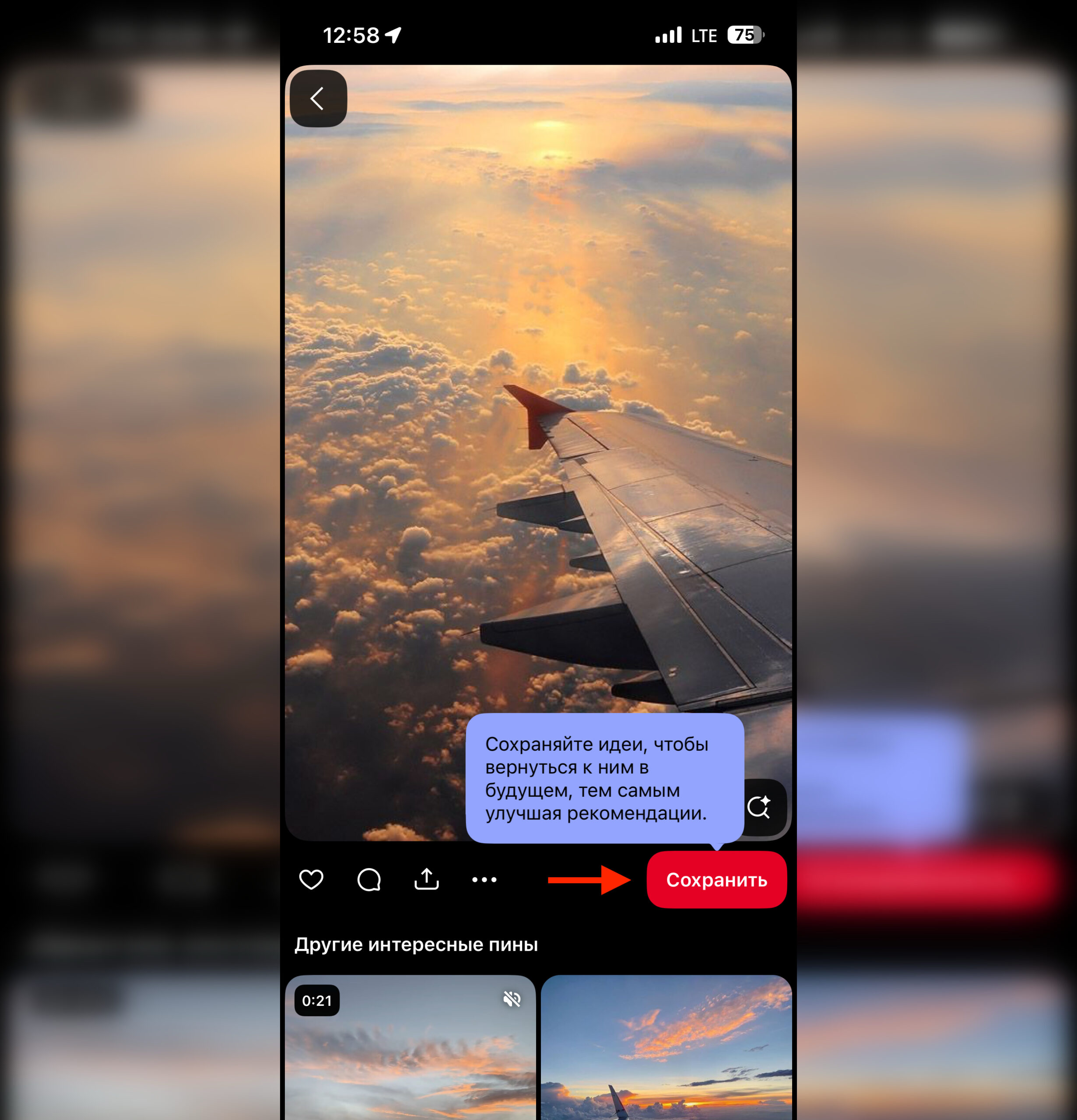
Save pins you like with one button
- Find a pin you like in your feed or through search.
- Tap the “Save” button (or the checkmark icon in the mobile app).
- Choose the board where you want to save the pin, or create a new one.
How to download an image from Pinterest
- Open the desired pin.
- Tap the three dots (action menu).
- Select “Download image.”
The image will be saved to your smartphone’s gallery. This feature works the same on iPhone and Android.
How to create your own pin
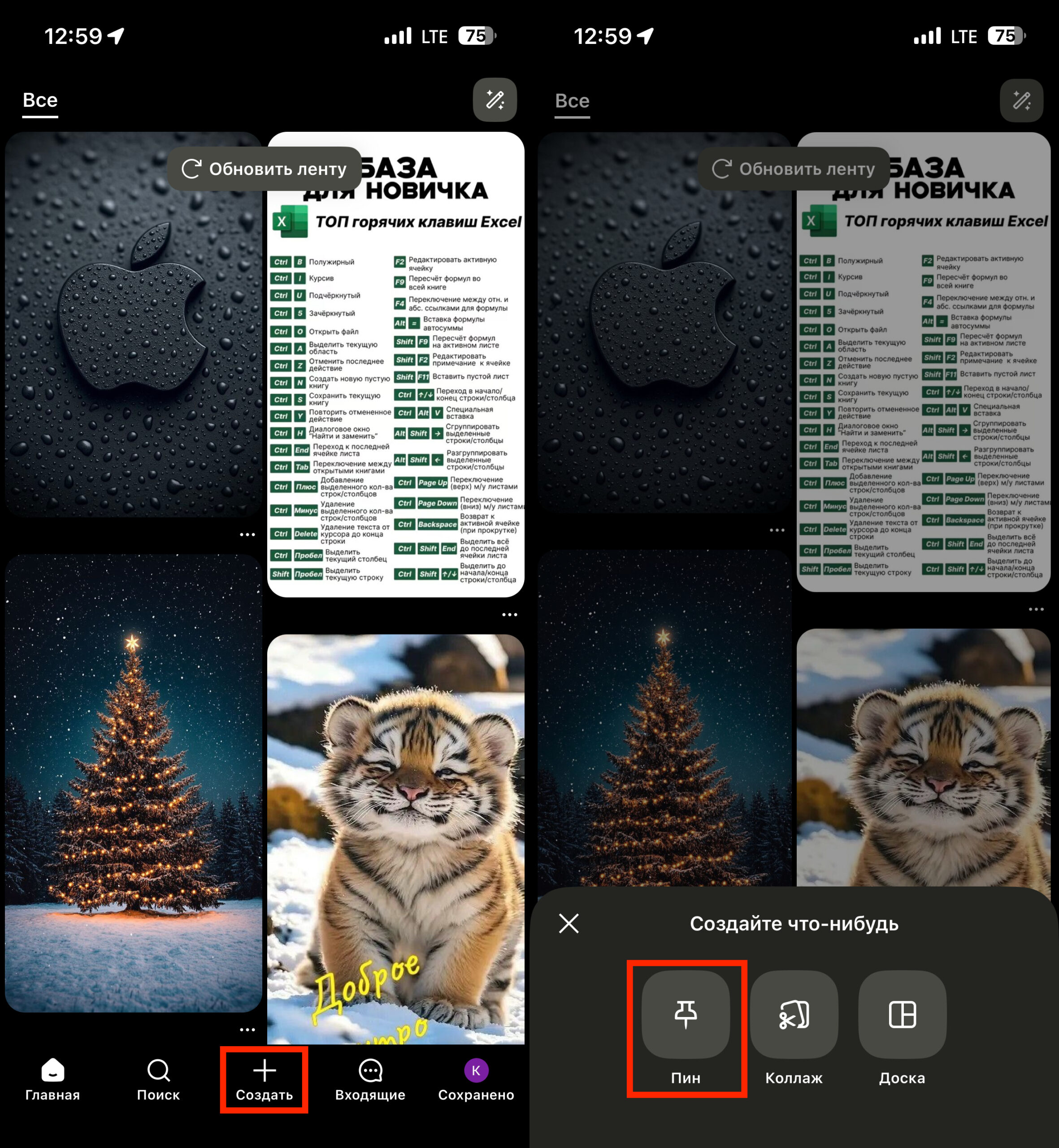
You can create your own pin using the “+” button in the center
- In the app, tap the “+” on the bottom panel.
- Select “Pin.”
- Upload an image from your gallery or take a photo.
- Add a title, description, and a link to the source (if available).
- Choose a board for placement and tap “Create.”
When creating a pin, pay attention to the description: add keywords that will help other users find your content. The optimal image format for Pinterest is vertical, 1000


