Most people think about data safety at the exact moment when it’s already too late. The phone broke, froze, or it’s time to switch to a new one, and then panic sets in: where are the photos, chats, passwords? When resetting or switching devices, you can lose more than you think. And yet the data on a phone is often far more important than everything else, including the phone itself. The good news is that almost everything can be saved or at least recovered. The key is knowing what exactly is at risk. Now let’s figure out how to save your phone data when resetting or switching to a new one.
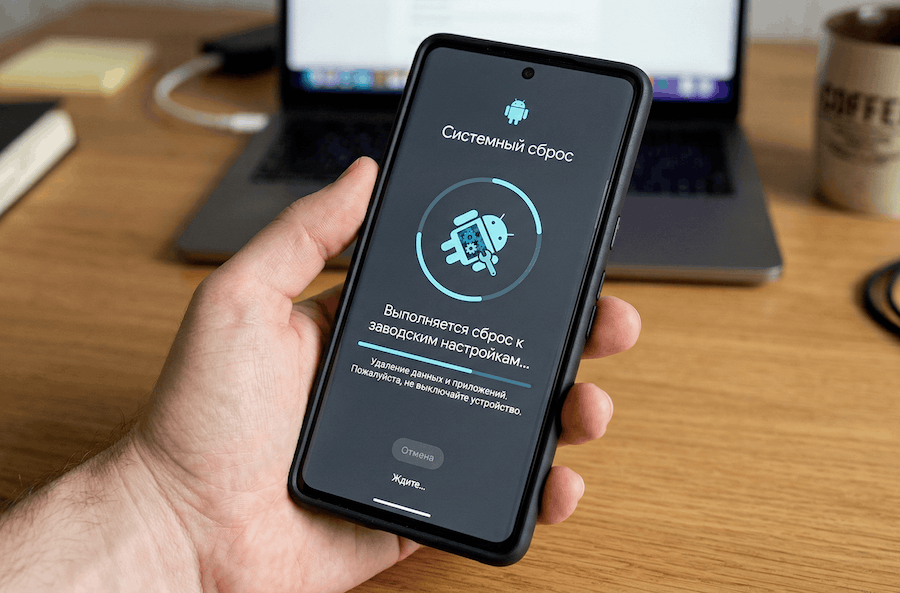
Resetting a phone is easy. The hard part is not losing your data.
What Gets Deleted When You Reset Your Phone
First of all, you need to understand that a full factory reset erases everything. The phone gets “zeroed out” to factory settings. Photos, videos, apps, Wi-Fi passwords, accounts, settings, wallpapers, and everything else all get wiped. You get the phone in the same state it left the factory.
Many people think that a Google account or Apple ID will bring everything back. That’s partly true. But the cloud doesn’t sync everything, and some things don’t sync at all. That’s why you should be careful and check from another device whether the necessary data has been saved, and critically important data should be saved somewhere else as well. For example, to a computer, memory card, or USB flash drive.
Photos and Videos When Switching Phones: Where They Actually Are
If synchronization with Google Photos or iCloud is enabled, theoretically your photos are safe. But Google’s free storage is only 15 GB (shared with Gmail), and Apple’s is 5 GB. If storage ran out unnoticed, your latest photos may not have been uploaded to the cloud. And even if there’s space available, some recent photos might not have synced. There could also have been a situation where you turned something off, or it got disabled after updates, and photos simply stopped syncing on their own.
Proper Google Photos sync will prevent you from losing valuable photos. Image: 3DNews
A separate pain point is photos from messengers. Photos from WhatsApp* and Telegram are stored in local folders, and Google Photos may not pick them up. Checking this before a reset is a hundred times easier than recovering them after.
Do Apps Transfer to a New Phone?
The apps themselves are easy to re-download — they’re in your list on Google Play or App Store. However, if they’ve been removed from the store, you won’t be able to download them and will have to either find them elsewhere or go without. Check that the apps important to you are still available in the stores.
But the data inside apps is a different story. Game progress without account linking will disappear. Offline maps, downloaded music, app settings — everything gets wiped during a reset.
On Android, there’s automatic app data backup, but each app’s developer decides whether to support this feature. Some apps restore as if nothing happened, while others greet you with a start screen.
What Happens to WhatsApp* and Telegram When You Reset Your Phone
WhatsApp* stores conversations locally and simultaneously backs them up to the cloud — on Android to Google Drive, on iPhone to iCloud. If backup was enabled and working, conversations will be restored. If not, or if the backup is old, some messages will be lost.

Telegram data is stored on the server.
Telegram works differently in this regard. Data is always stored on the server, which means it won’t be lost when you reset your phone. When you install the app on a new phone or restore the messenger on the old device, chat history will automatically sync after you log in with your phone number. The exception is secret chats — they’re tied to a specific phone.
Contacts and Passwords When Switching Phones: How Not to Lose Them
If contacts are synced with Google or iCloud, there’s nothing to worry about. But I personally know people who for years saved numbers only to the SIM card or phone memory. It’s easy to check: open “Contacts” and see where the entries are stored. If you see the label “SIM” or “Phone” — it’s time to enable cloud sync. I can’t even remember when my contacts were last stored locally. They’re always in the cloud, and every new phone gets them automatically as a matter of course.
Browser passwords are usually tied to a Google or Apple account and will be restored. But authenticator apps like Google Authenticator are a ticking time bomb. If you haven’t enabled sync with your account, resetting means losing access codes to all services with two-factor authentication. Recovering through support afterward is long and painful. In general, losing your authenticator is the most underestimated risk when switching phones.
Banking Apps and eSIM After a Phone Reset
Banking apps will need to be reinstalled. But remember that many Russian bank apps have long been removed from app stores. The exception is HUAWEI smartphones with their AppGallery, which has everything you need.

AppGallery is better than Google Play and even RuStore. It has almost all important apps.
eSIM is trickier. On iPhone, the system will ask whether to keep the profile during a reset. On Android, behavior depends on the manufacturer, and the profile may be deleted. If you only have an eSIM without a physical SIM card, check with your carrier in advance. But generally, the procedure just requires some time and reissuing the card, which support or a sales office will provide as a set of characters. Often they’re embedded in a QR code that you simply need to scan. In short, the eSIM won’t be lost, but you most likely won’t be able to start using it right away and will need to contact your carrier — but you won’t lose your number.
Notes, Files, and Settings When Switching Phones
Notes in Google Keep or Apple Notes sync automatically. But third-party apps without cloud integration often store everything locally. The same goes for downloaded documents, voice recordings, and PDF files. Especially those stored in the file manager app on your smartphone.
Wallpapers, ringtones, icon layouts, alarms — none of this is fully restored. Samsung and Xiaomi offer their own transfer tools, but they’re far from perfect. In practice, after migrating you’ll spend an hour trying to get everything back “the way it was.” To be honest, you won’t get everything back.
Health data is also at risk. Google Fit and Samsung Health partially sync with the cloud, but measurements from third-party apps may be lost.
What to Do Before Resetting Your Phone to Save Your Data
Before resetting, spend fifteen minutes.
- Make sure photos are synced and storage isn’t full
- Create a fresh WhatsApp* backup
- Check where your contacts are stored
- Make sure your authenticator is synced with the cloud
- Save important files to Google Drive or Yandex Disk
- If you have an eSIM, check the situation with your carrier
Also, it wouldn’t hurt to check and write down the correct password for your main account — you’ll be using it to restore everything else. Many people are so accustomed to everything working automatically that they simply forget this password.
Should You Be Afraid of Resetting Your Phone?
Honestly, no. Even with minimal preparation, it’s hard to lose anything important. Modern smartphones are tied to the cloud, and most data is restored automatically. But there are four areas people overlook: authenticators, local chats, game progress without cloud saves, and photos that didn’t make it to the cloud. These are what you should check first.
Personally, I would recommend checking your backup settings once every couple of months. It takes half a minute, and the amount of stress it saves is immeasurably greater.
*WhatsApp messenger is owned by Meta, which has been recognized as an extremist organization in the Russian Federation. Its activities are banned on the territory of the Russian Federation.