A year ago your phone easily lasted until evening, but now it’s begging for a charger by lunchtime. Sound familiar? Phone battery draining fast is one of the most common complaints from Android users, and there’s almost always a specific reason behind it. Sometimes more than one. The good news: in most cases, the problem can be solved without visiting a service center or buying a new smartphone. Let’s go through it step by step — from diagnostics to specific settings that actually work.

Solving the problem of fast phone battery drain
Why Your Phone Drains So Fast
Before adjusting anything, it’s important to understand the nature of the problem. Phone battery drains quickly due to one or several of the following reasons:
- Screen is running at maximum brightness. The display is the main power consumer in any smartphone. If brightness is manually set to maximum or auto-brightness isn’t working correctly, the battery drains much faster;
- Background apps aren’t sleeping. Dozens of programs continue running after you close them: refreshing feeds, checking email, tracking geolocation. You’re not using the phone, but it’s still draining;
- Location services are always on. GPS in active mode is one of the most power-hungry modules. If a dozen apps have access to your location in “always” mode, it significantly impacts battery life;
- Weak network signal. When a smartphone is in an area with poor coverage, it constantly increases transmitter power trying to catch a signal. This is one of the most unnoticeable but real battery drainers;
- Always On Display is constantly enabled. A nice feature that silently eats 15 to 20% of battery per day even when the phone is in your pocket;
- Battery degradation. All batteries age. After 500-700 full charge cycles, capacity noticeably decreases. If your smartphone is more than two years old and used to last longer, this is most likely the reason;
- Overheating. When your phone heats up and drains simultaneously — it’s a warning sign. High temperature accelerates chemical processes in the battery and increases its consumption. The cause could be an overloaded processor, a low-quality charger, or direct sunlight.
To avoid guessing where to start, the first thing to do is find the specific culprit. Android has built-in statistics in settings for this — it will show exactly which app or feature is consuming the most charge.
Which App Is Eating Your Battery
Android keeps detailed energy consumption statistics for each app. This is where you can discover that some messenger or social network is silently eating a third of your charge in the background while you’re not using it. Here’s how to find apps draining your battery:
- Open your phone’s Settings.
- Go to the “Battery” section — the name may vary depending on the manufacturer.
- Find “Battery usage” or “App battery usage.”
- Review the list — apps are sorted by energy consumption in descending order.
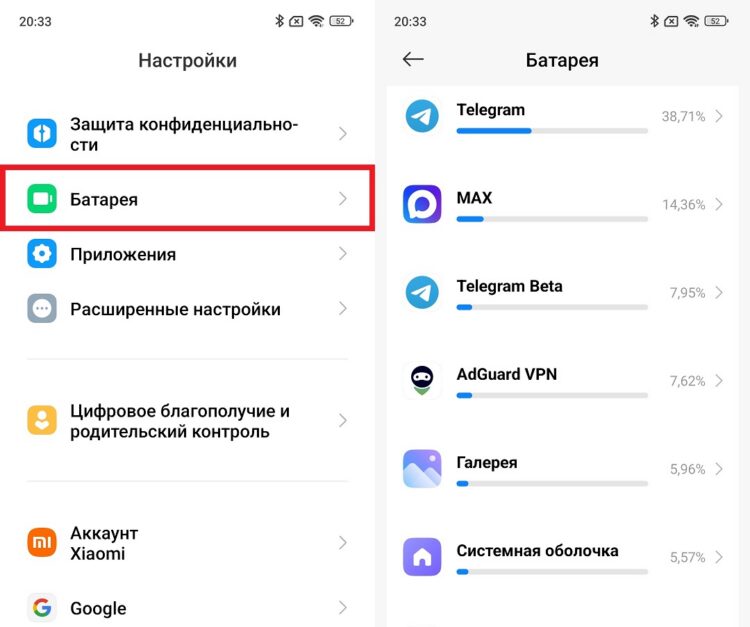
Everyone will have their own list of power-hungry apps
Here you can immediately see who the main culprit is. If system processes are at the top — that’s normal. But if you see that a messenger you haven’t used all day is in second place — that’s a problem. The app is running in the background and consuming resources without your knowledge.
Social networks deserve special attention: TikTok, YouTube actively refresh in the background, preload content, and track your activity even when closed. After finding the culprit, act precisely: restrict background activity for that specific app rather than everything at once.
Background Processes and Android Sync
Background apps drain the battery especially actively when the smartphone is idle. You put the phone on the table, the screen is off, but the processor continues handling requests from dozens of programs that want to stay up to date. Here’s how to limit this without losing functionality.
Step one — restricting background activity for specific apps. After finding the culprit in battery statistics, do the following:
- Go to “Settings” and navigate to “Battery” — “Battery usage.”
- Select the problematic app from the list.
- Set a background activity restriction: on most smartphones this is called “Restrict” or “Optimize.”
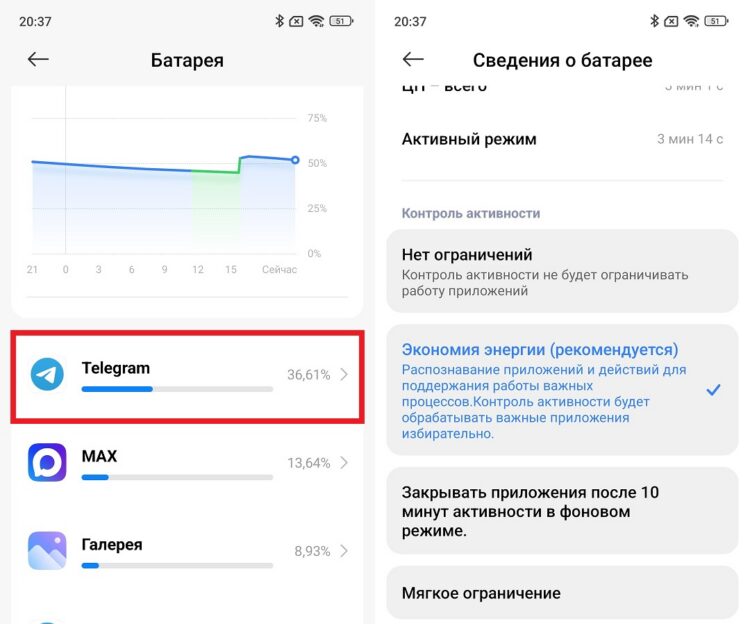
It’s better to restrict the problematic app right away
After this, the app’s background activity will be limited — it will stop refreshing until you open it. If you need real-time notifications from an app, add it to exceptions, and feel free to restrict the rest.
Step two — Google sync. Google sync on Android includes automatic updating of email, calendar, contacts, photos, and other services. By default, this happens constantly. To disable Android sync for unnecessary services:
- Open “Settings” and go to the “Accounts” section.
- Select your Google account.
- Uncheck the services whose real-time updates aren’t critical for you.
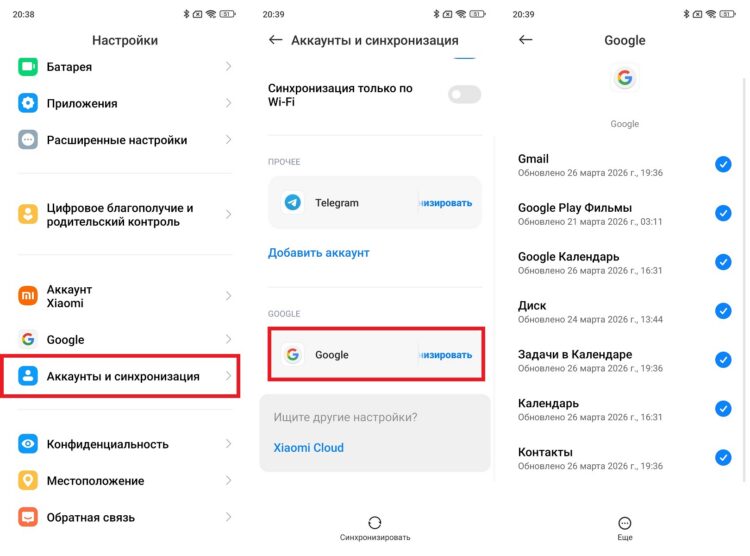
Disable sync for unnecessary services
It’s better to keep email and contacts enabled, but you can safely restrict app data sync, backups, and activity history — you’ll hardly notice any difference in convenience, but your battery will thank you.
Step three — geolocation. Check which apps have access to your location in “Always” mode:
- Open “Settings” and go to the “Location” section.
- Select “App permissions.”
- Switch all apps except navigation and maps to “Only while using” mode.