In a situation where mobile internet is unavailable in many cities, Wi-Fi becomes the only lifeline. But even Wi-Fi can have problems, often unrelated to any external restrictions. Yesterday the wireless signal worked fine, but today Android can’t find the network or can’t connect to it. In such a situation, it may seem like the router is broken or the smartphone itself has failed, but most often the problem can be solved in just a few minutes. Let’s figure out why your phone won’t connect to Wi-Fi, what can cause the network to disappear, and what you need to do to get everything working again.

The problem is solvable, even if not immediately
Why Your Phone Can’t See Wi-Fi
If Wi-Fi isn’t working on your phone, the cause could be in the smartphone itself, the router, or the network settings. Most often, the problem appears after a system update, a settings glitch, or due to an incorrect password. Here are the main causes:
- Wi-Fi module is turned off;
- network settings error;
- incorrect password;
- glitch after an update;
- router problem;
- saved networks list is full;
- power saving mode is enabled;
- hardware malfunction.
Sometimes the Wi-Fi network on the phone doesn’t show up at all, even though other devices can see it. In this case, you need to check all possible causes one by one — from the simplest to the more complex.
How to Restart Your Android Smartphone
The simplest way to fix the problem is to restart the phone. A glitch can occur due to a temporary system error or a frozen router. After a restart, the Wi-Fi connection often restores itself. What you need to do:
- Turn off Wi-Fi on your phone.
- Restart the smartphone.
- Unplug the router from power.
- Wait 30 seconds.
- Turn the router back on.
- Reconnect to the network.
If after this your phone still won’t connect to Wi-Fi, it means the problem isn’t a temporary glitch, and you need to check the settings.
How to Delete a Wi-Fi Network on Your Phone
Sometimes the smartphone can’t connect because of incorrectly saved parameters. This happens after changing the password or updating the firmware. In this case, it’s better to delete the Wi-Fi network and add it again. How to do it:
- Open Settings.
- Go to the “Wi-Fi” section.
- Tap on the desired network.
- Select “Forget network.”
- Find the network again.
- Enter the password.
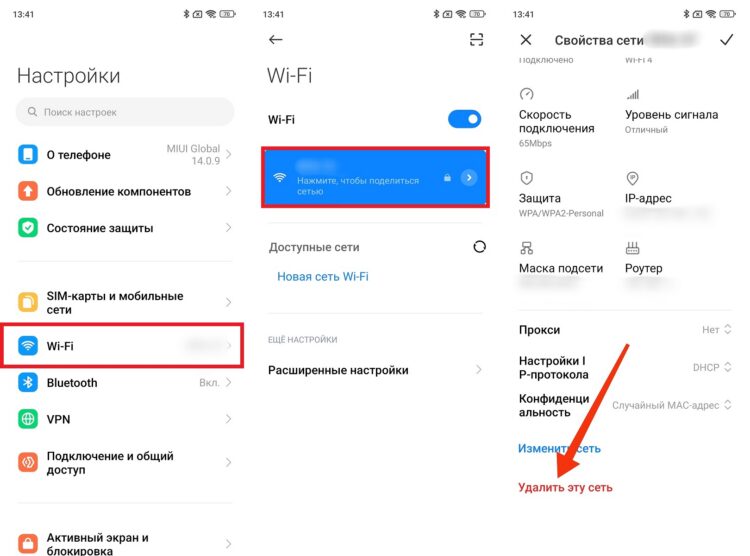
Delete the network, then reconnect
After this, the error when Wi-Fi isn’t working on the phone often stops appearing, even though the connection was previously saved.
Resetting Android Network Settings
If the Wi-Fi connection doesn’t appear, the system parameters may have been disrupted. This can happen after an update or installing apps that change connection settings. What you can do:
- Open Settings.
- Go to the “System” section.
- Select “Reset.”
- Tap “Reset network settings.”
- Confirm the action.
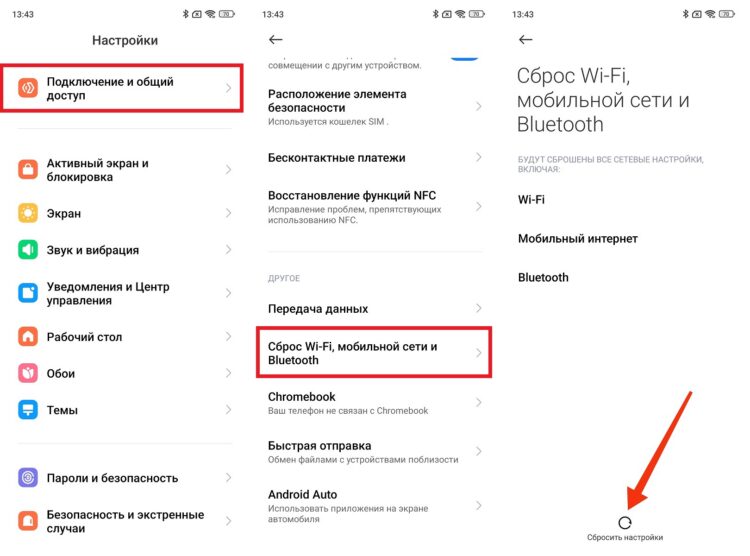
Resetting network settings also helps
After the reset, you’ll need to reconnect to the internet. This method helps when the Wi-Fi network on the phone is visible but the connection doesn’t happen.
Phone Power Saving Mode
On some smartphones, Android power saving can disable wireless modules. In this mode, the system limits network activity to reduce battery consumption. How to check:
- Open Settings.
- Go to the “Battery” section.
- Find the power saving mode.
- Disable it.
- Check the connection.
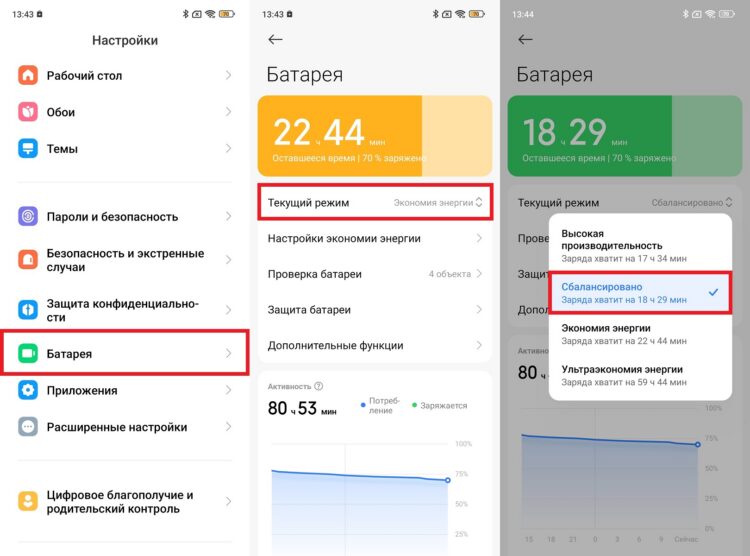
It’s also better to disable power saving mode
After disabling this mode, it often turns out that the phone won’t connect to Wi-Fi precisely because of power restrictions.
Connecting Other Devices to Wi-Fi
If only one smartphone can’t see the network, the problem is with it. But if the internet has disappeared on all devices, the issue is with the router or the provider. What to check:
- Connect another phone to the network.
- Check a laptop or tablet.
- Restart the router.
- Check the internet cable.
- Contact your provider.
Sometimes it seems like Wi-Fi isn’t working on the phone, but in reality the internet is down on the provider’s end. The only way to find out is by contacting the company’s call center.
If Wi-Fi Isn’t Working on Your Phone
If none of the methods helped, the communication module may be damaged. This can happen after a drop, water exposure, or severe overheating. Signs of a malfunction:
- the phone can’t see any network;
- Wi-Fi keeps disconnecting;
- the connection drops immediately;
- the network is visible but the internet doesn’t work;
- the error appears after a drop.
In this situation, it’s better to visit a service center. If the phone won’t connect to Wi-Fi even after resetting settings, the cause is almost always hardware-related.