Sometimes it seems like your smartphone starts lagging on its own. Apps take a bit longer to open, animations feel heavier, and the interface doesn’t respond as quickly as it used to. The reason isn’t always weak hardware or an old device — sometimes it’s about system settings. For example, many users don’t even realize that Android has hidden settings that can noticeably speed up your smartphone’s performance.
Just one setting and your smartphone will fly
If you reduce the speed of these animations or disable them completely, the interface starts responding noticeably faster. In practice, it looks as if the smartphone has become faster, even though the hardware remains the same.
How to Enable Developer Mode on Android
To change animation settings, you first need to enable Android developer mode. It’s hidden in the system but can be activated in just a few seconds. Here’s how:
- Open your smartphone’s settings.
- Go to the “About phone” section.
- Find the “Build number” entry (“OS/MIUI version” if you have a Xiaomi).
- Tap on it 7 times in a row.
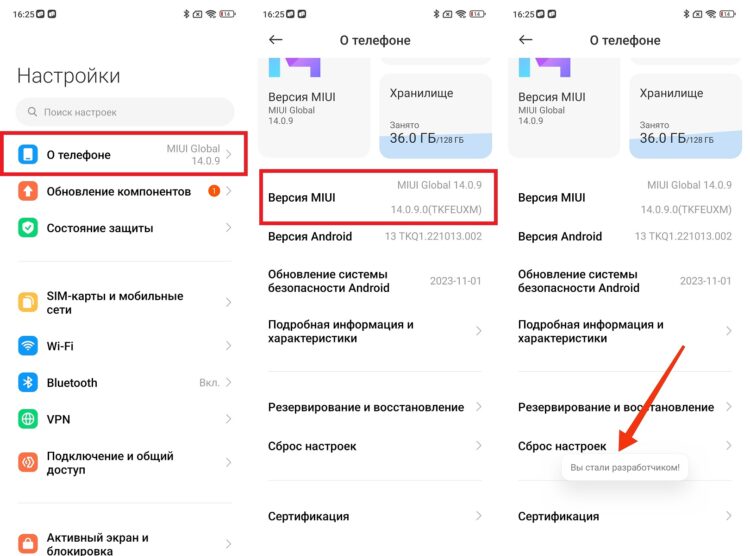
First you need to become a developer
After that, the system will notify you that developer mode is activated, and a new section will appear in the settings — that’s exactly where we need to go.
How to Disable Animations on Your Phone
After activating Android developer mode, you need to find three animation parameters. These are responsible for the interface speed. You need to change the following settings:
- Window animation scale;
- Transition animation scale;
- Animator duration scale.
By default, all values are set to 1x. If you set them to 0.5x or completely disable the animation, the system will start responding faster. But where do you find them, and how do you disable animations on Android? Here’s how:
- Open your smartphone’s settings.
- Go to “Advanced settings” and then “Developer options.”
- Find the entries related to animations.
- Disable the animations.
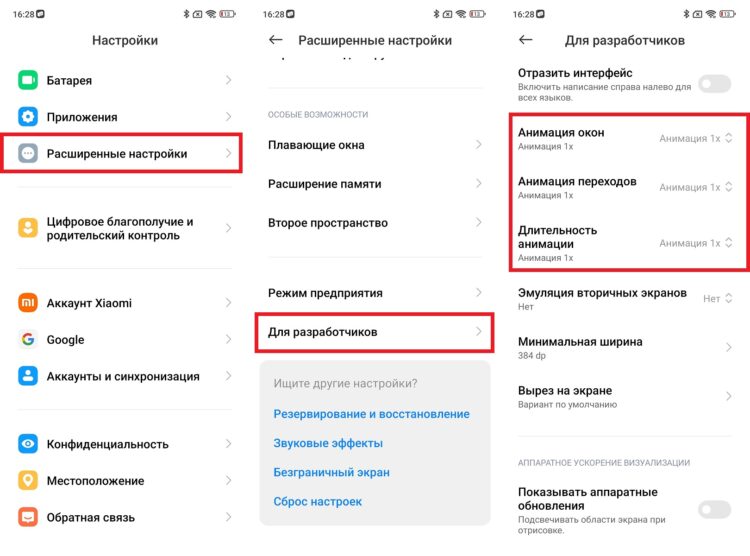
Look for these parameters in developer settings
After that, the changes will take effect immediately — no need to restart your smartphone. If the interface seems too abrupt, you can always restore the previous animation values. But many users, after making this adjustment, no longer want to go back to the standard system speed.
Why Your Smartphone Feels Faster Without Animations
In reality, the smartphone’s processor and memory don’t actually start working faster. The system simply stops spending time on lengthy visual effects.
When animations are reduced, the interface opens almost instantly. That’s why users feel that Android has become noticeably faster, even though only the display speed of interface elements has actually changed. This setting is especially useful for smartphones that have been in use for several years. But even on new devices, it can make the interface feel faster and more responsive.