After an unsettled week due to the shutdown of App Store payments in Russia, domestic users had a brief respite. But it’s over now. Now it’s time for apps to disappear from the App Store: on Monday, April 6, Okko was removed from the App Store. The app is once again unavailable for download in the Russian catalog, and Apple traditionally gave the service no warning. If you already have Okko on your iPhone — you’re lucky. But those who need to install it from scratch will have to struggle. Let’s figure out why this happened and what to do now.
Okko removed from App Store again
Why Okko Was Removed from the App Store
This story has been going on for several years, and the root of the problem lies in sanctions. It was recently revealed that Apple paid Okko a huge sum in circumvention of sanctions, which it admitted itself. But it still received a large fine. The essence is this: until May 2022, Okko belonged to Sber, which fell under US blocking sanctions. The bank rushed to sell the service to a company called “Novye Vozmozhnosti” (New Opportunities), but it didn’t work out — already in June of that year, this company was added to the UK sanctions list.
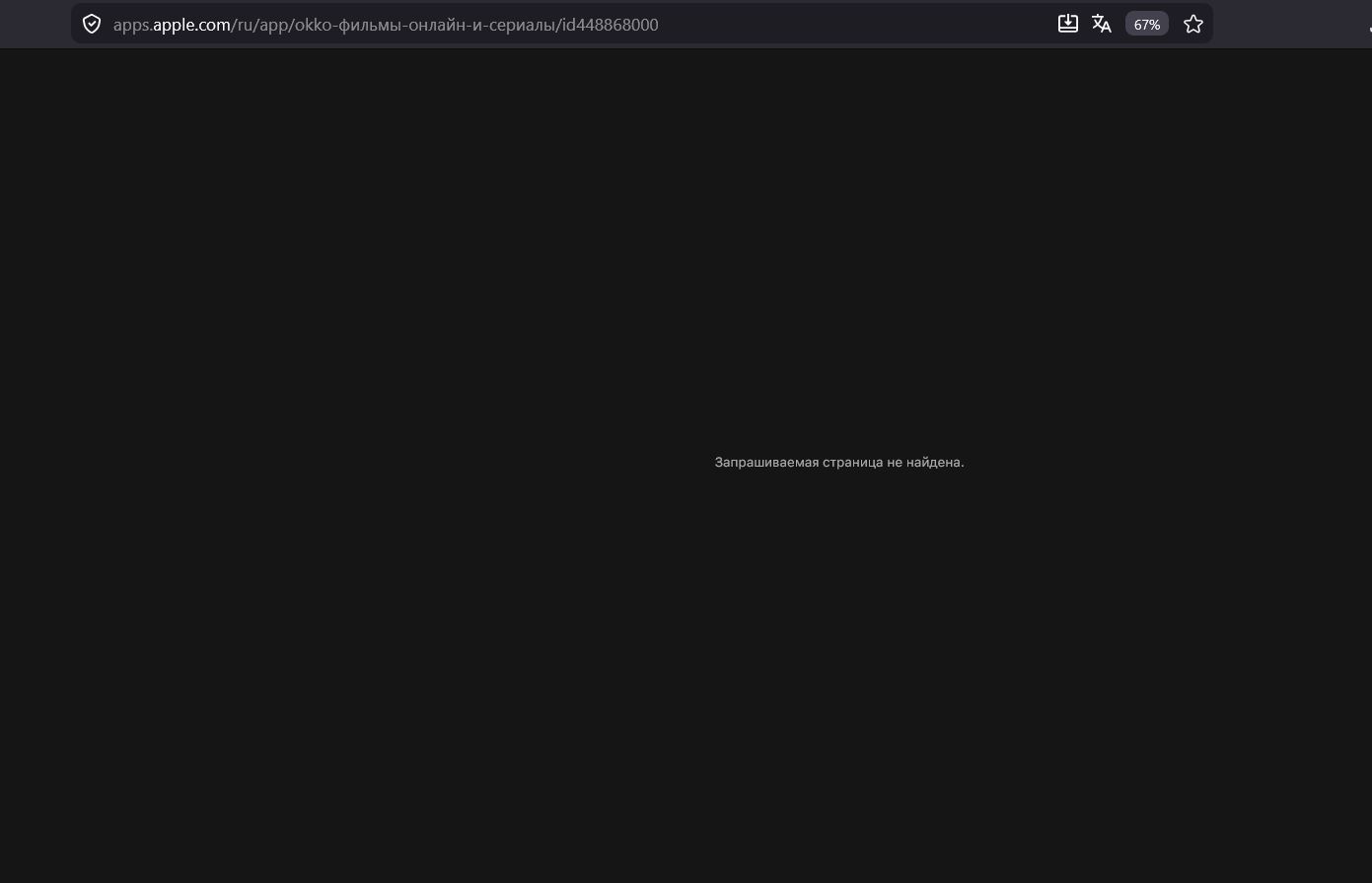
The app can no longer be downloaded on iPhone
And here’s where it gets really interesting. Apple’s Irish subsidiary — Apple Distribution International — transferred more than £635,000 to Okko in June and July 2022, after sanctions had already been imposed. The payments went through a British bank. Simply put, Apple paid money to a blacklisted company, albeit by mistake. The British regulator OFSI issued a fine of £390,000 — approximately $516,000.
It could have been even more — up to a million pounds — but Apple discovered the violation itself and voluntarily confessed everything, so the amount was reduced. After such a precedent, it’s no surprise that Apple is playing it safe and removing everything connected to sanctioned entities from the store. And against the backdrop of Apple completely shutting down payment processing in Russia as of April 1, 2026, the situation is only heating up. There’s no doubt that Okko was removed from the App Store precisely because of this situation.
Important: if the Okko app is already installed on your iPhone — don't delete it. It will continue to work normally. And be sure to disable app offloading in your iPhone settings so that the app doesn't accidentally get removed on its own.
How to Download Okko on iPhone
The app isn’t in the App Store, but that doesn’t mean you can no longer watch movies on your iPhone. Here are working methods — from the simplest to the most advanced. Okko’s web version is the quickest option, though not the most convenient.
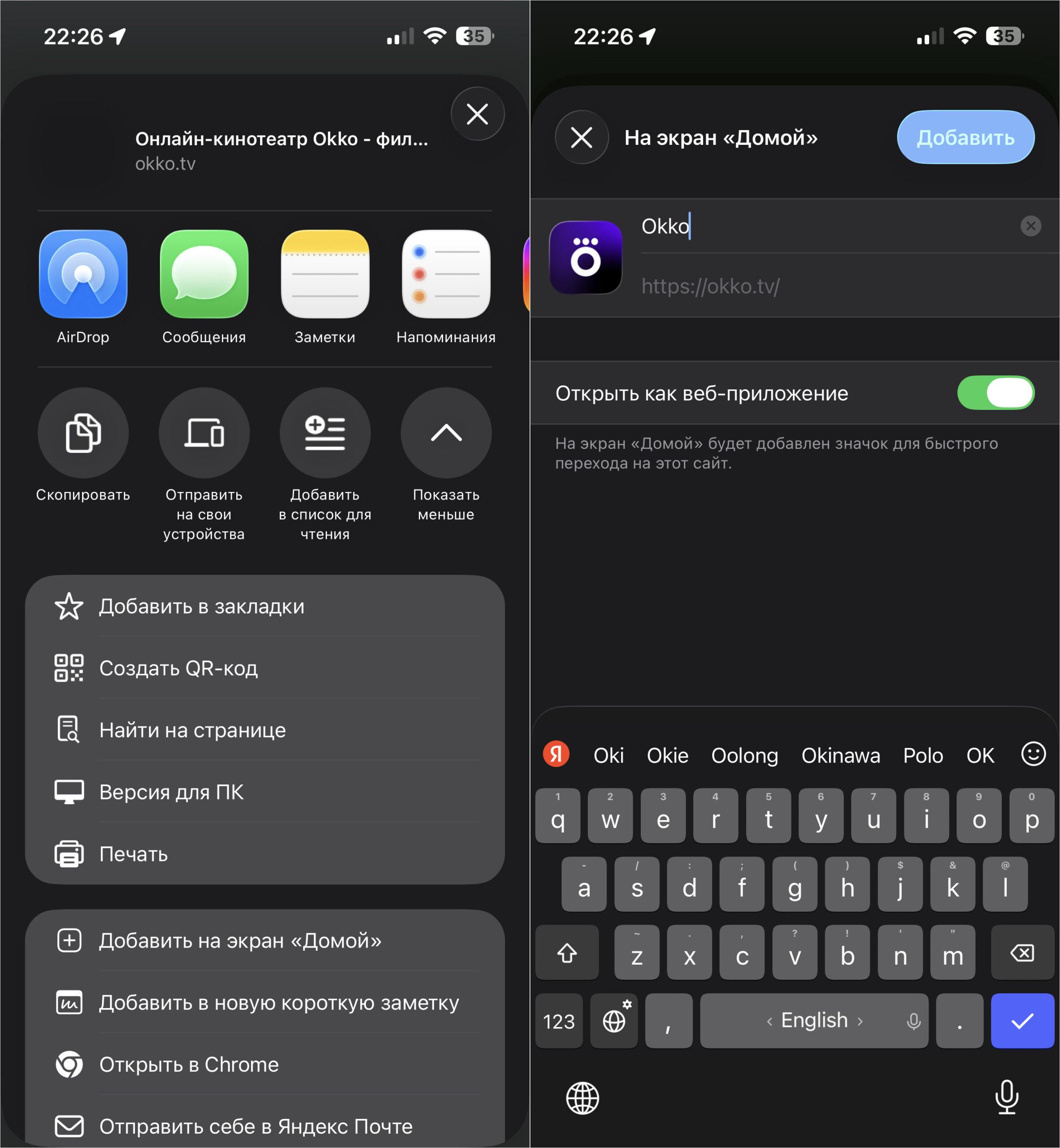
You can still add the web version to iPhone’s home screen
- Open Safari and go to okko.tv.
- Tap the “Share” button (the square with an arrow at the bottom of the screen).
- Select “Add to Home Screen”.
- Set a name and tap “Add”.
An icon will appear on your home screen that opens Okko as a standalone app. The functionality is slightly limited compared to the native client — there are no push notifications or offline downloads — but you can watch movies and TV shows without any problems. For most users, this is more than enough.
How to Install Okko Without the App Store
Downloading Okko on iPhone without the App Store the way you used to won’t work, even if you once had this app installed. It was recently discovered that the program no longer allows restoring previously purchased apps. The best thing you can do now is save it to your PC. So to speak, for the future.
- Download the iMazing program to your computer and connect the iPhone from which you’re going to copy the app via cable;
- Launch iMazing and click the “Continue Trial” button in the upper right corner (no subscription needed);
- Wait for the smartphone’s content to load and go to the “Apps” tab;
- First, you must connect the source iPhone from which you’re transferring the app. Not the other way around.
- Find the desired app in the list, click on it with the left mouse button and at the bottom of the window click “Copy to PC”;
- Specify a save location and wait for the app to be extracted (it may take 10-20 minutes);
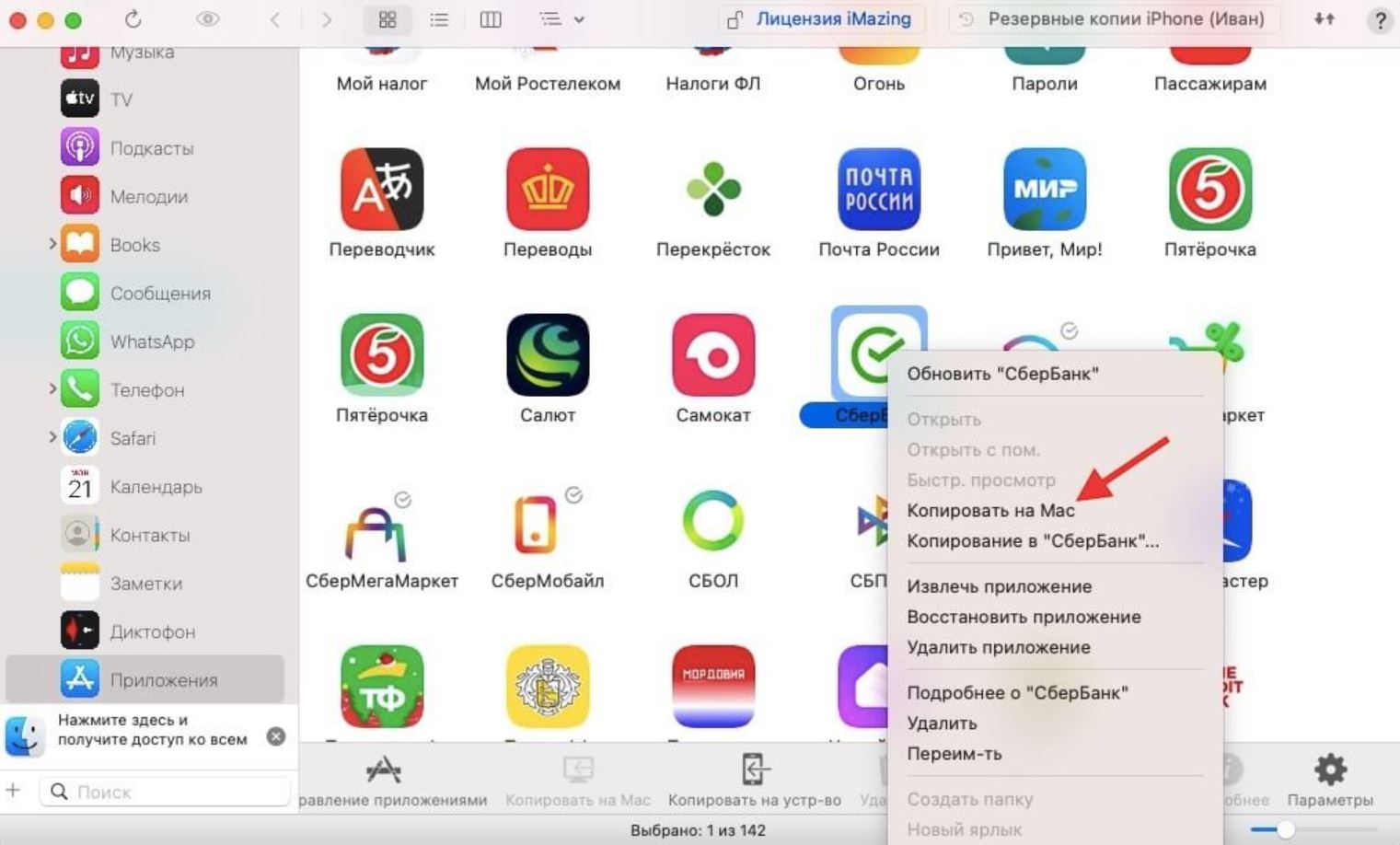
Copy the app to your PC to restore if needed
After that, you’ll be able to install it not only for yourself but also for family and friends. Note that Android owners are once again in luck: the app is still available on Google Play and, moreover, on RuStore. No hoops to jump through.
Why Apps Are Being Removed from the Russian App Store
There’s definitely no reason to panic. Okko was already removed from the App Store in August 2022, and a year later — after lengthy negotiations — the app returned in full. The service’s CEO Sergey Shishkin personally announced the return at the time, and all user accounts were preserved. It’s possible that history will repeat itself this time too. Or the company may release a disguised app, as T-Bank regularly does.
The App Store in Russia has suffered again. And this is just the beginning. Photo: habr.com
In the meantime, use the methods described above — they’re all working and tested. Besides iPhone, Okko is still available on Android, Smart TV, and through a web browser on any device.


