I bought the Redmi Note 10 Pro in early 2021. It was an excellent smartphone — fast, with a good screen, and the battery was never an issue. But by 2024, things had changed: the phone started lagging so badly that even opening YouTube (which was still working at the time) took several seconds, the keyboard appeared with a delay, and switching between apps became a gamble. I did end up buying a new smartphone by then. But at the same time, I decided to figure out what was going on, and realized: I didn’t even need to spend money on a new purchase. Because now the phone works noticeably better. Here’s what exactly helped.
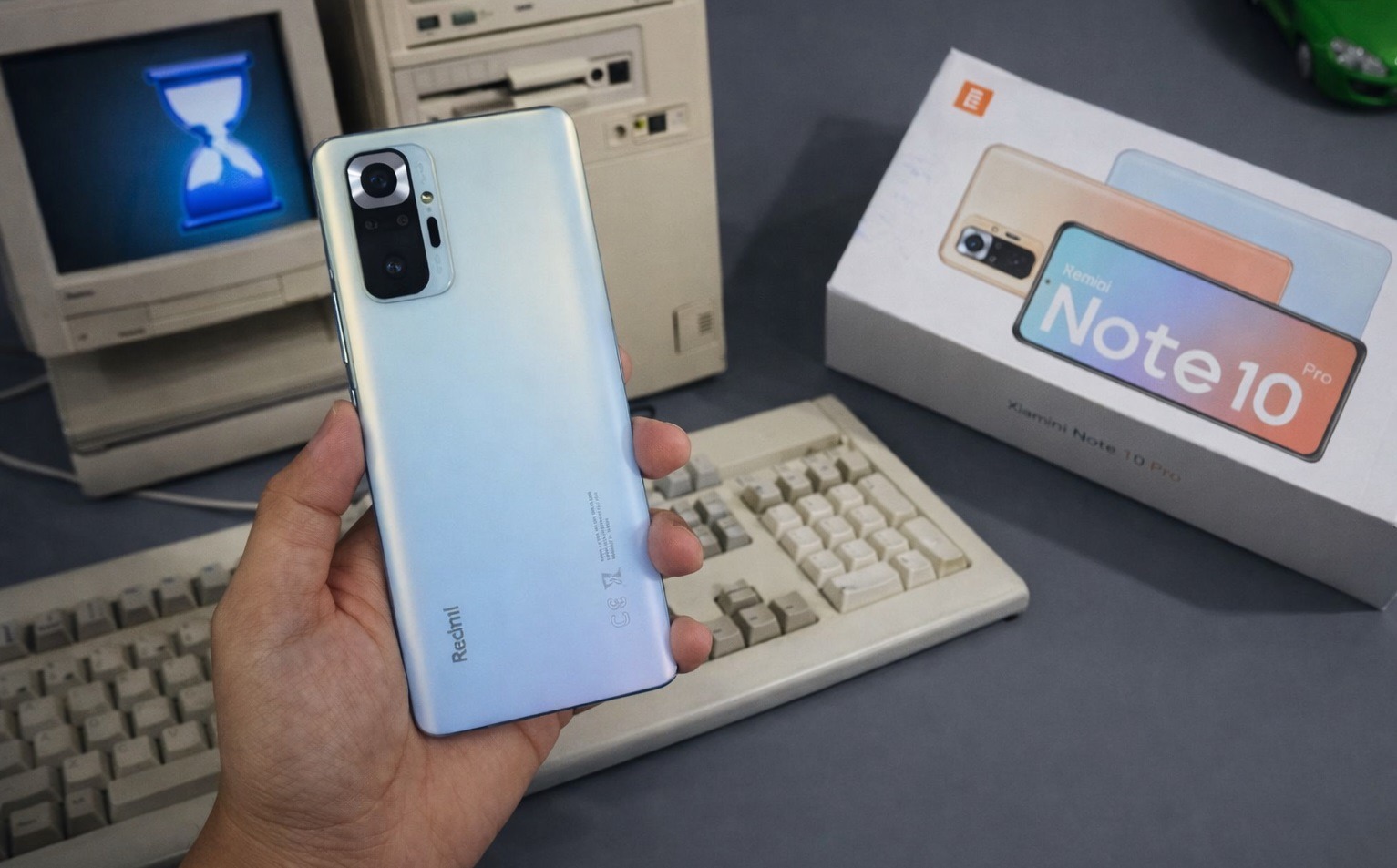
Sped up the smartphone to the speed of modern models
Why Android Slows Down Over Time
Before treating the problem, you need to understand the cause. A phone runs slowly not because “the hardware is outdated” — although that does take its toll over time. The main enemies of performance are different: cluttered storage, background apps that nobody has touched in years, accumulated cache, and a UI shell that has become bloated with extra processes.
On the Redmi Note 10 Pro, there was another problem on top of that — MIUI had been updated several times, and each version dragged along new background services. The hardware doesn’t go anywhere, but the software load grows. That’s exactly what I started fighting.
How to Clear Phone Memory and Why It Matters
The first thing I did was check how full the storage was. It turned out that out of 128 GB, only about 6 GB were free. When storage is filled above 85-90%, Android starts working noticeably worse: the system literally can’t properly write temporary files and manage virtual memory. A phone lags heavily under exactly these conditions. Here’s what I deleted first:
- Screenshots and duplicate photos — several gigabytes had accumulated;
- Old videos that had already been copied to the computer;
- Apps I hadn’t used in the last six months;
- Browser cache and cache from heavy apps — through “Settings” — “Apps” — select app — “Clear cache.”
In the end, I freed up about 30 GB. The effect was noticeable already at this step: apps started opening a bit faster. Keep your storage no more than 80% full — this simple rule greatly affects system performance.
How to Disable Background Apps on Android
Next, I tackled background processes. On the Redmi Note 10 Pro, the system allows flexible management of auto-start — this is one of the few advantages of MIUI over stock Android. Here’s how I did it:
- Opened “Settings” — “Apps” — “Autostart.”
- Disabled each app one by one.
- Also checked the “Battery saver” section and set the “Restrict” mode for apps that don’t need to run in the background.
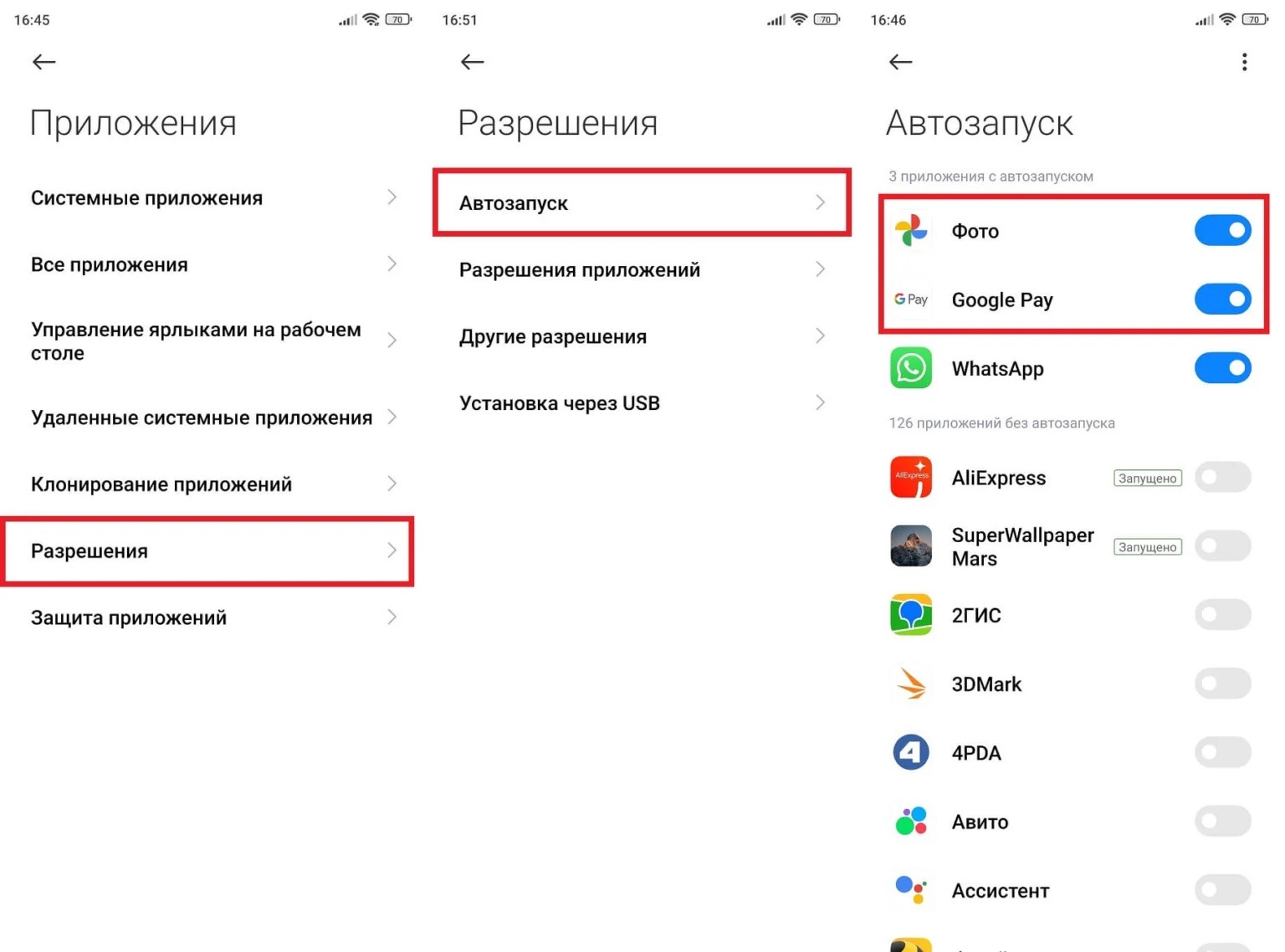
On many smartphones, autostart is not needed at all
The result was surprising: autostart was enabled for over twenty apps, including ones I used once every six months. Each of them launched when the smartphone was turned on, consumed RAM, and periodically woke up the processor. The phone started lagging noticeably less already after this step.
How to Speed Up Android Through Developer Settings
The next step — animations. To access developer mode and change the necessary settings, do the following:
- Go to “Settings” — “About phone” — “MIUI version” and tap the version number seven times. A message will appear: “You are now a developer.”
- Return to the main settings menu — a “Developer options” item will appear.
- Find three items: “Window animation scale,” “Transition animation scale,” “Animator duration scale.”
- Set the value to 0.5x for each of them.
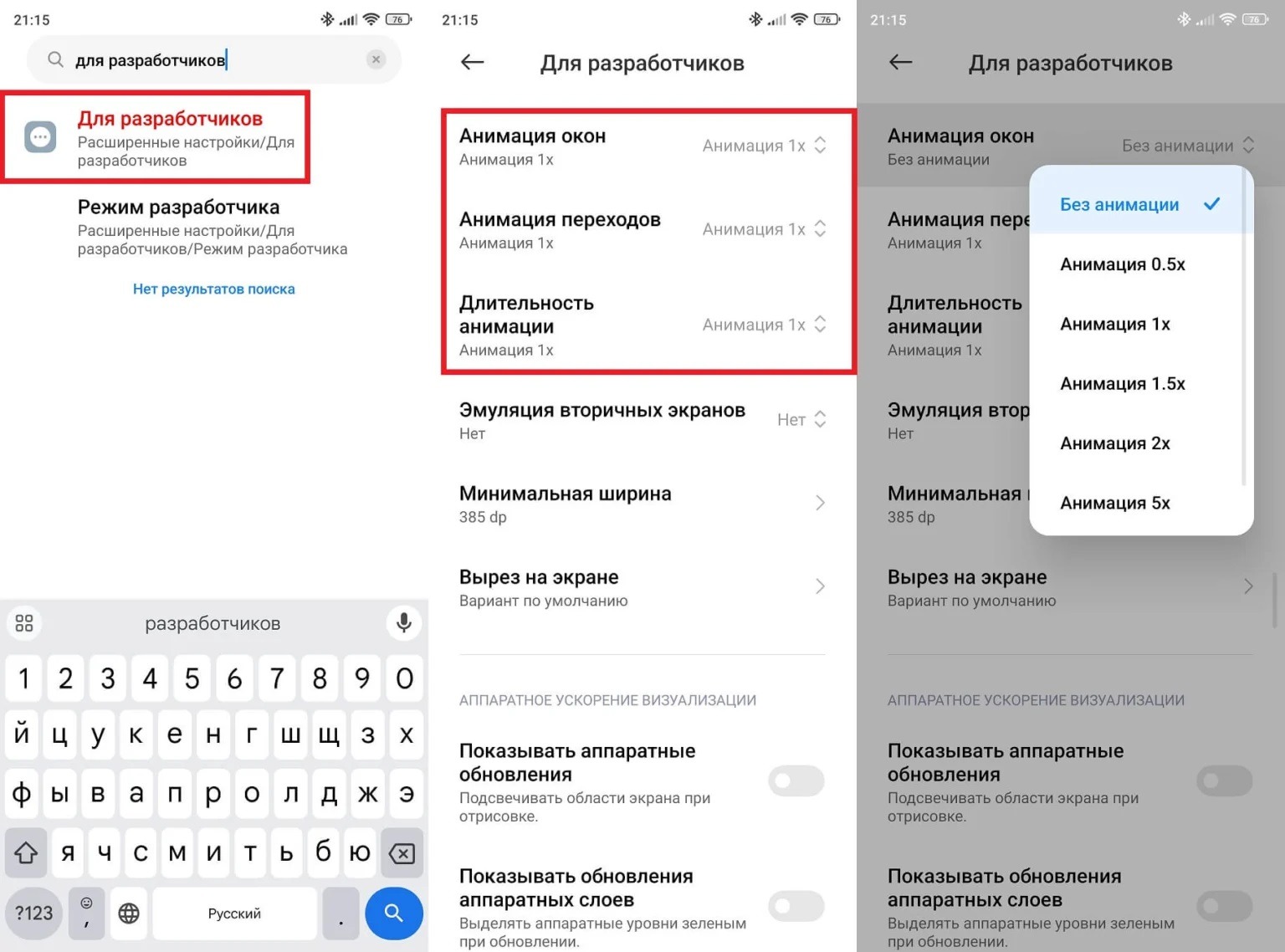
Animations are disabled in developer settings
It’s important to understand: this doesn’t speed up the processor itself — it reduces the time of visual transitions. But subjectively, the phone feels more responsive. Is Android lagging — or does it just seem like it? Often it’s the animations that create the feeling of sluggishness, even though the app itself loaded a long time ago. After changing this setting, the interface felt noticeably livelier.
How to Remove Extra Effects in MIUI and HyperOS Shell
On Xiaomi smartphones, there are several visual effects that look nice but load the processor. Here’s what I disabled:
- Live wallpapers — replaced with a static background. Animated wallpaper constantly loads the GPU.
- Blur effect in the notification panel — disabled in “Settings” — “Display” — “Additional settings.”
- “Wallpaper carousel” — it regularly updates in the background and consumes internet traffic.
- Weather widget on the lock screen — it periodically wakes the display and syncs with the network.
Each of these items individually makes a minor difference. But combined — a noticeable boost in responsiveness, especially on devices with 6 GB of RAM or less.
Why Video Lags on Phone and How to Fix It
A separate story — video lagging on the phone. On the Redmi Note 10 Pro, this manifested when watching videos on YouTube and during video calls: the picture would periodically freeze, even though the internet was fine. The cause turned out to be a combination of two factors: an overheated processor and limited RAM.
After clearing memory and disabling background processes, the video problem resolved itself. If you still experience it, check the following:
- Close all background apps before playing video.
- Check the temperature of the case — if the phone is hot, let it cool down.
- Try reducing playback quality in YouTube settings from 1080p to 720p.
- Clear the YouTube app cache through “Settings” — “Apps.”
By the way, my Redmi Note 10 Pro developed other surprises over time — the screen started to burn in, and this is also explained by physics, not someone’s shoddy work.
Is It Worth Doing a Factory Reset If the Phone Is Severely Lagging
This is an extreme but sometimes justified step. Your Android phone is lagging, and none of the measures described above helped? Then a full factory reset can restore your smartphone’s former speed. Before resetting, be sure to do the following:
- Back up all important data through Google or Xiaomi’s proprietary cloud.
- Transfer photos and documents to a computer or cloud storage.
- Write down passwords for apps that don’t restore automatically.
- Remember or take a screenshot of the app layout on your home screen.
After that, you can go to “Settings” — “About phone” — “Factory reset.” On the Redmi Note 10 Pro, I ultimately didn’t resort to a reset — the previous steps were enough. But if they hadn’t helped — I would have done it without regrets.