Group chats in Telegram often turn into real mini-communities. Neighbors, students from the same year, work teams, and themed clubs all communicate there. Over time, there are so many participants that figuring out who’s who becomes quite difficult. To make it easier to identify people, Telegram has added a new feature — member tags. Now, next to a user’s name, you can display a role, job title, interests, or any other short note.

Tags in TG groups will help you better navigate who’s who. Image: howtogeek.com
What Are Member Tags in Telegram
Tags are small labels next to a user’s name in a group chat. They allow you to briefly indicate a person’s role or important information about them. For example, in a work chat, you can specify a job title; in a student group — the faculty or year; and in a neighbors’ chat — an apartment or car number.
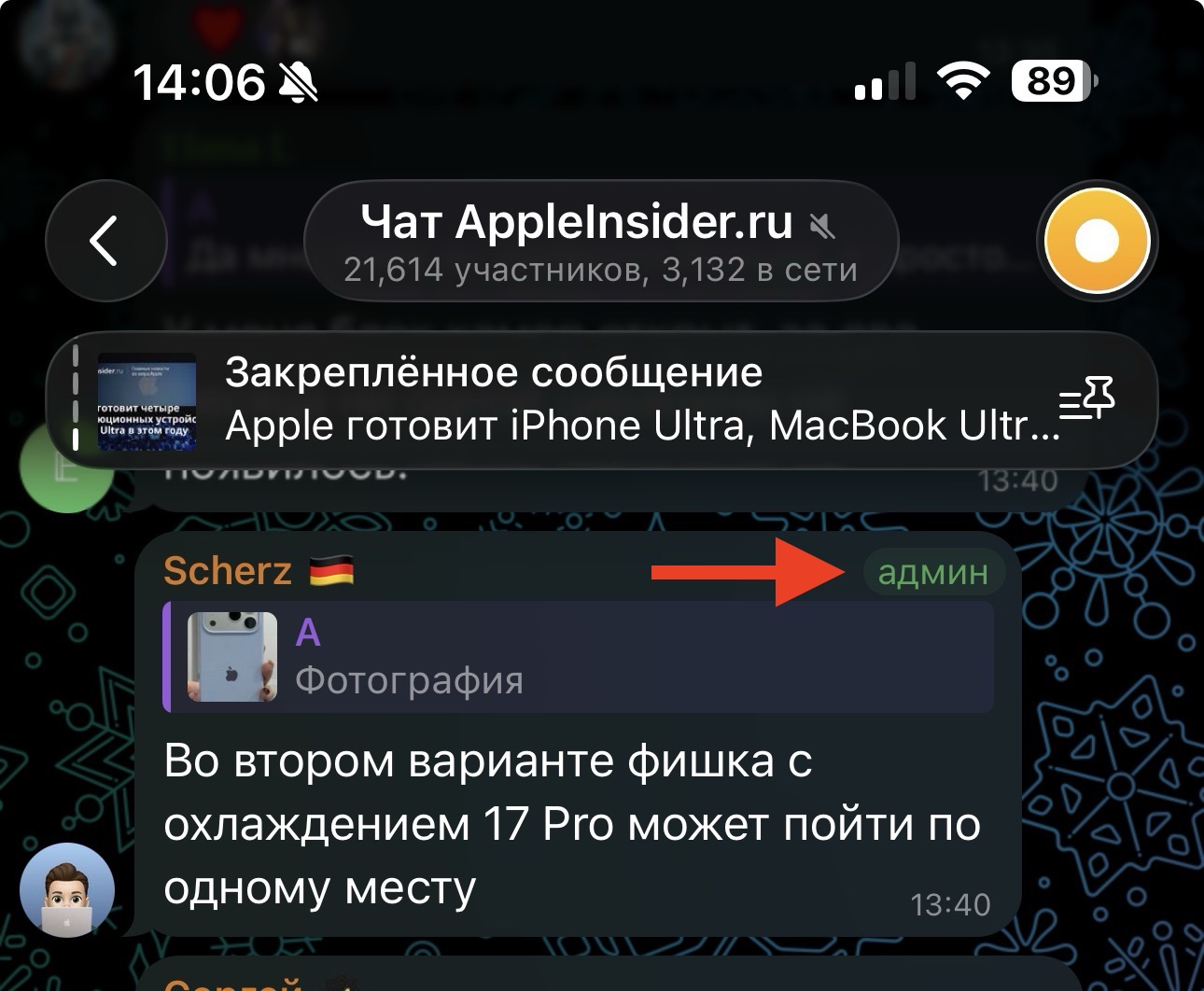
These are the tags that now appear in groups
This system makes communication much clearer. When there are dozens or hundreds of participants in a chat, it becomes easier to immediately understand who is responsible for a specific task or whom to contact about a particular question. This is especially useful for work and study groups.
Telegram has also provided a separate highlight for administrators. Their tags are always displayed in color, making the admin role immediately noticeable regardless of what text is written in the tag itself. Keep in mind that the color highlighting cannot be turned off, and admins will now always stand out.
What Are Member Tags in Telegram Groups For
The new feature is suitable for all kinds of groups. In work chats, tags can show a position or specialization: for example, “designer,” “developer,” or “project manager.” This helps quickly find the right person in a discussion. In university chats, you can specify the year, field of study, or faculty. This way, participants quickly understand who they’re communicating with and can more easily find classmates.
In everyday and neighbors’ chats, tags can also be useful. Some participants use them to indicate an apartment number, parking spot, or car. In themed communities, you can specify interests or expertise — for example, “photographer,” “modder,” or “gamer.”
Who Can Change Member Tags in Telegram
The ability to add tags depends on the settings of the specific group. Administrators can fully control this feature and decide who has the right to add labels next to their name.
If an administrator wants to maintain order in the group, they can keep the right to add tags exclusively for themselves. In this case, participants won’t be able to change labels on their own, and all tags will be assigned manually.
But Telegram also allows the system to be more flexible. An administrator can allow participants to choose their own tag for their name. Then each user can specify the necessary information about themselves without the administrator’s involvement.
How to Change a Member’s Tag in Telegram
You can enable this feature directly in the group settings. It takes just a few seconds, so administrators can quickly activate the new feature for all participants. To allow participants to add a tag next to their name on their own, follow these steps:
- Open the desired group in Telegram;
- Go to group settings;
- Open the Permissions section;
- Enable the “Change own tag” option;
- Return to the group and tap on its name at the top of the screen;
- In the list of group members, tap on your name and set the desired tag for yourself.
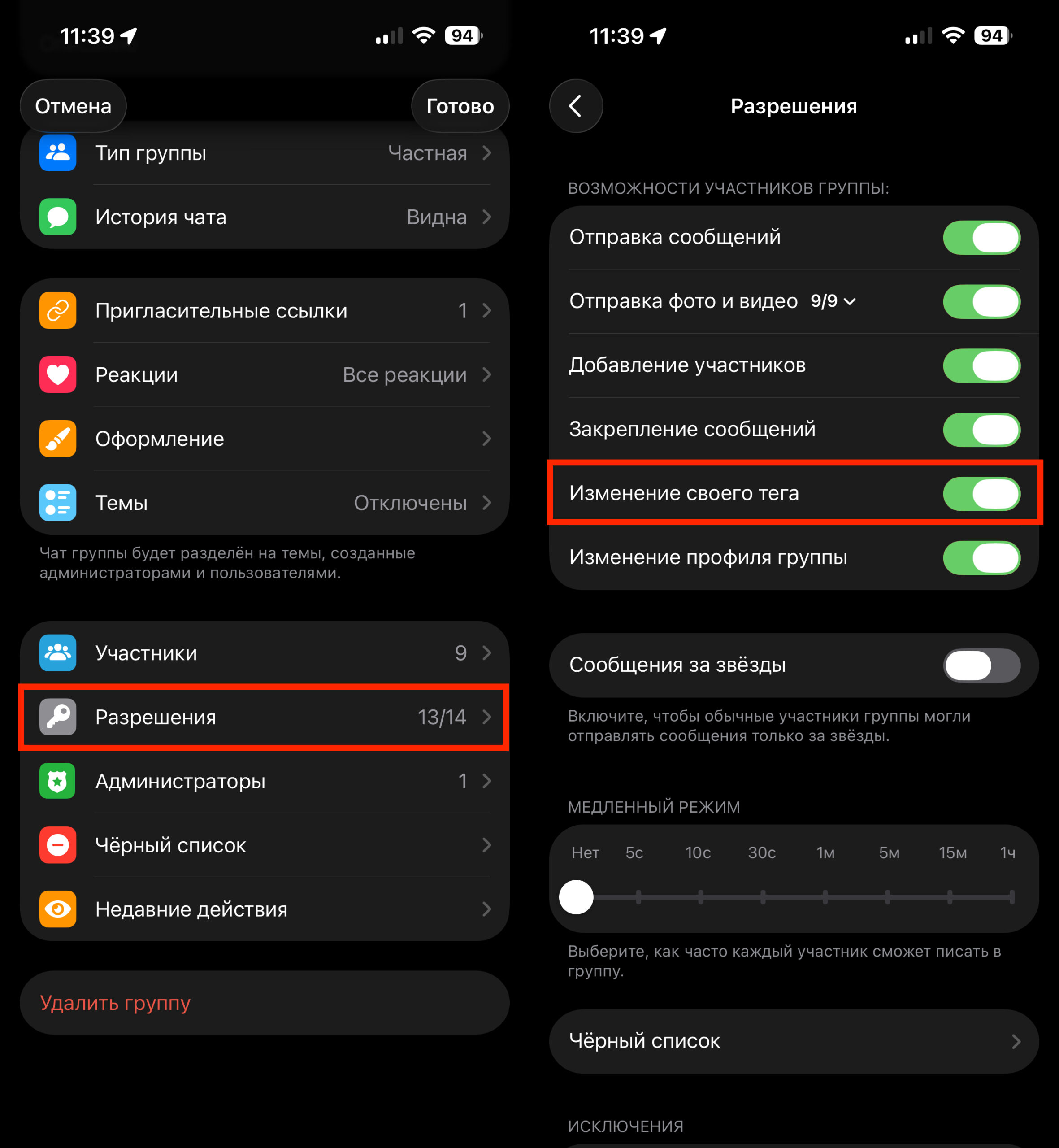
First, activate tags in the group settings
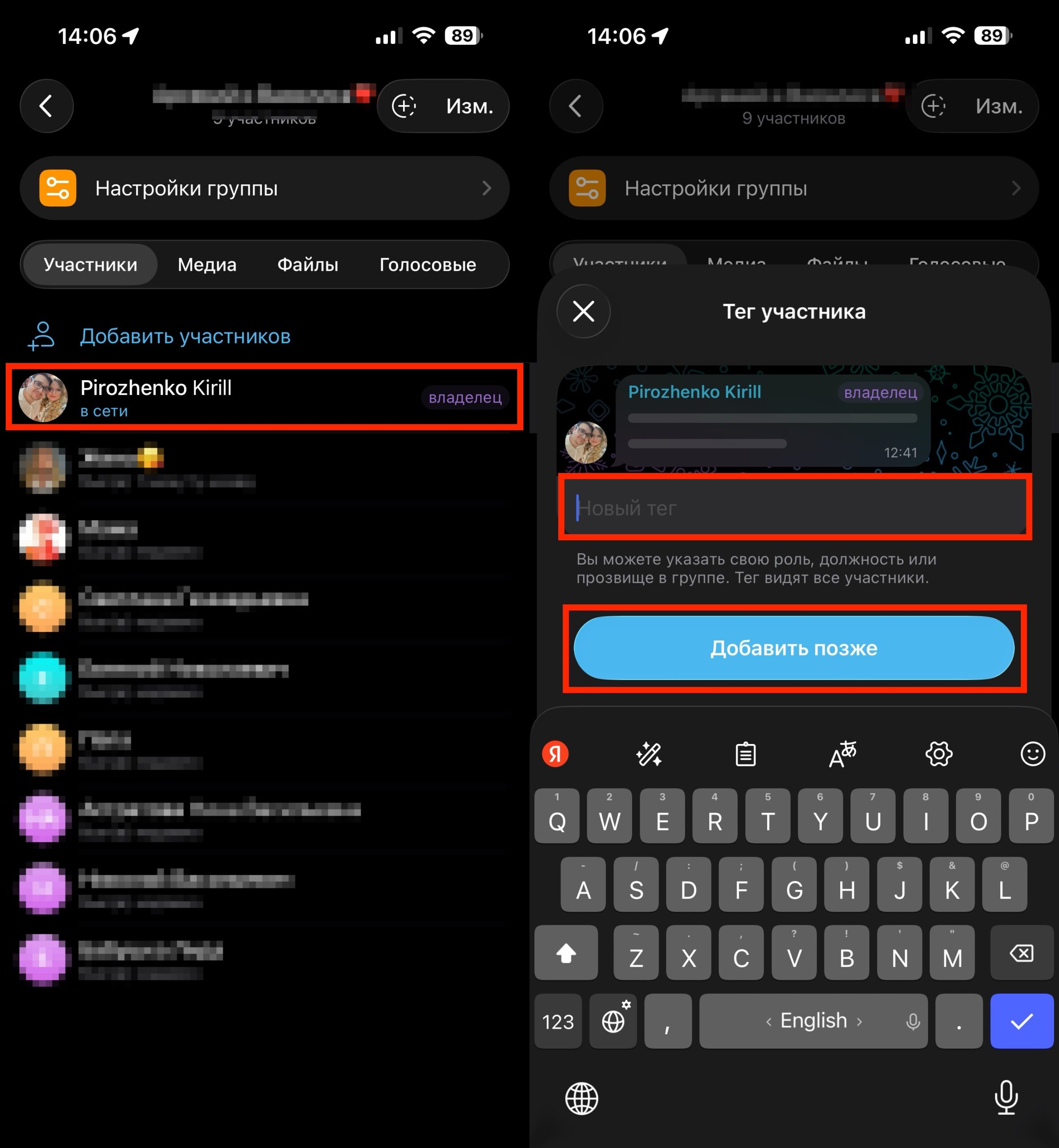
Then everyone can assign tags themselves or through an administrator
After that, every group member will be able to set their own tag next to their name. If the administrator disables this option, only chat administrators will be able to manage tags again.