The MAX messenger by VK has turned into a national messenger over the past year, with a daily audience of nearly 80 million people. Whether you want to or not, you have to use it: work chats, school parent groups, and government services are all moving there. Plus, it has a Digital ID that can replace a number of documents. But not everyone is willing to install the mobile app on their main phone, and not everyone has a desktop client for Mac either. Fortunately, MAX has a full-fledged web version that works in any modern browser. Here’s how to use it.
A great way to use the messenger without installing anything. Image: cyber.sports.ru
What Is MAX Web and Why Do You Need It
MAX Web is the web version of the MAX messenger, available at web.max.ru. Essentially, it’s the same messenger, but it runs directly in your browser without installing an app on your computer. You open a tab, log in, and get access to all your chats, contacts, and calls.
The main advantage is obvious: you don’t need to install anything. No downloading an installer, granting admin rights, or keeping yet another background process that eats up RAM and MacBook battery. This is especially relevant for work computers where system administrators don’t allow installing anything at all, and for situations when you need to quickly check messages on someone else’s laptop.
MAX in the Browser: How to Open It
The method is extremely simple and works the same on macOS, Windows, and Linux:
- Open any modern browser: Safari, Chrome, Yandex Browser, Firefox, or Microsoft Edge.
- In the address bar, type web.max.ru and press Enter.
- Wait for the page to load — you’ll see the authorization screen.
No registrations on third-party sites, no browser extensions to install. The web version runs entirely in the cloud: all data is loaded from VK servers in real time.
Log Into MAX via QR Code
Logging into MAX Web, like other similar apps and services, is done via QR code. The method is simple and takes just a few seconds:
- On the web.max.ru page, wait for a unique QR code to be generated on the screen.
- Pick up your smartphone and open the MAX app on it.
- Go to Settings — Devices — Connect Device.
- Point your smartphone camera at the QR code on your computer monitor.
- Done — synchronization happens in a split second, and all your chats, contacts, and folders will appear in the browser.
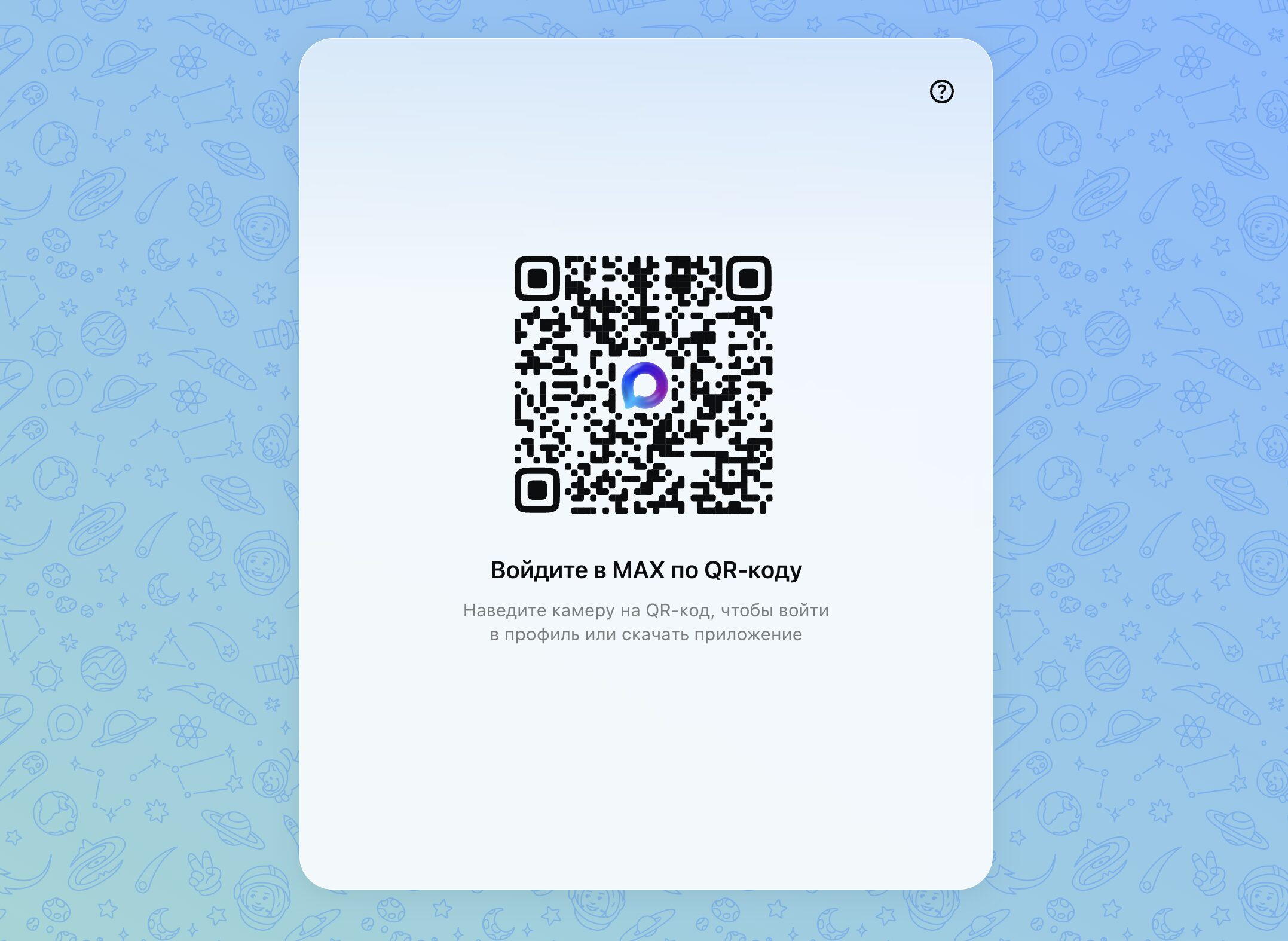
First, load the QR code. It’s dynamic and becomes invalid after some time
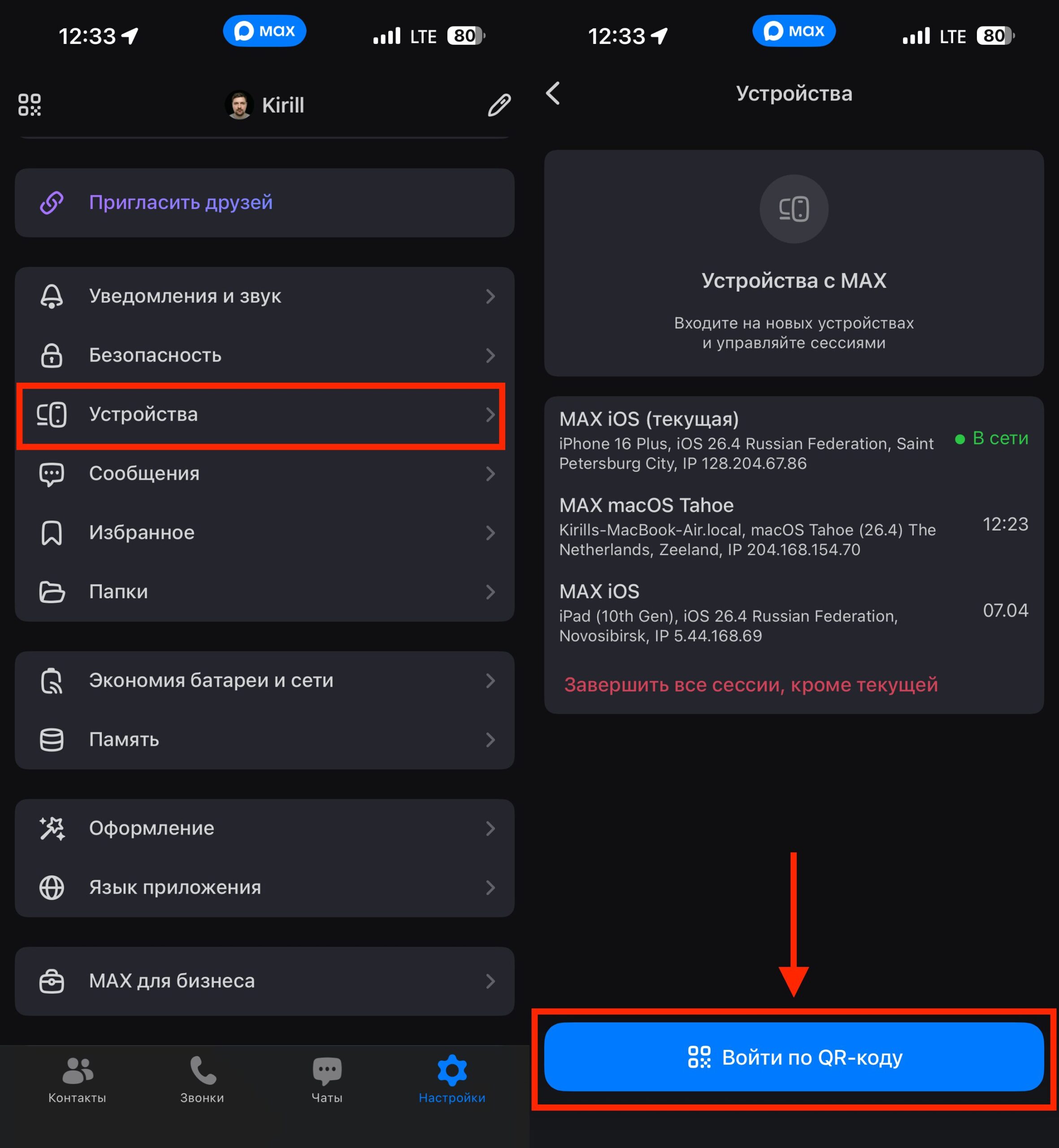
Scan the QR from here

After a successful login, you’ll see this message
Unfortunately, logging into the MAX web version by phone number is not possible. You must scan the QR code. So if it doesn’t work on the first try, be patient and try again.
What the MAX Web Version Can Do
Despite running in a browser, the web version is nearly on par with the mobile app in terms of functionality. Here’s what you get on your computer:
- Chats and groups — full messaging with support for text, emoji, stickers, and reactions. All your conversations sync with your phone in real time.
- Voice and video calls — work via WebRTC technology directly in the browser, without the need to install plugins or additional software. The browser will request access to your microphone and camera on the first call.
- Group calls — supports up to 20 participants with screen sharing capability. Convenient for work calls right from a browser tab.
- File sharing — you can send documents, photos, and videos up to 4 GB at a time. Files can be dragged and dropped directly into the chat window.
- Voice messages — recorded directly in the browser, just like in the mobile app.
- Chat folders — conversations can be grouped by category: work, personal, archived.
- Channels — you can subscribe to public channels and read them in the browser.
- Notifications — the browser shows push notifications for new messages if you allow them in site settings.
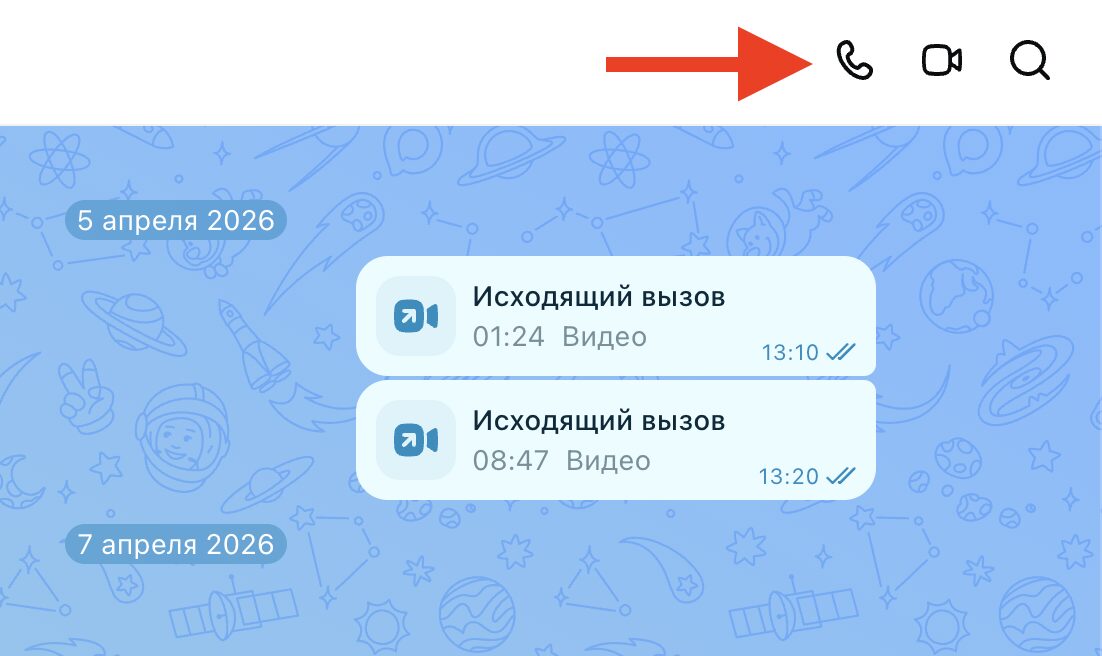
You can even make calls directly from the browser
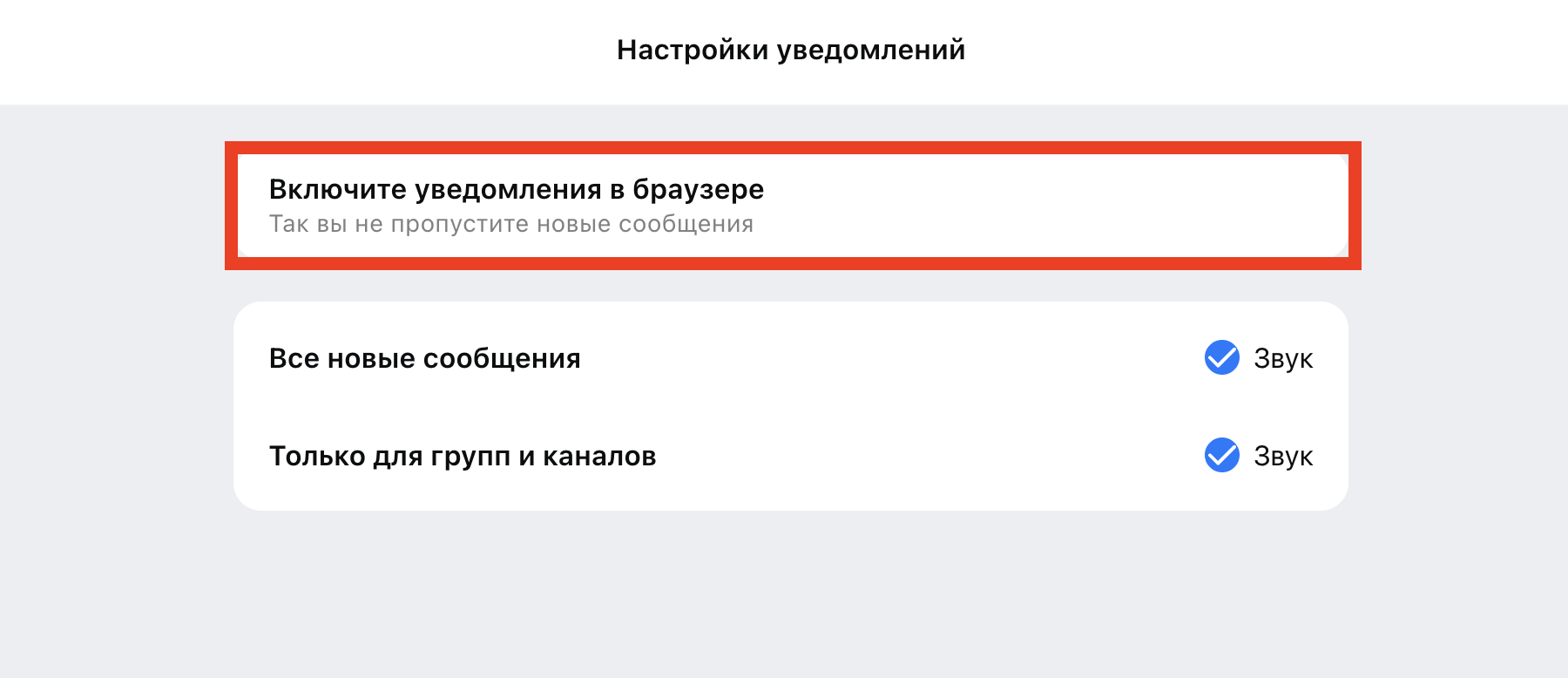
You can enable notifications, and they’ll come to your browser
Chats, calls, and messages sync across all your devices in real time. Write something from your computer — you’ll see it on your phone, and vice versa.
How the MAX Web Version Differs from the App
The web version still can’t fully replace the mobile app. Here are a few limitations to be aware of:
- Registering a new account is not available — only logging into an existing profile.
- Some advanced security features and identity verification only work in the main app.
- Payments via SBP (Fast Payment System), digital government services, and integration with “Goskluch” (State Key) are only available in the mobile version.
- On iPhone, the web version is officially not supported: when visiting web.max.ru from mobile Safari, you’ll be redirected to the App Store download page.
So the MAX web version is a convenient supplementary tool for working at a computer, not a full replacement for the mobile client. But for most everyday tasks — messaging, calls, file sharing — it’s more than enough.
How to Safely Use MAX on Someone Else’s Computer
Since MAX Web stores session data locally in the browser, it’s important to keep security in mind when working on other people’s computers. If you logged into your account on someone else’s laptop and forgot to log out, anyone with access to that browser can read your messages.
What to do in such a situation:
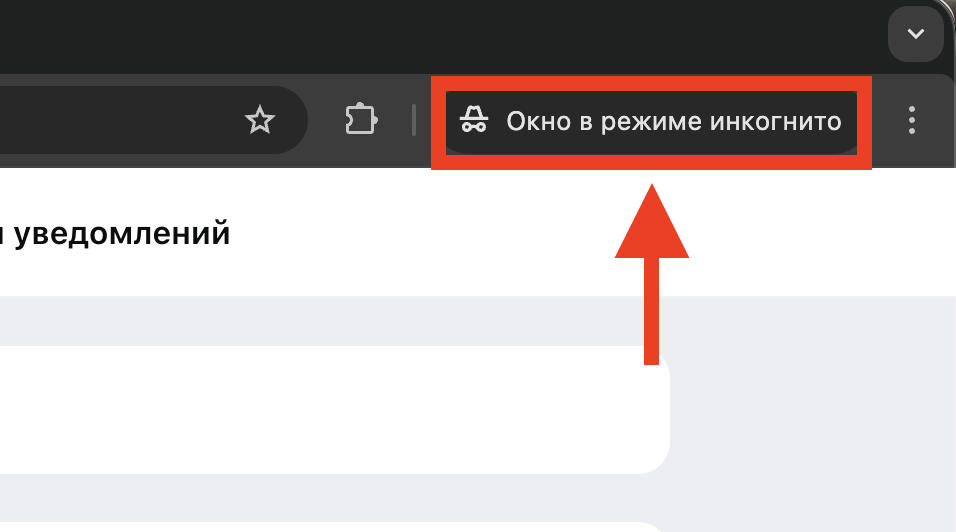
- Always use incognito mode when logging in from someone else’s device — session data will be automatically deleted after closing the window.