Apple has released macOS Tahoe 26.4.1. The update arrived on April 9 — just one day after iOS 26.4.1 for iPhone and iPad. It might seem like a routine patch with a couple of bug fixes. But it’s not that simple: inside lies an important fix for iCloud and a separate fix for owners of the newest MacBooks with M5 chips. Here’s what exactly has changed and whether you should update right now.
macOS 26.4.1 is available for installation to everyone
New Features in macOS 26.4.1
As is often the case with minor updates, Apple didn’t go into details. All new features remained in macOS 26.4 or are saved for future updates. The official wording is extremely concise: “This update contains bug fixes for your Mac.” That’s it. No list of specific bugs, no description of changes.
The company also mentioned a security information section. But if we go by the experience of iOS 26.4.1, which was released the day before — there are no new CVE entries in this update. In other words, Apple didn’t close any serious vulnerabilities this time.
This approach is standard for releases in the “X.X.1” format. The main version, macOS 26.4, was released on March 24 with new emoji, a charging limit, and compact tabs in Safari. Then a couple of weeks later, an update appears that cleans up bugs accumulated after the major update.
iCloud Sync and Wi-Fi Fix for MacBook with M5
The most important fix in macOS 26.4.1 is related to iCloud synchronization. In the previous version, macOS 26.4, a bug was discovered that caused data to stop syncing between devices. The issue affected both built-in Apple apps and third-party programs. In iOS 26.4.1, this bug has already been fixed, and there is every reason to believe that the same fix has come to Mac.

The most important fix is iCloud synchronization
If you noticed that notes, photos, or files in iCloud Drive weren’t updating on your Mac even though everything was already fine on your iPhone — the problem was most likely related to this.
Additionally, Apple updated its page with macOS changes. Another fix was found there: a problem was resolved that prevented MacBook Air with M5 and MacBook Pro with M5 Pro/M5 Max from connecting to 802.1X Wi-Fi networks when using content filtering extensions. The bug is specific — it’s primarily relevant for corporate networks. But for those who encountered it on their new MacBook, the update is critically important.
Interestingly, both fixes — in macOS 26.4.1 and iOS 26.4.1 — are aimed at corporate users, but are completely different. On iPhone, Apple enabled Stolen Device Protection for corporate devices, while on Mac — it fixed Wi-Fi. Each platform received its own set of fixes.
Should You Update to macOS 26.4.1?
In short — yes. Even if you haven’t noticed any issues with iCloud or Wi-Fi, the update weighs between 3 and 8 GB depending on your Mac model. Installation takes about 20 minutes.
For owners of MacBook Air with M5 and MacBook Pro with M5 Pro or M5 Max, the update is especially relevant. The problem with connecting to corporate Wi-Fi networks can appear at the most inconvenient moment — for example, when working in an office or coworking space.
For all other macOS Tahoe users — this is standard maintenance. Apple itself uses the wording “bug fixes” in the plural. This means that in addition to the two known fixes, there may be other stability improvements inside that the company simply didn’t mention.
And if you haven’t updated your iPhone and iPad yet, don’t forget to install iOS 26.4.1 and iPadOS 26.4.1 — they were released on April 8 and also contain important fixes.
How to Update Your Mac to macOS 26.4.1
The process is standard and takes just a couple of minutes (not counting download and restart):
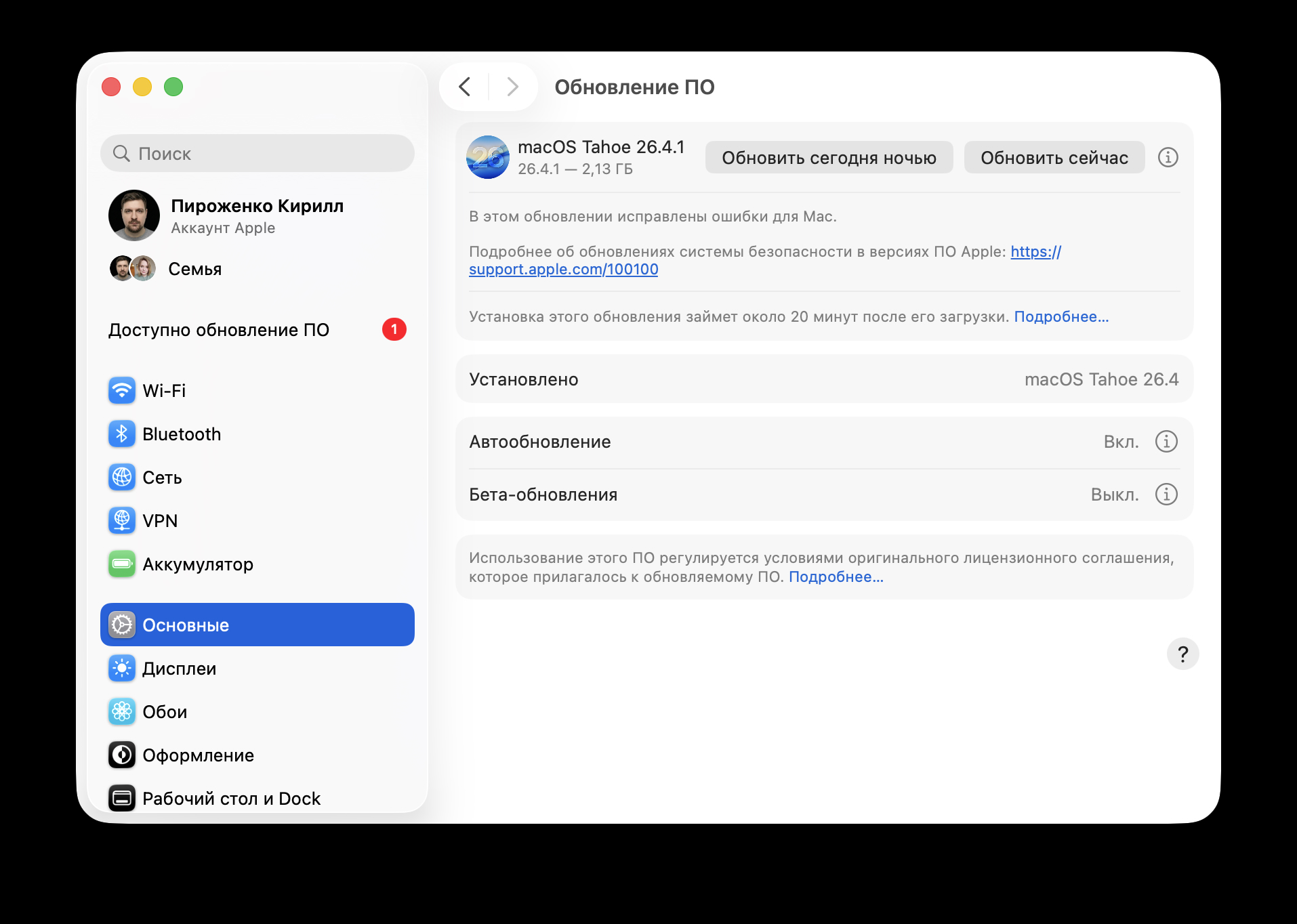
The update is already available in computer settings
- Open System Settings on your Mac
- Go to General — Software Update
- Click “Update Now” if the update is already showing
- Wait for the download and Mac restart
Before installing, it’s recommended to make a backup via Time Machine — just in case something goes wrong. This is especially relevant for those who use their Mac for work.