MacBook on Apple Silicon chips lasts a full day on battery, but even it runs out of charge at the worst possible moment. Good news: a few macOS settings can noticeably extend battery life — without third-party apps and without sacrificing convenience. Let’s figure out what you can do right now, and also — how to tell if it’s time to replace the battery.

MacBook Drains Fast — 5 Settings That Will Fix It. Image: cultofmac.com
Why MacBook Drains Fast
Battery drain is affected by two groups of factors: software and hardware. Software ones are straightforward: screen brightness, power-hungry apps, background processes. The screen is one of the most “hungry” components of a MacBook. The brighter it is, the faster the charge drains.
The hardware cause is battery wear itself. A new MacBook Air on chips from M1 to M5 is rated for approximately 18 hours of video playback, and the MacBook Pro on M4/M5 — up to 24 hours. But that’s under Apple’s ideal conditions: brightness at minimum, Wi-Fi on, keyboard backlight off. In real life, the numbers will be more modest — and that’s normal.
If your MacBook was purchased more than 3–4 years ago and now drains in a couple of hours, the issue is most likely not in settings but in battery wear. More on that at the end of the article.
How to Enable Low Power Mode on MacBook
macOS has a Low Power Mode — essentially the equivalent of “Low Power Mode” on iPhone. It slightly reduces screen brightness and processor frequency so the laptop lasts longer. For everyday tasks — email, browser, documents — you’ll hardly notice any difference in speed.
You can enable it in two ways:
- Click the battery icon in the menu bar (or open Control Center) and select Low Power Mode.
- Or go to System Settings → Battery and select “Only on Battery” next to “Low Power Mode” — then the mode will turn on automatically as soon as you unplug the charger.
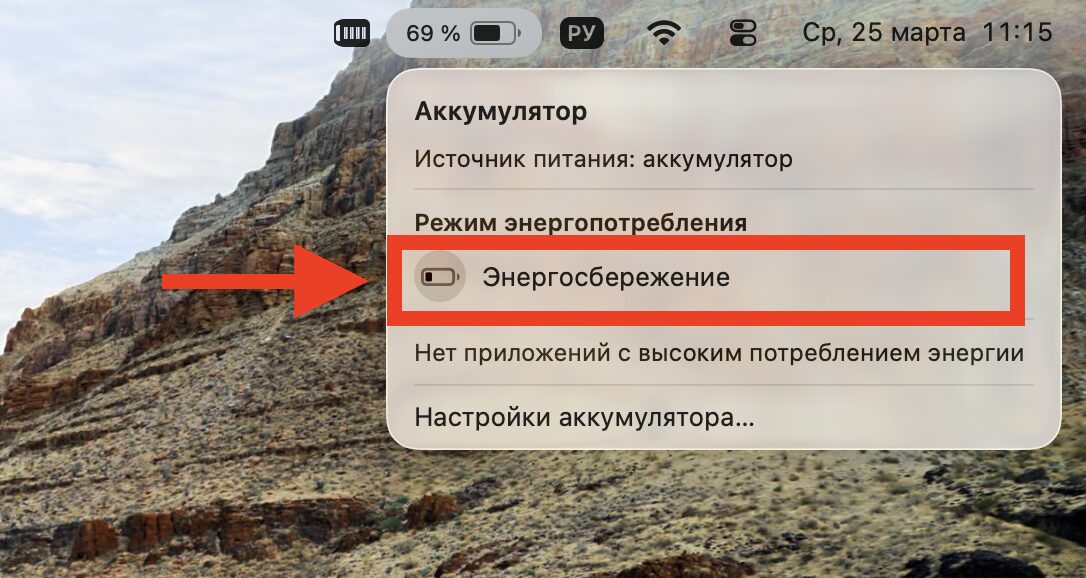
Low Power Mode is enabled with one button
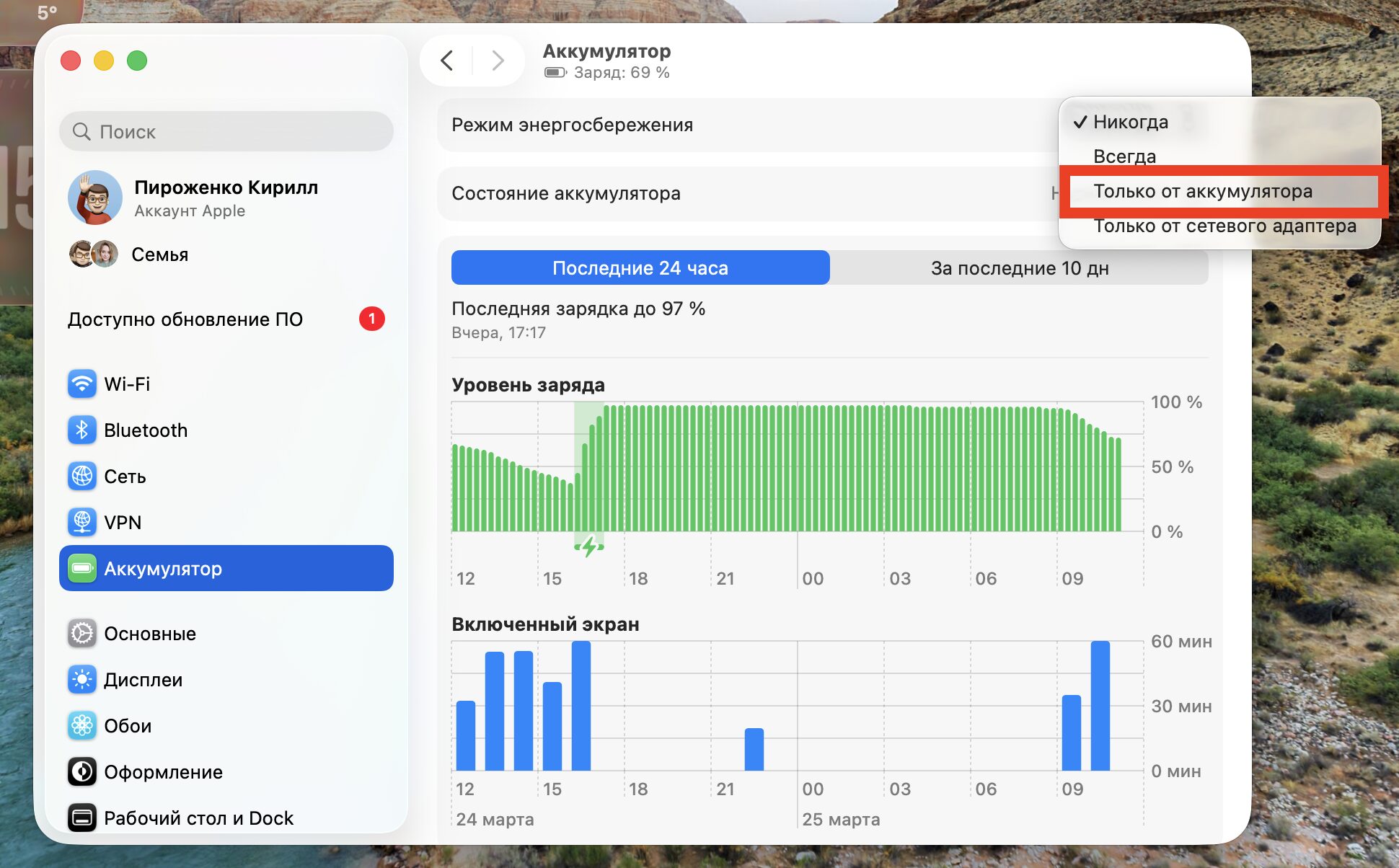
Through settings, Low Power Mode can be enabled automatically
The second option is the most convenient: you don’t need to remember about power saving each time — the system will switch on its own.
Which Apps Drain MacBook Battery the Most
Click the battery icon in the menu bar — and look at the “Using Significant Energy” section. If an app is listed there, it’s currently using more charge than the rest. Close it — and the battery will last longer.
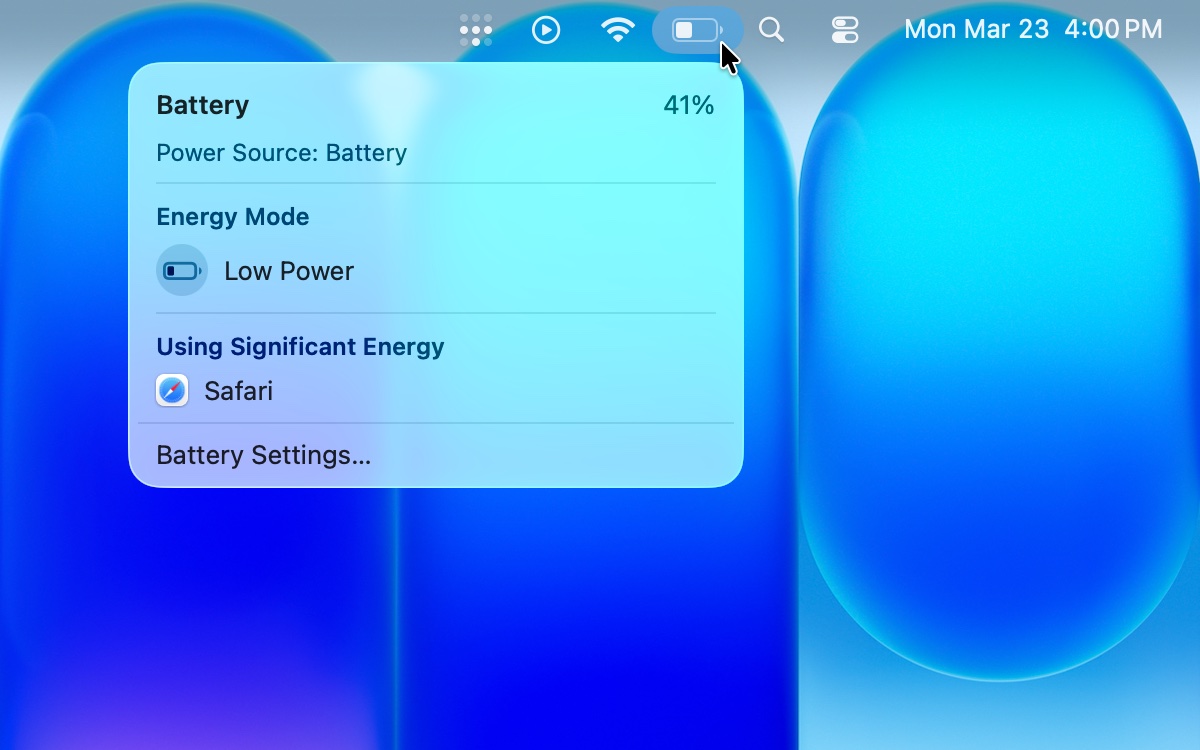
Some apps consume too much energy and Apple warns you about it. Image: cultofmac.com
But there’s a nuance. Don’t close everything indiscriminately — if you’re going to reopen a heavy app like Photoshop or Word a minute later, relaunching it will use more energy than if the program had just been sitting in the background. Built-in Apple apps — Messages, Notes, Calendar, Safari — use App Nap technology: when minimized, they practically don’t use any charge. Simple rule: close what you definitely won’t be using in the next hour.
Which Display and Brightness Settings Extend MacBook Battery Life
The screen is the main energy consumer in any laptop. Reducing brightness to a comfortable minimum is the simplest way to gain extra time. Use the F1 and F2 keys on the keyboard. If possible, move to a darker spot — so you can dim the screen even further.
Additionally, go to System Settings → Battery → Options… (button in the lower right corner) and make sure the following are enabled:
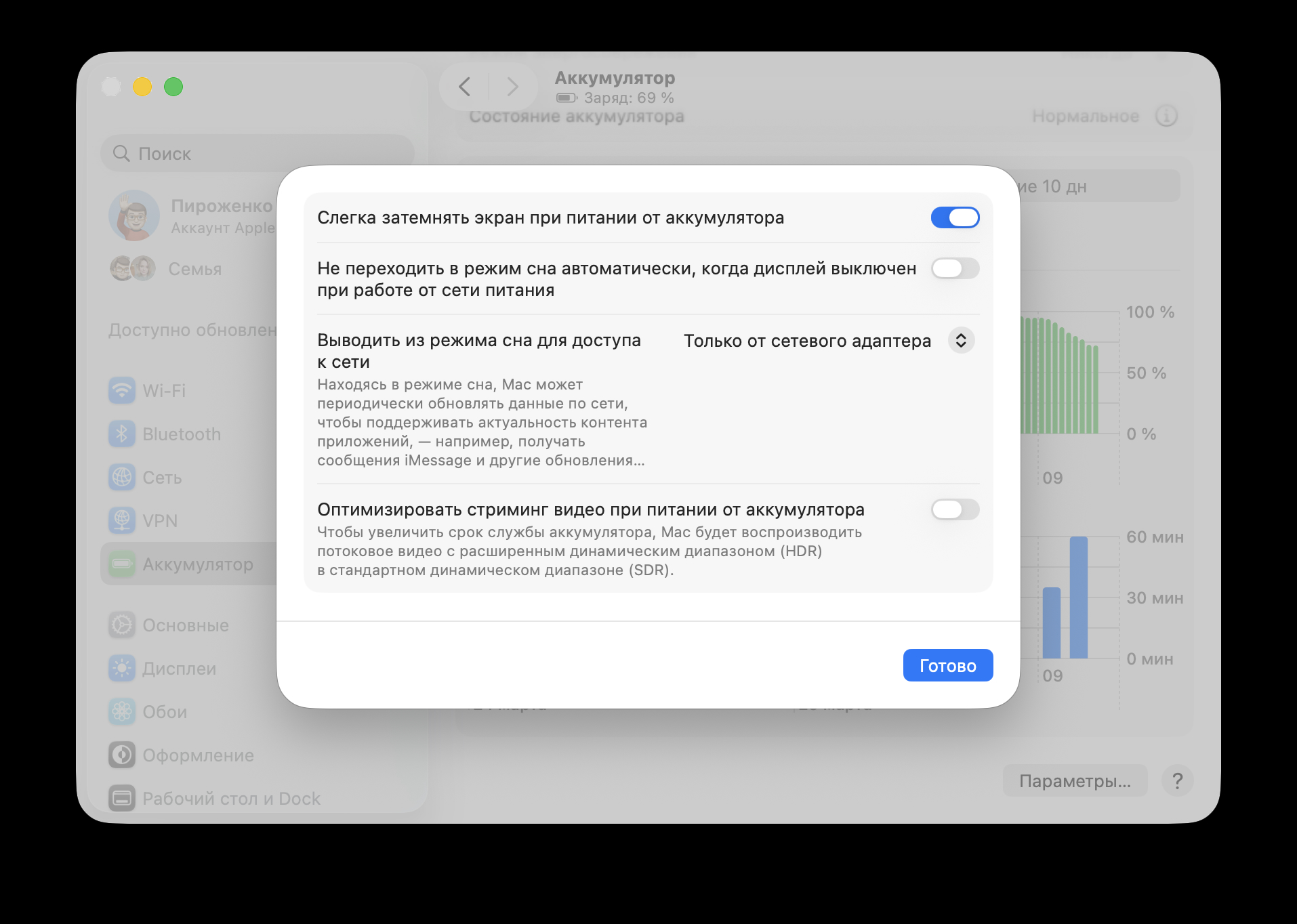
Don’t enable anything unnecessary here
- Slightly dim the display on battery
- Optimize video streaming while on battery
There it’s also useful to switch “Wake for network access” to “Only on Power Adapter”. This prevents the MacBook from waking up for background network tasks when on battery — saving charge during sleep mode.
How Optimized Battery Charging Works on MacBook
This feature doesn’t save charge right now — but it helps the battery stay healthy longer. macOS learns your routine: for example, when you usually unplug the laptop from the charger in the morning. If you plug your MacBook in at night, the system won’t charge it to 100% right away — instead, it will stop at 80% and top up the rest closer to morning.
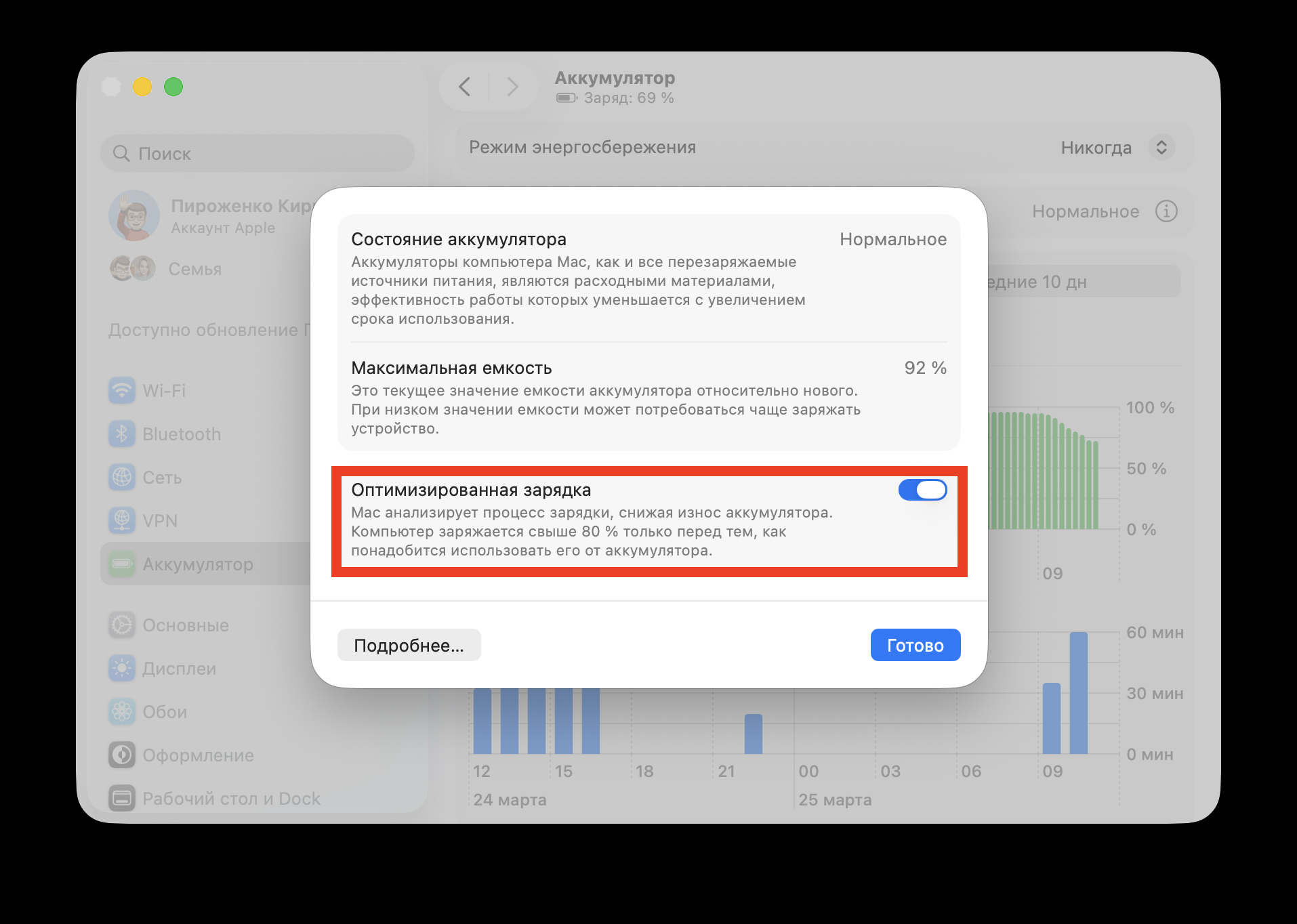
Optimized charging is enabled here
Why is this needed? Lithium-ion batteries age faster when kept at 100% for extended periods. Optimized charging reduces this wear. To make sure the feature is enabled, open System Settings → Battery, click the ⓘ button next to “Battery Health” and verify that “Optimized Battery Charging” is active.
How Long Should a MacBook Hold Its Charge — and When Is It Time to Replace the Battery
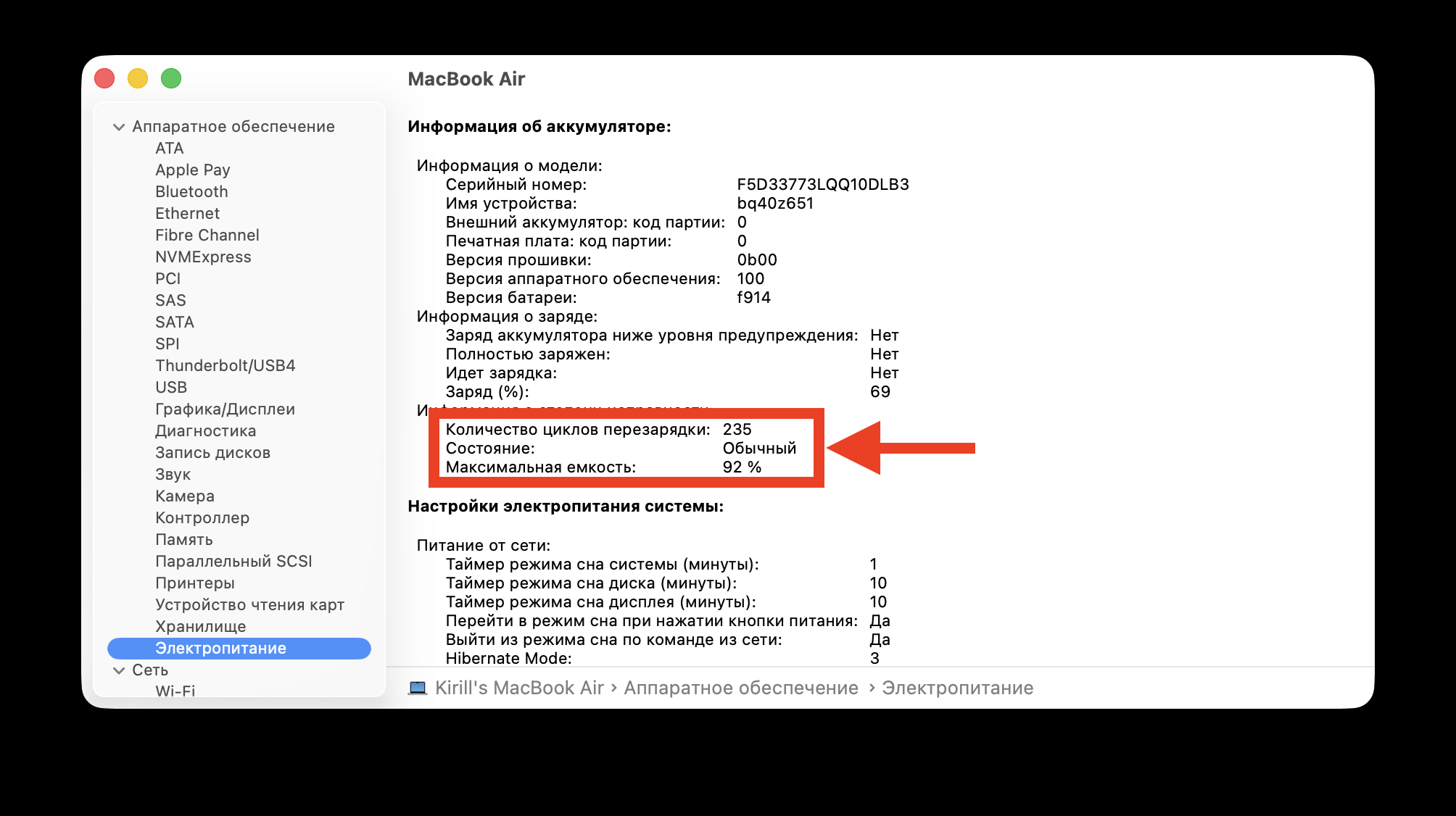
Apple rates the MacBook battery for 1,000 full charge-discharge cycles. After that, the battery should retain at least 80% of its original capacity. One cycle isn’t one charge — it’s a cumulative 100% discharge: if you used 60% today and 40% tomorrow, that’s one cycle.
In reality, with normal use, 1,000 cycles last about 3–5 years. If your MacBook has started draining noticeably faster — check the battery health: