A nasty bug has been found in macOS: if you don’t restart your Mac for approximately 49 days, it completely loses the ability to connect to the internet. The issue was discovered by the company Photon, and Apple is already working on a fix. But until a patch is available, you can protect yourself — literally in a minute. This is especially relevant for those who use their Mac for AI agents and never turn it off so they can keep running.

Critical vulnerability in macOS disables internet after 49 days: how to protect your Mac
Why Mac Loses Internet After 49 Days
The cause of the bug is a so-called integer overflow. Inside macOS, there is a special counter that tracks the lifetime of network connections. It counts seconds since the last reboot and has a maximum value of 4,294,967,295 seconds. That’s exactly 49.7 days.
When the counter reaches its limit, network connections freeze. As a result, the Mac cannot establish new internet connections. In simple terms, the computer “thinks” that connections are still active, when in reality they’re already dead — and everything stops.
In practice, this bug will affect those who never shut down or restart their Mac. If you simply close your MacBook lid or leave your iMac in sleep mode for weeks and months — you’re at risk.
Which Macs Are Affected by the Internet Loss
The bug is relevant for all Macs running macOS, although the source doesn’t specify which exact versions of the system are affected. Photon, the company that discovered the vulnerability, has already notified Apple, and Apple is working on a fix.
The issue primarily affects:

Used to just closing your MacBook lid? You’ll also encounter the network glitch
- Those who keep their Mac running for weeks without rebooting — for example, using it as a media server or workstation
- Owners of desktop Macs (iMac, Mac mini, Mac Studio, Mac Pro) who rarely shut down their computer
- MacBook users who go months simply closing the lid instead of restarting
If you restart your Mac at least once a month, you will most likely never encounter this bug.
What to Do If Your Mac Lost Internet
The solution is extremely simple — restart your Mac weekly. When you restart, the counter resets, and the problem doesn’t occur.

Simply restart through this menu, and the problem will be solved
If you don’t want to remember to do this, you can set up automatic Mac shutdown on a schedule. On computers with Apple processors, this is done through Terminal:
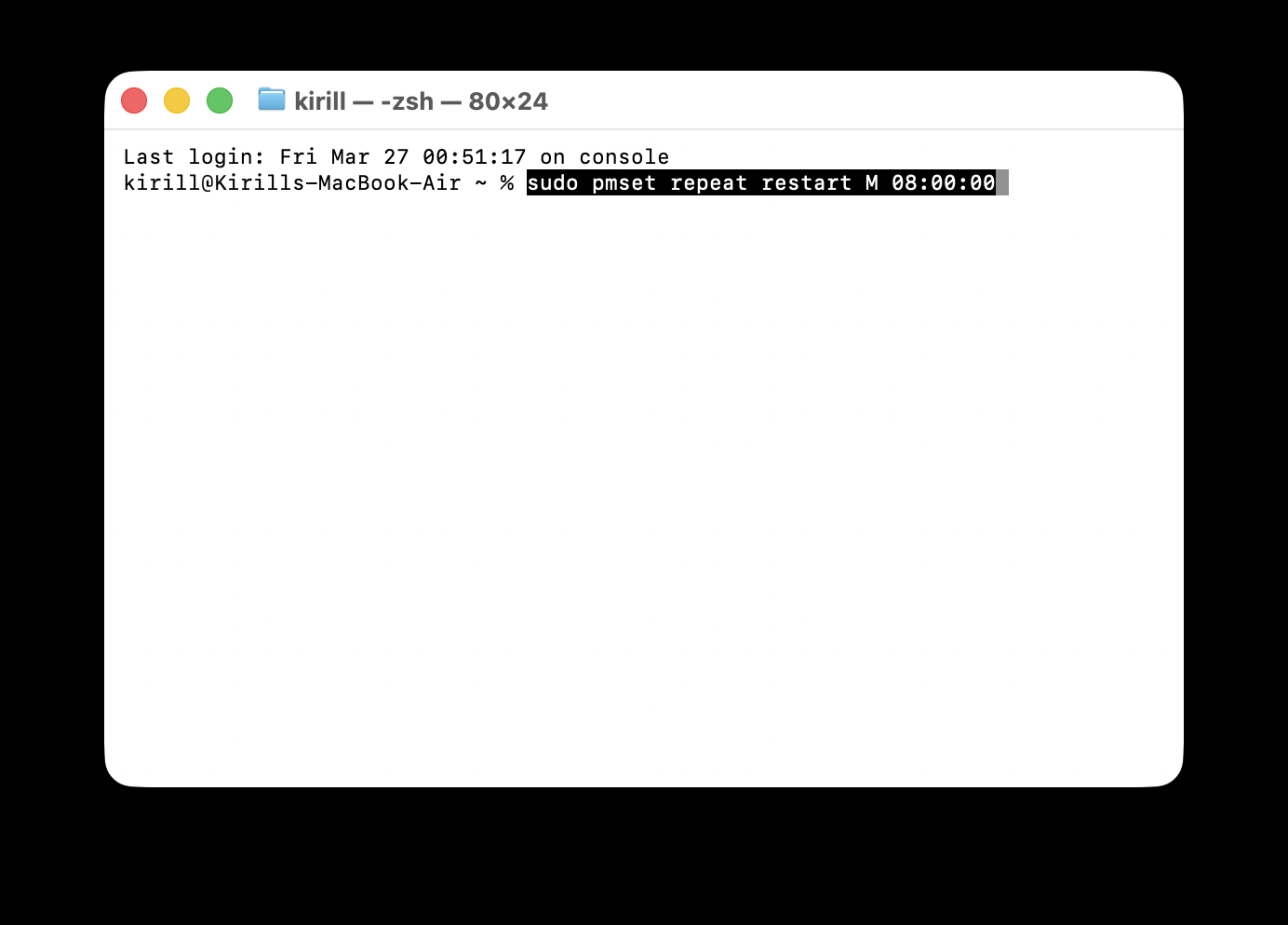
Or set up a scheduled Mac restart
- Open Terminal on your computer
- Enter the command sudo pmset repeat restart, choose a day of the week: M — Monday, T — Tuesday, W — Wednesday, R — Thursday, F — Friday, S — Saturday, U — Sunday, and specify the time. For example: sudo pmset repeat restart M 08:00:00 — the computer will restart every Monday at 8 AM
- Press Enter
This is enough to ensure the counter never reaches the critical 49-day mark.
When Will the macOS Update with the Fix Be Released
There’s no exact timeline yet. The source reports that Apple is developing a patch, but hasn’t named a release date for the update. Most likely, the fix will be included in one of the upcoming macOS updates.

Hopefully the bug will be fixed in one of the upcoming updates
You definitely don’t need to take your Mac to a service center for this — the problem is purely software-based and is resolved with a restart. If your Mac has already lost internet and you suspect this bug is the cause, simply restart your computer. The connection will be restored immediately after startup.
Overall, this story is a good reminder that a Mac, like any computer, should be restarted regularly. Not as a ritual, but for the sake of stable system performance. If you already do this at least once every couple of weeks — there’s nothing to worry about. If not — it’s time to build the habit or set up a schedule.