Honestly, I’ve always been a bit skeptical about Windows tablets. For too long, they were a compromise between “I want something like an iPad” and “I need a full-fledged system.” And they themselves were neither a tablet nor a laptop, but something in between. But with the arrival of Intel Core Ultra processors, the situation has changed. The Ninkear S13 came to me right on this wave: a 2-in-1 transformer tablet with a 13-inch 2.5K screen, Intel Core Ultra 5 115U, 16 GB of RAM, and a terabyte SSD. Plus a keyboard and stylus included. It sounds like a ready-made workstation for just over 70,000 rubles, but is that really the case in practice? Let’s find out.
Take it to work, on vacation, or just lounge on the couch watching a show.
Ninkear S13 — What’s in the Box. Transformer Tablet Bundle
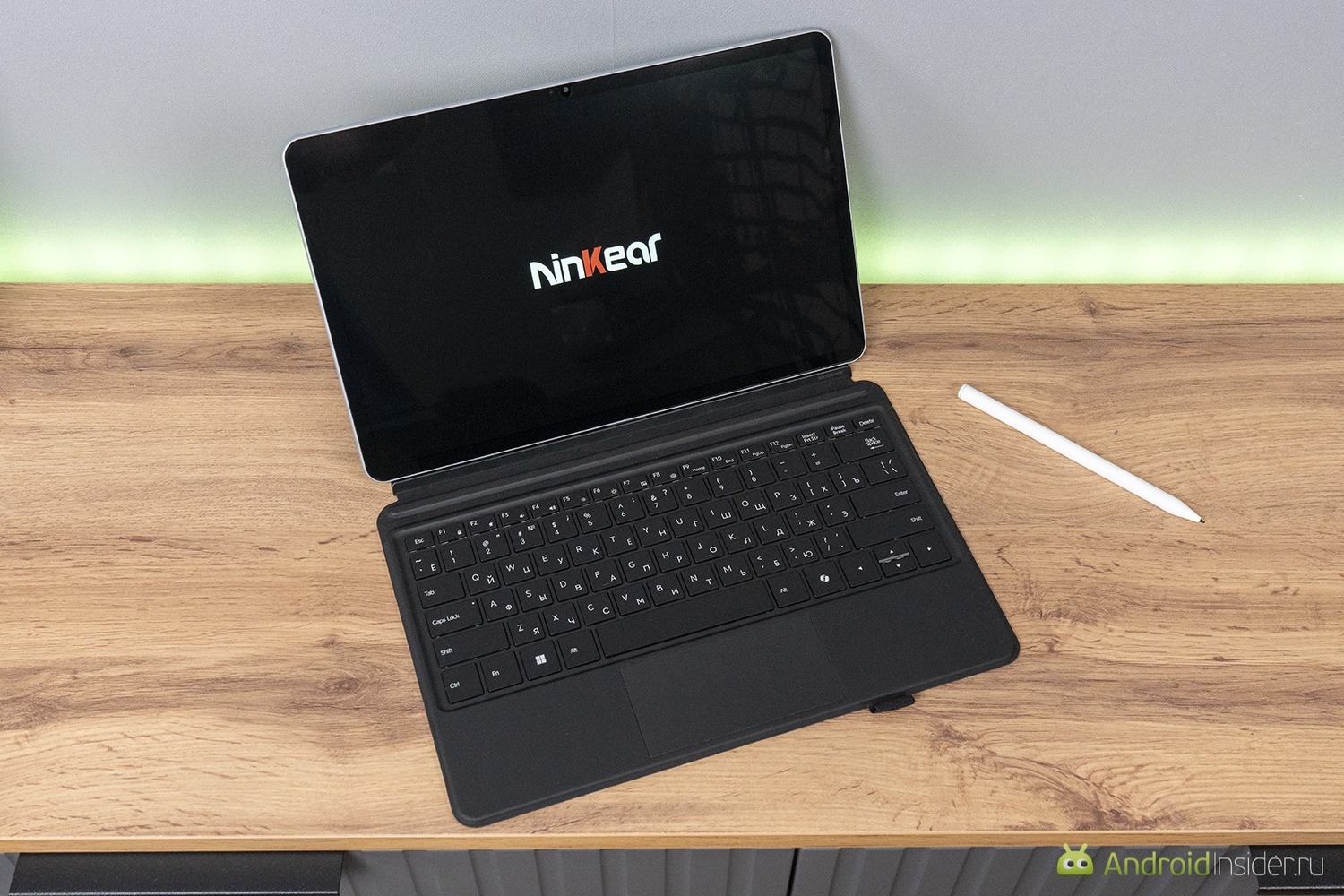
Ninkear deserves immediate praise for the bundle. The box contains the tablet itself, a magnetic backlit keyboard with QWERTY layout, a stylus with 4096 pressure levels, a compact 65W GaN adapter with a USB-C cable, and a manual. Honestly, with Chinese brands you often expect to have to buy the stylus separately, but here it’s in the box. A pleasant breath of fresh air. The charger, by the way, is tiny — you can toss it in your backpack pocket and forget about it.
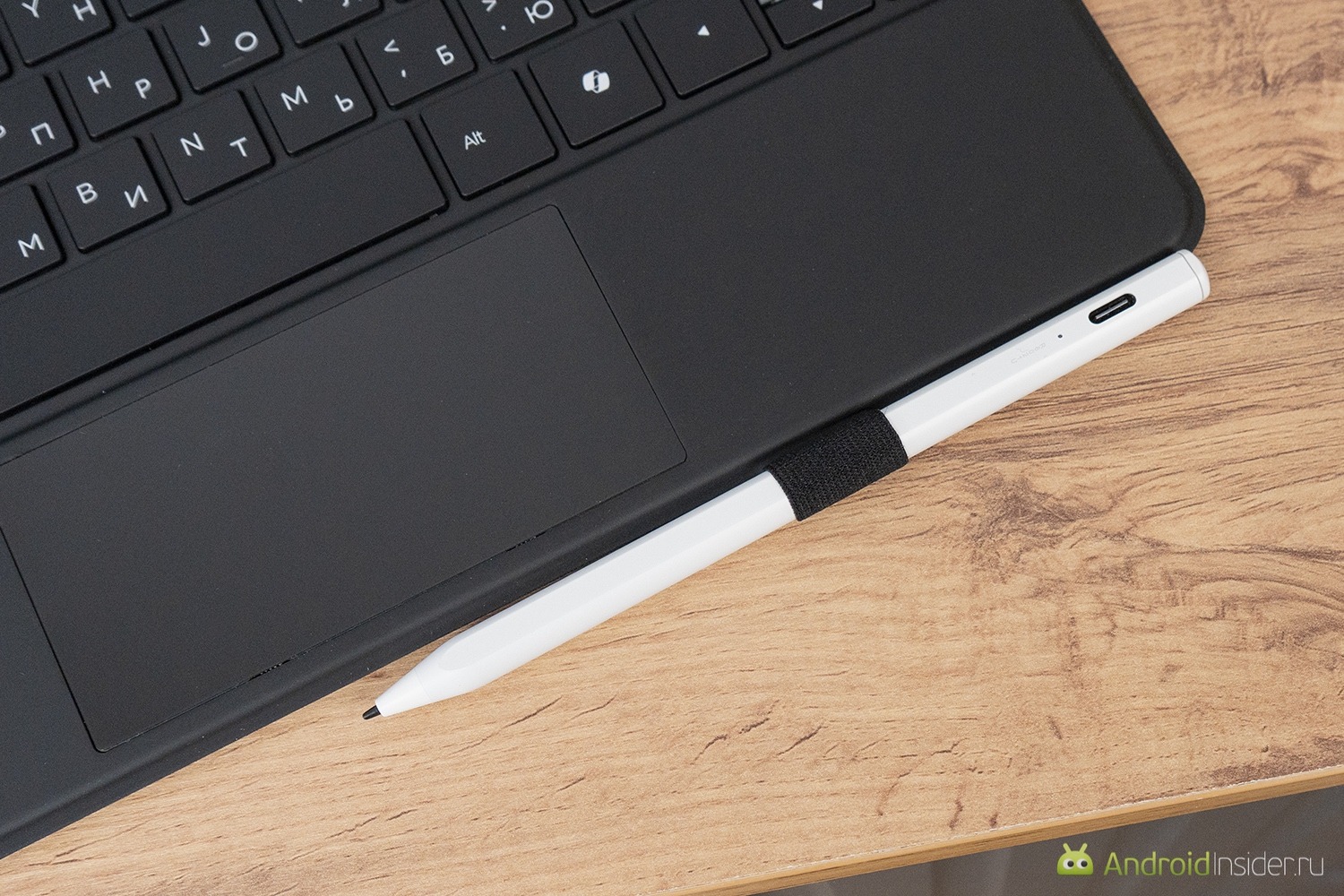
The stylus can be attached to a special loop on the keyboard case. There’s no magnetic attachment on the body.
A Windows Tablet with Laptop Functionality. Impressions of the Ninkear S13
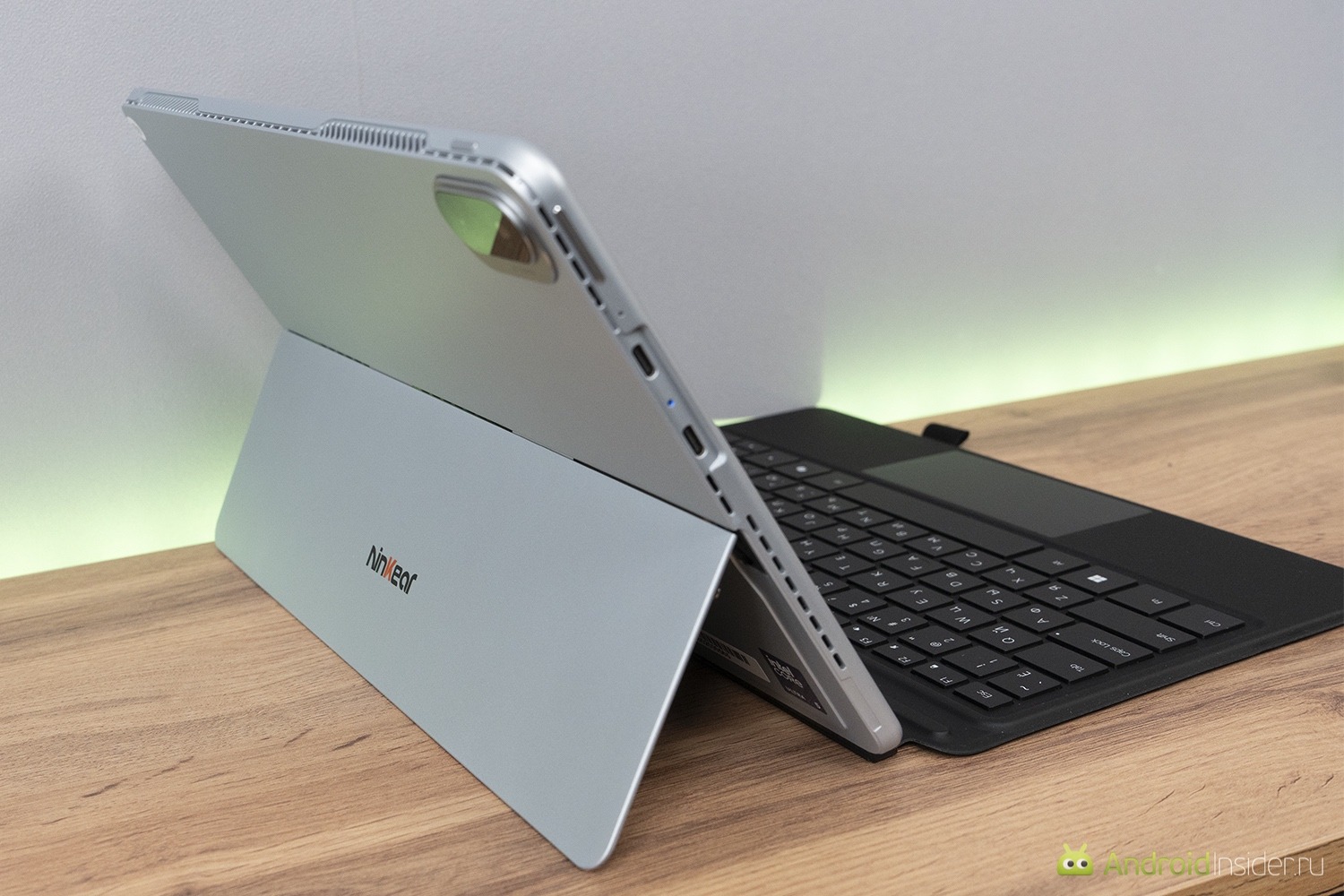
When you pick up the Ninkear S13, the first thing you notice is the weight. 850 grams for a 13-inch device is noticeable — your hand immediately understands it’s holding a full-fledged computer. But context matters. This is a tablet, not a laptop. For a tablet, the weight is normal, and next to any 13-inch laptop, the S13 will seem like a feather. The body is made from a magnesium-aluminum alloy: cold, smooth, monolithic. The thickness is more than a classic tablet, but at only 9.89 mm, for a device with active cooling, that’s actually not that much. In a backpack, it’ll take up more space than a tablet but less than a laptop. So let’s give it a plus.
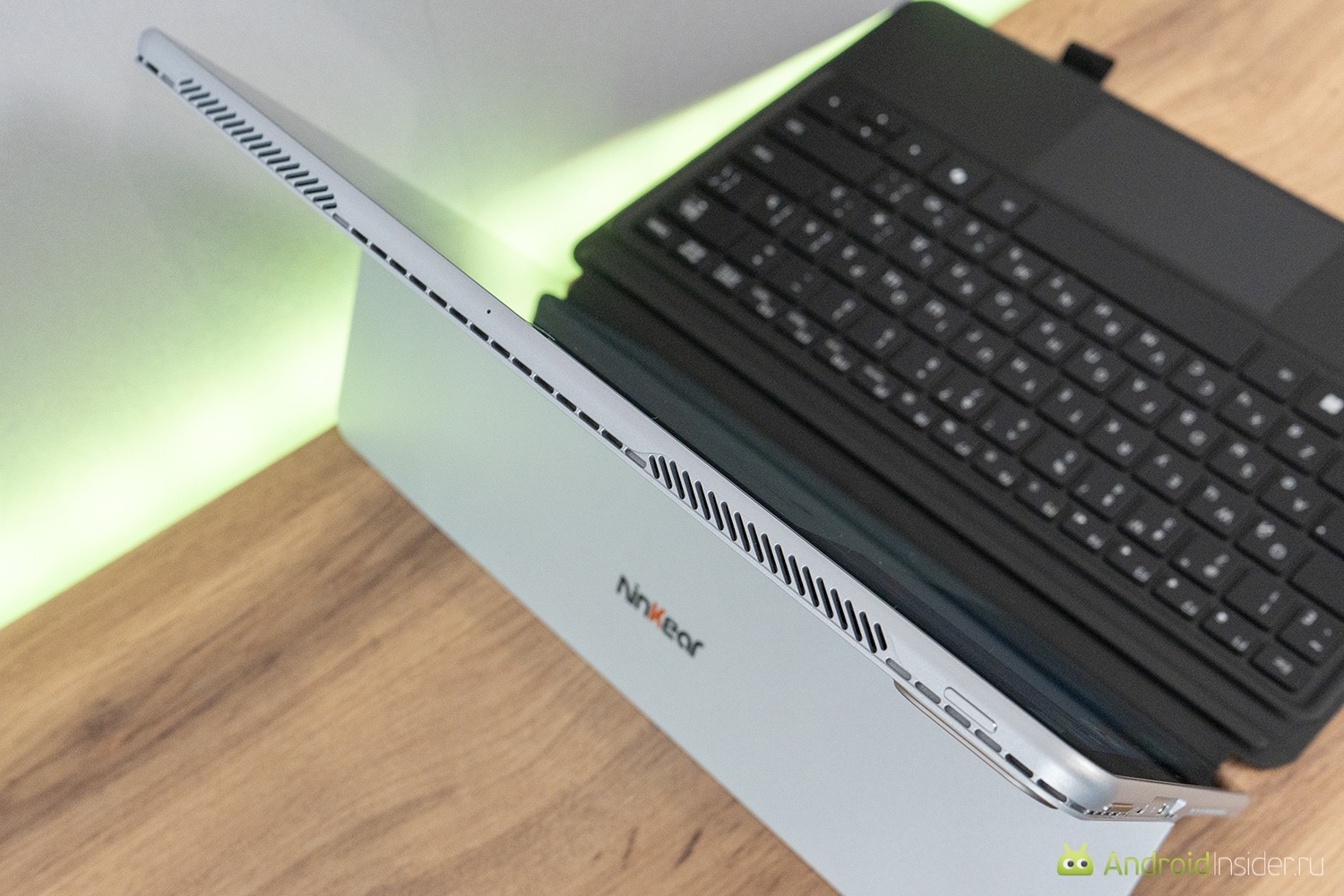
Ventilation grille on the top of the body, but there are similar ones on all sides.
Docking with the keyboard is a separate adventure. The magnets are strong and hold firmly, which is good. But at first, properly placing the tablet on the keyboard is a real quest. You need to align the connector with the POGO contact grooves, but the magnets pull the body in before you’ve aimed precisely. As a result, the special pins don’t always slot into the corresponding part of the tablet. But after 10-15 times, you start hitting the mark confidently and without errors. As they say, you miss a couple of times, then you get used to it. But the first few minutes can be puzzling.
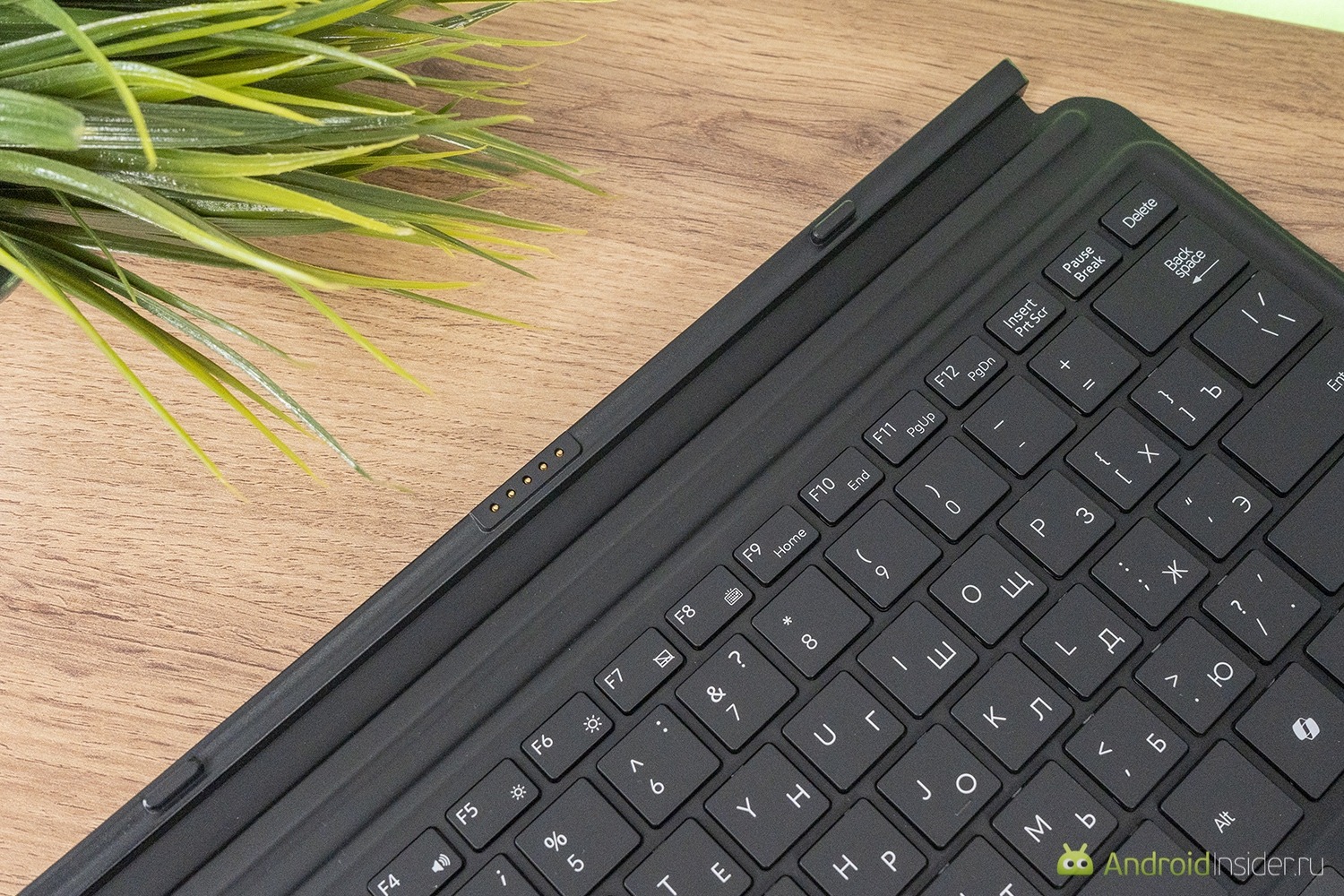
The keyboard’s contact pad for connecting to the tablet.
On the back, there’s a kickstand that opens up to 155 degrees, convenient for both typing and drawing. On the left side, there are two USB-C 3.2 Gen1 ports, both fully functional — charging, data, and video output via DisplayPort. On the right, there’s one USB-A 3.2 Gen1. The port selection is sufficient for basic tasks, but all the connectors are positioned quite high. Connected cables stick out roughly at the middle of the screen, which isn’t very convenient in laptop mode.
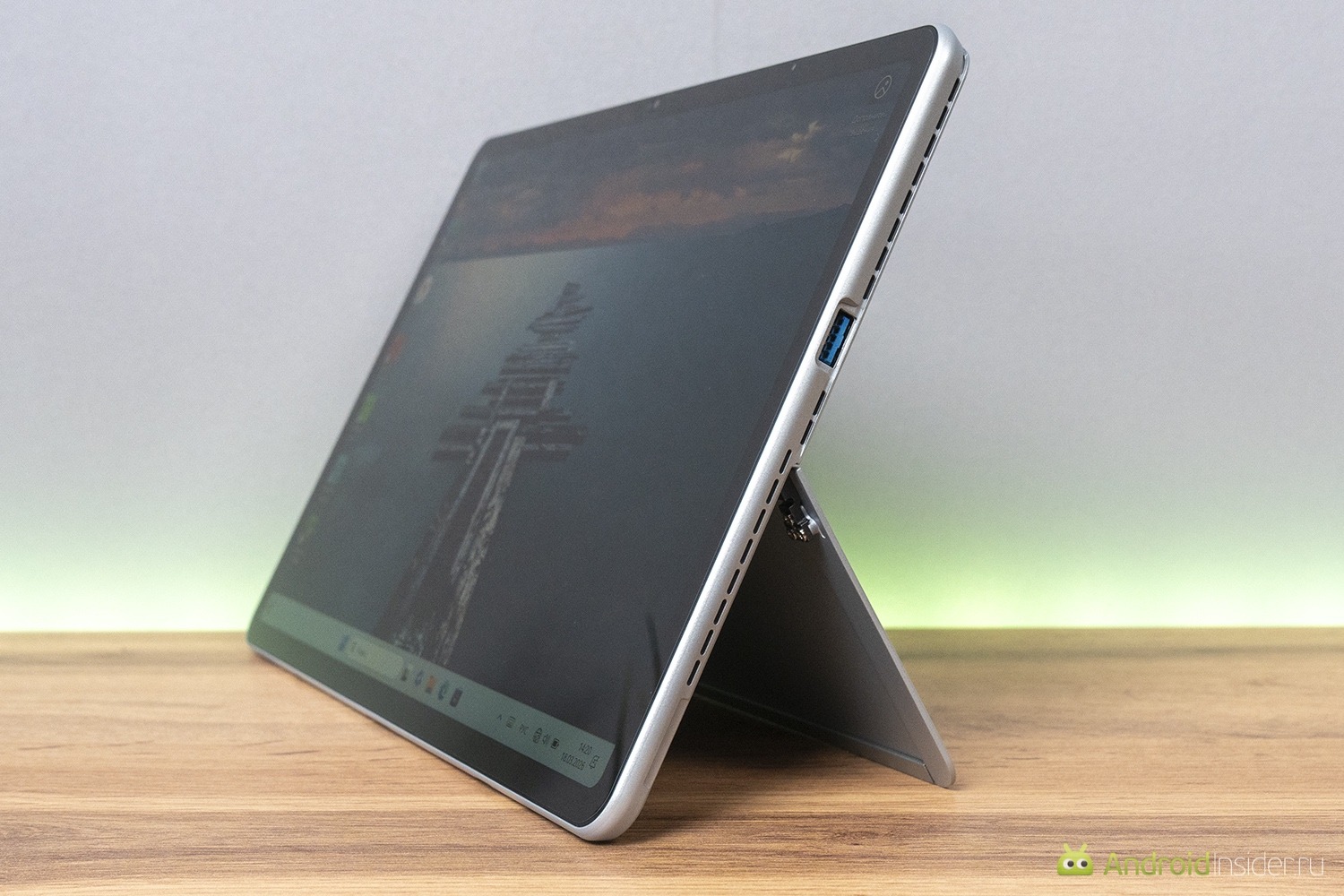
The tablet can stand on its own thanks to the built-in kickstand.
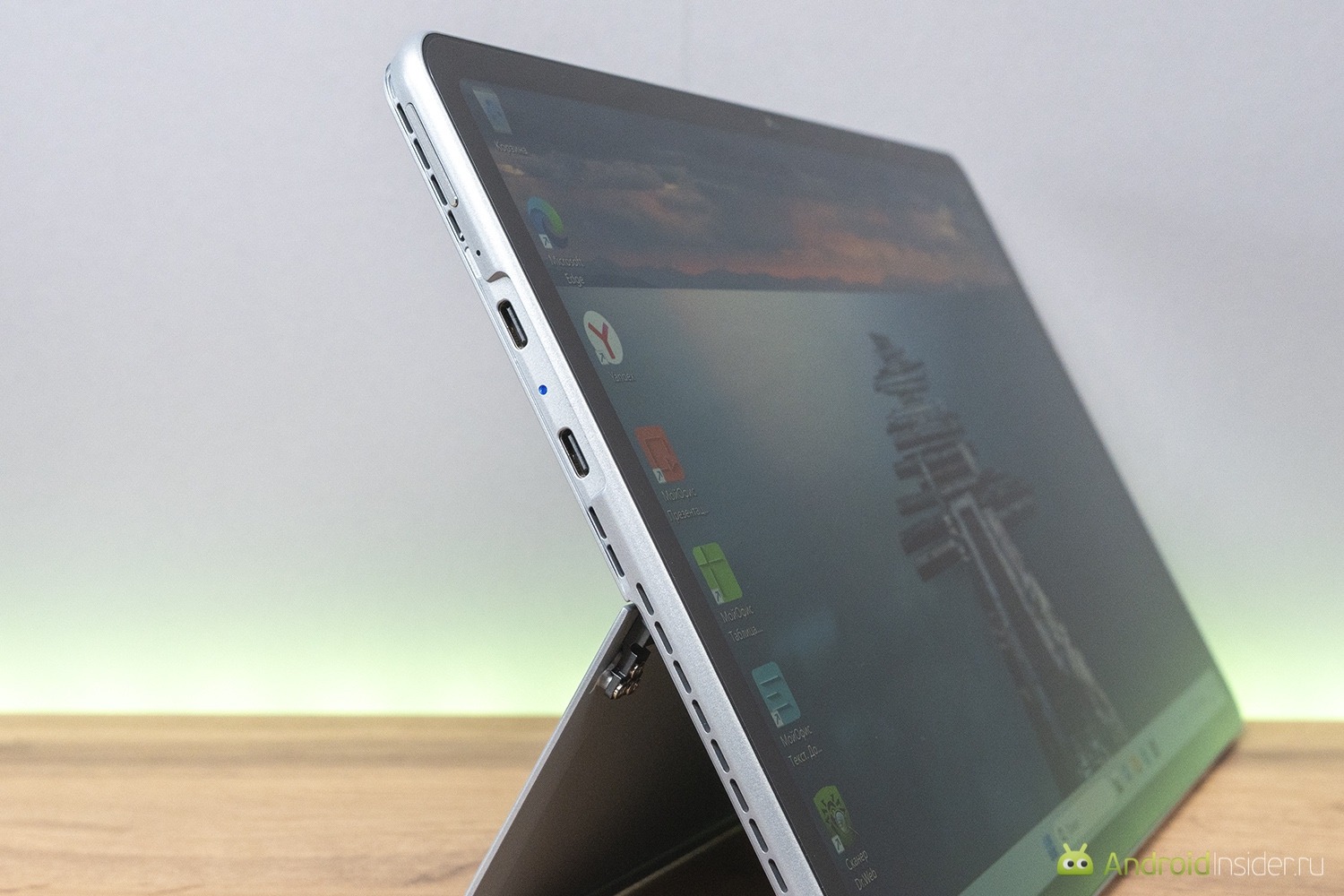
Ports on the left side.
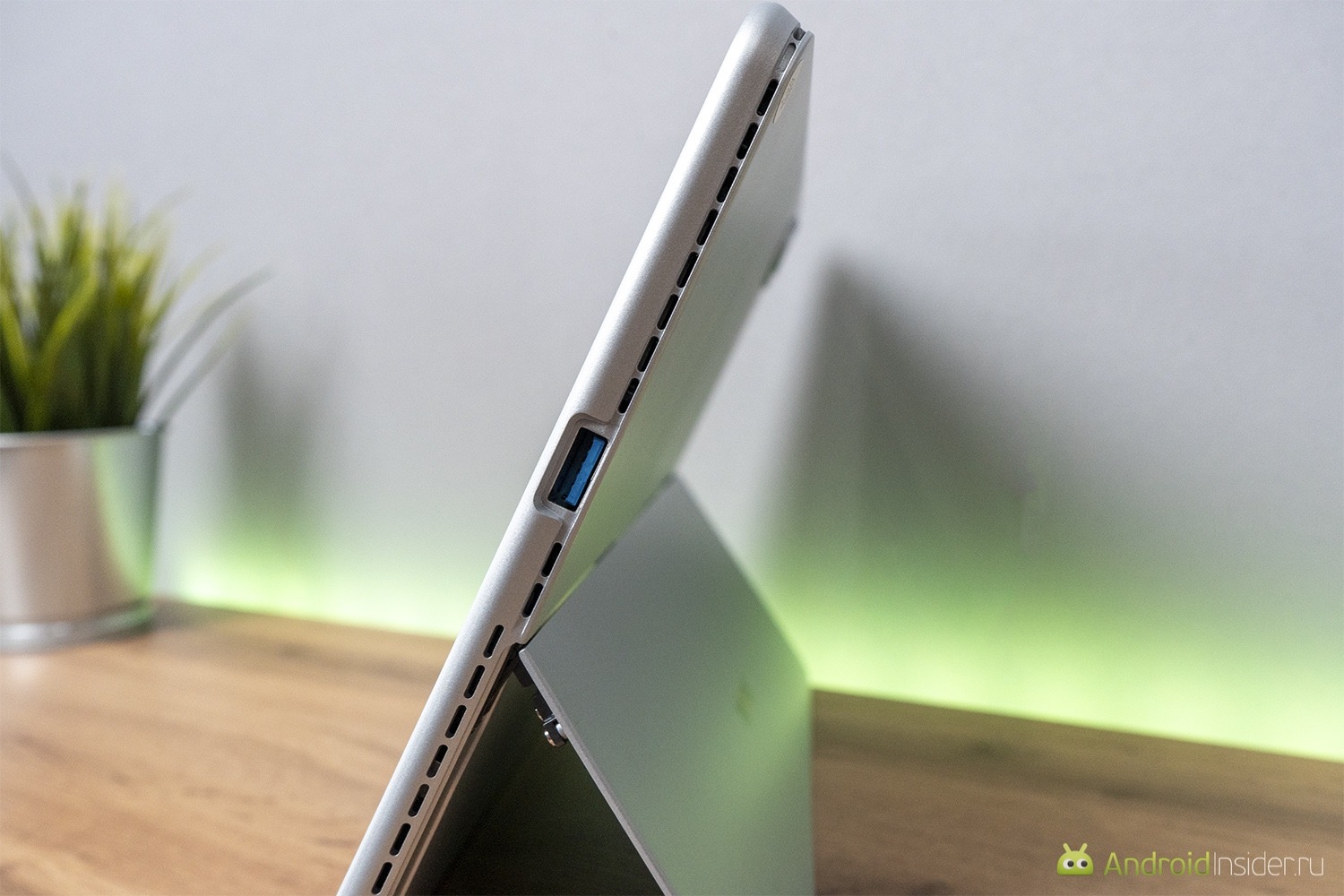
Port on the right side.
What Kind of Screen Does an Average Laptop Have
The screen is arguably one of the main reasons to consider the S13. It features a 13-inch IPS panel with a resolution of 2560 × 1600 pixels in a 16:10 aspect ratio. That’s about 4.1 million pixels, and the density is sufficient for text to look smooth even at 150% scaling. The color gamut is 100% sRGB, and it looks that way to the eye. Colors are vibrant but without the acid-like oversaturation of cheap AMOLEDs. It’s enough for photos, social media content, or layout work. Brightness is 350 nits — sufficient indoors, but already struggling in sunlight.
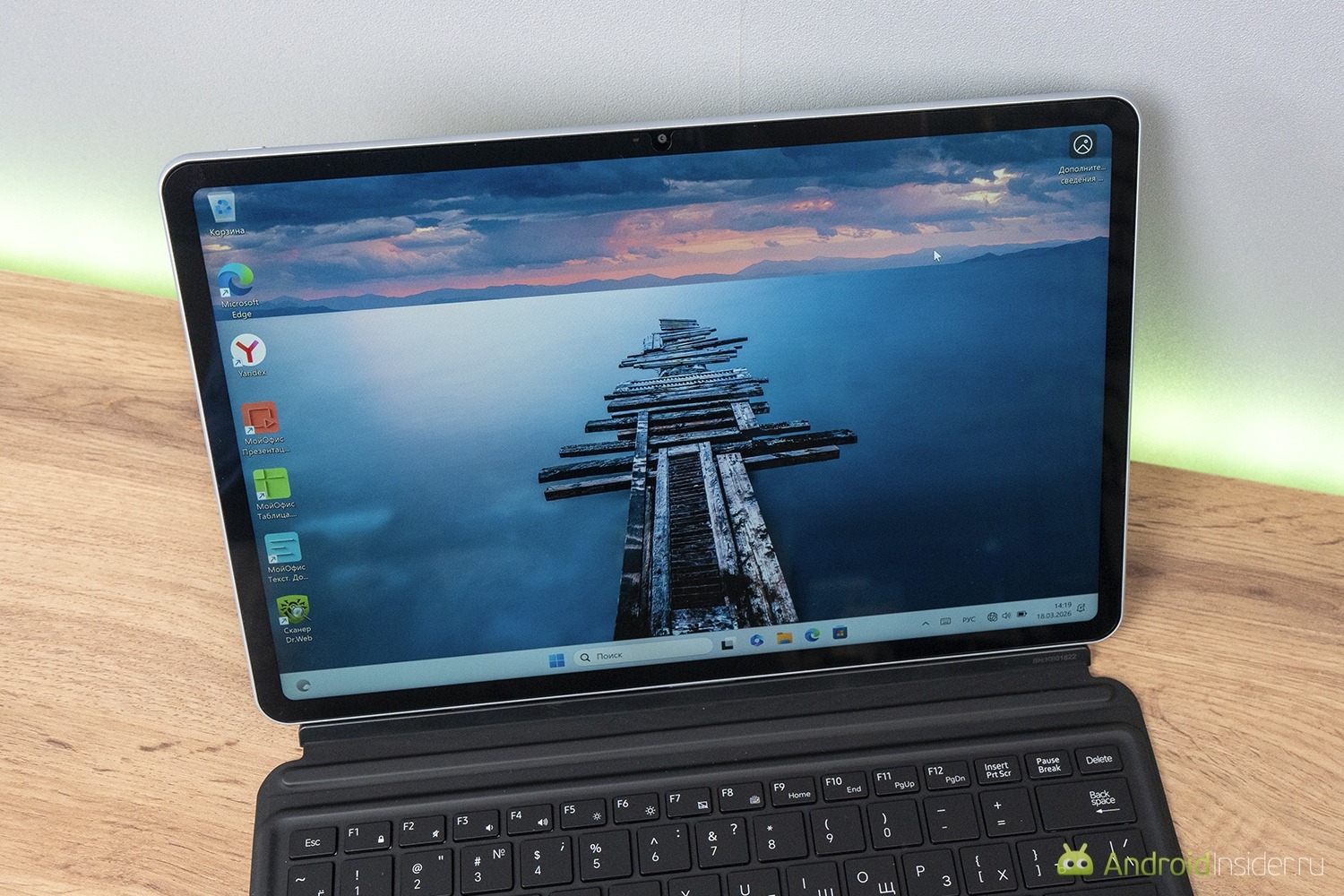
The screen is good but could be brighter. However, it’s sufficient for its class.
The touch is 10-point, the stylus is responsive, and latency is minimal. For notes in OneNote or quick sketches — it’s perfect. But the screen is glossy. Yes, it looks impressive, and contrast appears visually higher. However, in a well-lit room, you’ll see not only your desktop but also your own reflection. A stronger anti-glare coating wouldn’t hurt, although in this segment, glossy is more the rule.
The refresh rate is a standard 60 Hz. It’s enough for work, but after 120 Hz on a smartphone, you’ll notice the difference when scrolling. Then again, expecting 120 Hz from a device like this wouldn’t be reasonable either. Tablets and laptops at this price point rarely boast such an option. And here you get both a tablet and a laptop. Well, you get the idea.
Camera in a Windows Tablet. Why It’s There and What It Can Do
There are two 5 MP cameras here, front and rear. I’ll be honest — cameras aren’t the reason you buy a Windows tablet. The front camera handles video calls in Zoom and Teams. The image is clear in good lighting, autofocus and microphone are in place. It’s more than enough for work conferences.
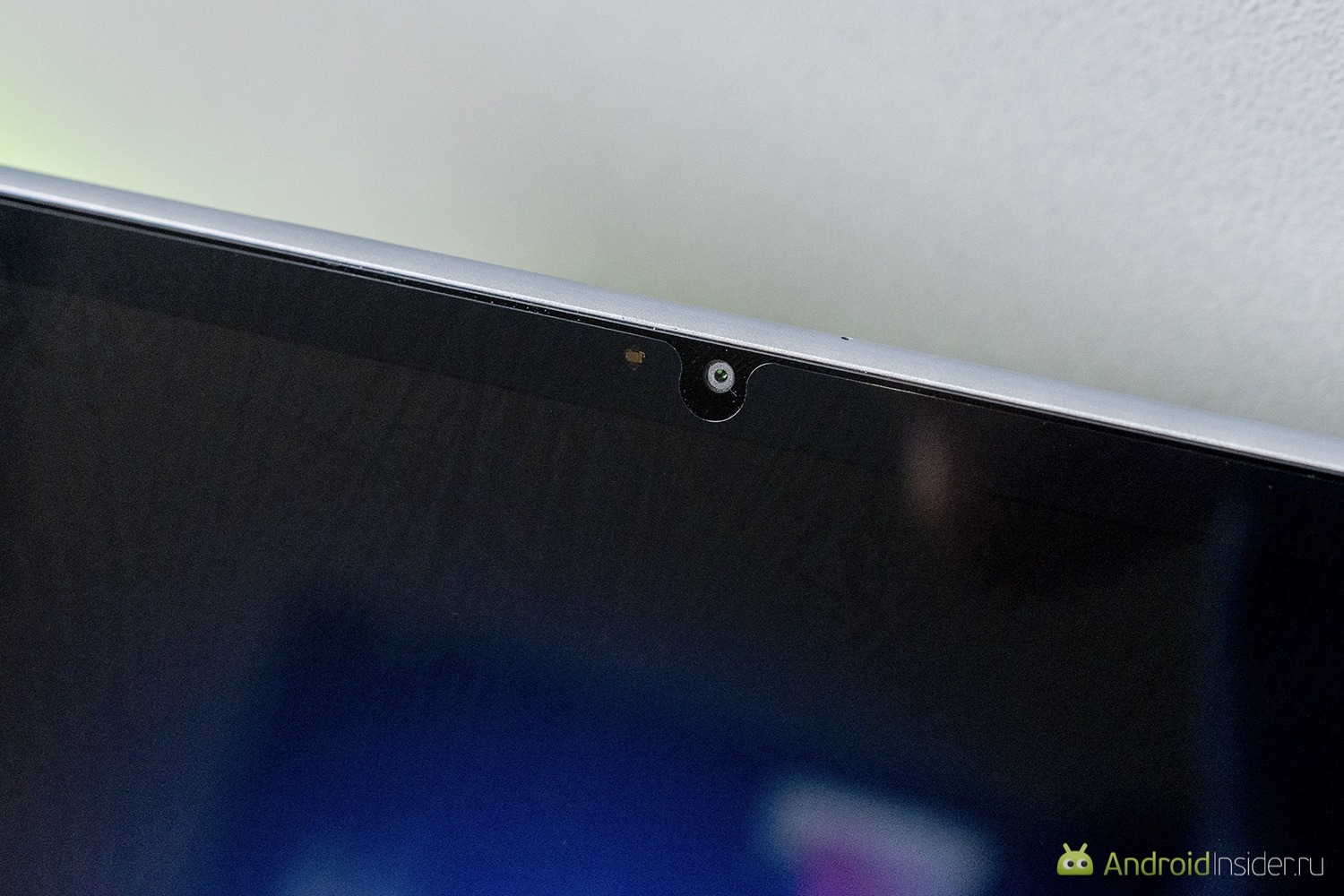
The front camera is positioned on the long side.
The rear camera is more for scanning documents and QR codes. You’re still better off photographing sunsets with a smartphone. I’ve always said that even in expensive tablets, the rear camera exists more just for the sake of having one. In any tablet, the camera will be worse than in a smartphone costing roughly half its price. Even among flagships costing 100,000+ rubles, this rule holds true. And it’s confirmed here as well.