Many iPhone owners have already gotten used to the Liquid Glass design that Apple introduced in iOS 26. Some people love it, while others find it overly “shiny.” Some even try to disable Liquid Glass on iPhone as much as possible. Fortunately, most of it can be turned off. And now Apple is once again meeting the discontented halfway: the fourth beta of iOS 26.4 has introduced a new Reduce Bright Effects setting that allows you to disable the bright glare that appears when interacting with interface elements.
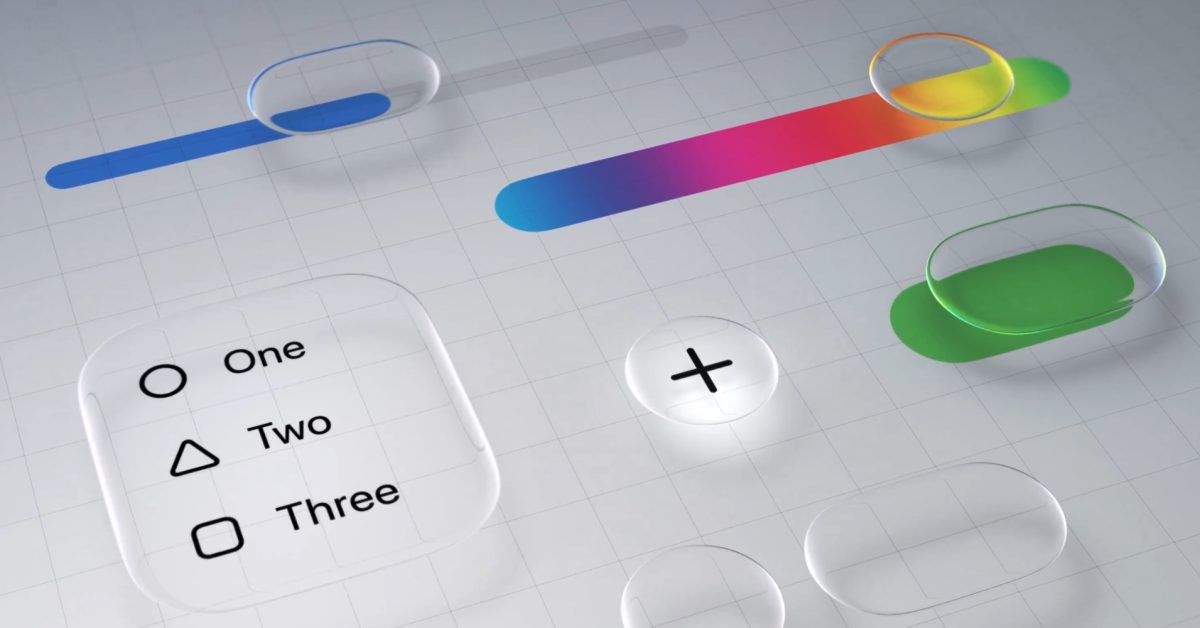
The new iOS 26.4 setting disables the Liquid Glass effect — here’s how to use it
What Is Liquid Glass on iPhone
Liquid Glass became the main visual change in iOS 26. Semi-transparent, “glass-like” interface elements with characteristic glare and light reflections completely transformed the look of the iPhone. It looks impressive, but not everyone liked it.
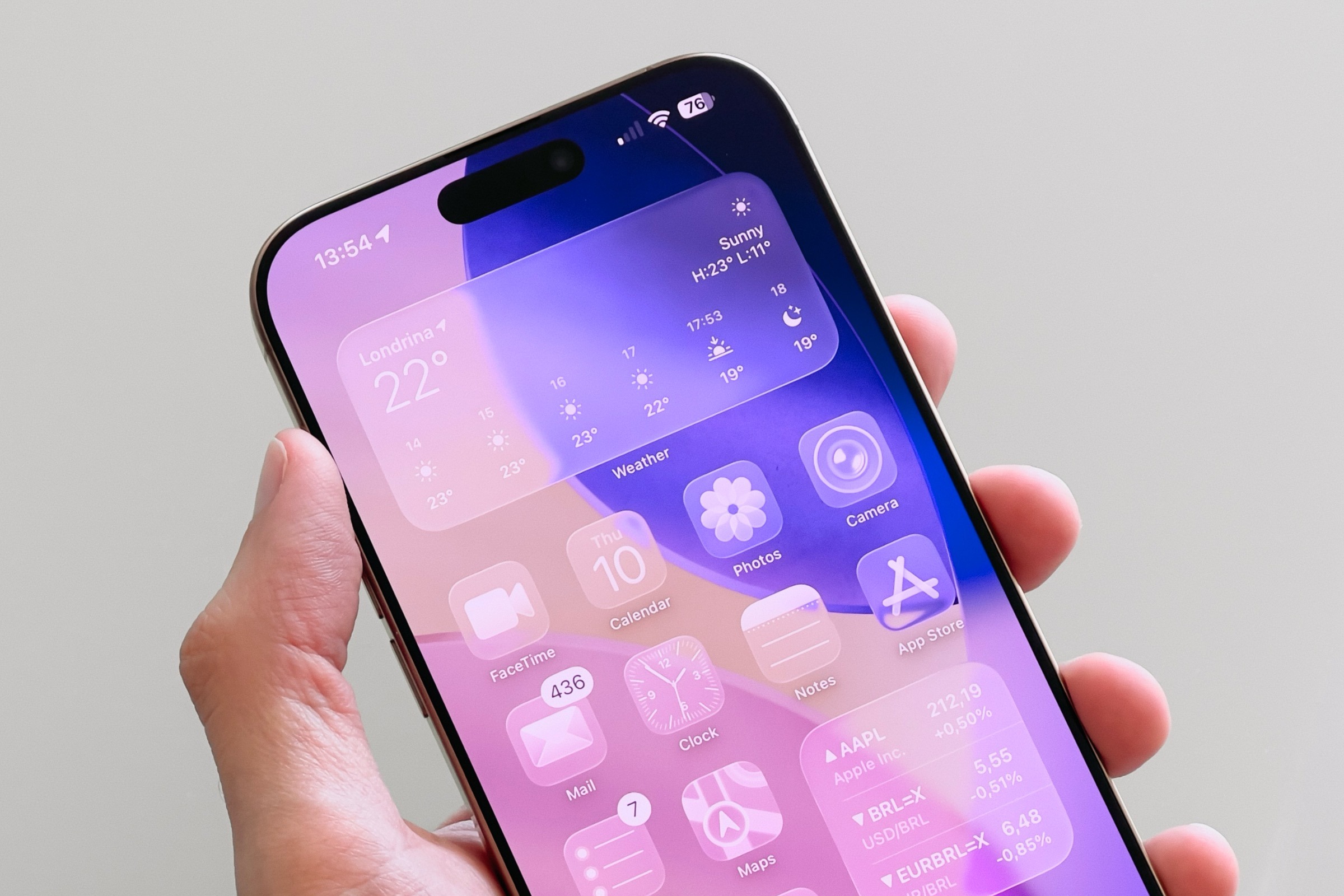
Liquid Glass turned out to be a controversial addition. Image: macworld.com
The thing is, when you tap on certain Liquid Glass interface elements, they respond with bright flashes of light. For some, it’s just an annoying detail, but for people with sensitivity to bright visual effects, these flashes can be a real problem.
Apple had previously given users the ability to tone down Liquid Glass. Back in iOS 26.1, a option appeared in the “Display & Brightness” settings to switch from the transparent design to a more subdued Tinted mode, which stylistically resembled the previous iOS 18. This single setting significantly brought the iPhone’s appearance closer to its former design. But the bright flashes when interacting with the interface still remained.
How Reduce Bright Effects Works in iOS 26.4
The new Reduce Bright Effects option appeared in the fourth beta of iOS 26.4 and does exactly what the name promises. It removes those bright glares and flashes that occur when touching certain Liquid Glass interface elements.
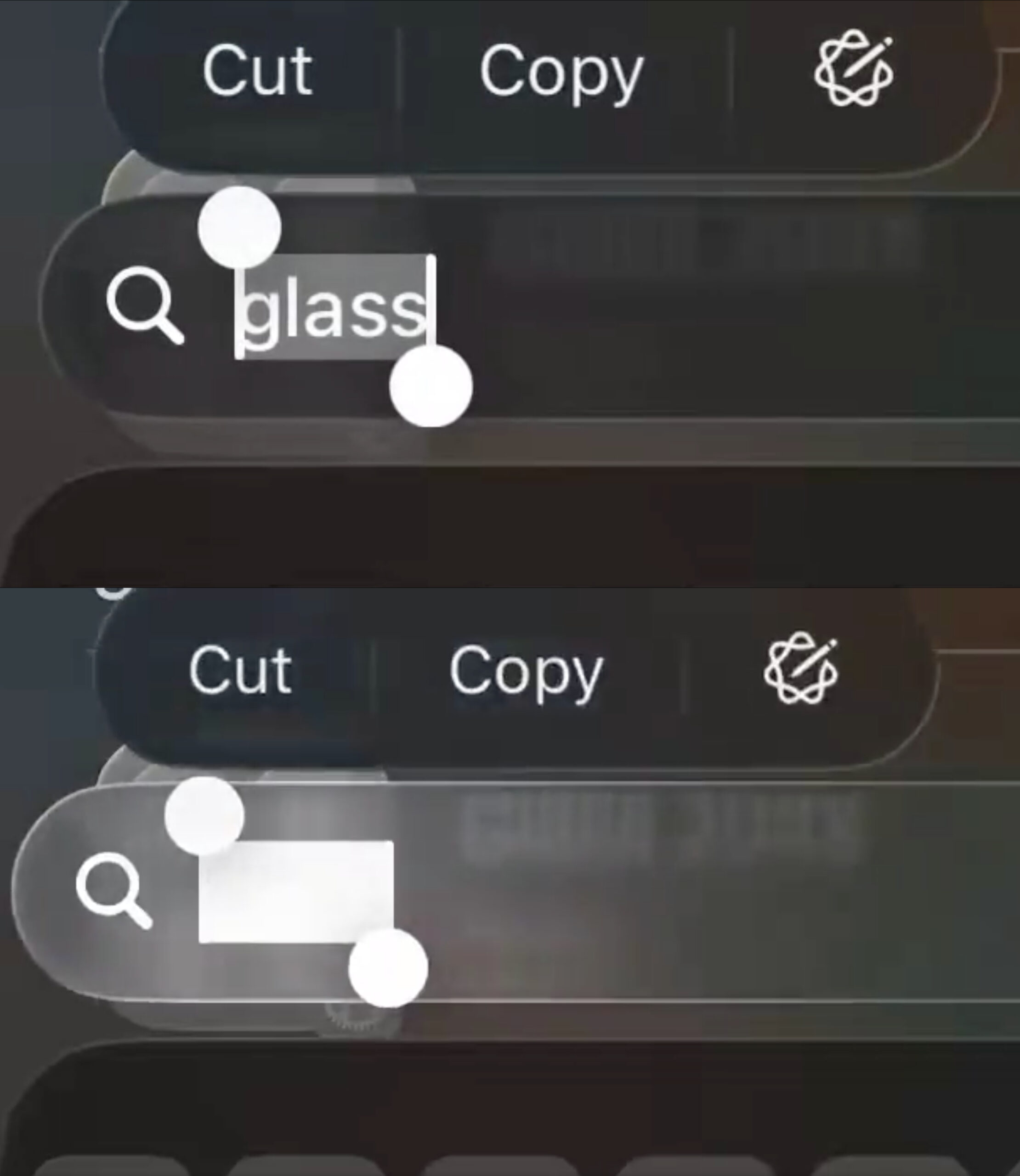
The top screenshot shows Reduce Bright Effects enabled
The difference is clearly noticeable when comparing: with the setting enabled, elements respond to taps much more softly, without sharp light bursts. Essentially, the interface becomes calmer and less “loud,” while the Liquid Glass style itself remains intact.
If you combine Reduce Bright Effects with the existing Tinted option from iOS 26.1, the iPhone interface becomes as close as possible to what it was before iOS 26. For those who never warmed up to the new design, this is great news.
How to Enable Reduce Bright Effects on iPhone
Enabling the new option is straightforward, but it’s hidden in a not-so-obvious place. Apple placed it not in the “Display & Brightness” section, but in the Accessibility settings. Here’s the path:
Settings → Accessibility → Display & Text Size → Reduce Bright Effects
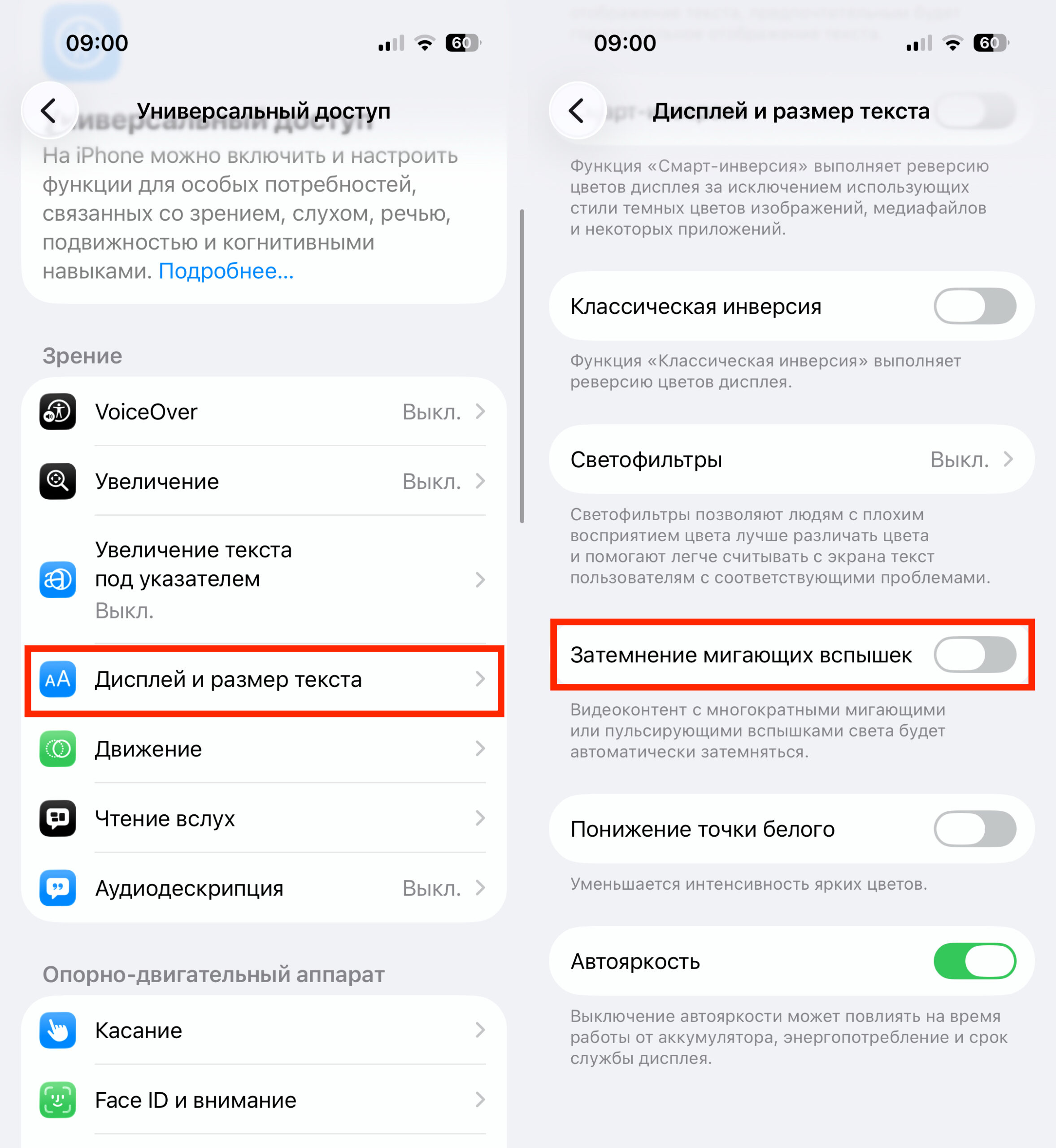
Activate Reduce Bright Effects
Simply toggle the switch, and the bright flashes when interacting with Liquid Glass elements will disappear. No restart is required — changes take effect instantly. The fact that the setting was placed in the Accessibility section makes perfect sense. Bright flickering effects can cause discomfort for people with photosensitivity or migraines, so this isn’t just a matter of taste — it’s a matter of comfort and health.
Should You Disable Liquid Glass on iPhone
Liquid Glass isn’t just a “pretty wrapper.” Apple built its philosophy into this design: the interface should feel alive, responding to user actions with light feedback. But philosophy is one thing, and daily use is quite another.
If the glare and flashes don’t bother you, feel free to leave everything as is. But if you notice your eyes getting tired faster than usual or the flickering is distracting, try enabling Reduce Bright Effects — the difference is noticeable.
For the maximum effect, it’s worth combining both settings: switch the design to Tinted and activate Reduce Bright Effects. This way, your iPhone will keep the current system version with all its features, but visually it will become noticeably calmer.
Apple continues to listen to its users, and each iOS 26 update brings new ways to customize Liquid Glass to your preferences. Perhaps over time there will be even more such options, but already now two simple toggles can completely change the experience of using an iPhone.


