Most Mac owners work with the Dock at the bottom of the screen for years without even considering that it can be moved. Meanwhile, moving the Dock to the left or right side of the screen is one of those small tweaks that genuinely changes your daily work comfort. Here are a few reasons why you should give it a try.
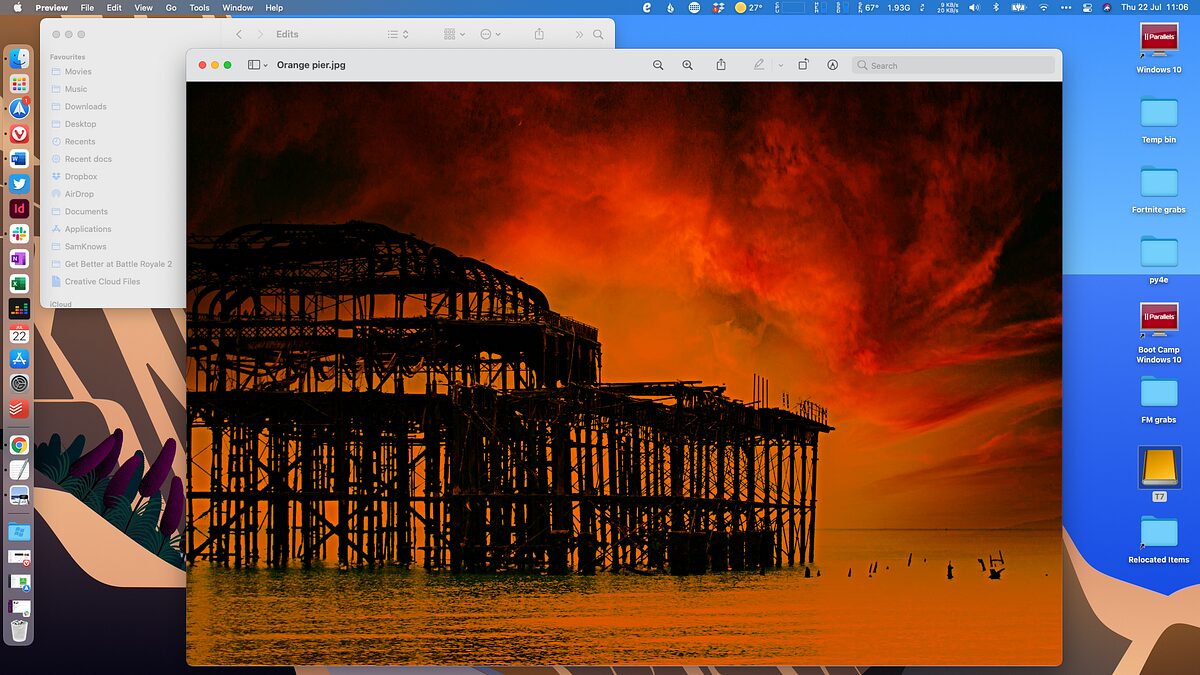
4 reasons to move the Mac Dock to the side panel
Why It’s More Convenient to Keep the Dock on the Side on Mac
Mac screens are widescreen: they’re stretched horizontally. At the same time, most tasks (reading email, web pages, documents) require scrolling from top to bottom. This means that vertical space is more valuable, and the Dock at the bottom eats into exactly that.

With a side Dock, more information fits vertically on screen, which is exactly what I need when working with text
When the Dock is on the side, it takes up a narrow strip horizontally, which is often empty anyway. This is especially noticeable on 13- and 14-inch MacBooks, where every vertical pixel counts. By the way, even with macOS’s automatic window tiling, the vertical Dock doesn’t conflict and allows you to use the computer comfortably.
Side Dock and Windows on MacBook
If you stack windows on top of each other or use Split View with horizontal splitting, the Dock at the bottom starts getting in the way. It either overlaps the bottom window or compresses it, leaving less workspace.
With a side Dock placement, it doesn’t conflict with layouts. This is especially relevant for those who connect their MacBook to an external monitor and actively use multi-window mode.
How to Move the Dock on Mac to the Left or Right
You can do this in literally a few seconds:
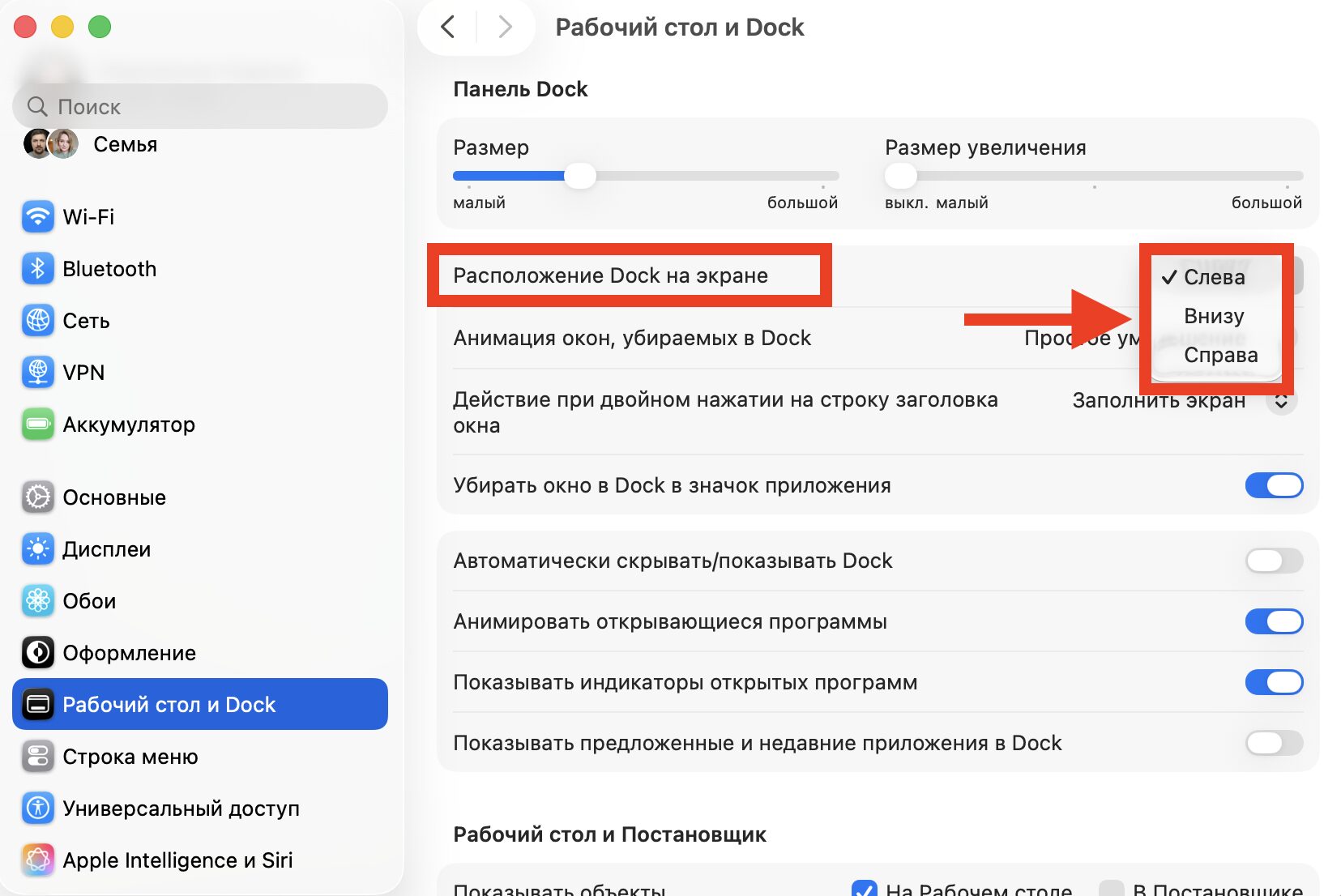
One setting, and the Dock is already in a different place
- Open “System Settings”
- Go to the “Desktop & Dock” section
- Find the “Position on screen” option
- Choose “Left” or “Right”
I recommend using the left side specifically. There’s a nuance: if you place the Dock on the right, it can conflict with macOS system icons that are also located on the right side of the interface. The left side is safer — there are fewer elements that the Dock will overlap with.
Who Will Benefit from a Side Dock on Mac
A side Dock is most useful for those who:
- work on a MacBook without an external monitor and value every inch of screen space
- frequently use Split View or stack windows on top of each other
- read long documents, emails, or web pages
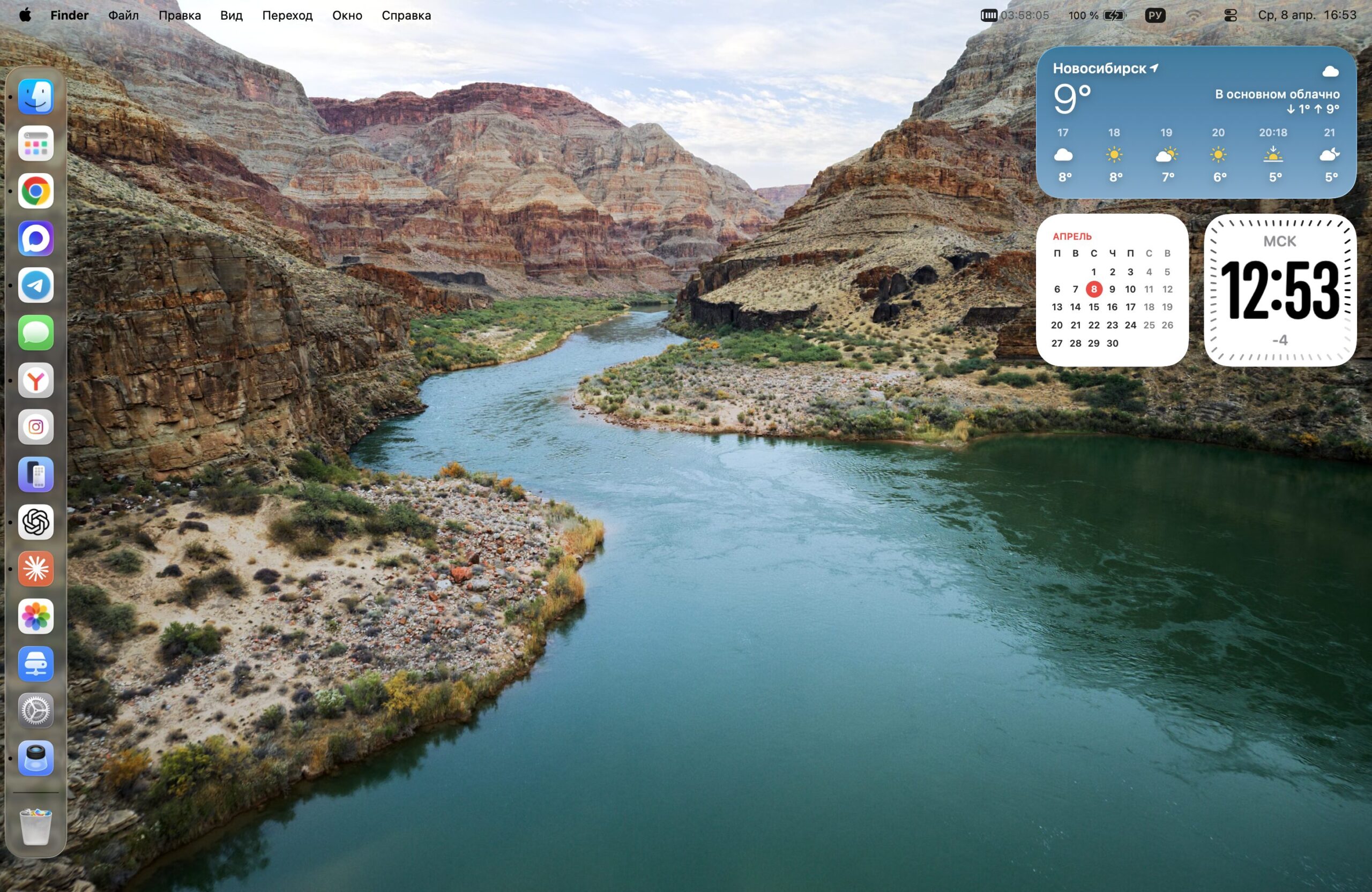
I set up a side Dock and now I’m enjoying the convenience
If you’re used to the Dock at the bottom and it doesn’t bother you — you’re not missing anything critical. This isn’t a revolution, but a fine-tuning of comfort. Some users even suggest hiding the Dock completely and only calling it up when hovering the cursor — this frees up workspace to the maximum.
Try working with a side Dock for at least a week. If you don’t like it, you can switch it back in the same five seconds. But, based on my experience, not everyone will want to go back.