Kinopub is one of the most popular unofficial online streaming services with a huge catalog of movies and TV shows. There is no official app for Apple devices in the App Store, but there are several working ways to run the service on any generation of Apple TV, iPhone, and iPad. First, create an account on Kinopub, and then set it up for each device. Important note: to register an account on the Kinopub website, you will need to change your IP address to a foreign one.
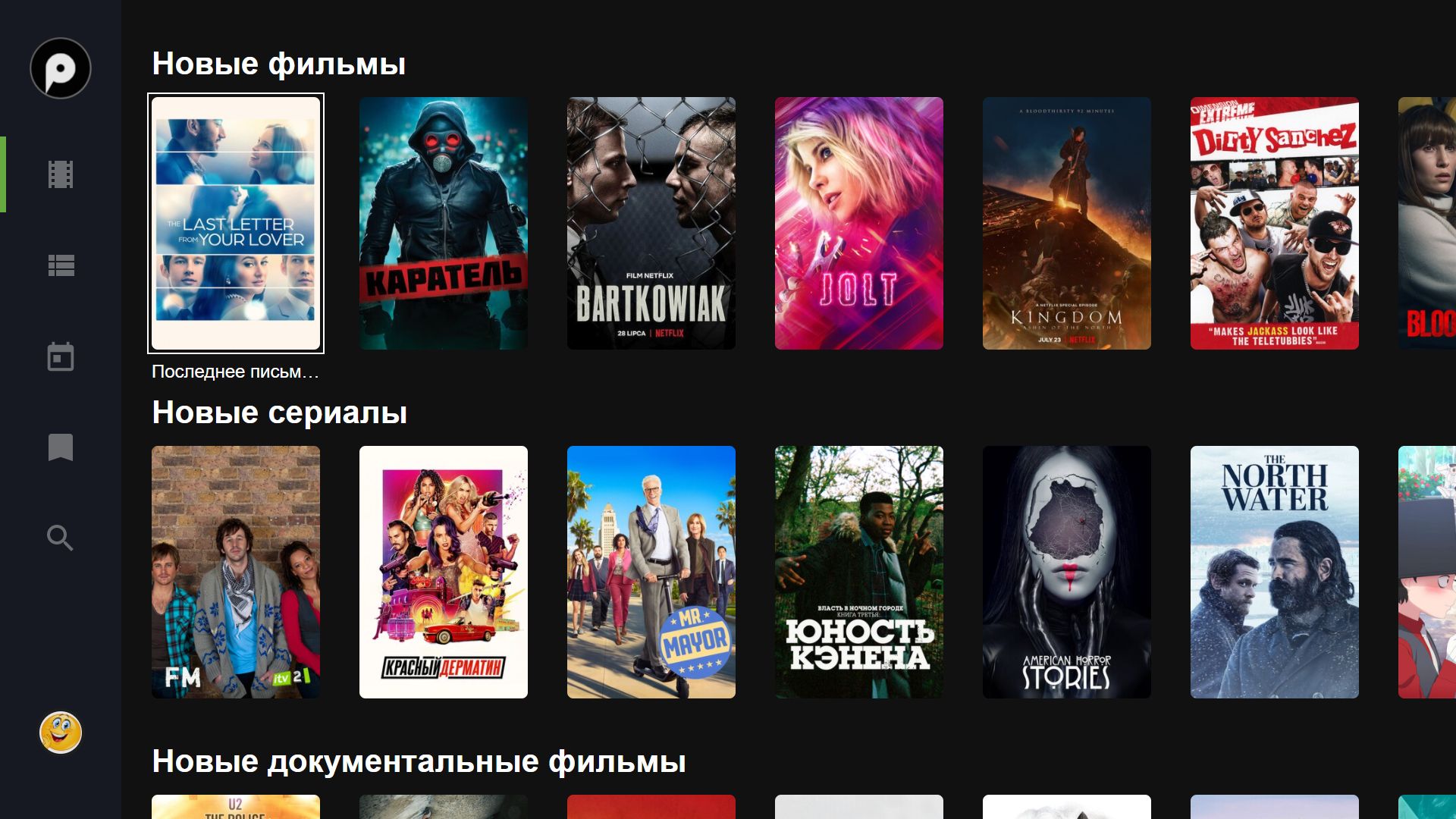
One of the most popular online streaming services can be used on iPhone and Apple TV without a separate app. Image: kpstv.net
Installing Kinopub on Apple TV 4K via MicroIPTV
Apple hasn’t updated the Apple TV in Cupertino for quite a while. And while we wait for the next-generation Apple TV set-top box with a powerful chip, let’s set up Kinopub through the free MicroIPTV app, which is available right in the App Store. This is the simplest and most convenient option.
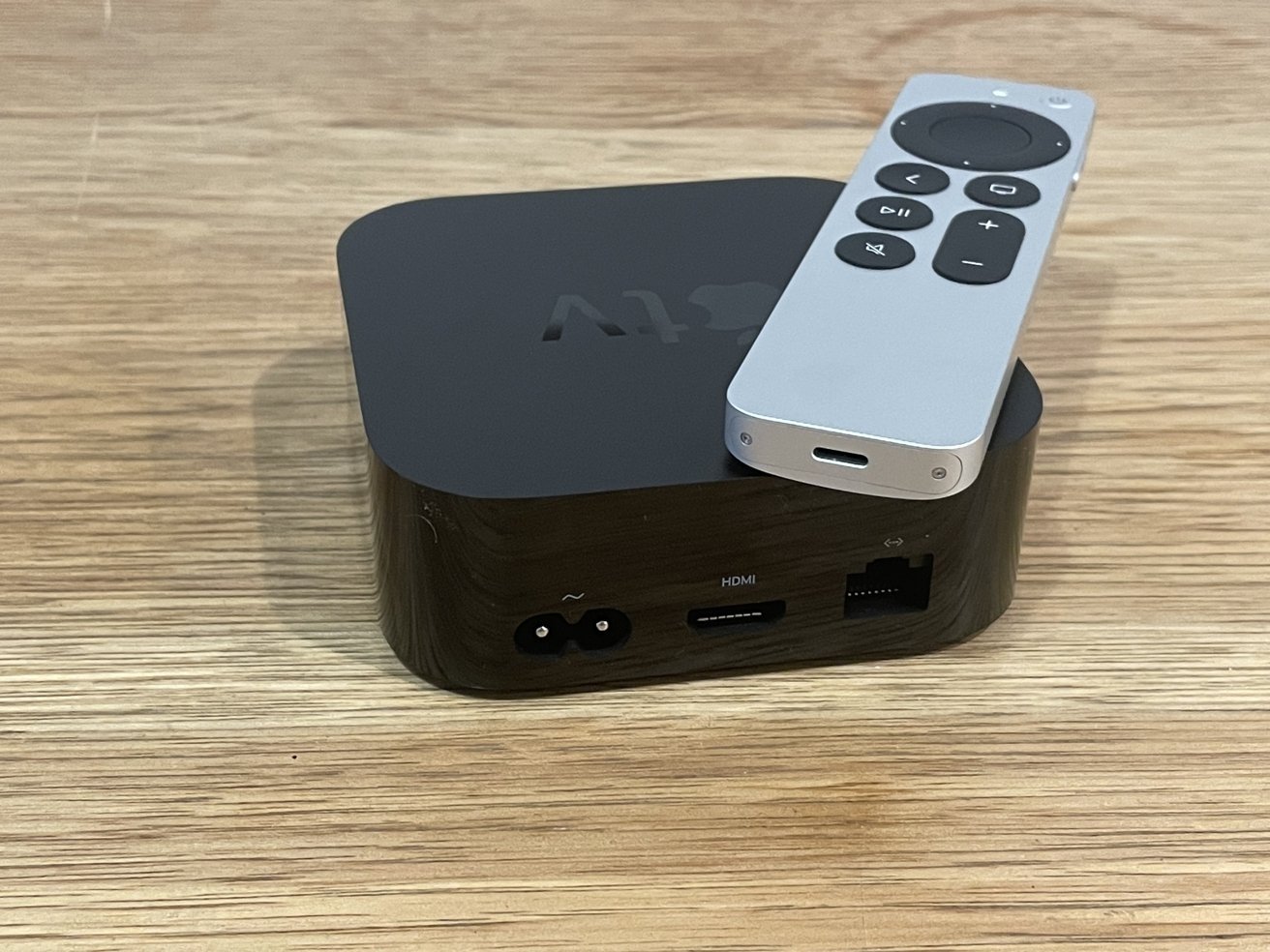
On Apple TV 4 and 4K, the setup is one of the simplest
What you need to do:
- Open the App Store on Apple TV and install the MicroIPTV app.
- Launch the app and press the “+” button to add a new playlist.
- Give the playlist any name you like.
- In the link field, enter: dub.sh/atv4kp
- Register a Kinopub account at this link.
- Open the created playlist — an activation code will appear on the screen.
- Enter this code on the “My Devices” page in your personal account on the Kinopub website.
After successful activation, the MicroIPTV interface will be replaced with a full-fledged Kinopub interface with a content catalog.
Keep in mind: the activation code is only valid for 5 minutes. So open the device activation page on your smartphone or computer in advance. While you’re entering the code, the MicroIPTV app on Apple TV must remain open — don’t minimize or close it.
Kinopub on Apple TV 3 — DNS and Profile Setup
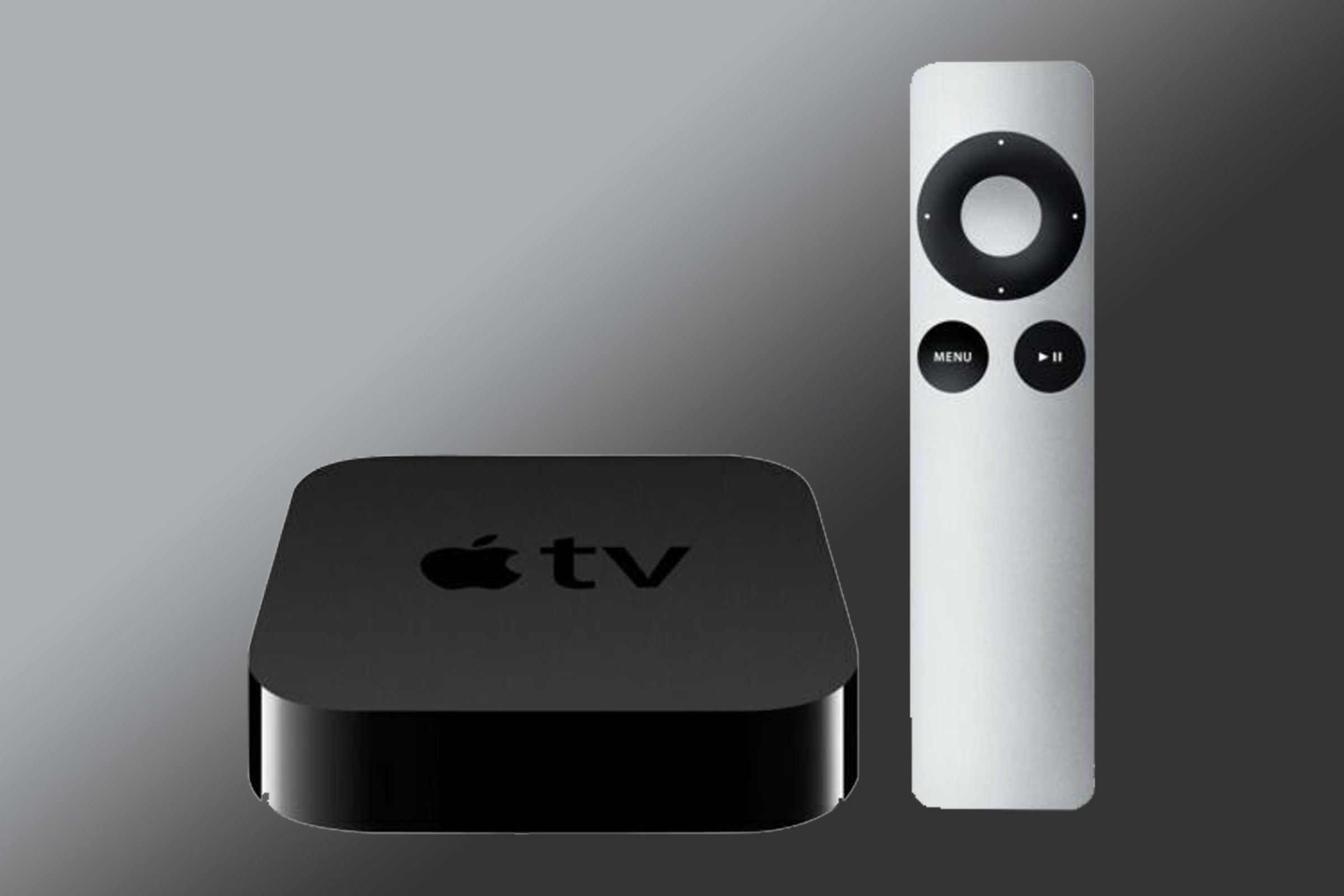
On older Apple TVs, everything is more complicated
On older Apple TV second and third generation set-top boxes, the process is significantly more complicated because they don’t have an App Store. The setup happens in two stages: first, DNS settings are changed, then a special profile is installed.
First stage — DNS setup:
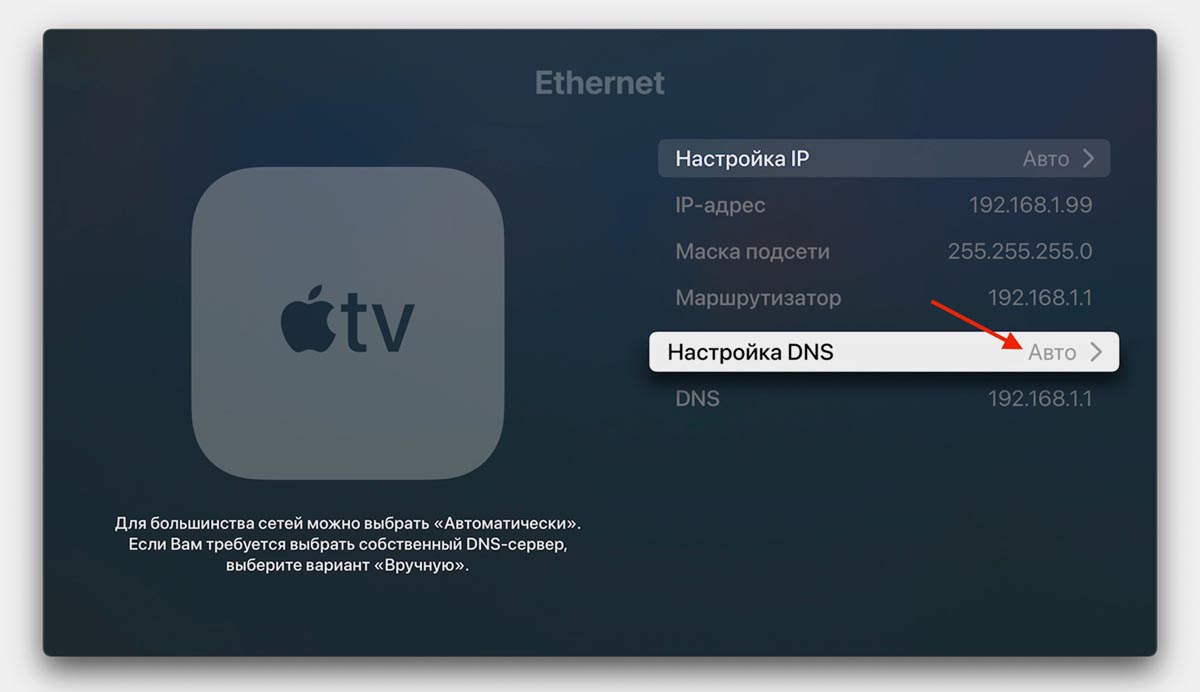
First you need to complete the DNS setup. Image: iphones.ru
- Go to Settings — General — Network.
- Select the Wi-Fi network the set-top box is connected to.
- Change “DNS Configuration” to “Manual”.
- Enter the DNS address: 217.69.6.155
Important: your router settings must use Google DNS servers — 8.8.8.8 and 8.8.4.4. Without this, the method may not work.
Second stage — profile installation:
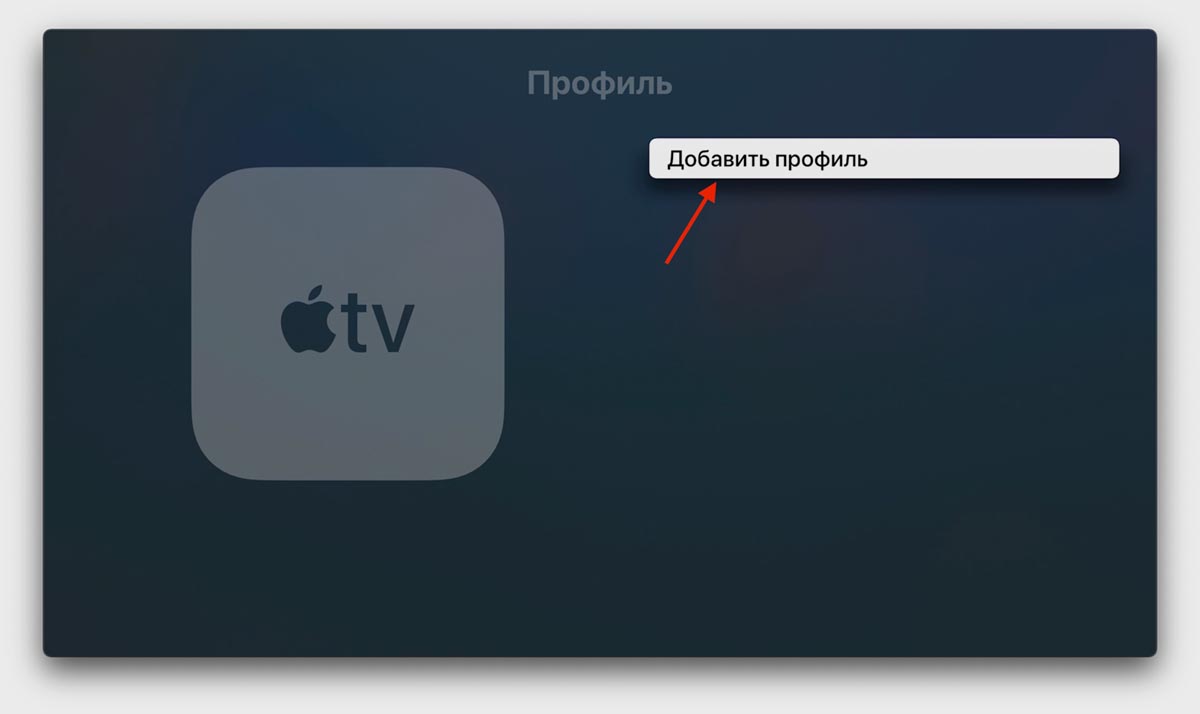
And then add a profile. Image: iphones.ru
- Go to Settings — General.
- Find the “Send Data to Apple” option and press the Play button on the remote (specifically Play, not Select — this is important).
- Agree to the warning by pressing “OK”.
- Enter dub.sh/atv3 as the profile URL and press “Submit”.
- Add another certificate: Settings — General — Profiles — Add Profile.
- Enter dub.sh/isgr as the URL and press “Submit”.
- Register a Kinopub account from any device at this link.
After installing the profiles, the Kinopub interface will appear in place of the Flickr app. On first launch, you will also need an activation code — enter it in the “My Devices” section of your Kinopub personal account.
Kinopub on iPhone Without an App via Safari
On iPhone and iPad, Kinopub is most conveniently used as a web app through Safari. The service supports PWA technology — this means the website can be added to the home screen, and it will open as a standalone app, without the address bar and browser interface.
How to do it:
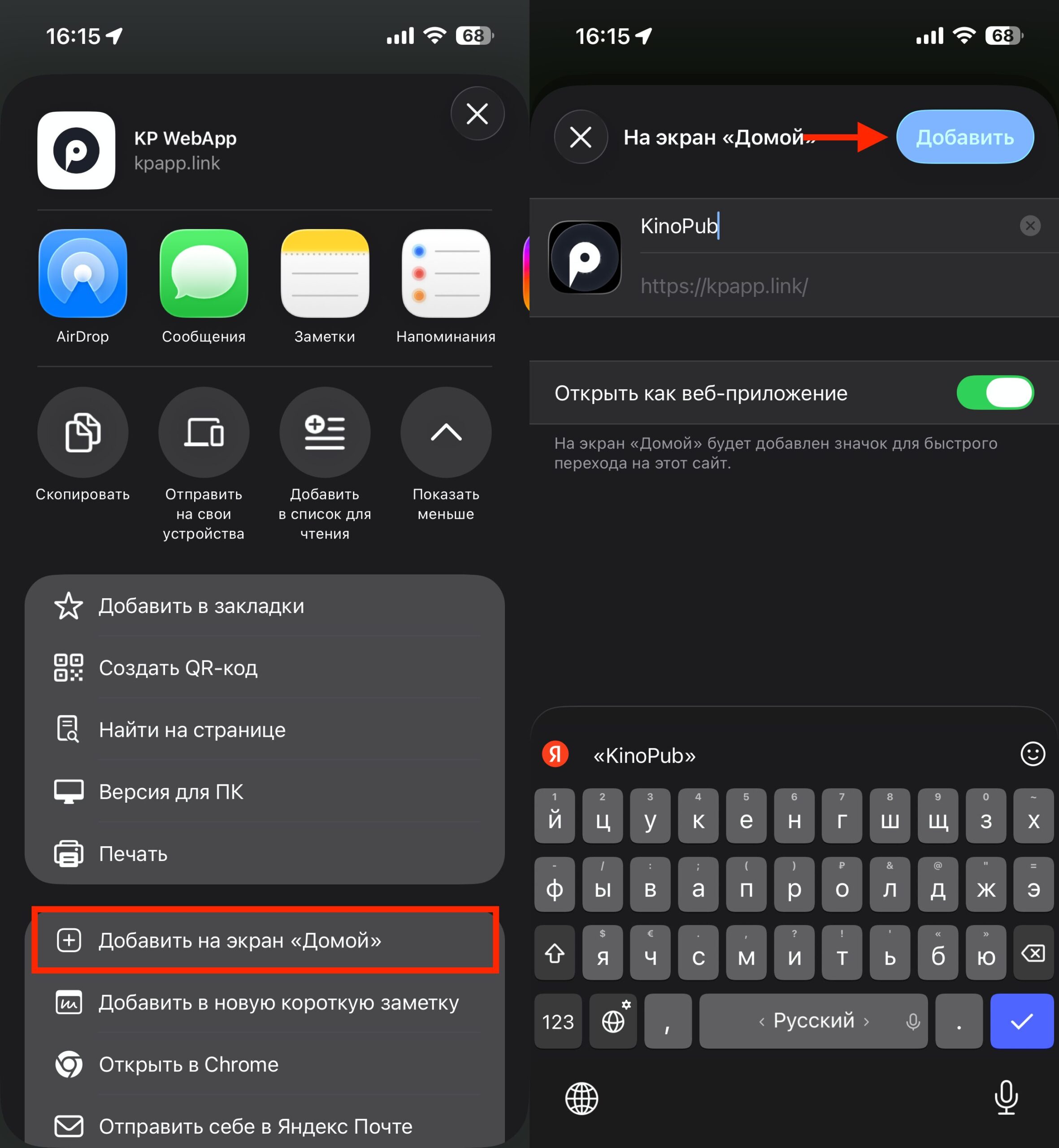
You can add PWA not only through Safari
- Register a Kinopub account at this link.
- Open the Kinopub website in Safari (VPN may be required for the first visit).
- Tap the “Share” button (square with an upward arrow) and select “Add to Home Screen”.
- Now the website will work as a standalone app.
If you don’t want to use a VPN every time, you can get an individual mirror of the service. To do this, go to mos-gorsud.site, sign in to your Kinopub account, and press the “Get Mirror” button. After that, access to the catalog will work directly.
Why Kinopub Doesn’t Work on Apple TV
If something went wrong after setup, check a few things:
- The activation code has expired. It only lasts 5 minutes. Open your Kinopub personal account on another device in advance so you can enter the code immediately after it appears.
- The MicroIPTV app was closed. While entering the code, the app on Apple TV must remain open in the foreground.
- Incorrect DNS on Apple TV 2/3. Make sure you entered exactly 217.69.6.155 in the manual DNS settings, and that Google DNS (8.8.8.8 and 8.8.4.4) is set in your router.
- Pressed the wrong button on the remote. On Apple TV 2/3, in the “Send Data to Apple” option, you need to press specifically Play, not Select — otherwise the wrong menu will open.
- VPN is not connected. To register an account and for the first visit to the website through Safari, you may need to change your IP.


