Telegram updates frequently, sometimes once every couple of weeks. Most users receive updates automatically and don’t even think about it. But sometimes a Telegram update gets stuck, the app store doesn’t see the latest version, or the phone simply didn’t update on its own. I’ll cover all methods from standard to manual — and also explain what to do if the app on Android refuses to update altogether.
Learning how to properly update Telegram on your devices
What Does Updating Telegram Give You
Before diving into settings, it’s worth understanding why you should update Telegram to the latest version at all. The answer isn’t as obvious as it seems.
First, new features. Telegram releases updates with real changes: new message types, improved search, channel features, changes to calls. In the biggest Telegram update of 2026, the app’s design was completely redesigned — and that’s a reason to download the update. Second, security. It’s boring, but important. Each update patches vulnerabilities that remain open in older versions. This is especially relevant for those who use secret chats.

Durov recently completely redesigned Telegram
Third, compatibility. The new version of Telegram works better with the latest Android, displays media files more correctly, and crashes less often. An old client on a new system is a lottery you’d rather not test. In short: should you update Telegram — yes, definitely. And regularly.
How to Update Telegram on Android
The update method depends on how you originally installed the app. If you downloaded it through Google Play — update it there. If through RuStore — go there. If you installed the APK file manually — you’ll have to download it manually again. App stores don’t track what’s installed bypassing them and won’t update such software. Let’s break down each option separately.
Updating Telegram in Google Play
This is the standard method for most Android users. If you installed Telegram from Google Play — that’s where we go:
- Open Google Play and tap on your profile icon in the upper right corner.
- Select “Manage apps & device.”
- Go to the “Updates available” tab.
- Find Telegram in the list and tap “Update.” Or tap “Update all” if you want to update everything else at the same time.
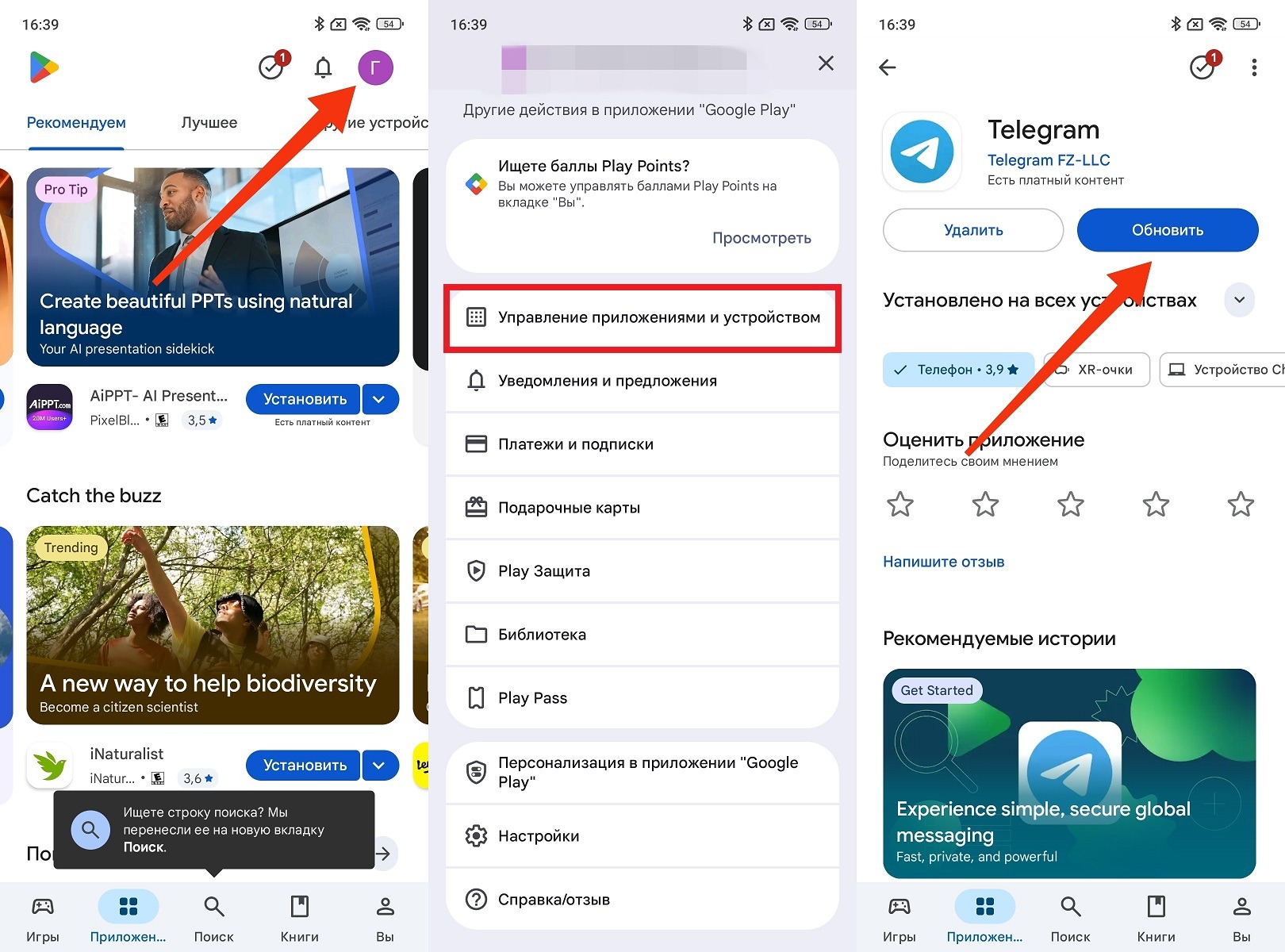
This is the standard way to update Telegram
If the update doesn’t appear even though you know the latest version of Telegram has already been released, try going directly to the app’s page in Google Play and updating from there. Sometimes the update list loads with a delay, but the specific app’s page refreshes faster.
How to Update Telegram via RuStore
This method is relevant if you installed Telegram specifically through RuStore. It’s important to understand: if the app was downloaded through RuStore, Google Play won’t update it, even if you’re signed in there. The systems work independently of each other:
- Open the RuStore app.
- Tap on the profile icon or go to the “My apps” section.
- Find Telegram in the list of installed apps.
- If an update is available, there will be an “Update” button next to the app. Tap it.
- Wait for the download and installation to complete.
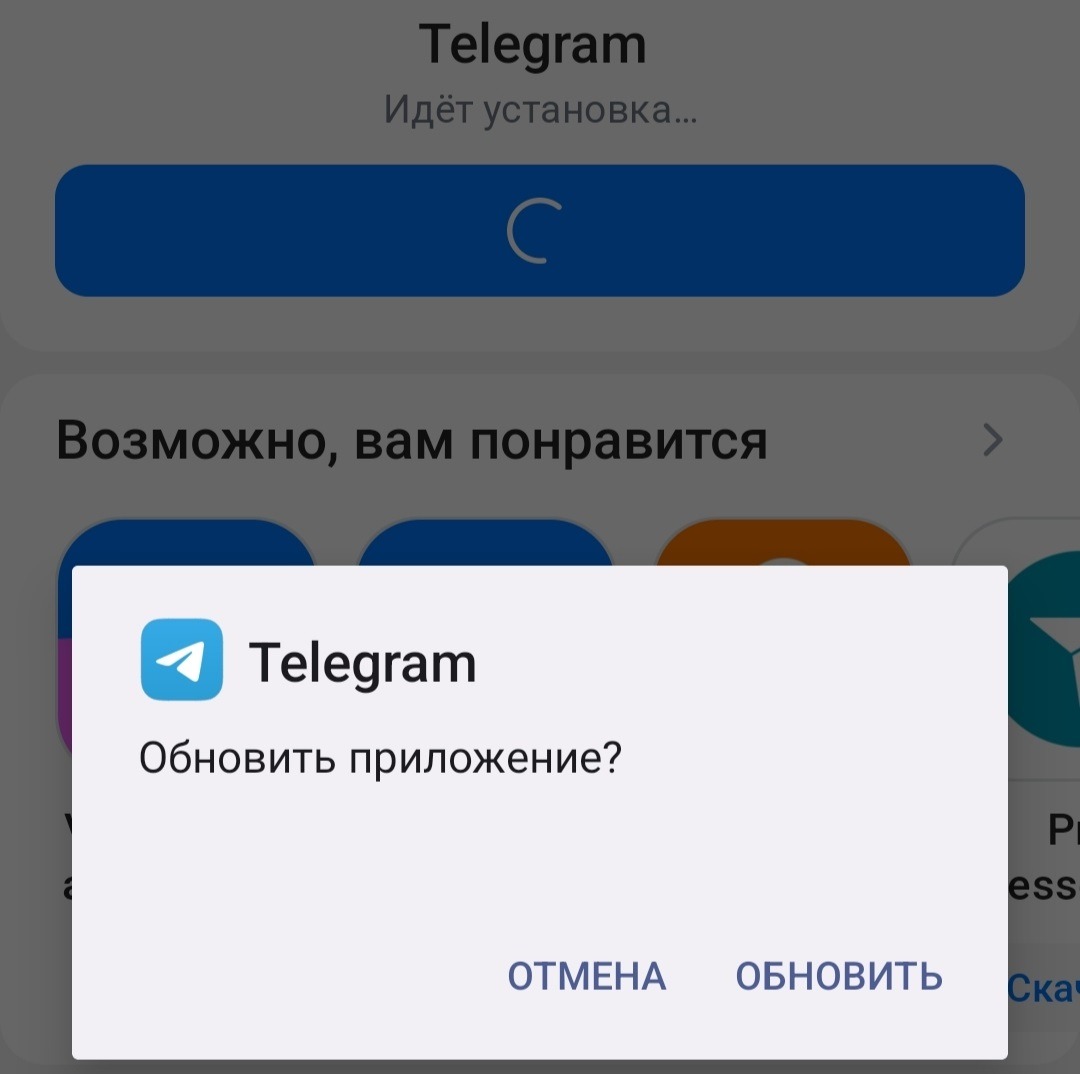
You can also install the update through RuStore
If you don’t have RuStore installed yet but want to switch to it, the process is simple: you can install RuStore on Android in just a couple of minutes. After that, you can reinstall Telegram through it and receive updates from there.
Updating Telegram Manually via APK
The most cumbersome but sometimes the only working method is to download the latest version of Telegram as an APK file and install it manually. This is relevant if Google Play is unavailable or doesn’t see the update, and you don’t use RuStore:
- Open the browser on your smartphone and go to Telegram’s official website — telegram.org.
- Find the “Android” section and download the latest APK file.
- After downloading, open the file via the notification or file manager in the “Downloads” folder.
- If the system asks for permission to install from unknown sources, allow it for the browser or file manager.
- Tap “Install” and wait for it to finish.
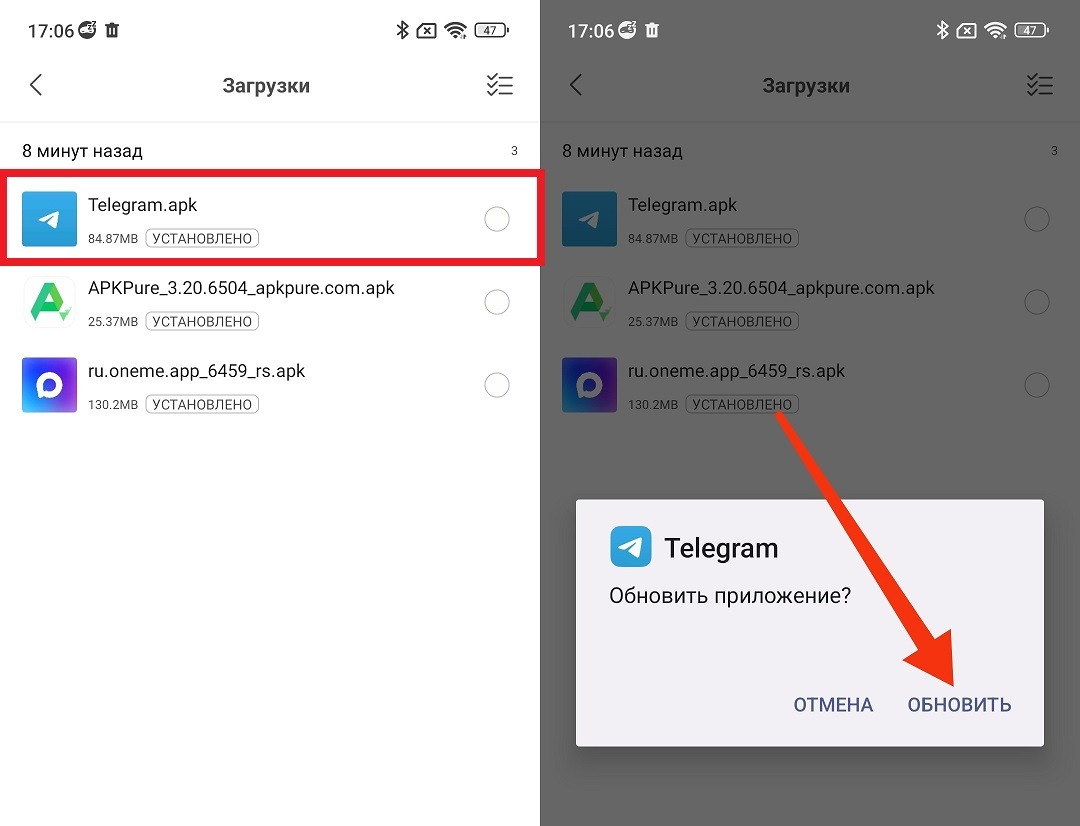
Manual updating is also an option
Important note: when installing an APK over an already installed Telegram, all data, chats, and settings are preserved. This is an update, not a fresh reinstall. The downside of this method is that there won’t be automatic updates, and you’ll have to repeat the process manually each time. For those who want to get features before the official release, the beta version of Telegram is a good option — it comes out more frequently than the stable version and is installed separately.
Telegram Won’t Update — What to Do
Sometimes Telegram won’t update on Android using any of the methods above. It’s frustrating, but almost always fixable. Let’s go through the most common causes.


