It might seem like nothing could be simpler — updating an app on iPhone. But Apple manages to reshuffle the App Store interface with every iOS version so much that even experienced users get confused. iOS 26.4 already brought many interesting features, but Cupertino also decided to relocate the updates section, and some users even lost their profile icon entirely. Let’s figure out how to update apps on iPhone in 2026 and why it’s even worth doing.
Apple has changed the layout of elements in the App Store again. Image: techcrunch.com
Do You Need to Update Apps on iPhone and Why?
Short answer — yes, updating apps is absolutely necessary. Here’s why.
Every update isn’t just about new features. Developers patch security vulnerabilities that attackers could exploit. This is especially true for banking apps and messengers. One unpatched hole — and your data is at risk.
Additionally, updates fix bugs. Is the app crashing, freezing, or draining your battery? Most likely, the developer has already released a fix. You just haven’t installed it.
Another important point is compatibility. Apple regularly updates iOS, and older versions of apps may simply stop working. The longer you postpone updating, the higher the risk that an app won’t launch one day.
I personally recommend updating apps at least once a week. Or just enable auto-updates — then your iPhone will do everything on its own when connected to Wi-Fi and charging.
How to Update All Apps on iPhone at Once in iOS 26.4 and Later
In iOS 26.4, Apple once again changed the location of the updates section. If you were used to the old path, you’ll need to relearn. Here’s the current guide:
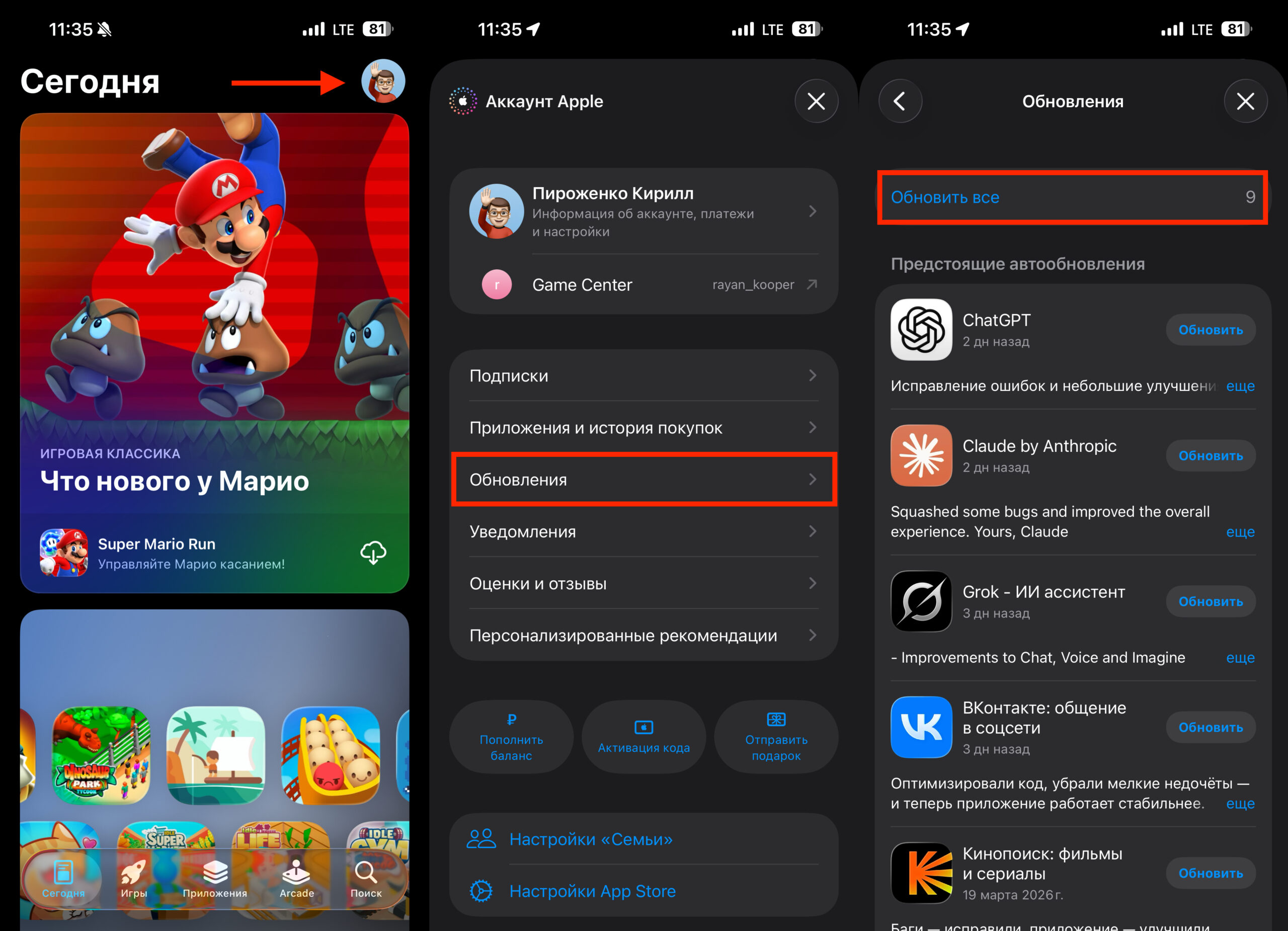
The path has become less obvious
- Open App Store on your iPhone.
- Tap on the profile icon in the upper right corner of the screen.
- Go to the “Updates” section.
- Tap “Update All”.
Please note: previously, the “Update All” button was available immediately after tapping on the profile. Now Apple has moved updates to a separate subsection. This isn’t obvious and can be confusing.
Important: in iOS 26.4 there’s a minor issue — the profile icon in the App Store doesn’t always load. For some users, it simply doesn’t appear. Without it, accessing the updates section is impossible.
If you encounter this, there are two solutions:
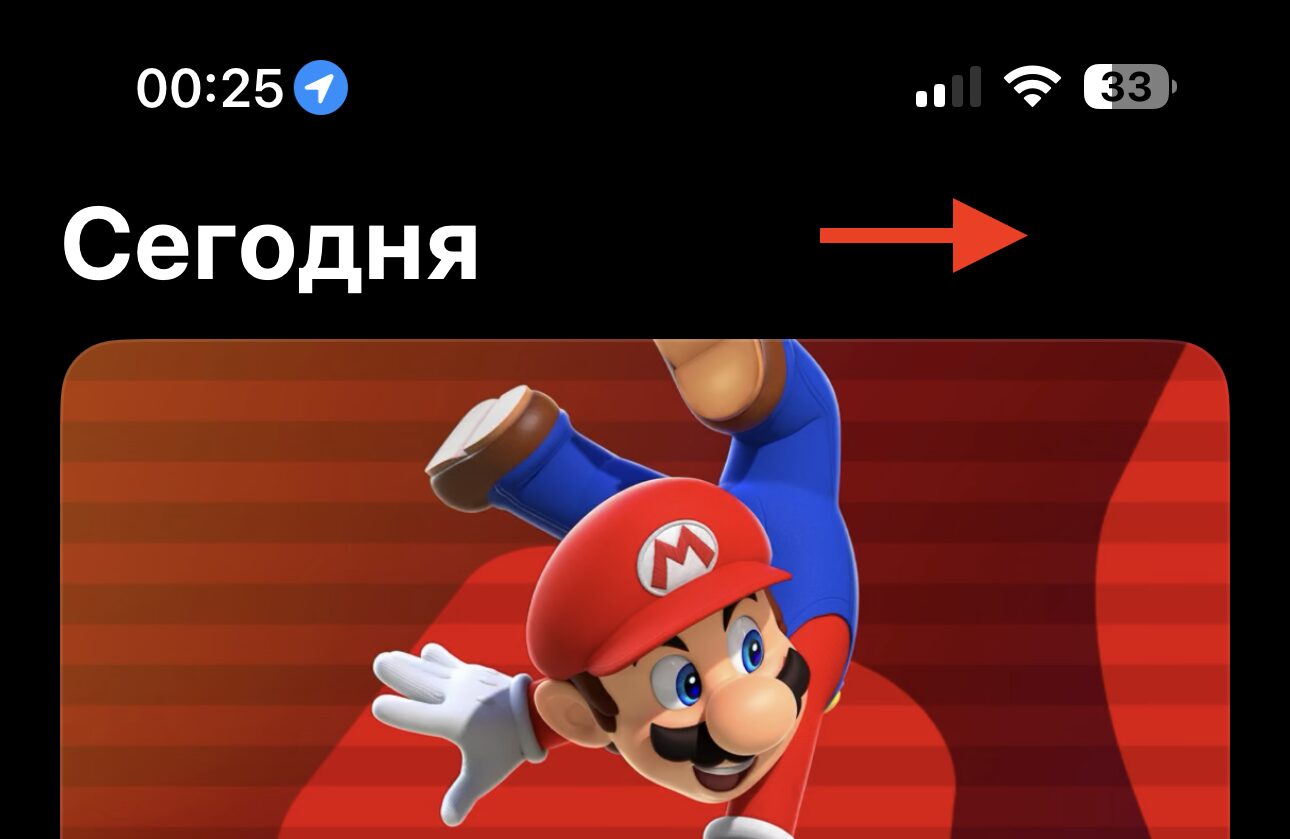
The account may simply not load
- Restart your iPhone. Press and hold the side button and the volume button, then slide the power off slider. After turning it back on, open the App Store — the profile icon should appear.
- Force close the App Store. Swipe the App Store away in the multitasking menu (swipe up from the bottom edge, then swipe up on the app card). Reopen the App Store. The profile icon usually loads after this.
How to Update All Apps on iPhone in Older iOS Versions
If your iPhone runs an iOS version below 26.4, the process is a bit simpler. Apple hadn’t yet complicated the path to updates back then:
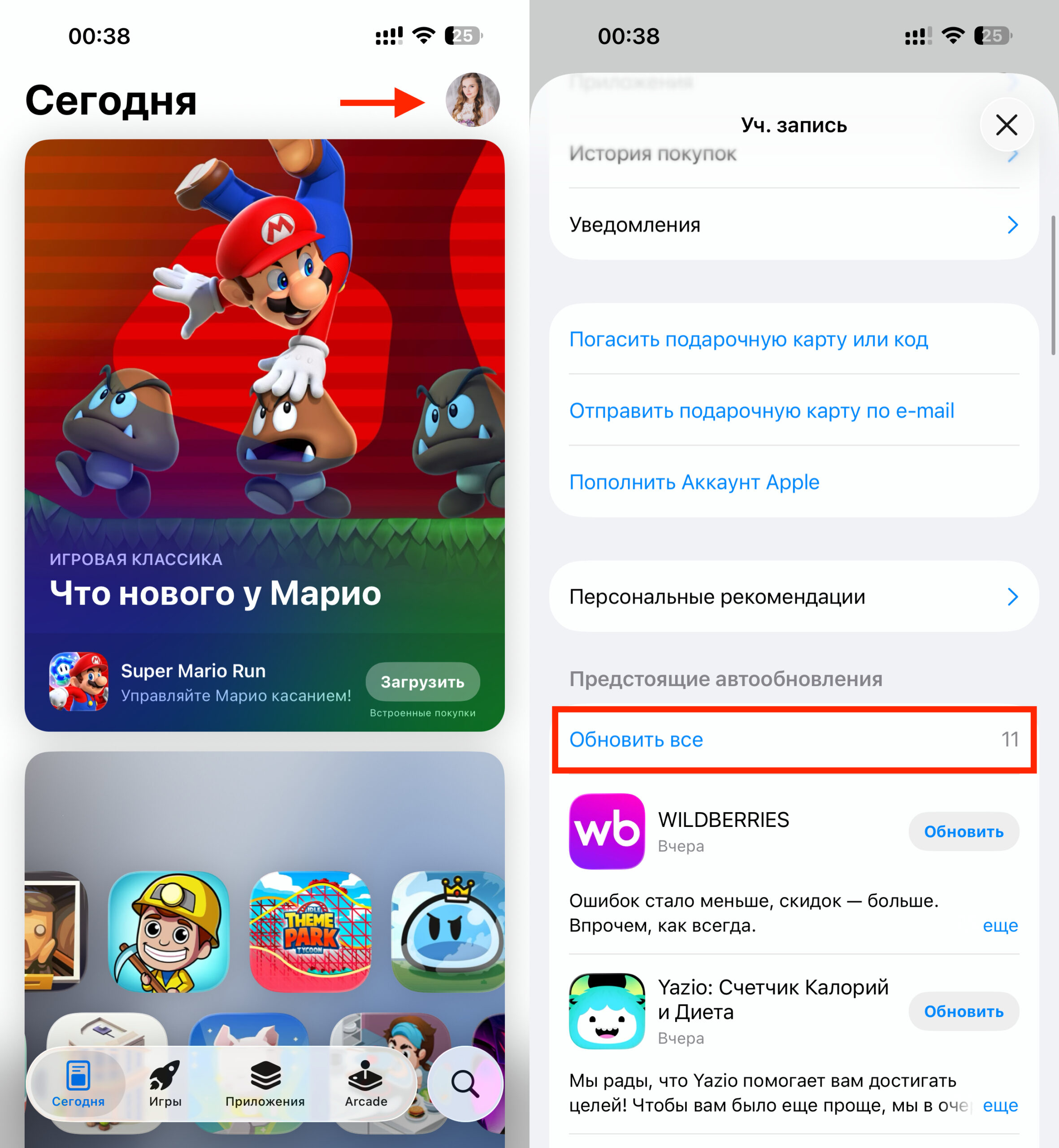
On older iOS versions, everything is simple
- Open App Store.
- Tap on the profile icon in the upper right corner.
- Scroll down and tap “Update All”.
Here everything is on one screen — no additional subsections. The list of available updates and the button are displayed immediately after tapping on the profile.
By the way, remember when the App Store had a separate “Updates” tab on the bottom bar? Apple removed it back in iOS 13, replacing it with the Apple Arcade tab. Since then, updates have been hidden in the profile.
How to Update a Single App on iPhone via the App Store
Sometimes you don’t want to update all apps at once. Maybe you’re worried that the new version will break the interface. Or you just need to urgently update a specific app. Here’s how to do it:
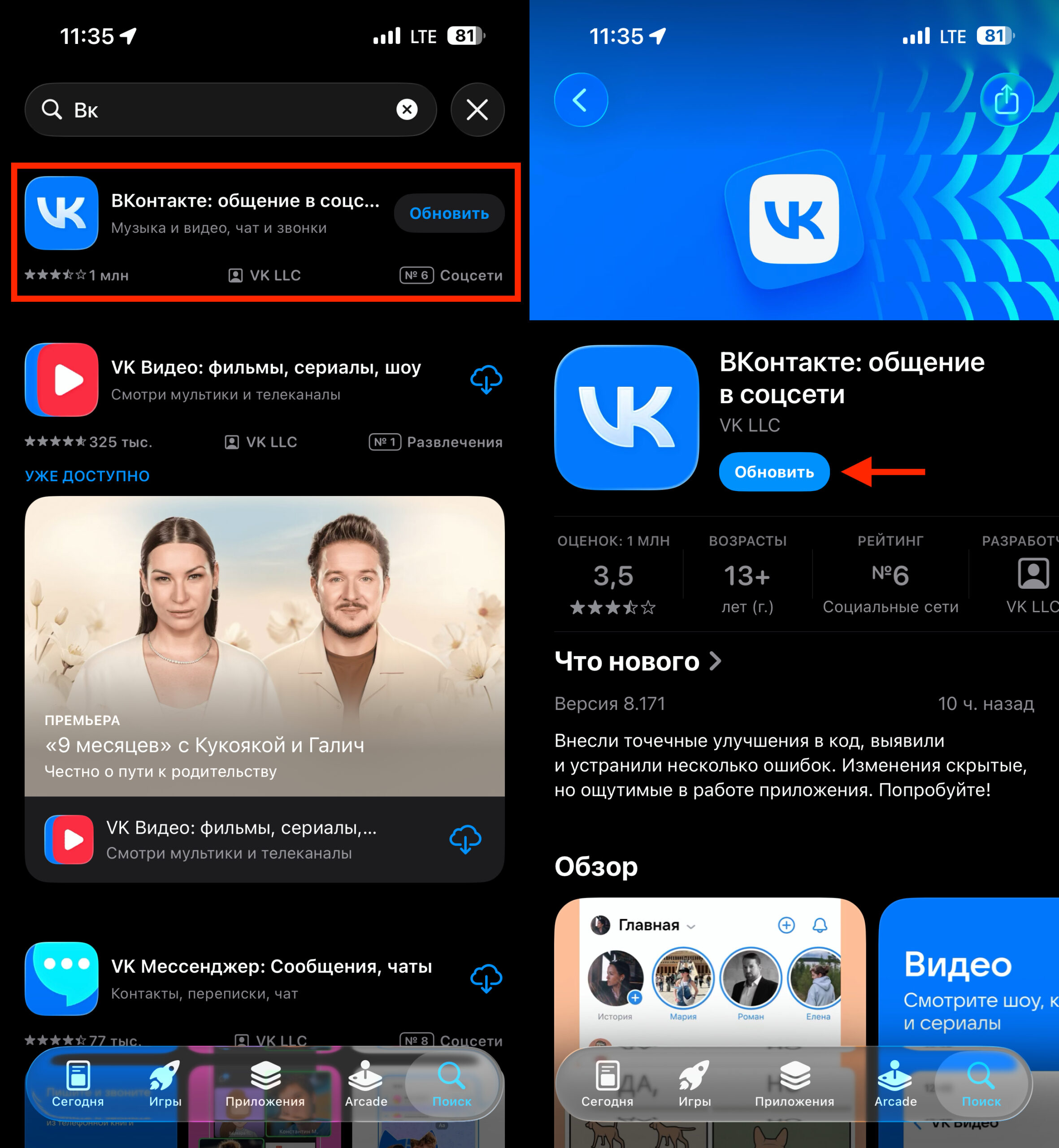
Updating a single app is also very simple
- Open App Store.
- Tap on the “Search” tab at the bottom of the screen.
- Enter the name of the app you need.
- Open the app’s page from the search results.
- If an update is available, instead of the “Open” button you’ll see an “Update” button. Tap it.
This method works the same across all iOS versions. No need to go to your profile or find the updates section — everything is done right from the app’s page.
Tip: on the app’s page, you can read what’s new in the update. Expand the “What’s New” section — that’s where the developer describes the changes. Admittedly, many just write “bug fixes and improvements.” But at least give it a try.
Which App Update Method on iPhone Should You Choose?
If you want to not think about updates at all — enable auto-updates in settings (Settings → App Store → App Updates). Your iPhone will download updates on its own over Wi-Fi.
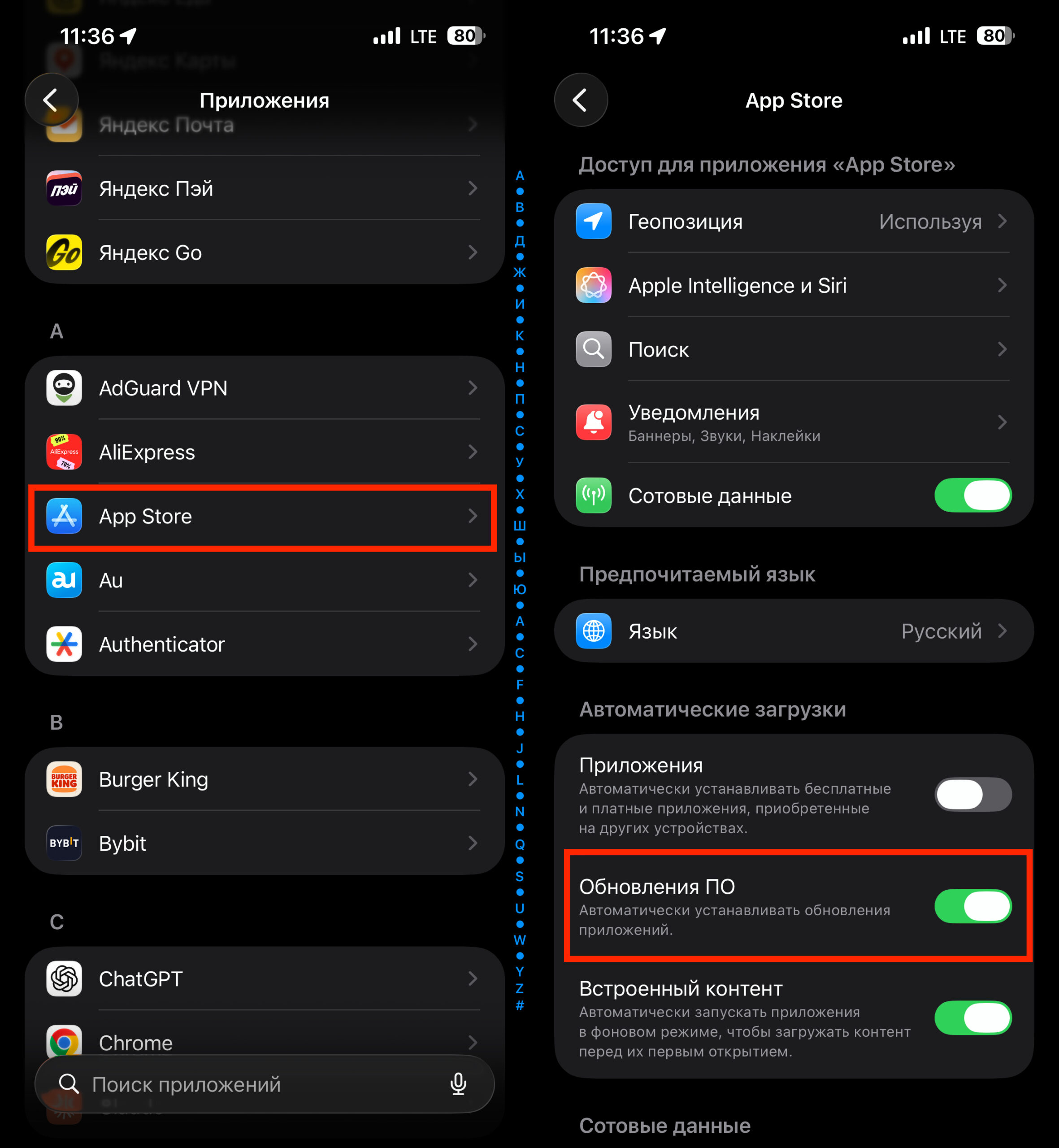
Turn on this toggle and apps will update automatically
If you prefer to control the process — visit your App Store profile once a week and update everything at once. In iOS 26.4, don’t forget the extra step with the “Updates” section.
And if you need to update one specific app — search for it via the App Store search. That’s the quickest way.