Samsung Galaxy S26 has received an update that allows transferring files to iPhone, iPad, and Mac via AirDrop — without third-party apps or cloud services. Not only did the Samsung camera turn out to be better, but they’ve also brought one of the key features of the Apple ecosystem. Previously, exchanging files between Android and iOS required using messengers, cloud storage, or special utilities. Now, all you need is the standard “Share” menu on Samsung and an open AirDrop on the Apple device.
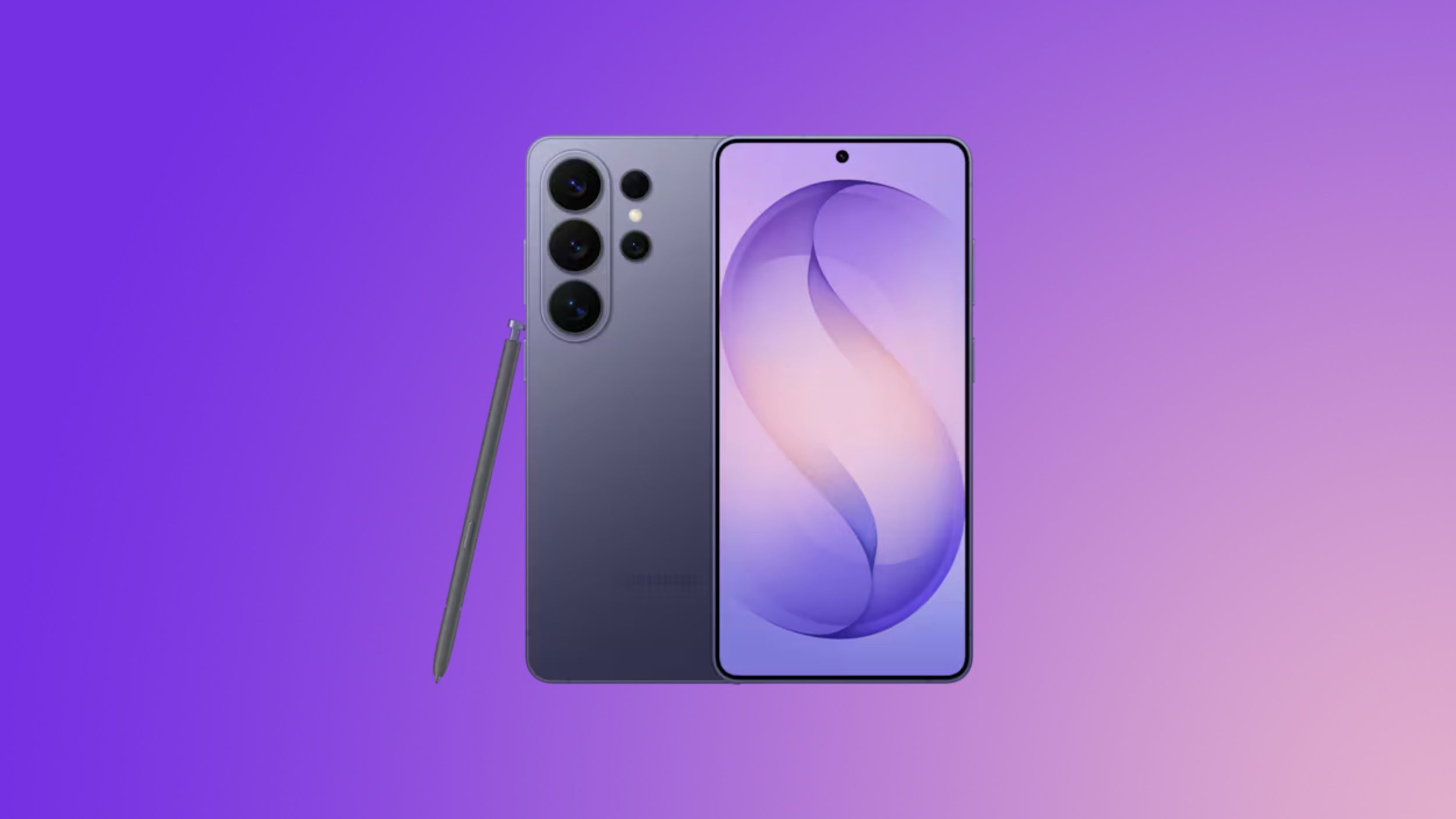
How to transfer files between iPhone and Android without apps: Samsung Galaxy S26 gets AirDrop support
How to Add AirDrop to Samsung Galaxy S26
Starting March 23, Samsung began rolling out an update for the Galaxy S26, S26+, and S26 Ultra that adds Quick Share compatibility with AirDrop. This effectively means that owners of these smartphones can directly send photos, videos, and documents to iPhone, iPad, and Mac — and receive files in the opposite direction.
The update launched in South Korea, and will arrive in the US within the week. After that, the feature will become available in Europe, Hong Kong, Japan, Latin America, Southeast Asia, and Taiwan.
Other Galaxy models will also receive AirDrop support later, but Samsung has not yet announced specific timelines. According to unofficial sources, the Galaxy S25 and S24 may get the feature with the One UI 8.5 shell update.
How to Use AirDrop to Transfer Files from iPhone to Samsung
Unlike Pixel smartphones, where the feature is enabled by default, on the Samsung Galaxy S26 it needs to be activated manually. A new toggle called “Share with Apple devices” has appeared in Quick Share settings. Here’s the procedure for sending a file from Galaxy S26 to iPhone:
- Open the quick settings panel on Galaxy S26, go to “Connected Devices” → “Quick Share.”
- Enable the “Share with Apple devices” option.
- Select a file and tap “Share” → Quick Share.
- Select the nearby iPhone from the list — AirDrop on it must be set to “Everyone.”
The receiving Apple device must have AirDrop set to “Everyone” mode. If it’s set to “Contacts Only” or AirDrop is turned off, the Galaxy won’t see it. This is a limitation — the feature does not yet support “Contacts Only” mode for cross-platform transfers.
To transfer from iPhone to Samsung, the process is mirrored: on the Galaxy, you also need to enable “Everyone” mode in Quick Share, after which the iPhone will see the Samsung smartphone in the AirDrop list.
Which Android Smartphones Support AirDrop
Samsung isn’t the first. Google launched Quick Share compatibility with AirDrop back in November 2025 on Pixel 10 smartphones. In February 2026, the feature was expanded to Pixel 9, Pixel 9 Pro, Pixel 9 Pro XL, and Pixel 9 Pro Fold.
Oppo has also confirmed that it will add AirDrop support via Quick Share on Find X9 series smartphones — the update is expected in March. Nothing has also announced plans for integration.
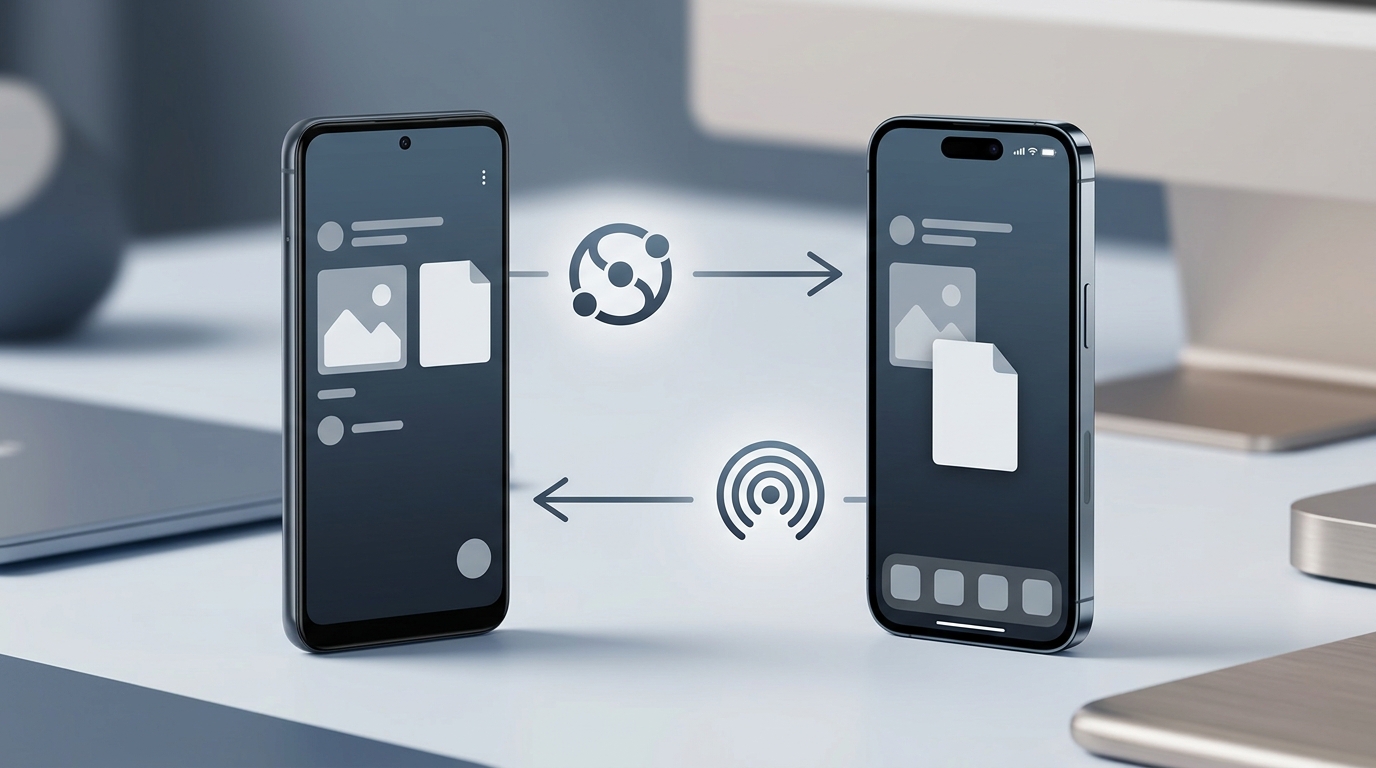
File sharing between Android and iPhone via Quick Share and AirDrop
Here are the Android smartphones that already support or will soon receive direct file transfer to Apple devices without apps:
- Google Pixel 10, Pixel 9, Pixel 9 Pro, Pixel 9 Pro XL, Pixel 9 Pro Fold — already working
- Samsung Galaxy S26, S26+, S26 Ultra — rollout started March 23, 2026
- Oppo Find X9, Find X9 Pro — expected in March 2026
- Other manufacturers — Qualcomm and Google are working on expanding to devices with Snapdragon chips
What’s the Best Way to Transfer Files from Android to iPhone
Before this feature appeared, transferring a file from Android to iPhone (or vice versa) without third-party apps was virtually impossible. The main file-sharing methods looked like this:
- Messengers (Telegram, WhatsApp) — they work, but compress photos and videos unless sent as files
- Cloud services (Google Drive, iCloud, Yandex Disk) — require uploading and downloading, depend on internet
- Special apps (SHAREit, LocalSend) — need to be installed on both devices
- Email — file size limitations
The new method via Quick Share and AirDrop is fundamentally different: files are transferred directly between devices — without cables, without third-party apps, through the built-in Galaxy and iPhone features. The transfer occurs via a direct connection between devices — data doesn’t pass through a server, isn’t logged, and isn’t stored anywhere else. An independent security audit by NetSPI confirmed that the connection between Quick Share and AirDrop is secure and doesn’t allow data leaks.
Transferring Files from Samsung Galaxy S26 to a Mac Computer
The feature allows transferring files not just between phones — Galaxy S26 also sees iPad and Mac. This means you can send a document from the Galaxy directly to a MacBook, and vice versa — send a file from Mac to Samsung wirelessly, without cables or intermediary services.
To do this, on the Mac you need to open AirDrop (Finder → AirDrop) and set visibility to “Everyone.” After that, the Galaxy S26 will see the computer in the list of available devices for sending.
For stable operation, both devices must be unlocked and near each other. Discovery happens quickly, but reliability is higher when both device screens are active.
Advantages of AirDrop Between iPhone and Android
If there are people with Android in your circle — and you regularly need to transfer photos, videos, or documents — this is a truly useful change. Previously, file exchange between platforms was an awkward ritual involving messengers and cloud storage. Now it works just as simply as AirDrop between two iPhones.
A limitation worth remembering: the feature currently only works in “Everyone for 10 minutes” mode — both on the AirDrop side and the Quick Share side. Google wants to add support for “Contacts Only” mode, but this requires cooperation with Apple. In crowded places, it’s best to enable the mode only at the moment of transfer.
If you’re an iPhone owner and your friends or colleagues are gradually upgrading their Samsung and Pixel devices — file sharing will become noticeably easier without any action on your part. AirDrop on iPhone already has everything it needs; you just need to select “Everyone” when receiving a file. For owners of older Galaxy models, nothing changes — for now, the feature is only available on the S26.