There are several ways to set wallpaper on iPhone. You can set a photo from your gallery, change wallpaper through settings, or use the new lock screen customization interface. Many users only know one of these options, even though there are actually more. In this guide, we’ll cover all the methods for setting wallpaper on iPhone. You’ll learn how to set a photo on the iPhone lock screen, how to change wallpaper through settings, and how to change the home screen background.
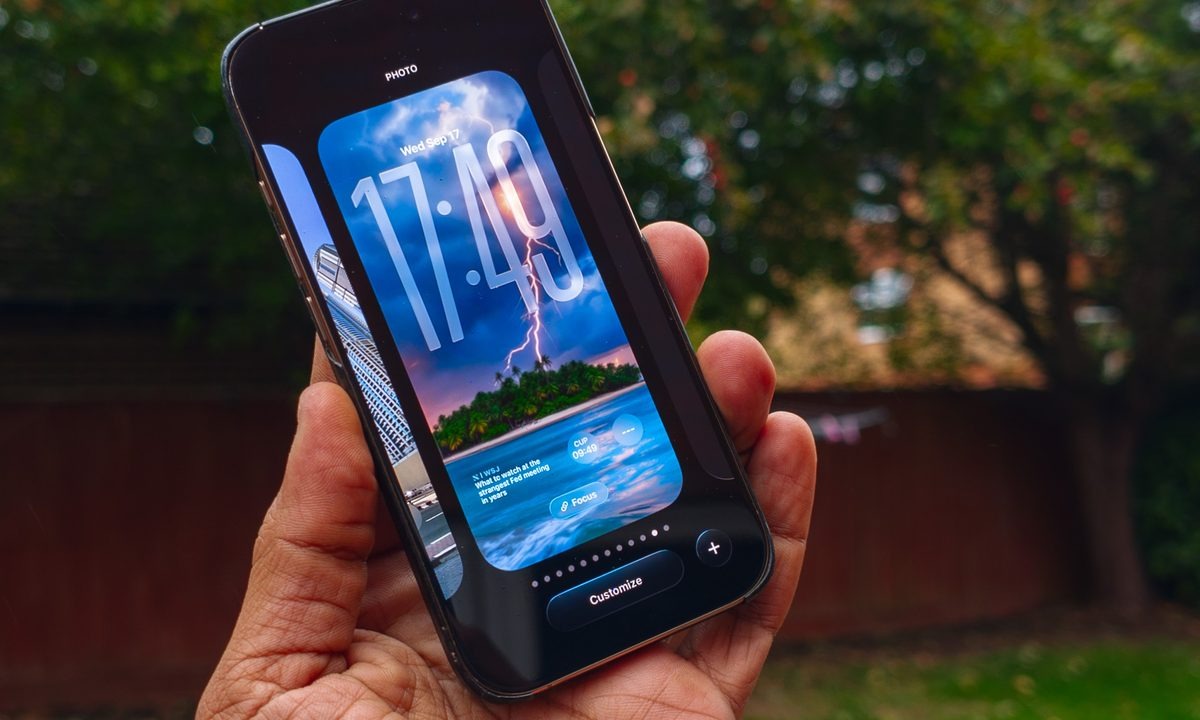
Now you’ll know all the ways to change wallpaper on iPhone. Image: digitaltrends.com
How to Set Wallpaper on iPhone Using the Photos App
The simplest way to set wallpaper on iPhone is to use the Photos app. This option is ideal if you want to set a photo as your iPhone wallpaper from your gallery. This is usually the method most users rely on. Through Photos, you can quickly select an image, adjust the scale, and immediately apply it to the lock screen or home screen. iOS also lets you change the perspective, add a filter, and adjust blur for the home screen.
Sometimes users don’t even realize they can set a photo as wallpaper directly from the gallery without going into system settings. Simply open the image and use the “Share” button. The system will then offer to apply it as a background right away. To set wallpaper on iPhone using the Photos app, do the following:
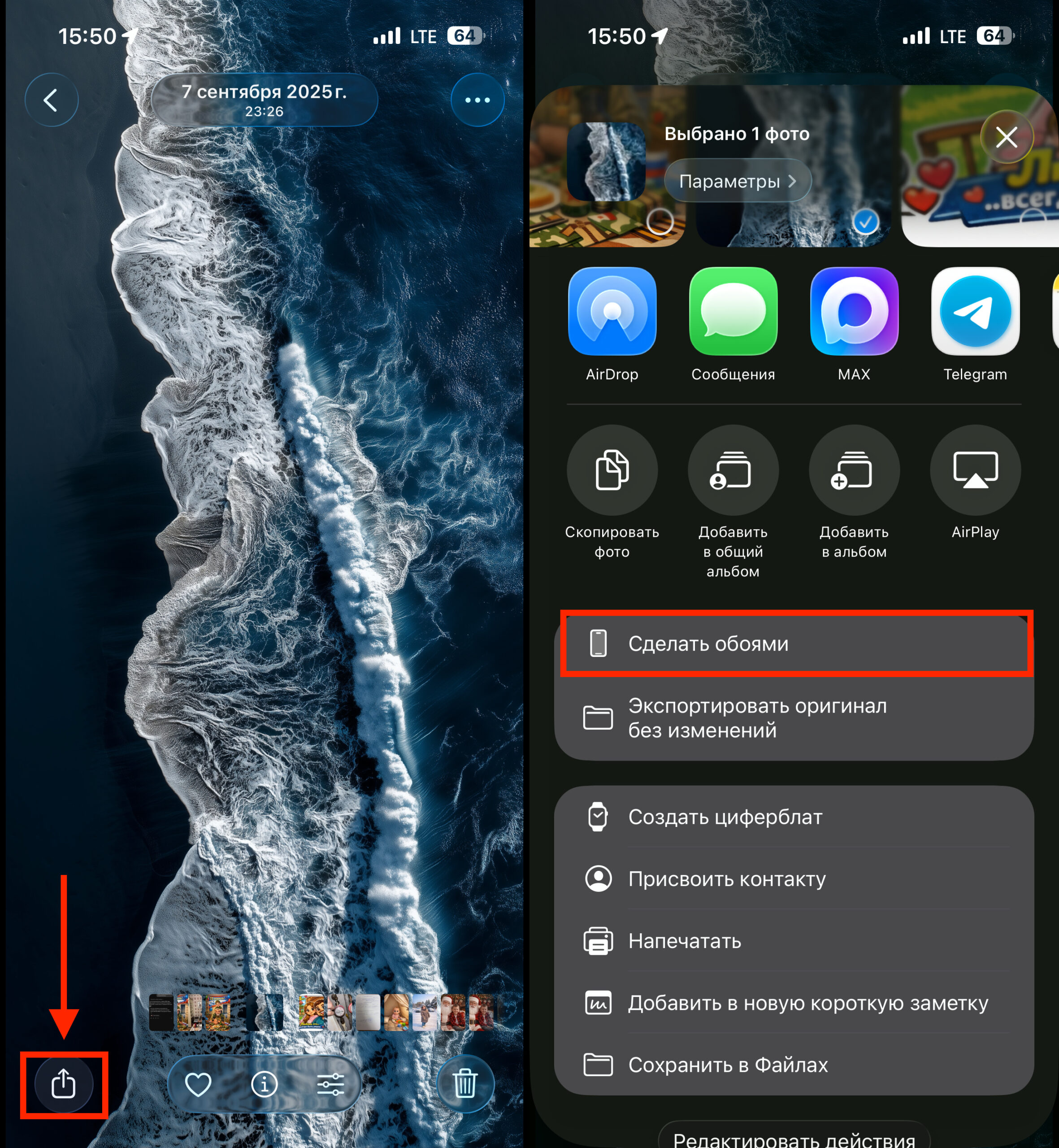
A couple of taps — and you’re done
- Open the Photos app on your iPhone.
- Find the image you want to set as wallpaper.
- Tap the “Share” button in the bottom-left corner.
- Scroll through the list of actions and select “Use as Wallpaper.”
- Adjust the image scale and position.
- If needed, enable or disable the depth effect.
- Tap the “Done” button.
- Choose where to set the wallpaper: lock screen, home screen, or both.
After that, the new wallpaper on iPhone will immediately appear on the selected screen. If you’re using your own photo, the system may automatically apply blur for the home screen so that icons are easier to see.
How to Set Wallpaper on iPhone Lock Screen
Starting with iOS 16, Apple added a dedicated interface for lock screen customization. Through it, you can not only set wallpaper on iPhone, but also change the clock font, add widgets, and create multiple lock screens. This method is convenient because you can immediately see how the new wallpaper on iPhone will look. You can quickly switch between options, change images, and customize interface elements.
Additionally, iOS allows you to create multiple lock screens with different wallpapers. For example, you can use one for work and another for personal photos. You can switch between them right from the lock screen. To set wallpaper through the iPhone lock screen, follow these steps:
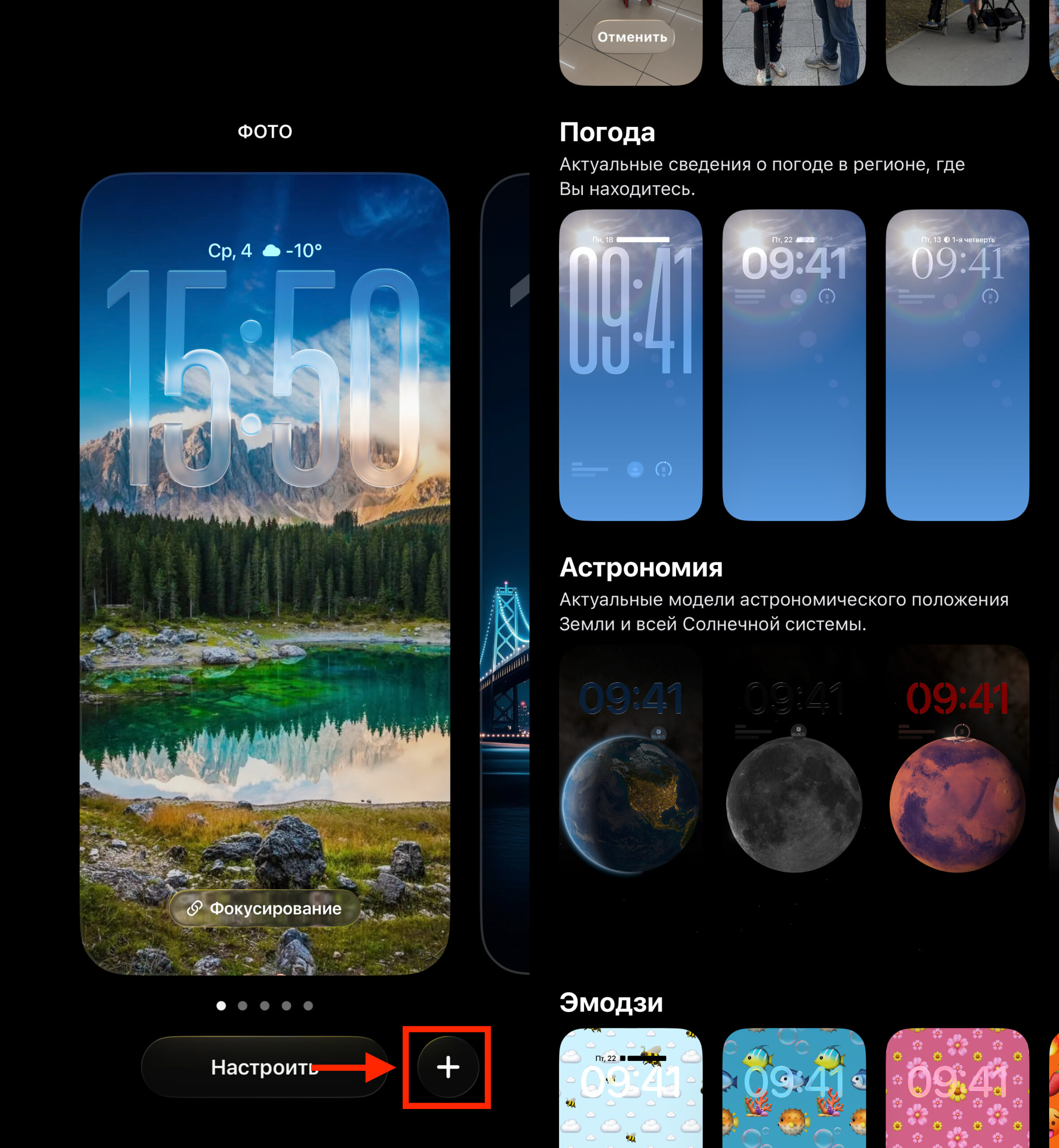
Some people prefer changing wallpaper through lock screen settings
- Unlock your iPhone but don’t go to the home screen.
- Long-press on the lock screen.
- Tap the “+” button to create a new screen.
- Choose an image from the suggested options.
- To set a photo on the iPhone lock screen, open the “Photos” section.
- Adjust the image position and scale.
- Add widgets if needed.
- Tap the “Add” button.
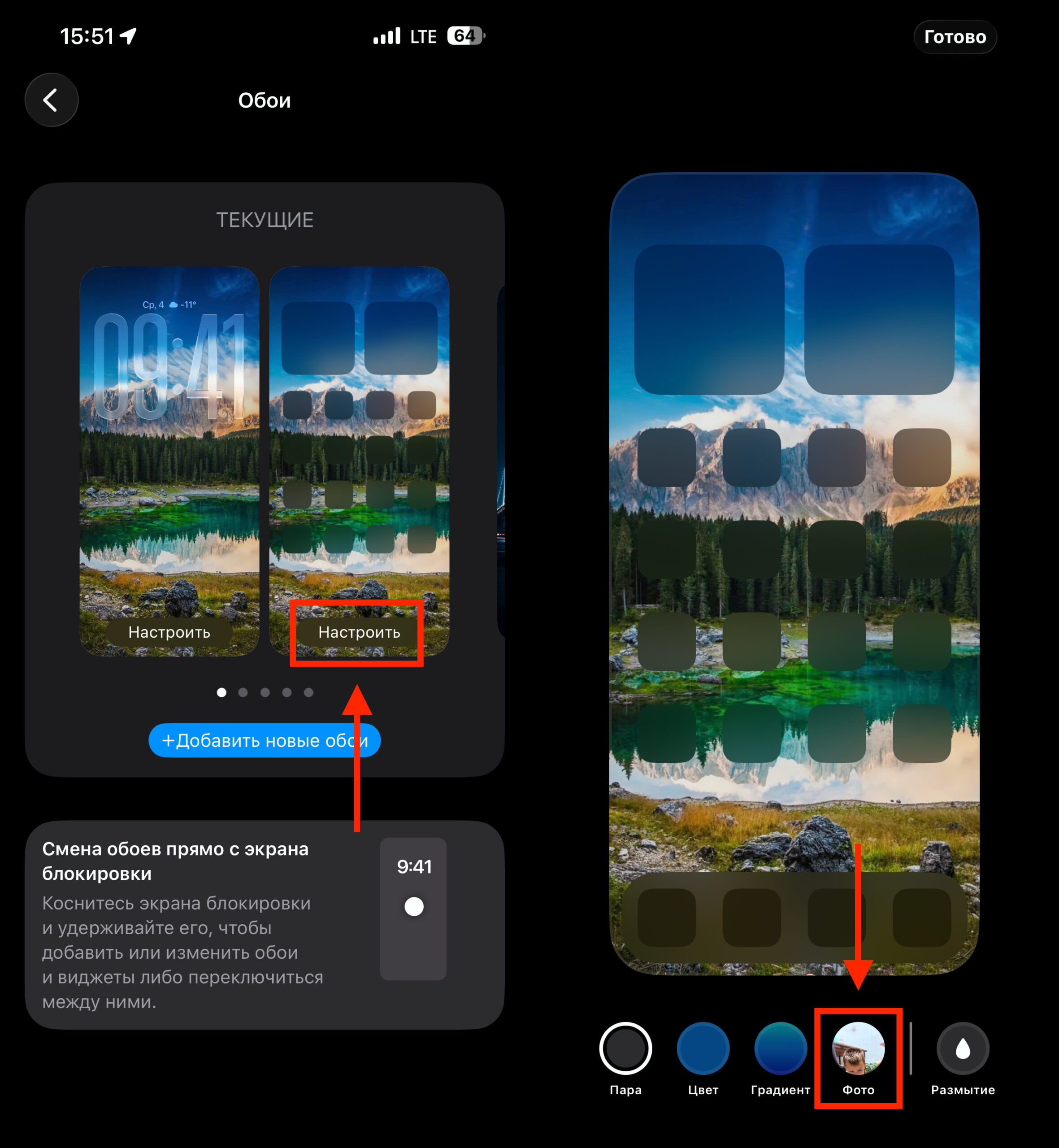
- Select “Customize Home Screen” if you want to change the home screen background.
After that, the new lock screen will be saved. You’ll be able to switch between different wallpapers right from the lock screen.
How to Change Wallpaper on iPhone Through Settings
Many users are accustomed to changing wallpaper through system settings. This method remains one of the most straightforward and is suitable for those who look for the feature in the iOS menu. Through settings, you can quickly change iPhone wallpaper, choose from Apple’s standard images, or set a photo from your gallery. It’s also convenient for managing already created screen variants here.
If you recently bought a new iPhone or updated the system, this section may look slightly different. Apple periodically updates the wallpaper settings interface, so the relevant options may be in a slightly different location.
Nevertheless, the logic remains the same. Through settings, you can not only set wallpaper on iPhone but also quickly replace it with another one without opening the gallery. To change wallpaper on iPhone through settings, follow these steps:
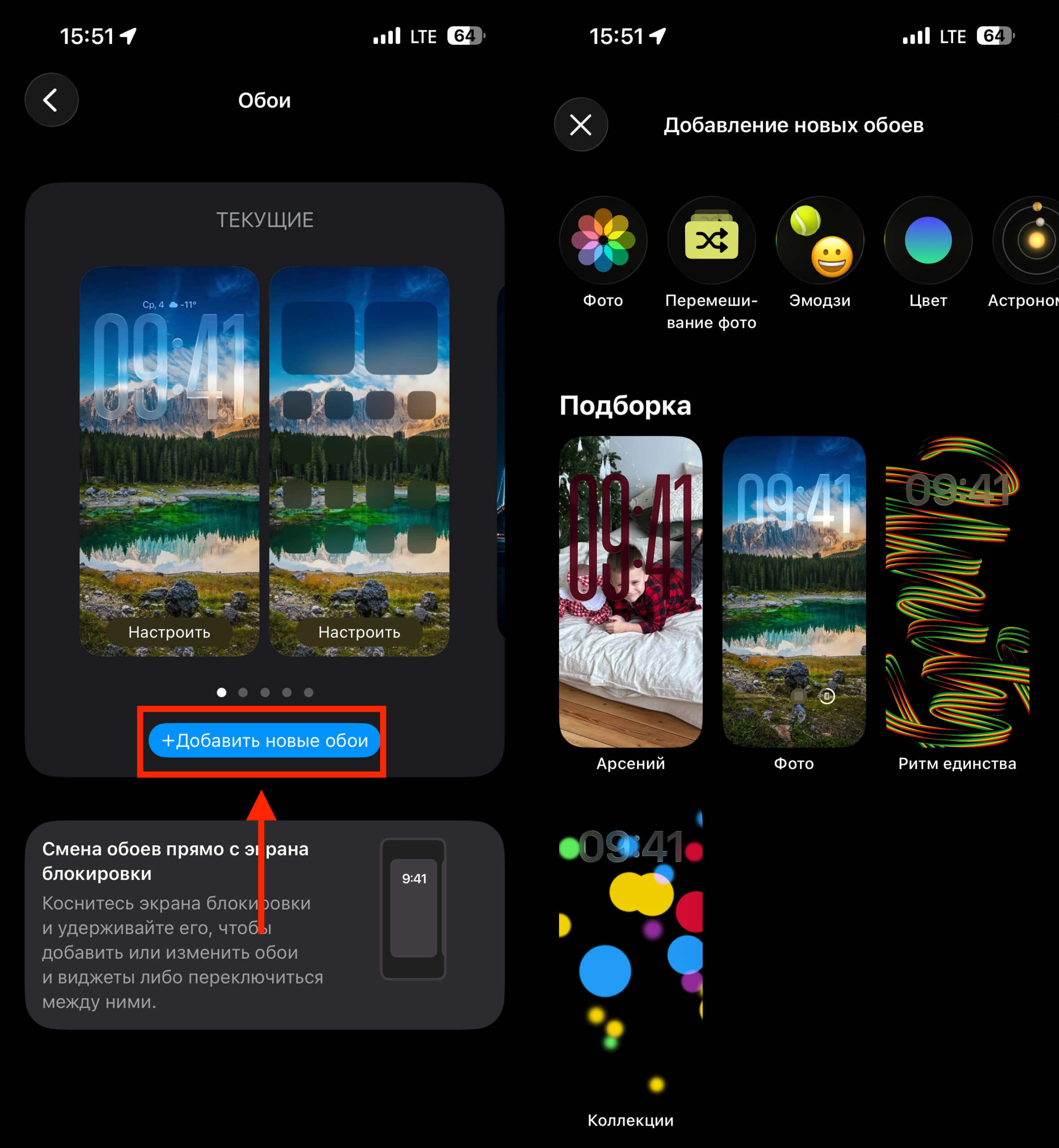
You can also set a new wallpaper through settings
- Open “Settings” on your iPhone.
- Go to the “Wallpaper” section.
- Tap “Add New Wallpaper.”
- Choose an image from the standard collections.
- To set wallpaper from the iPhone gallery, tap “Photos.”
- Adjust the scale and position of the image.
- Tap the “Add” button.
- Choose which screen the new wallpaper will be applied to.
This method is especially convenient for users who are used to changing system settings through the main iOS menu.
How to Set Different Wallpapers on iPhone Lock Screen and Home Screen
Many iPhone owners use different images for the lock screen and home screen. For example, you can set a beautiful photo on the lock screen and use a more subdued background on the home screen so that icons are easier to see.
This approach makes the interface more user-friendly. A vibrant image will greet you on the lock screen, while the home screen can feature a more neutral background that doesn’t distract from apps. In iOS, this can be done directly in the wallpaper settings menu. However, some standard Apple wallpapers have limitations and can only be used on one of the screens.
For example, astronomical wallpapers or dynamic backgrounds sometimes cannot be set alongside a custom photo on the other screen. In such cases, the system will offer to change only one screen. To set different wallpapers on the iPhone lock screen and home screen, do the following: