After a factory reset, an Android phone returns to its original state, and along with the system, contacts, photos, conversations, and apps are deleted. Many people encounter this when trying to fix errors, prepare a device for sale, or clear memory. That’s why before such actions, an Android phone backup is absolutely necessary — otherwise, recovering data will be impossible. It’s especially important to save information in advance because after a reset it disappears completely, and without a backup, there’s no way to get it back. A pre-made data backup should be a mandatory item on your checklist.

A backup is essential before a factory reset and beyond
What a Data Backup Provides
Any backup is a saved version of information that allows you to restore data after a reset or device replacement. If you don’t create a backup in advance, after wiping the phone you’ll have to set up the system and install apps from scratch. In the process, contacts, photos, documents, and conversations are lost. Many users think that data is automatically saved in their account, but this doesn’t always happen. That’s why a pre-made phone backup is considered mandatory before any serious actions.
After a reset, contacts, photos, videos, messages, and app settings are usually deleted. App backups also disappear if they weren’t saved to the cloud. Some information is stored only in the device’s memory, so without saving it, recovery is impossible. An Android backup helps protect data before wiping the system. It’s especially important to save files before transferring to a new smartphone.

In the modern world, you can’t go without a backup
If you save data in advance, you can quickly perform a restoration. You can also make a file backup to restore documents manually. This allows you to transfer data to a new phone without losing information. As a result, the device can be fully restored.
How to Make an Android Backup
On Android, there are several ways to save data, and it’s best to use multiple options at once. One method saves contacts, another saves files, and a third saves system settings. If you use only one method, some information may be lost. Therefore, before transferring data from Android to Android, it’s recommended to check all backup options. Below we’ll look at the main ways to properly make a phone backup.
Google Account Sync
The simplest way to save data is to enable Google account sync. It automatically saves your calendar, notes, and some device settings. Google contact sync also works, ensuring that numbers don’t disappear after a reset. After signing into the account on a new device, data transfer begins. This allows you to quickly restore basic information. To enable sync, follow these steps:
- Open your phone’s Settings.
- Go to the “Accounts and Sync” section.
- Select Google.
- Open sync settings.
- Enable the desired items.
- Tap “Sync.”
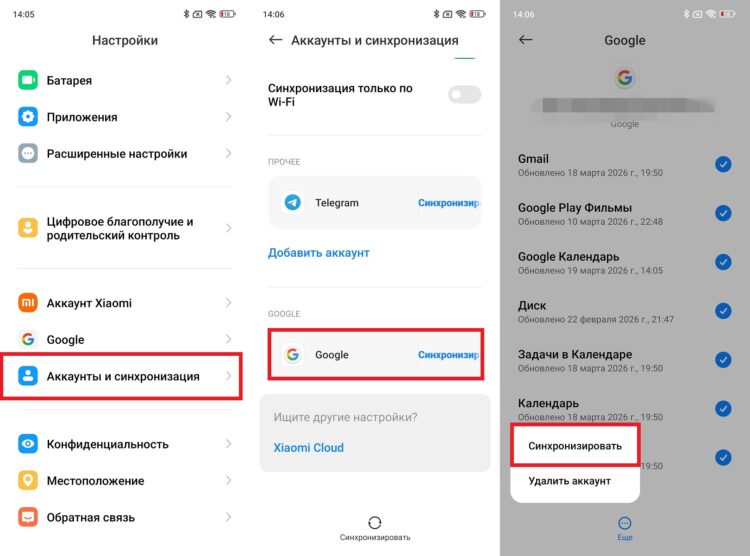
Google sync is the foundation
After this, data will be stored in the account, and you’ll be able to transfer data to a new phone. This method saves contacts and some settings. However, it doesn’t replace a full backup. Therefore, it’s additionally recommended to enable system backup.
Backup via Google
Android has a built-in Google backup feature that saves device settings to the cloud and also allows you to upload your photos and videos. To make a backup, follow these instructions:
- Open Settings.
- Go to “About Phone.”
- Select “Backup and Restore.”
- Go to the “Google Account” section.
- Tap “Start Backup.”
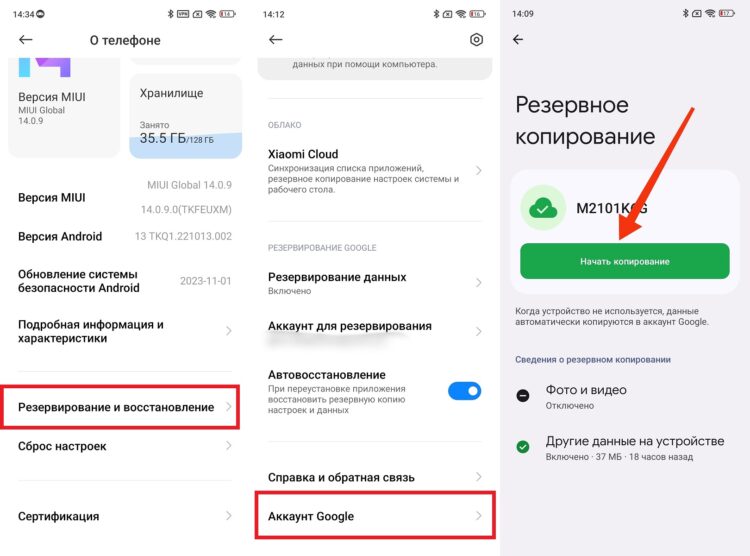
This is how standard backup through Google cloud works
After this, you can check where backups are located in Google Drive. There you’ll see a list of devices and the date of the last save. The free plan is limited, so large files may not fit. In that case, you need to free up space or purchase additional storage.
Cloud Data Backup
In addition to Google, many manufacturers offer their own cloud services. With their help, you can save more information than with the standard method. Usually settings, gallery, and some apps are saved. This option is suitable if you need a full device backup. It’s especially convenient to use the cloud when transferring data to a new phone. To enable saving on the smartphone manufacturer’s servers, follow these instructions:
- Open Settings.
- Go to “About Phone,” then “Backup and Restore.”
- Select the cloud (for example, Xiaomi Cloud on Xiaomi, REDMI, and POCO).
- Enable data saving and confirm cloud sync.
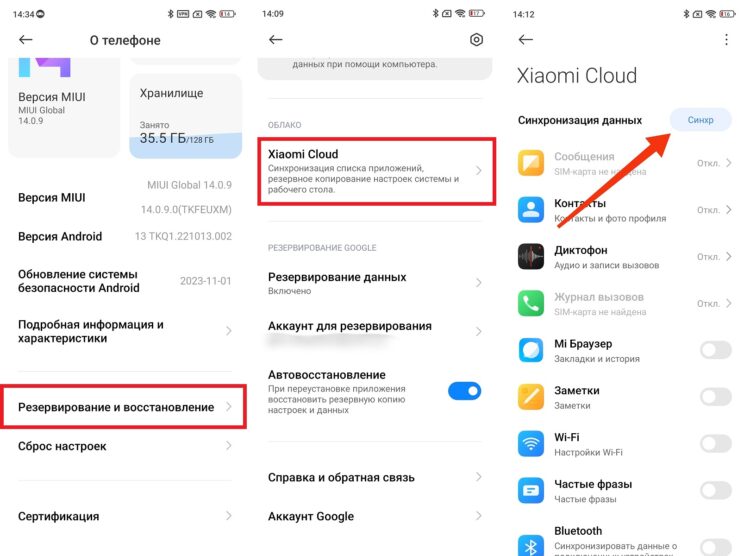
You can also use another cloud service
After this, you can check where backups are stored in the cloud. Usually they’re available when signing into the same account. In the free version, storage is limited, so sometimes you need to purchase additional space. It’s better to make sure in advance that the backup has been created.
Local File Backup
You can save data without the cloud by using a computer or external drive. This method is suitable for photos, videos, and documents. It allows you to create a file backup that can be restored manually. This is useful before repairs or system updates. Especially if you don’t have a stable internet connection. To save files, follow these steps:
- Open Settings.
- Go to “About Phone,” then “Backup and Restore.”
- Select local backup creation.
- Confirm the backup save.
- After saving, transfer the backup to another device.
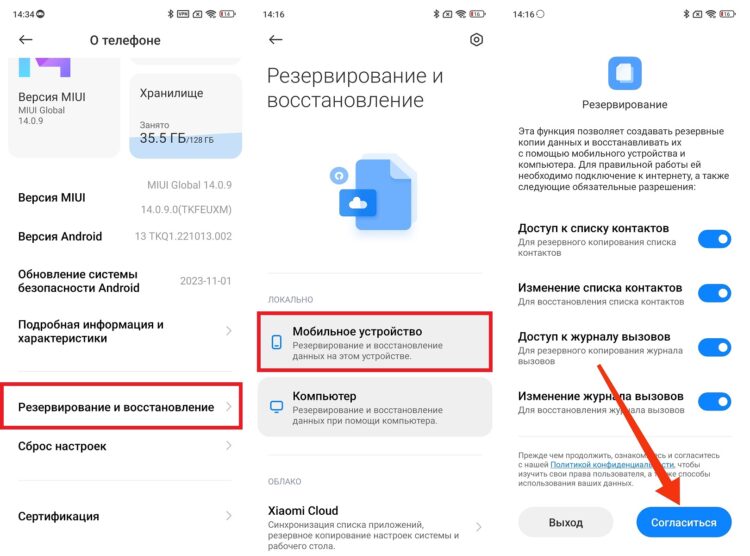
A local backup works too, but you’ll have to transfer it manually
This way you can transfer backups without using the cloud. This method doesn’t save settings but helps restore essential data. Therefore, it’s best used together with other methods. Then the chance of losing information will be minimal.
Manual File Transfer
The simplest option is to manually save the folders you need. You can copy photos, videos, and documents. This method is often used before selling a phone. It allows you to quickly save important data without complex settings. But it doesn’t replace a full backup.