If your chat list in Telegram looks like a news feed after an earthquake, it means you haven’t tidied it up in a while. It’s always a shame to delete chats in a messenger, impossible to read them, and simply unbearable to live with this chaos. That’s exactly what the archive in Telegram is for. It’s something between “hide from sight” and “delete forever.” Conversations don’t disappear, history is preserved, and your main screen finally becomes clean. In this article, we’ll figure out how to add a chat to Telegram archive, how to return a chat from the archive in Telegram, and how to unarchive everything that was accidentally hidden. We’ll separately cover Android, iPhone, and desktop, because each platform has its own nuances.

Understanding how to use the archive in Telegram on smartphone and PC
What Is the Archive in Telegram and Where to Find It
The archive in Telegram works like a storage closet in an apartment. You put chats there that you don’t need right now but aren’t ready to delete. You can also send groups, channels, and even bots there. The messenger remembers where you left off in a channel or group feed, so after returning from the archive, you’ll continue scrolling from the same spot.

Telegram’s archive lets you store unnecessary chats separately from the main ones
It’s important to understand one thing: the archive doesn’t delete messages and doesn’t free up your phone’s memory. All media files remain in the cache, and the conversations themselves are stored in Telegram’s cloud. This is purely an organizational tool, not a storage optimization one. If you definitely don’t need a chat anymore, it’s easier to just delete it.
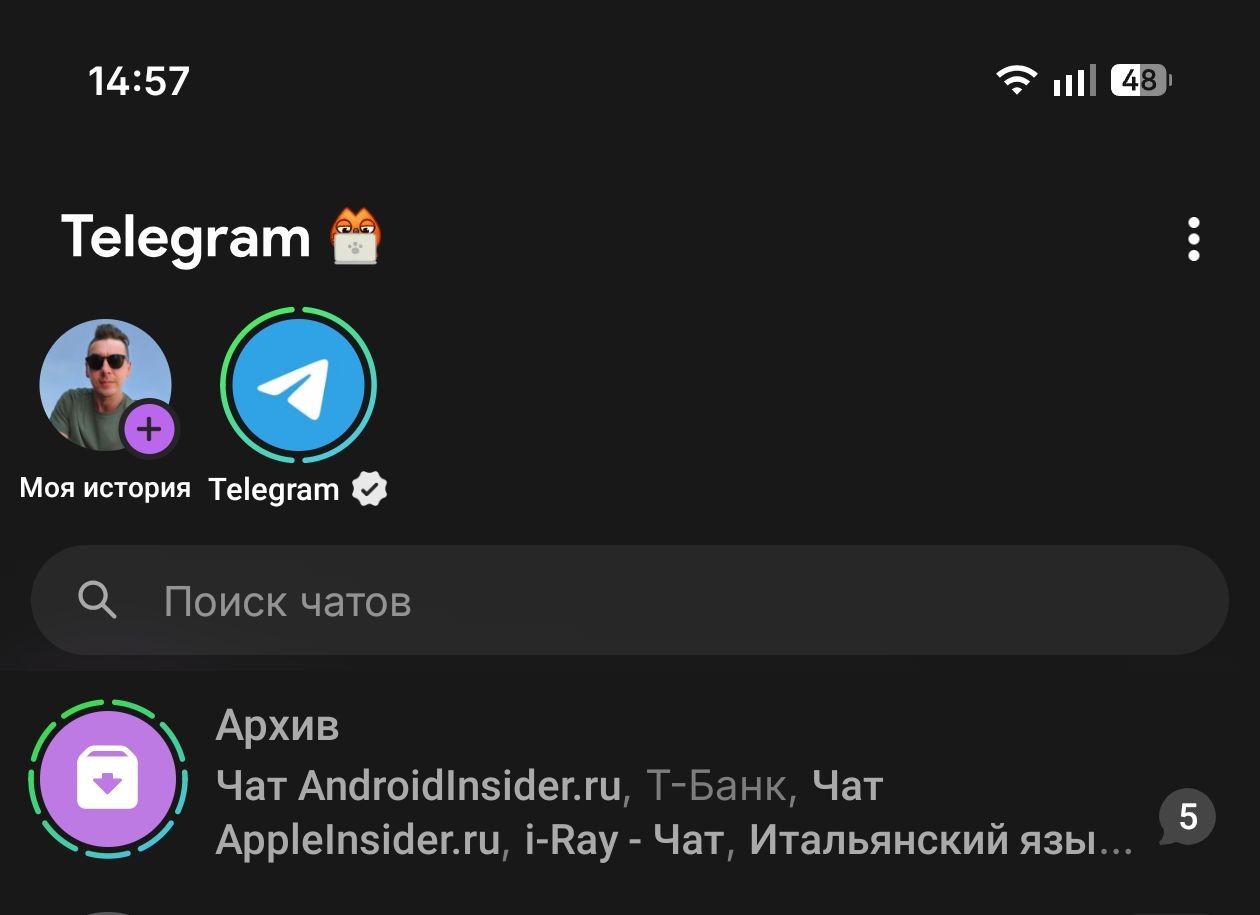
By default, the archive in Telegram doesn’t appear on the main screen. It shows up automatically as soon as you add at least one chat to it. On a phone, you can find it at the very top of the chat list, and if it’s hidden, you just need to pull the chat list down with your finger. On a computer, it’s even simpler: the “Archive” folder hangs in the side menu or right above the chats.
How to Add a Chat to Telegram Archive on Android
Moving a chat to Telegram archive on Android can be done with literally one gesture. I do this every week myself when another spam bot sneaks into my dialog list. The first method, the quickest:

You can add a chat to the archive with a swipe
- Open Telegram and find the desired chat on the main screen.
- Swipe it all the way to the left.
- The chat will instantly fly to the archive, and a confirmation will appear at the top.
If swiping left performs a different action for you (for example, pinning a chat), this is easy to change. Go to Settings – Chat Settings – Swipe left in chat list and select “Archive.”
The second method is suitable if you need to send multiple chats to the archive at once:
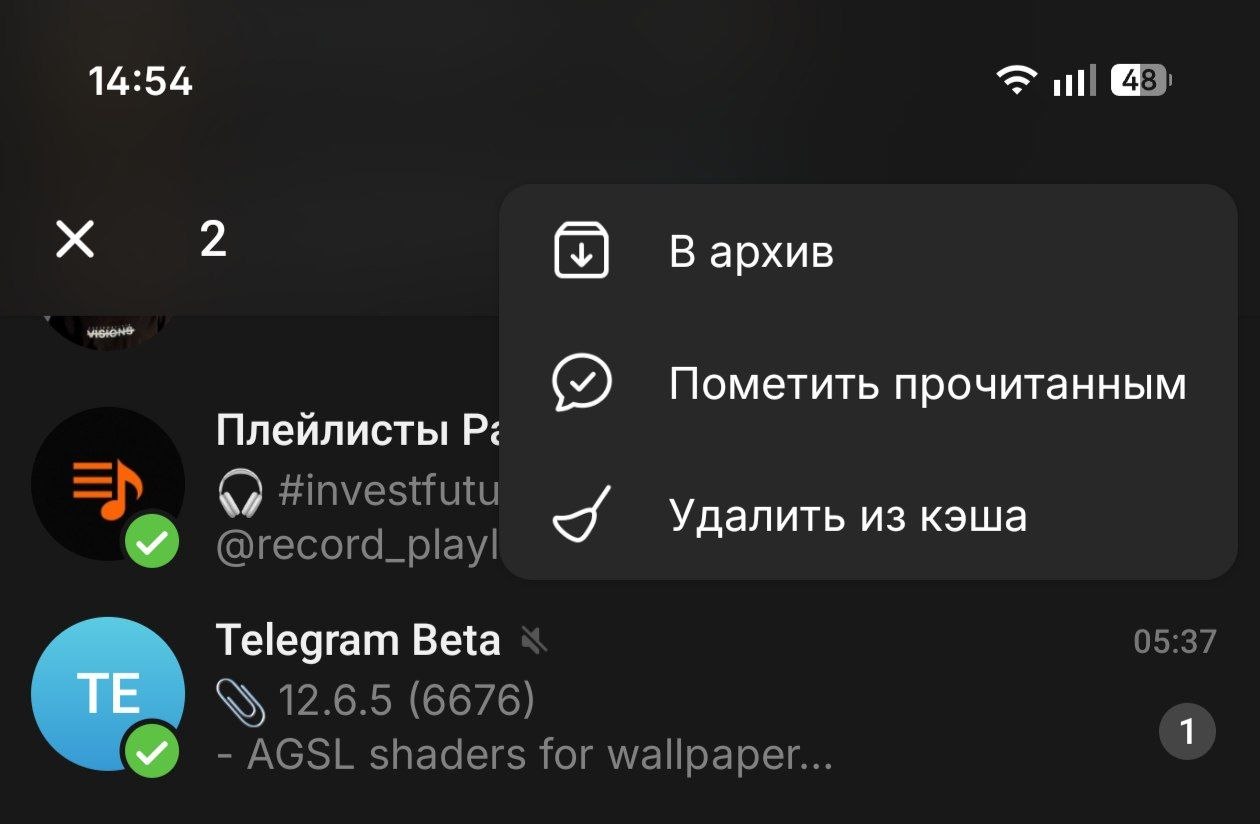
You can archive multiple chats at once
- Long-press on the first chat until a menu appears at the top.
- Now tap on the other chats you want to hide.
- Tap the three dots in the upper right corner and select “Archive.”
Done. All selected conversations will disappear from the main screen. If you actively use folders in Telegram, keep in mind: the same chat can be in both a folder and the archive simultaneously. So don’t be surprised if after archiving, it continues to show up in the “Work” or “Channels” tab.
How to Archive a Conversation in Telegram on iPhone
On iOS, the process is virtually identical to Android. Telegram developers, fortunately, didn’t come up with unique gestures for each platform.
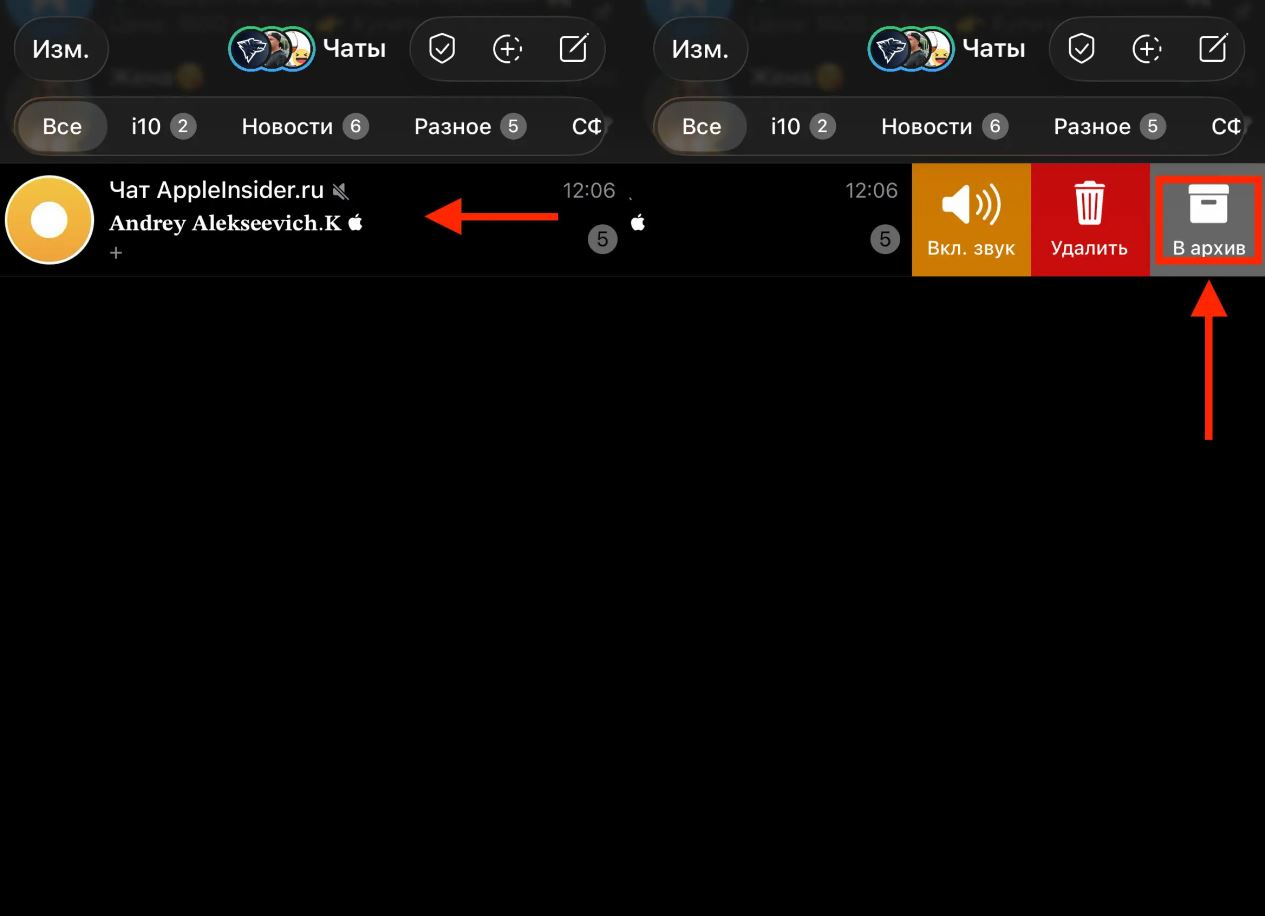
Archiving on iPhone works in a similar way
- Open the chat list in Telegram.
- Swipe left on the desired chat.
- Tap the “Archive” button that appears.
All archiving features in Telegram on iPhone also work: you can long-press one chat, select the rest, and send the whole group to the archive via the context menu. The “Archive” folder will appear above all conversations. If it annoys you, it can be hidden (more on that below).
How to Move a Chat to Telegram Archive on a Computer
In Telegram Desktop, there are no swipes, but there’s the good old right mouse button. Here’s how to do it in the app on Windows and Linux:

Adding a chat to archive from a computer is also very simple
- Right-click on the desired chat.
- Select “Archive.”
- The chat will move to the “Archived Chats” folder, accessible through the menu (☰) in the upper left corner.
By the way, on PC you can move the “Archive” folder from the side menu right into the chat list. To do this, right-click on “Archive” and select “Move to chat list.” And vice versa, if it’s in the way, send it back to the main menu.
How to Find the Archive in Telegram If It Disappeared
This is probably the most common question. A person accidentally swipes the archive to the left, it disappears, and panic ensues. In reality, nothing bad happened. On Android and iPhone: