The Photos app on iPhone is not just a gallery with all your pictures and videos. It allows you to edit photos without third-party software, and quite well at that. However, there’s no dedicated “Create Collage” button on iPhone. But you can make a collage from multiple photos right on your iPhone without installing third-party apps — through the built-in Shortcuts app. And if you need more templates and effects, apps from the App Store or online services that work right in Safari will help. Let’s go through all the methods — from the quickest built-in option to advanced editors.
Figuring out how to create a beautiful collage on iPhone
How to Make a Collage on iPhone Using the Shortcuts App
The Shortcuts app is installed on every iPhone running iOS 13 and later. It allows you to automate actions — including combining multiple photos into a single image. Essentially, you set up a “recipe” once, and then use it with just a couple of taps.
Here’s a step-by-step guide on how to create a shortcut for a collage:
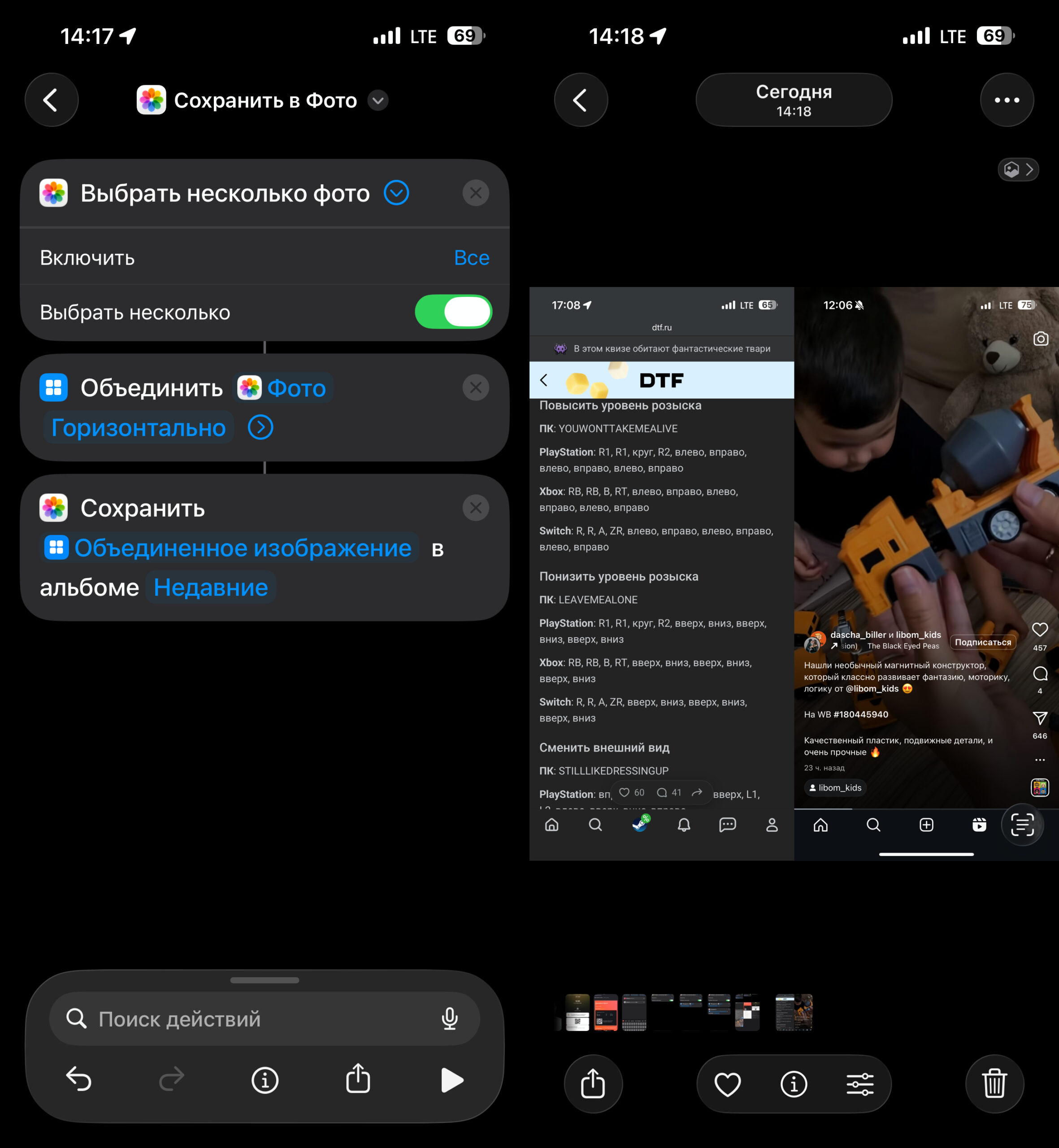
A fairly simple shortcut with three actions
- Open the Shortcuts app on your iPhone.
- Go to the “Shortcuts” tab at the bottom of the screen.
- Tap the “+” icon in the upper right corner to create a new shortcut.
- Tap “Add Action.”
- In the search bar, type “Select Photos” and choose this action.
- Next to the added action, tap the arrow and enable the “Select Multiple” option — this will allow you to select several photos for the collage at once.
- Tap the search bar at the bottom again and type “Combine Images.” Add this action.
- In the block that appears, you can choose the stitching direction: horizontally, vertically, or in a grid. You can also set the spacing between frames in pixels — if you set it to 0, the photos will be joined edge to edge, and if you set it to 10 or 20, for example, there will be a gap between them.
- In the search bar again, find the action “Save to Photo Album” and add it. The finished collage will automatically be saved to your gallery.
- Tap the shortcut name at the top, give it a clear name — for example, “Collage” — and choose an icon.
- Tap “Done.”
Now, to make a collage, simply open Shortcuts, tap the shortcut you created, select the photos you want — and the finished image will be saved to your gallery.
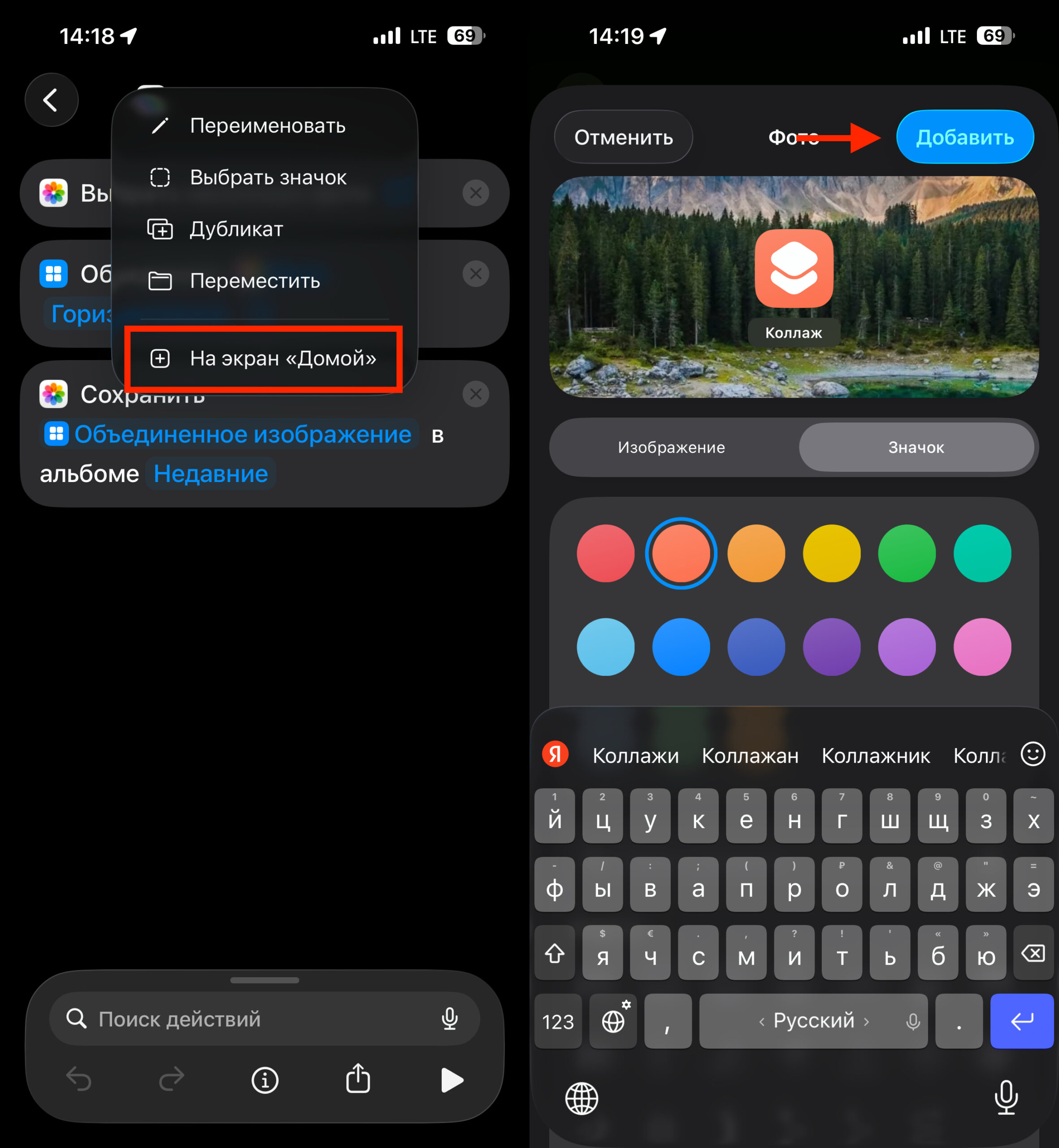
Add a button to your home screen and create collages with one tap
Tip: for even quicker access, add the shortcut to your home screen. To do this, open Shortcuts, find your shortcut, tap the three-dot icon, then the arrow at the top, and select “Add to Home Screen” → “Add.” After that, you’ll be able to create a collage with a single tap from your iPhone’s main screen.
The main advantage of this method is speed. No downloads, ads, or subscriptions. The main downside is minimal customization: no fancy frames, backgrounds, or templates. It’s more of a quick photo stitch than a full-fledged designer collage.
Apps for Creating Collages on iPhone from the App Store
If you want more templates, frames, backgrounds, and editing options, it’s worth checking out apps from the App Store. Here are several tried-and-tested options:
- “Photo Collages” — a simple and intuitive app with a large collection of grids and templates. You can change proportions, add text and stickers. Basic features are free, while advanced ones require a subscription.
- Google Photos — an app from Google that many people already use for storing photos. It has a built-in collage creation feature: just select 2 to 9 photos, tap “+” and choose “Collage.” Google Photos will offer several grid options and automatically adjust the images.
- Canva — a powerful graphic editor with a huge library of collage templates. Ideal for those who want a near-professional result. Many templates are free, but some content is only available in the paid Canva Pro version.
- Layout for Instagram* — a minimalist app that does exactly one thing: creates collages. You select photos, the app suggests grid options, and you move and scale the images within the cells. Completely free, with no subscriptions.
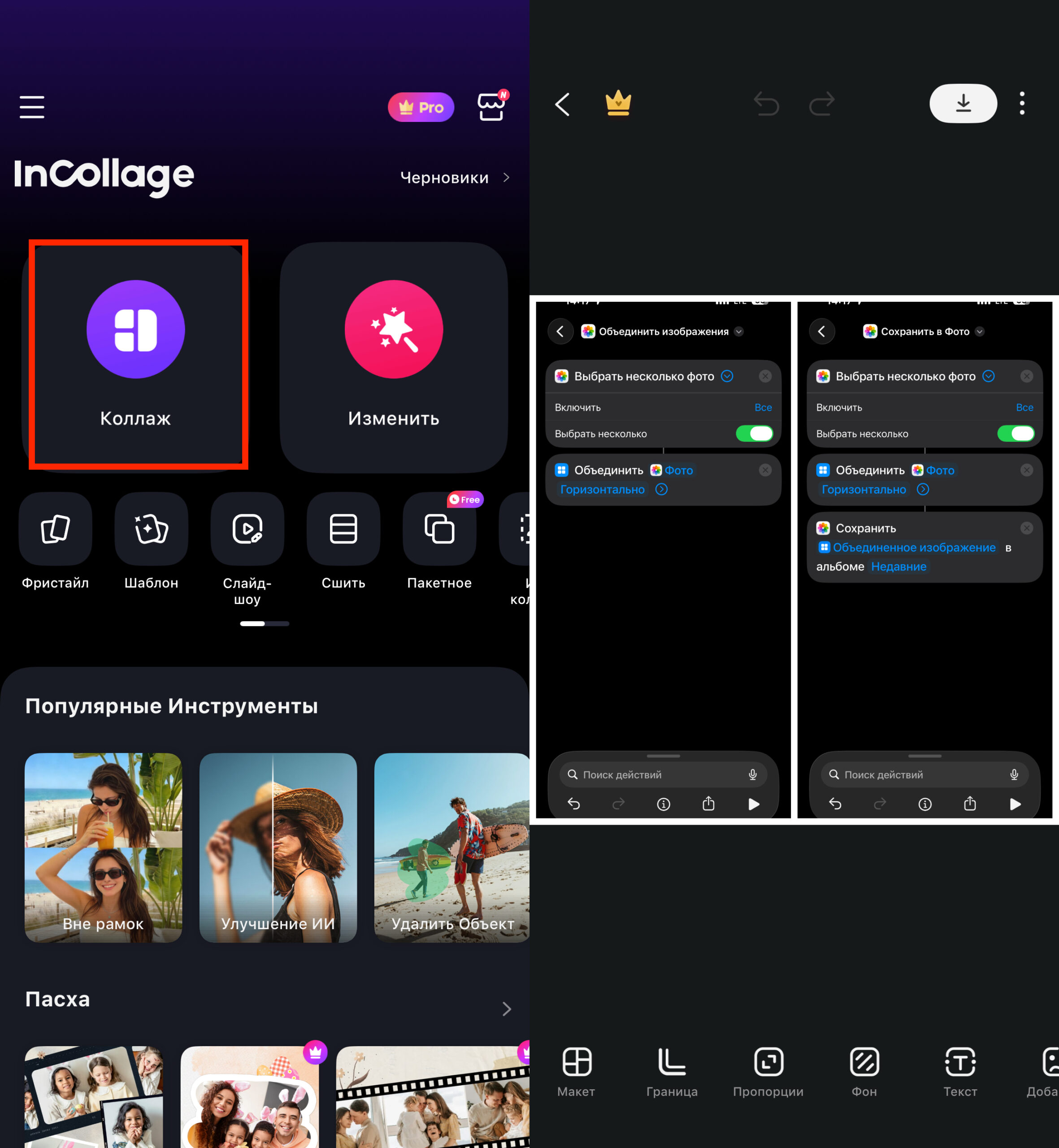
Just choose a layout and photos
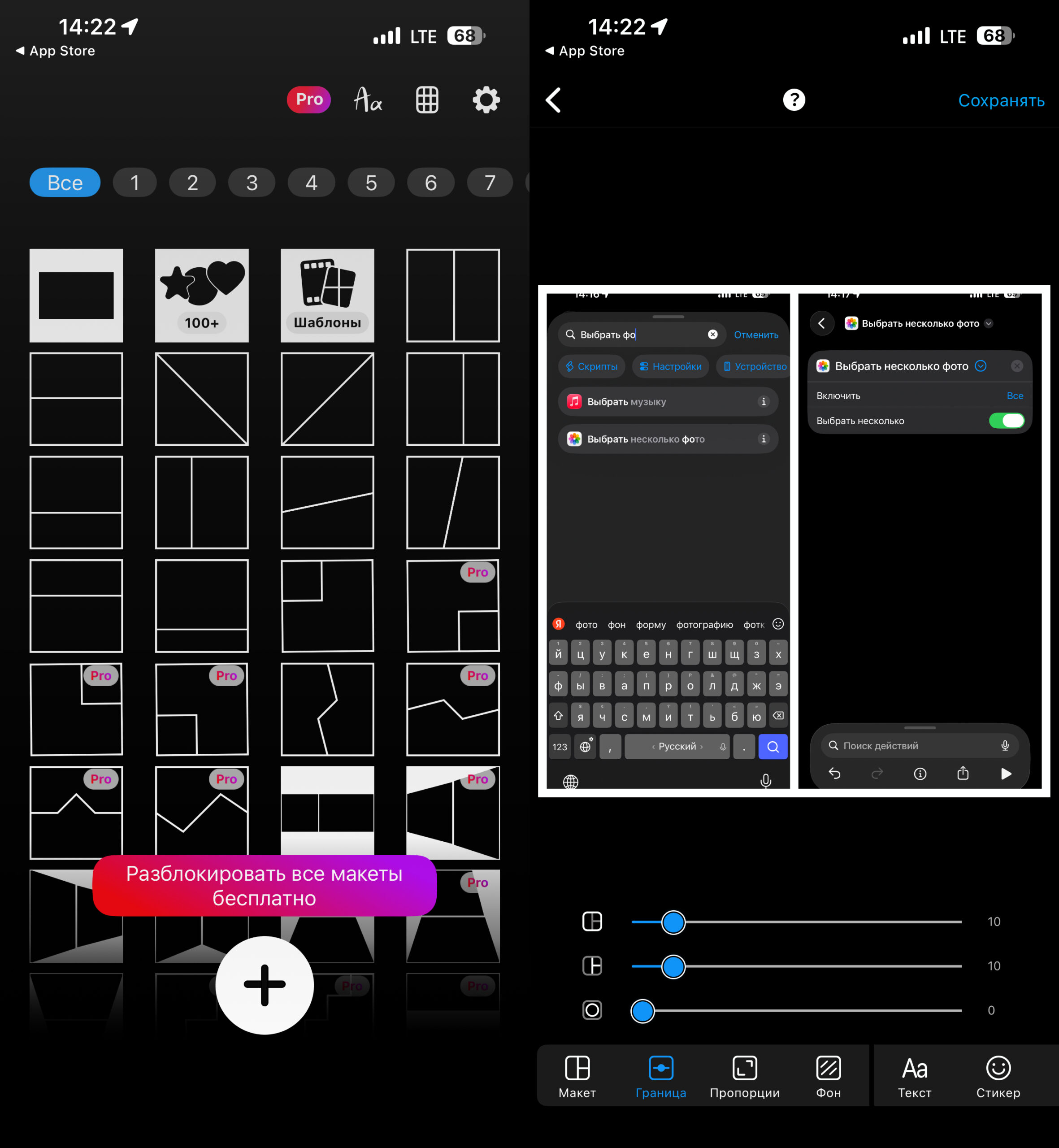
Same working principle as the previous apps
The choice of app depends on the task. For quickly stitching two or three photos together, Layout is enough. For beautiful designs with text and backgrounds, Canva is a better fit. And if you already store your photos in Google Photos, it’s easiest to create a collage right there.
Online Services for Creating Collages on iPhone
If you don’t want to install anything — not even a free app — you can put together a collage right in Safari or another browser on your iPhone. There are several web services that work without registration or installation:
- FotoJet (fotojet.com) — one of the most convenient online collage editors. Simple interface, lots of grid templates, ability to add text and change backgrounds. Works right in the browser; you can upload photos from your iPhone gallery.
- Fotor (fotor.com) — another popular service with a collage editor. It offers templates in various styles: from classic grids to creative layouts. Basic features are free.
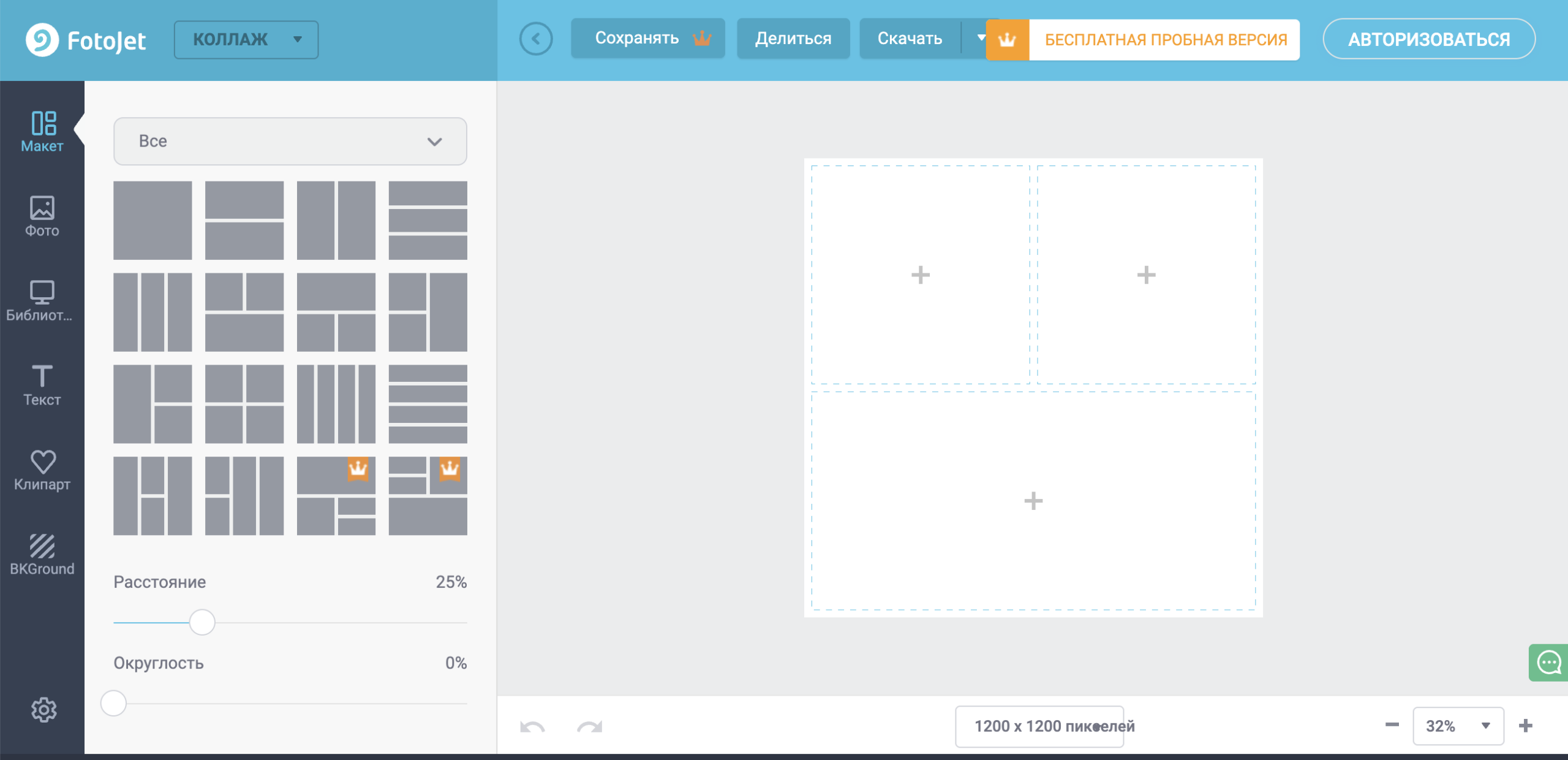
Same principle as apps: layout, photos, result